How to Turn On or Off Scroll Inactive Windows in Windows 11

Want to scroll through background windows in Windows 11 without clicking them first? Here’s how to control the “scroll inactive windows” feature.
This handy accessibility option lets you scroll through windows that aren’t currently active, by moving your mouse cursor over them. It’s a great way to quickly move through multiple open applications without needing to click into each one.
For example, with this setting enabled, you could hover over a background browser window and use your mouse wheel to scroll down its content while still actively typing in a Word document. By default, this feature is often turned on in Windows 11, but you can toggle it in the Settings app.
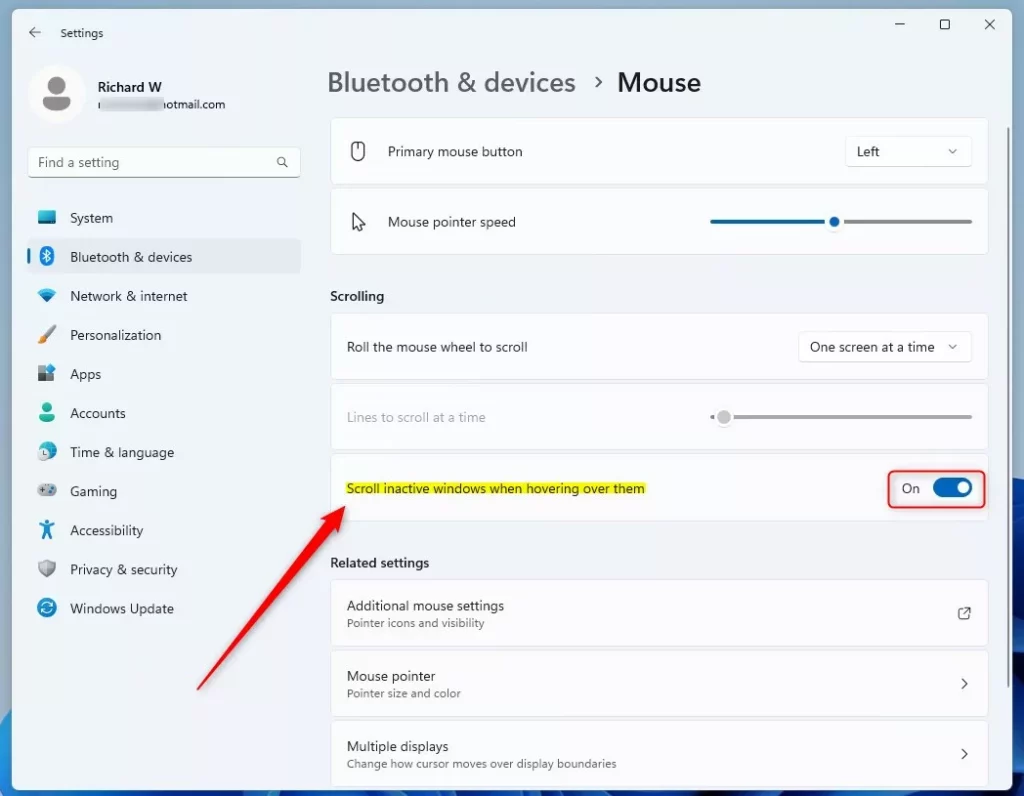
Open Settings, go to Bluetooth & devices, then Mouse. Find “Scroll inactive windows when hovering over them” and toggle it On or Off. This setting lets you scroll background windows without clicking them.
Option One
Turn On or Off Scroll Inactive Windows in Settings
- Open Settings by pressing ⊞ Win+I on your keyboard.
- Click Bluetooth & devices on the left side.
- Click Mouse on the right side.
- Find the option Scroll inactive windows when hovering over them.
- Turn it On (this is the default) or Off based on what you want.
- Close Settings when you’re done.
Option Two
Turn On or Off Scroll Inactive Windows Using Command Line
- Open Windows Terminal.
- Select either Windows PowerShell or Command Prompt.
- Copy and paste one of the commands below and press Enter.
To Turn On:
reg add "HKCU\Control Panel\Desktop" /V MouseWheelRouting /T REG_DWORD /d 2 /F
To Turn Off:
reg add "HKCU\Control Panel\Desktop" /V MouseWheelRouting /T REG_DWORD /d 0 /F
That’s it! Your setting will take effect right away.
Summary
Now you know three ways to control scrolling inactive windows in Windows 11. The Settings option is the simplest if you prefer using the graphical interface. The Registry and Command Line options are good if you’re comfortable with those tools. All three methods achieve the same result—they simply offer choices based on how you prefer to work with your computer.
How do I scroll inactive windows in 🪟 Windows 11?
Search for "Settings" on Windows 11 Taskbar's Search. Enable the "Scroll inactive windows when hovering over them" toggle button. Click on the app's window and scroll the ListView.
How do I turn off scroll inactive windows?
Press ⊞ Win+I or manually find it using the Start menu search bar. On the left pane, select Bluetooth & devices. On the right pane, click Mouse. Under the Scrolling section, find the Scroll inactive windows when hovering over them option.
Was this guide helpful?

About the Author
Richard
Tech Writer, IT Professional
Richard, a writer for Geek Rewind, is a tech enthusiast who loves breaking down complex IT topics into simple, easy-to-understand ideas. With years of hands-on experience in system administration and enterprise IT operations, he’s developed a knack for offering practical tips and solutions. Richard aims to make technology more accessible and actionable. He's deeply committed to the Geek Rewind community, always ready to answer questions and engage in discussions.




No comments yet — be the first to share your thoughts!