How to Customize Mouse Pointer Color in Ubuntu

You can easily customize your mouse pointer color in Ubuntu’s Appearance settings to improve visibility.
Changing your mouse pointer’s color involves adjusting system-wide settings within Ubuntu’s desktop environment, allowing you to select from predefined color schemes or even create your own. This is particularly useful for users with high-resolution screens or busy backgrounds where the default black pointer can easily get lost.
For instance, switching to a bright yellow or red pointer can significantly enhance its visibility. You can achieve this by navigating through Ubuntu’s Settings application.
Install Gnome Tweaks via the terminal using `sudo apt install gnome-tweaks`. Open Tweaks, navigate to Appearance, and select your desired mouse color theme.
How to change your mouse pointer color in 🪟 Windows 11
You can change your mouse pointer color in Ubuntu Linux for any number of reasons. This change could help people with poor vision and those struggling to see black objects on the screen.
In Windows 11, most settings are grouped together in one place called ‘System Settings’. From there, you can manage everything from system configurations to user accounts and updates.
However, Ubuntu doesn’t include mouse color options by default. To do this, you’ll need to install some extra software.
To get started, follow the steps below:
Press Ctrl+Alt+T on your keyboard to open the terminal console. Then, run the commands below to install Gnome Tweaks.
sudo apt install gnome-tweaks
After installing the app, go to the Activities overview and search for Tweaks.
In the app, under Appearance, choose a mouse color theme you want to use.
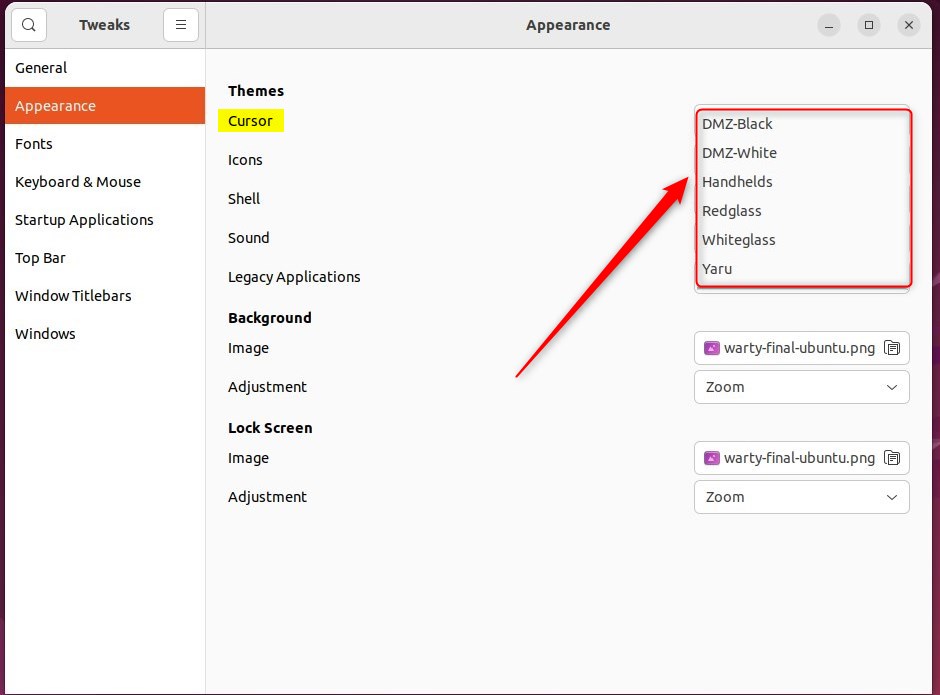
That should do it!
Conclusion:
- Changing the mouse pointer color in Ubuntu Linux can greatly benefit people with poor vision or low light sensitivity and those looking to match the color with the desktop theme or background.
- This cosmetic change can also make locating the mouse pointer on wide screens or across multiple displays easier.
- While Windows 11 offers centralized settings for various configurations, Ubuntu may require the installation of additional software, such as Gnome Tweaks, to change the mouse pointer color.
- By following the steps provided, users can customize the mouse color theme in Ubuntu Linux to suit their preferences or accessibility needs.
How to set a custom mouse pointer?
For us we'll double click on the normal select and then browse to our downloaded pointer and click open and then apply. And there you go you've customized your cursor.
How to setup cursor on Ubuntu?
And you can see that app image is being downloaded. Let's go here. And it should be in my downloads directory. From there let me clear the screen and if I do ls-ltr.
Was this guide helpful?

About the Author
Richard
Tech Writer, IT Professional
Richard, a writer for Geek Rewind, is a tech enthusiast who loves breaking down complex IT topics into simple, easy-to-understand ideas. With years of hands-on experience in system administration and enterprise IT operations, he’s developed a knack for offering practical tips and solutions. Richard aims to make technology more accessible and actionable. He's deeply committed to the Geek Rewind community, always ready to answer questions and engage in discussions.


[…] additional desktop changes, including mouse cursor color, window, and others, you may want to use GNOME […]