Change Mouse Double-Click Speed in Ubuntu

You change the mouse double-click speed in Ubuntu within the Accessibility settings.
This setting determines the maximum time allowed between two mouse clicks for them to be registered as a single double-click action. If the interval between your clicks exceeds this threshold, the system will interpret them as two separate single clicks.
For example, the default double-click speed timeout in Ubuntu’s GNOME desktop environment is typically around 400 milliseconds.
Adjusting this value helps you fine-tune your mouse interactions, whether you find yourself accidentally opening applications with single clicks or needing more time for your double-clicks to register.
Adjust the Double-Click Delay slider in the Accessibility settings under Pointing & Clicking. Navigate to System Settings, then Accessibility, and move the slider to your preferred speed. This change applies to your mouse, touchpad, and other pointing devices.
How to change a mouse double-click setting in Ubuntu Linux
Let’s look at how to change this mouse double-click setting in Ubuntu Linux. Ubuntu Linux lets you open items with a double-click. The mouse speed setting adjusts how fast you need to click your primary mouse button to open something.
Here’s how to change mouse double-click settings in Ubuntu Linux.
Ubuntu Linux has a centralized location for most of its settings. You can manage everything from system configurations to creating new users and updates within the System Settings panel.

Alternatively, click on the System menu at the top-right corner of the top bar on your desktop.
From the System menu, select Settings, as shown below.

In the Settings app, click on the Accessibility tile to open its panel.

In the System Settings -> Accessibility panel, look under Pointing & Clicking. Adjust the Double-Click Delay slider to a value you find comfortable.
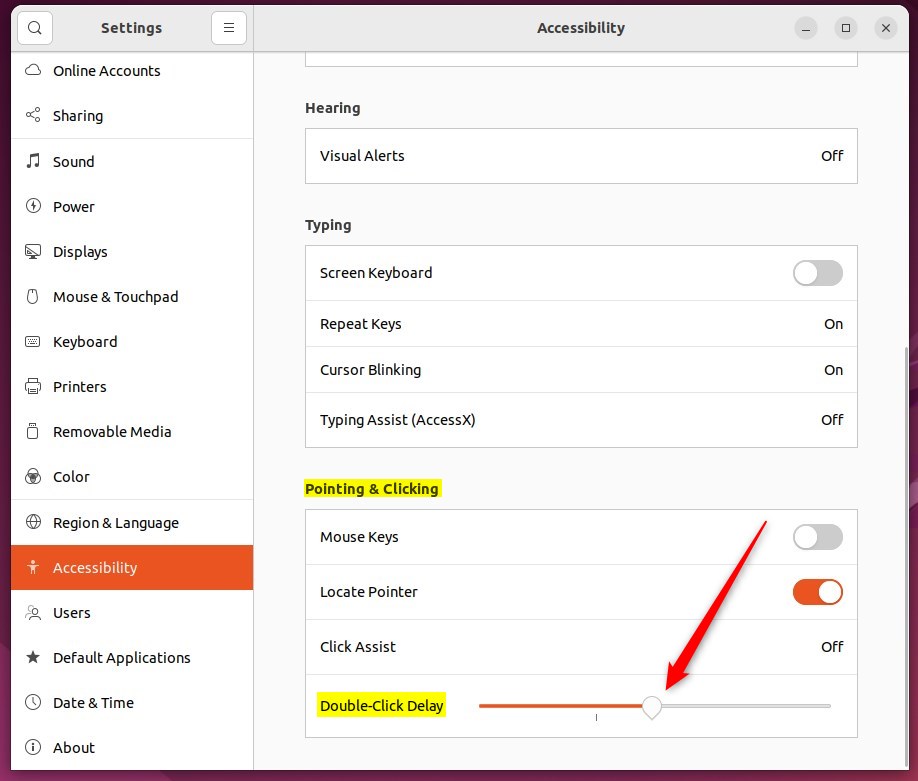
This setting will affect your mouse, touchpad, and other pointing devices.
That should do it! You can now close the Settings app.
Conclusion:
- Changing the mouse double-click setting in Ubuntu Linux is a simple process through the System Settings panel.
- The Double-Click Delay slider under Pointing & Clicking in the Accessibility panel allows users to adjust the double-click speed according to their preference.
- This setting applies to the mouse and affects the touchpad and other pointing devices connected to the system.
- Following these steps, users can customize their mouse settings to improve their overall user experience with Ubuntu Linux.
Was this guide helpful?

About the Author
Richard
Tech Writer, IT Professional
Richard, a writer for Geek Rewind, is a tech enthusiast who loves breaking down complex IT topics into simple, easy-to-understand ideas. With years of hands-on experience in system administration and enterprise IT operations, he’s developed a knack for offering practical tips and solutions. Richard aims to make technology more accessible and actionable. He's deeply committed to the Geek Rewind community, always ready to answer questions and engage in discussions.



[…] everyone can double-click or do it properly. You can instead choose to have files and folders open when you click on them […]