
Want to save your downloaded files somewhere other than the default “Downloads” folder in Windows 11? Here’s how to change your Microsoft Edge download location.
This helps you organize downloads better. You could even send large files straight to an external drive or project folders on your PC.
Follow these steps to customize where Edge saves your downloads. You’ll find this setting in Edge’s browser options, usually under the “Downloads” section.
Open Edge settings, click Downloads, and then click Change next to Location to select a new folder. This updates the default save location for all future downloads.
Why change your download location?
Changing your download folder helps you stay organized. For instance, it keeps personal files separate from system files. It can also save space on your main drive if you use a secondary drive for large files.
What happens when you are done?
You can easily change where Microsoft Edge saves your downloaded files in Windows 11, making sure they go directly to a folder you choose.
To change where your files save, follow these three steps:
- Open Edge and click the Settings and more (three dots) menu, then select Settings.
- Click Downloads on the left sidebar.
- Click the Change button next to Location and pick your new folder.
Option 1Change Default Downloads Folder
Use this method for your personal user account.
- Open Microsoft Edge.
- Click the Settings and more button (three dots) and select Settings.
- Click Downloads in the left menu.
- Click the Change button next to Location.
- Select your folder and click Select Folder.

Option 2Change for All Users (Admin Required)
If you’re an administrator, you can change the Edge download location for all users on your Windows computer using the Registry Editor.
- Open Registry Editor by typing
regeditin the search bar. - Go to
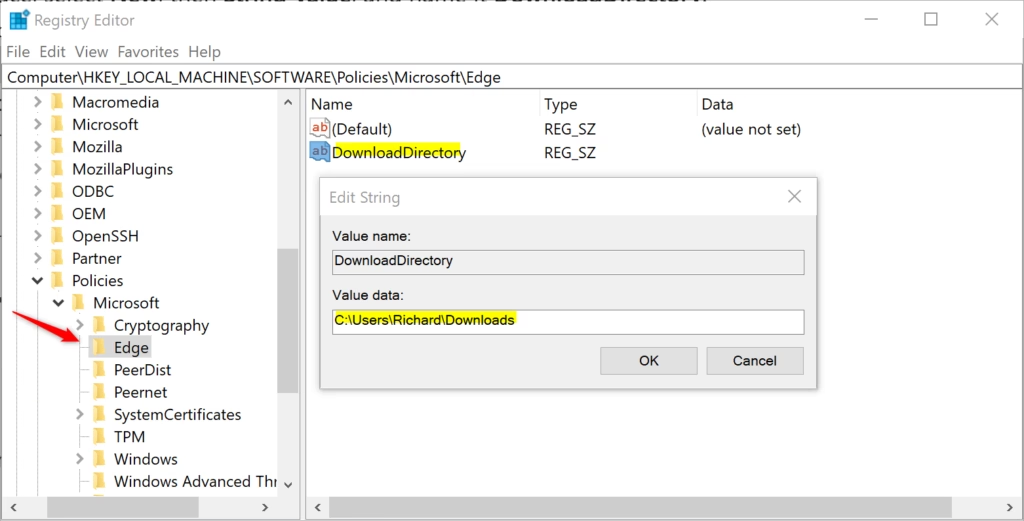
HKEY_LOCAL_MACHINE\SOFTWARE\Policies\Microsoft\Edge. - If the Edge folder is missing, right-click Microsoft, select New, then Key, and name it Edge.
- In the right pane, right-click, select New, then String Value, and name it DownloadDirectory.
- Double-click DownloadDirectory and enter your path, such as
"D:\Downloads".
Summary
Changing your download folder is a great way to manage your storage. You can use the browser settings for a quick change or the Registry Editor (a system tool for making advanced changes) for system-wide control. Remember that changing this setting only affects future downloads.
Managing Your Downloads
You can manage your active downloads by clicking the Downloads icon in the top toolbar. This shows your current progress and history. If you want to keep your browser running fast, you should clear your Edge cache (temporary internet files) regularly.
Ask where to save each file
In the Downloads settings menu, turn on the switch for Ask me what to do with each download. Now, Edge will ask you where to save every file before it starts downloading.
How to clear your download history
To clear your history, click the Downloads icon in the toolbar. Click the three dots inside the menu and select Clear all download history. This removes the list of files you have downloaded but does not delete the actual files from your computer.
Can I set different locations for different file types?
Microsoft Edge does not support setting different folders for different file types like images or documents. You can only set one default folder at a time.
How do I clear my download history in Edge?
Clearing your download history in Edge removes the list of files you’ve downloaded from the browser’s view, but it doesn’t delete the actual files from your computer.
Does changing the download location affect existing files?
No, changing your download location in Edge settings does not move or affect files you have already downloaded. It only changes the destination for new files you download from the internet moving forward. Your old files will remain in the folder where they were originally saved.
Was this guide helpful?

About the Author
Richard
Tech Writer, IT Professional
Richard, a writer for Geek Rewind, is a tech enthusiast who loves breaking down complex IT topics into simple, easy-to-understand ideas. With years of hands-on experience in system administration and enterprise IT operations, he’s developed a knack for offering practical tips and solutions. Richard aims to make technology more accessible and actionable. He's deeply committed to the Geek Rewind community, always ready to answer questions and engage in discussions.



No comments yet — be the first to share your thoughts!