How to Use Periods in Windows 11 Date Formats

You can use periods in Windows 11 date formats by changing your regional settings to specify a custom short date format.
Windows 11 typically displays dates using forward slashes, such as 9/8/21. However, you have the flexibility to alter this default.
By setting your short date format to a pattern like `MM.dd.yyyy`, your PC will display dates using periods, for example, 08.09.2023. This simple adjustment allows you to personalize how dates appear on your system.
Change your short date format in Windows 11’s regional settings to use periods. Go to Settings > Time & Language > Language & Region, then Administrative language settings > Formats > Additional settings > Date, and change the Short date to `dd.MM.yyyy`.
Why Change Your Date Format?
Many users prefer using periods instead of slashes for their Windows 11 date format. It often aligns better with regional standards or personal readability preferences. Changing this setting allows you to customize your system clock and date display to match your specific workflow.
What happens when you are done?
Once you finish these steps, your taskbar clock and system applications will update to show your new date format. This change is global for your user profile, meaning most apps that pull system time will adopt the new style immediately.
Method 1Using Windows Settings
You can change your Windows 11 date format using the built-in Settings app. This method is straightforward and doesn’t require any special tools, making it perfect for everyday users wanting to adjust how dates appear on their system.
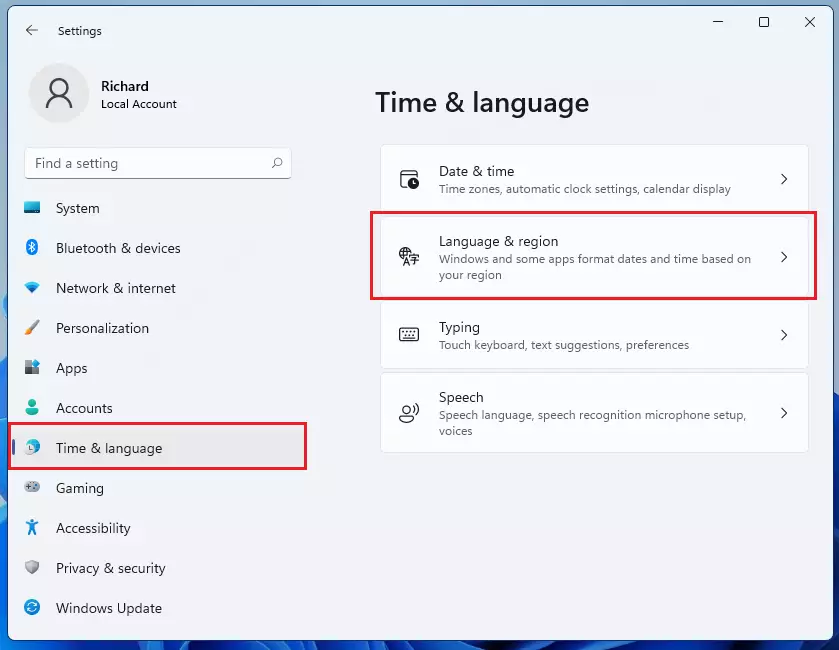
Inside Settings, click Time & Language on the left. Then, on the right side of your screen, select Language & Region.
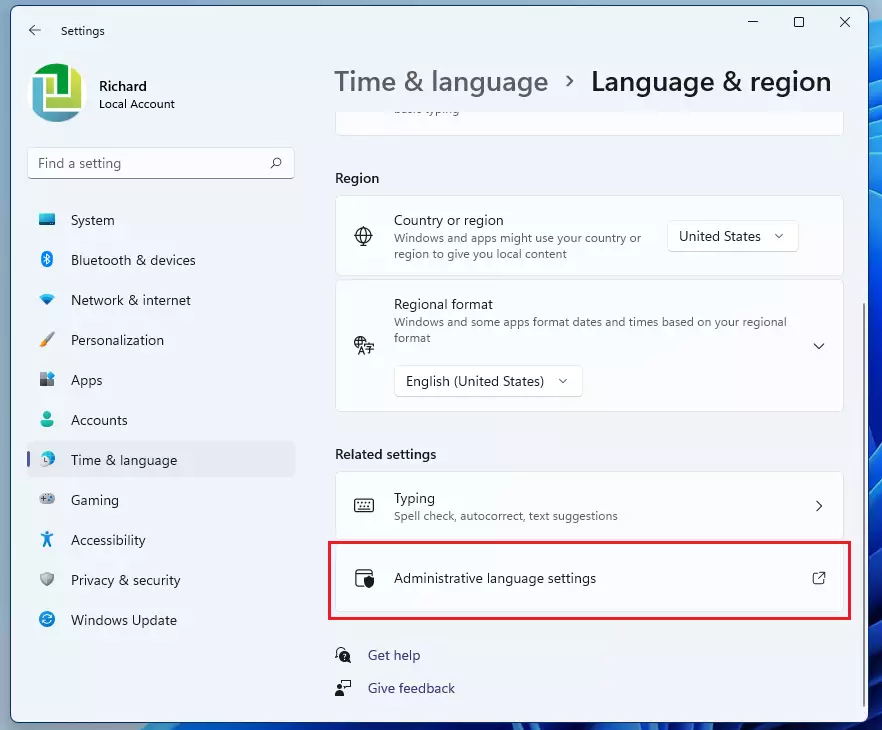
Scroll down to the “Related settings” area and click Administrative language settings. Be aware: This step may require administrator permission.
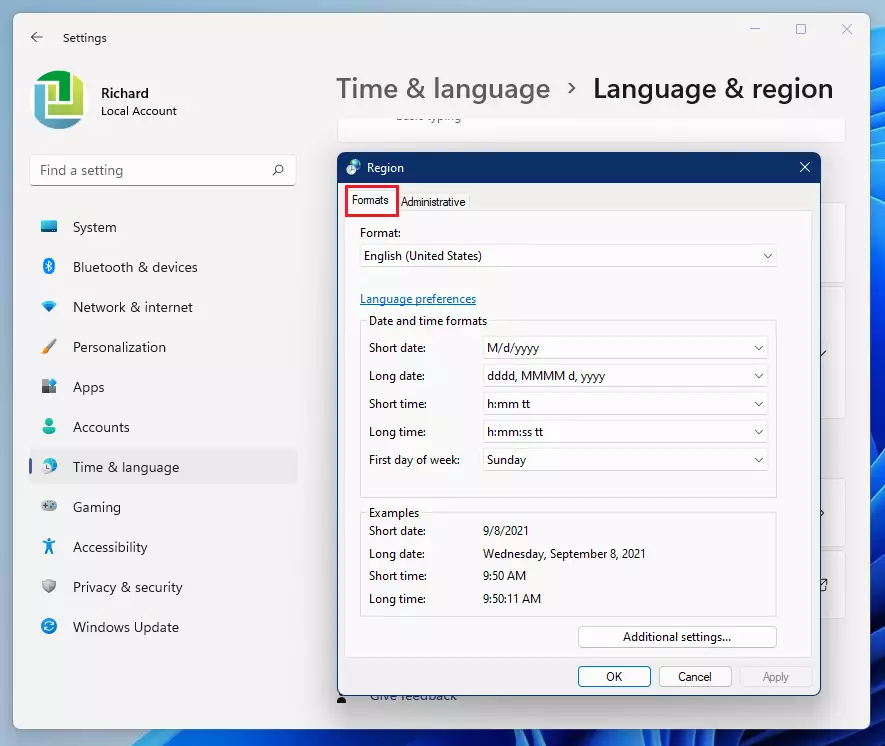
A new box named Region will appear. Click on the Formats tab. Because the default options do not include periods, we will need to type the format in manually.
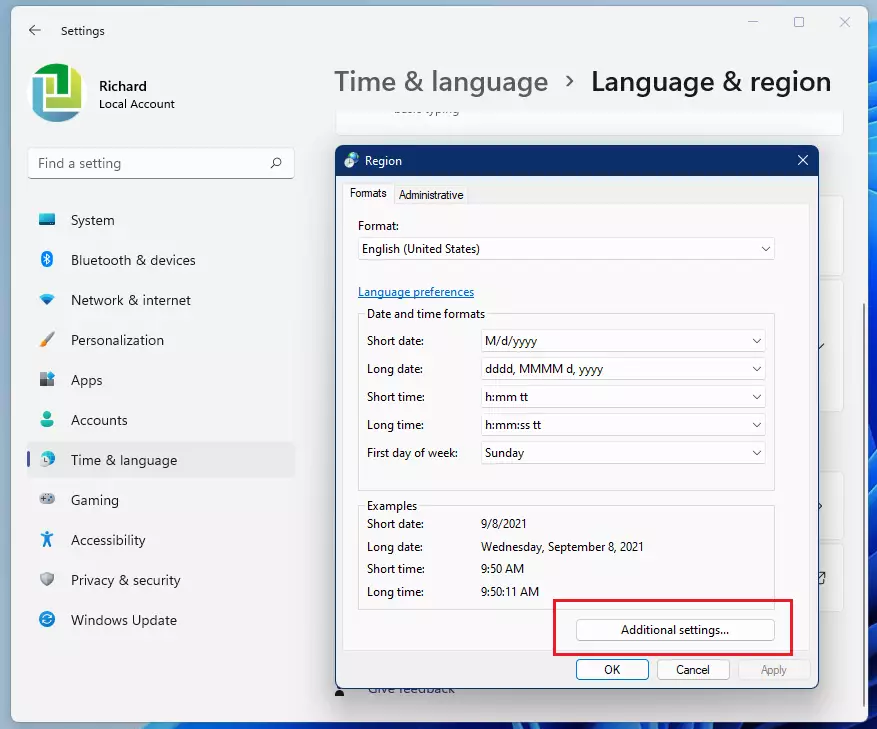
Click the Additional settings button at the bottom of the window.
A new box named Customize Format will appear. Click the Date tab at the top.
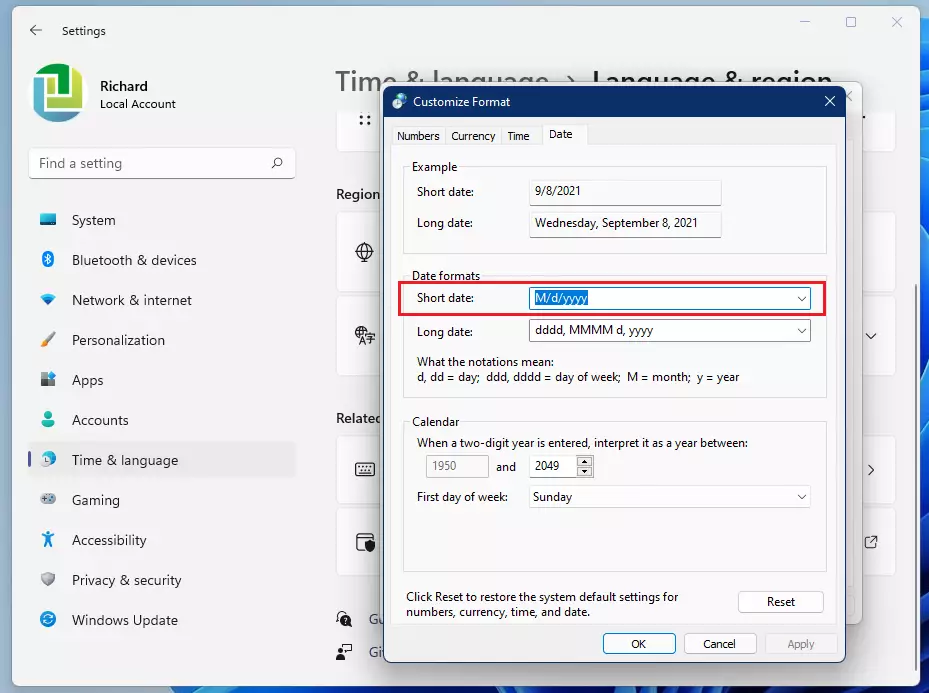
Look for the Short date box. Change the slashes to periods, for example: dd.MM.yyyy. Click Apply to see a preview.
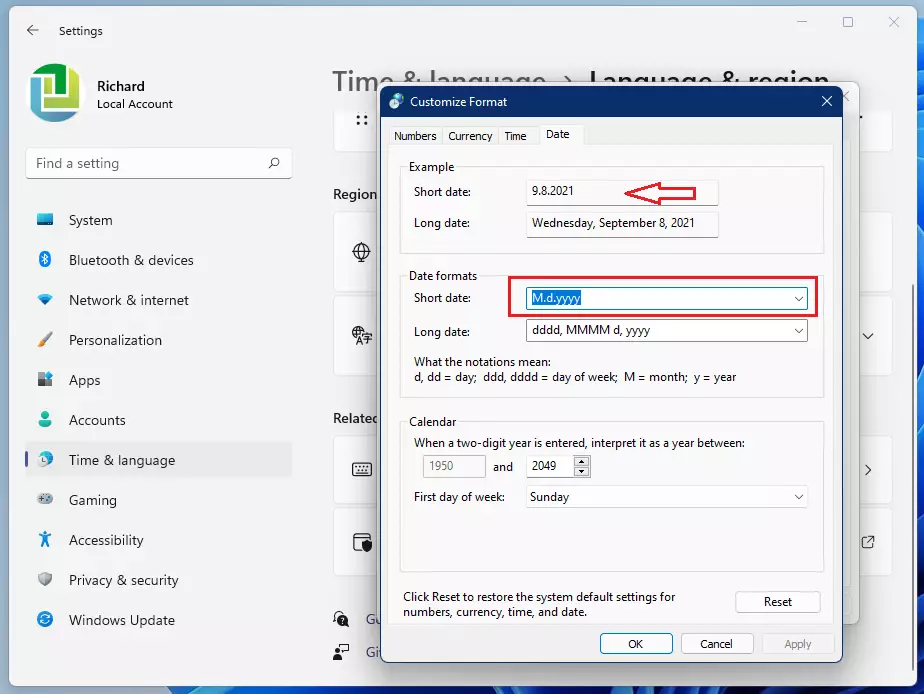
You can also change the Short time format if you wish. Once you are happy with the changes, click OK to save your settings and close the windows.

Method 2Using Control Panel
You can also change these settings through the classic Control Panel. Press the Windows key, type Control Panel, and press Enter. Navigate to Clock and Region > Region. This opens the same Region dialog box used in Method 1, allowing you to modify the Short date format directly.
Method 3Using Registry Editor
Warning: This step needs administrator permission and requires careful attention. Press ⊞ Win+R, type regedit, and press Enter. Navigate to HKEY_CURRENT_USER\Control Panel\International. Locate the sShortDate string value. Double-click it and change the value to dd.MM.yyyy. Restart your computer for changes to take effect.
Method 4Using PowerShell
For a quick way to update the Windows 11 date format, especially if you manage multiple computers, PowerShell is a powerful option. You can use a simple command to directly change the registry settings for the short date format, like adding periods.
Set-ItemProperty -Path "HKCU:\Control Panel\International" -Name "sShortDate" -Value "dd.MM.yyyy"
This command updates the registry settings directly. It’s a fast method for IT administrators to make changes on many computers at once.
How to Revert to Default Settings
If you want to go back to the original format, return to the Region > Additional settings > Date tab. Click the Reset button at the bottom of the window. This will restore the default Windows date format for your region.
Summary
Customizing your Windows 11 date format lets you choose how dates appear, making your computer more personal. Whether you prefer using the easy Settings menu, the Control Panel, or advanced tools like PowerShell, you can easily switch from slashes to periods in your date display.
Why does my date format keep reverting to default?
This usually happens if your computer is managed by an organization using Group Policy. If your IT department enforces specific regional settings, those policies will override your manual changes every time you sign in or restart your computer. Contact your system administrator to request a change.
Does changing the date format affect system logs or file timestamps?
No. Changing the display format only changes how the date appears to you on your screen. The underlying system logs, file creation dates, and database timestamps remain stored in a standard machine-readable format. Your data remains safe and accurate regardless of how you choose to view it.
Was this guide helpful?

About the Author
Richard
Tech Writer, IT Professional
Richard, a writer for Geek Rewind, is a tech enthusiast who loves breaking down complex IT topics into simple, easy-to-understand ideas. With years of hands-on experience in system administration and enterprise IT operations, he’s developed a knack for offering practical tips and solutions. Richard aims to make technology more accessible and actionable. He's deeply committed to the Geek Rewind community, always ready to answer questions and engage in discussions.


[…] How to change dates and times in Windows 11 […]
[…] post describes the steps to change the date format in Windows […]
[…] How to change the date format in Windows 11 […]