How to Change Copilot Voice Language in Windows 11

Ever wondered why you’d want to change Copilot’s voice language? Microsoft Copilot is your AI assistant, ready to help with tasks and answer questions. It can even chat with you using its voice. By default, it tries to guess your language, but you have the option to choose a specific one if you prefer.
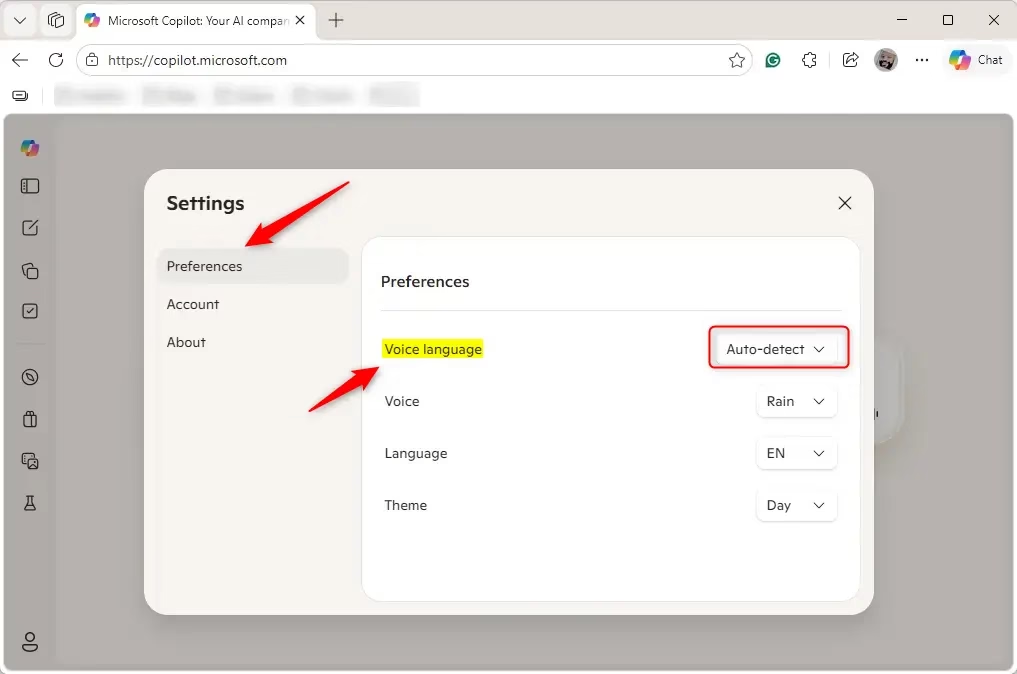
Open the Copilot app or website, click Preferences, and select your desired language from the dropdown menu. You can also change this during a voice conversation by clicking the gear icon or within Microsoft Edge settings. Auto-detect is the default option.
What happens when you change the voice language? Copilot will start speaking to you in the language you select, rather than relying on auto-detect.
This guide will walk you through how to change the language Copilot uses for voice interactions. You can make these adjustments in Microsoft Edge, on the Copilot website, and within Windows 11.
Microsoft Copilot uses smart technology to understand what you say and have conversations with you. You can even use voice commands to chat with it naturally.
Right now, Copilot is set to auto-detect your voice language by default. However, you can set it to always use a specific voice language if that’s what you’d prefer.
Helpful resources:
- Using Copilot Voice with Microsoft Copilot – Microsoft Support
- Supported regions and languages in Microsoft Copilot – Microsoft Support
Method 1Change Voice Language in Copilot Settings
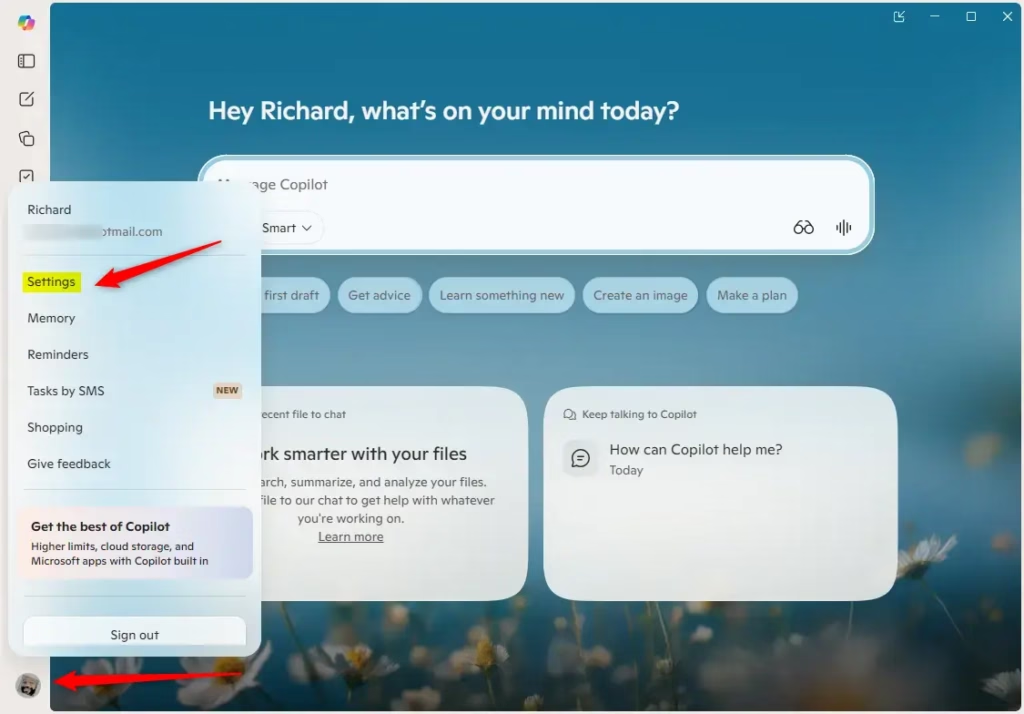
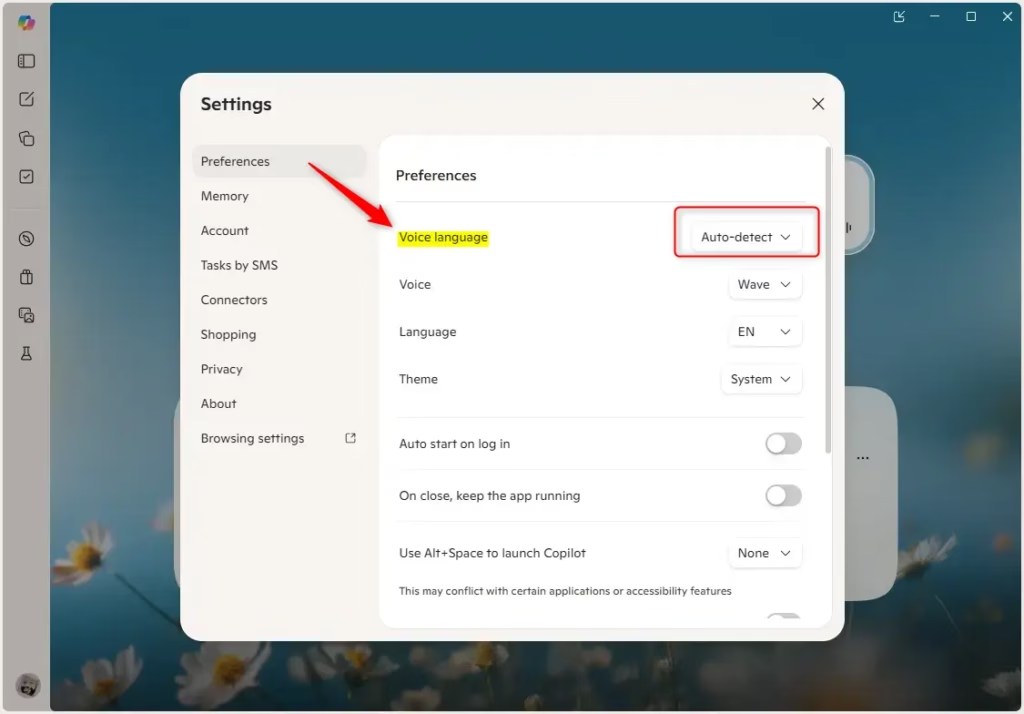
To change Copilot’s voice language in its settings, start by opening the Copilot app or visiting copilot.microsoft.com. Sign in with your Microsoft account so your preferences are saved. Then, click on ‘Preferences’ in the left-hand menu. You’ll see a dropdown menu where you can select your preferred language. ‘Auto-detect’ is usually the default setting.- Open the copilot.microsoft.com website or the Copilot app on Windows 11.
- Sign in with your Microsoft account if you want to save your settings.
- In the app (full view), click the Account button on the left side. Then click Sign in.
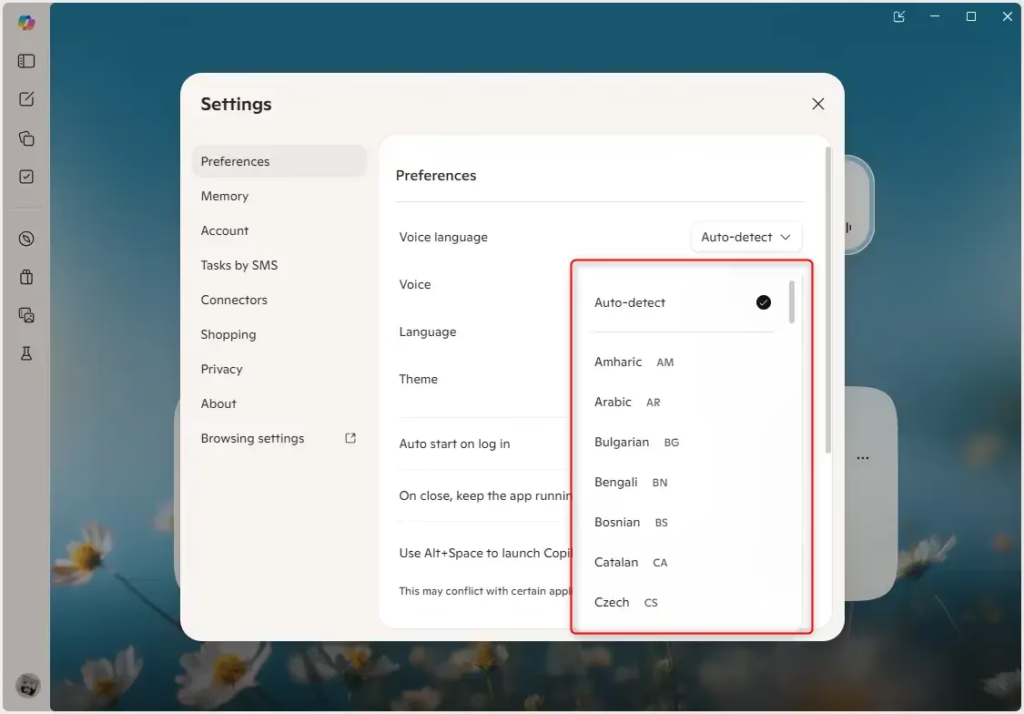
- Click Preferences on the left side. Pick a voice language from the dropdown menu. Auto-detect is the default.
Method 2Change Voice Language During a Voice Conversation
- Open the copilot.microsoft.com website or the Copilot app on Windows 11.
- Sign in with your Microsoft account if you want to save your settings.
- While talking to Copilot using your voice, click the Voice settings button (gear icon).
- Pick a language from the dropdown menu. Auto-detect is the default.
Method 3Change Copilot Voice Language in Microsoft Edge
- Open Microsoft Edge.
- Sign in with your Microsoft account if you want to save your settings.
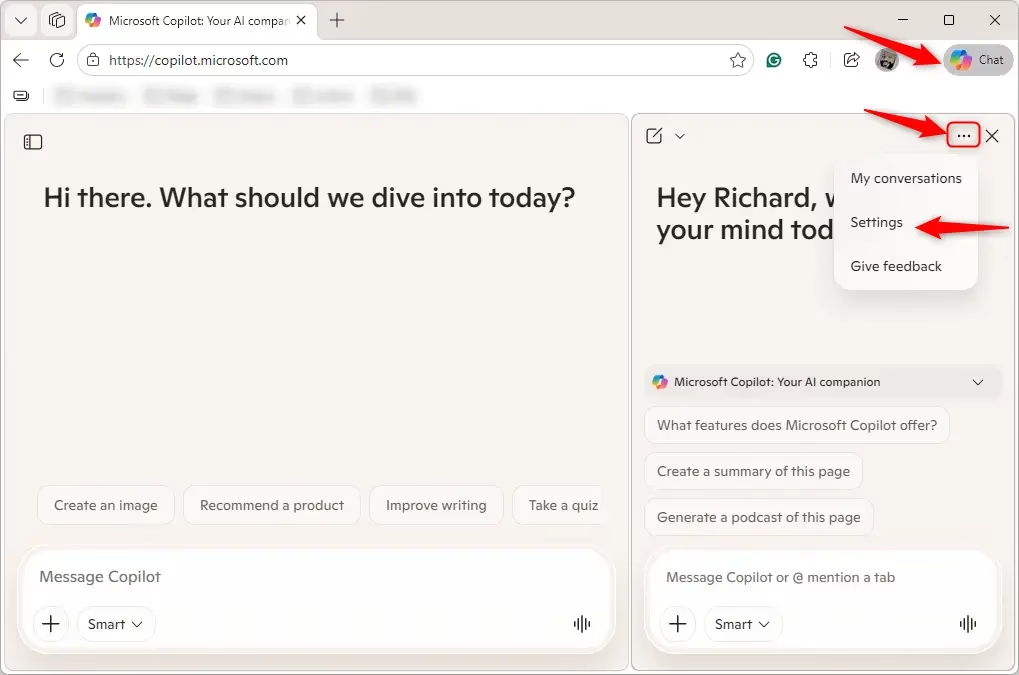
- Click the Copilot icon in the toolbar.
- Click the More options button (three dots). Then click Settings.
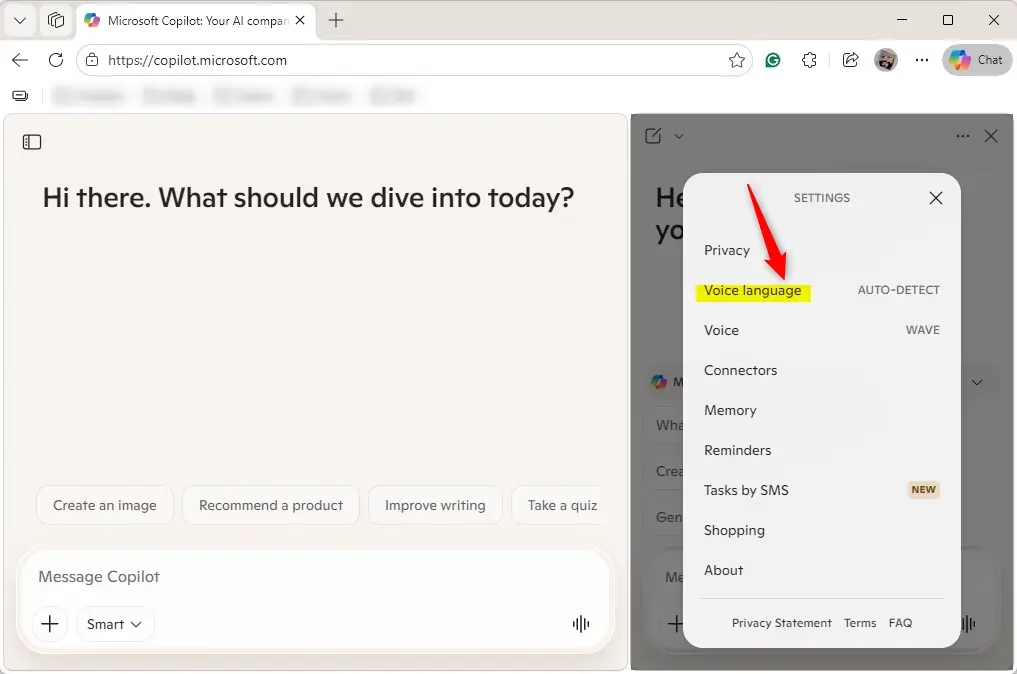
- Click Voice language.
- Pick a voice language from the list. Auto-detect is the default.
Summary
Changing Copilot’s voice language is a breeze. You can do it three ways: through the Copilot Settings menu, while in a voice chat, or by adjusting it in Microsoft Edge. You just need to sign in, find the language option, and pick the one you want. If you don’t select a language, Copilot will attempt to determine your language automatically.
How to change Copilot voice language?
To change Copilot’s voice language, open it up in Microsoft Edge or Windows 11. Head to the settings menu, find the voice section, and pick your preferred language from the list. Copilot will then use that language for all your future voice chats.
What languages does Copilot speak?
Microsoft Copilot supports a wide range of global languages, including English, Spanish, French, German, Chinese, Japanese, and many others. The specific availability of languages can vary based on your region and the version of Copilot you are using. Check the official Microsoft support page for the most current list.
Can Copilot speak in my voice?
No, Copilot cannot currently replicate or speak in your personal voice. It uses pre-recorded, high-quality AI-generated voices designed to sound natural and conversational. While you can customize the language and tone of the assistant, you are limited to the selection of voices provided by Microsoft within the application settings.
How do I change my voice input language?
You can change your voice input language by accessing the language settings within the Copilot interface or your Windows 11 system settings. By navigating to the speech recognition or voice input preferences, you can manually set your preferred language, ensuring Copilot accurately understands and processes your spoken commands and queries.
Was this guide helpful?

About the Author
Richard
Tech Writer, IT Professional
Richard, a writer for Geek Rewind, is a tech enthusiast who loves breaking down complex IT topics into simple, easy-to-understand ideas. With years of hands-on experience in system administration and enterprise IT operations, he’s developed a knack for offering practical tips and solutions. Richard aims to make technology more accessible and actionable. He's deeply committed to the Geek Rewind community, always ready to answer questions and engage in discussions.



No comments yet — be the first to share your thoughts!