How to Show Battery Percentage in Ubuntu Linux


- 7 steps
- Needs administrator rights
Showing battery percentage in Ubuntu Linux puts your exact remaining charge on the top bar, instead of a generic icon that only hints at it. The default battery icon in GNOME, the desktop Ubuntu uses, gives you a rough idea at best. That makes it hard to judge how long you can keep working on Ubuntu 22.04 LTS and newer.
A numeric readout lets you check your power level at a glance and avoid a sudden shutdown when you are away from a charger. The Settings app is the quickest way to turn it on, and it is the method this guide uses. You can also do it from the command line, but most people never need to.
To show battery percentage in Ubuntu, open Settings, select Power, and set Show Battery Percentage to On. The number appears next to the battery icon in the top bar straight away, with no restart needed. The option appears only on laptops or other machines with a battery.
How to change battery status as a percentage in Ubuntu Linux
The short version takes a few clicks. Open Settings, select Power, and turn on the switch for Show Battery Percentage. The number appears next to the battery icon on the top panel straight away.
On a desktop PC or a virtual machine you will not see it, because Ubuntu has no battery to report on.
The default icon hides the exact charge and does not tell you how much runtime is left. A percentage gives you a clearer picture of how long you have before the laptop shuts down. It also shows you when the battery is close to full while charging, so you know when you can unplug.
It is also easier to spot a battery that is ageing. If a full charge drains faster than it used to, the number makes that obvious in a way the icon never will.
Here is how the battery status looks on the System menu. The System menu is the group of icons (network, sound and battery) in the top-right corner of the screen.
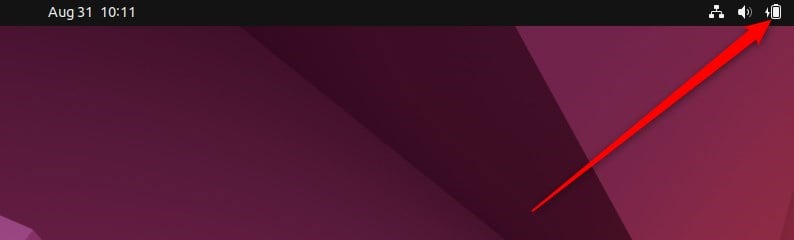
You do not need administrator rights, because the setting applies to your own user account. If several people share the laptop, each of them sets it for themselves.
The Settings app is where you manage system configuration, user accounts and updates. The battery display option lives there too. There are two ways to open it. The numbered steps below use the Activities overview, and the System menu alternative follows after the screenshots.
These steps show battery percentage on the Ubuntu top bar, from opening Settings to checking the result.
- Click Activities in the top-left corner of the screen. You can also press the Super key, which is the Win on most keyboards, and the overview opens either way.
- Type Settings. As you type, matching apps appear in the results.
- Click the Settings icon in the results. The Settings window opens.

If you prefer the System menu, you can open Settings from there instead of steps 1 to 3. Click the System menu in the top-right corner of your desktop, and a panel with quick toggles and sliders drops down. Select Settings. On Ubuntu 22.04 it is a wrench-and-screwdriver icon at the bottom of the panel. The Settings window opens, and you carry on with step 4.
On the System menu, select Settings, as highlighted below.

- Click the Power tile in the left sidebar. The power options appear on the right.
- Find the Suspend & Power Button section. If you do not see it, scroll down the Power page.
- Set Show Battery Percentage to On. The number appears next to the battery icon on the top bar right away.
To undo the change, set Show Battery Percentage back to Off and the top bar returns to the icon alone.
If you cannot find the switch, scroll down the Power page. On some newer Ubuntu releases the option sits in a different section of the same page. If there is no Power tile at all, or no battery options on it, the system does not detect a battery. That is normal on a desktop PC or a virtual machine.
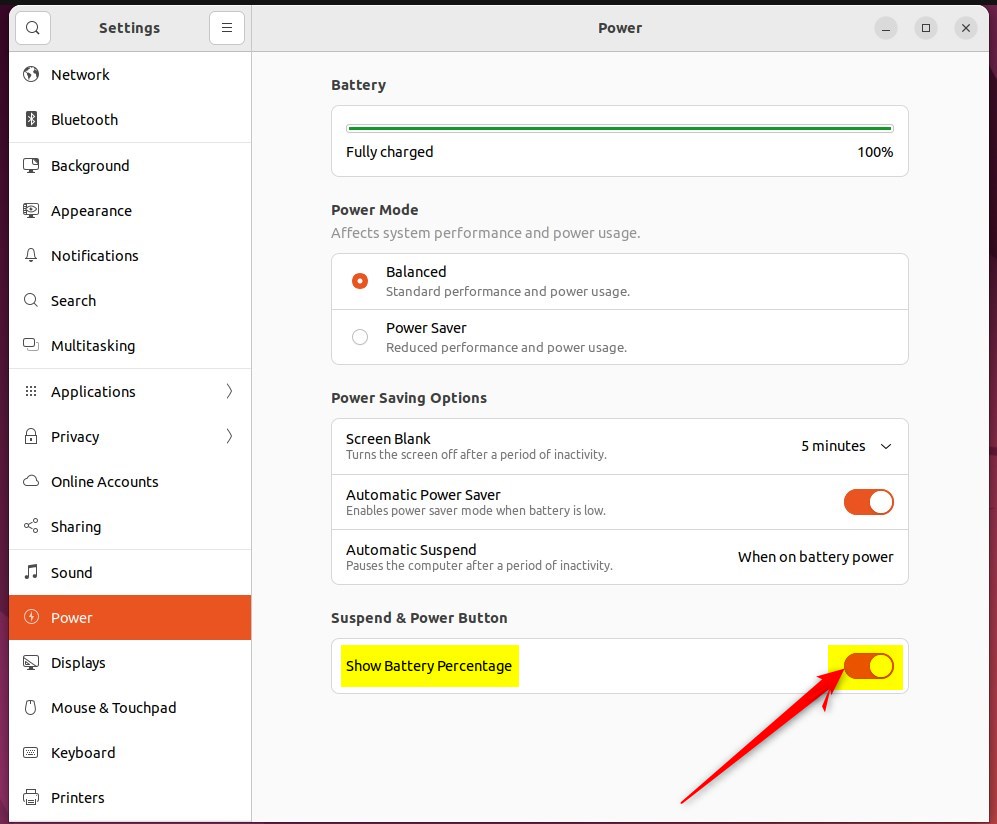
- Close the Settings window. There is no Apply button, and no restart or log-out is needed, because the change takes effect the moment you flip the switch.
Look at the top-right corner to confirm the percentage is showing next to the battery icon. If it is not, reopen Settings Power and check that the switch is still On.
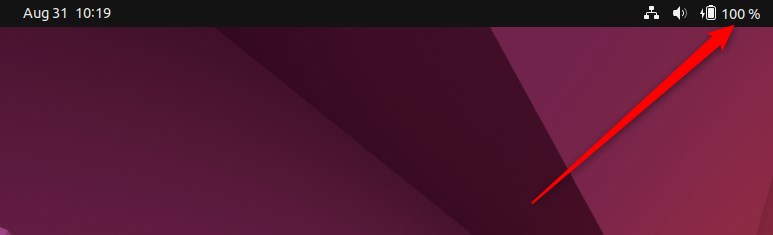
Conclusion:
- Changing the battery status to a percentage in Ubuntu Linux shows exactly how much charge remains.
- By following the steps above, you can turn the battery percentage on or off in the top bar whenever you like.
- With the percentage on screen, it is easier to judge your charge level and how long the battery will last before it runs out.
Have a question about this guide?
Answered by AI from this guide. Good questions may be added to this page — please don't include personal details.
Did this guide fix your problem?

About the Author
Richard
Tech Writer, IT Professional
Richard is a writer at Geek Rewind who turns complex IT tasks into clear, step-by-step guides. He draws on years of hands-on experience in system administration and enterprise IT operations, focusing on Windows, Linux and WordPress: the problems people actually run into, and the fixes that work. His server and WordPress guides come from systems he runs himself. Richard builds and maintains the platform behind Geek Rewind, from its Ubuntu servers and Nginx configuration to its custom WordPress plugins. Many new tutorials start with readers' questions, and he's always glad to answer them in the comments.
No comments yet — be the first to share your thoughts!