
This guide will help you easily allow or prevent someone from changing their password on a Windows 11 PC. These steps work for both local accounts (accounts only on your PC) and Microsoft accounts (accounts that use your email with Microsoft).
Note: Even if you stop a Microsoft account user from changing their password on the PC, they can still change it online at the Microsoft password page.
You can only stop standard users (normal user accounts) from changing their passwords, not administrator users. If you want to do this for an administrator account, you can temporarily change the account to a standard user, block the password change, then switch it back to administrator.
Make sure you are signed in as an administrator to do these steps.
Method 1: Use Local Users and Groups (For Windows 11 Pro, Enterprise, or Education)
Important: This option is not available on Windows 11 Home edition.
- Press Windows key + R to open the Run box, type
lusrmgr.msc, and press Enter. - Click on the Users folder on the left side.
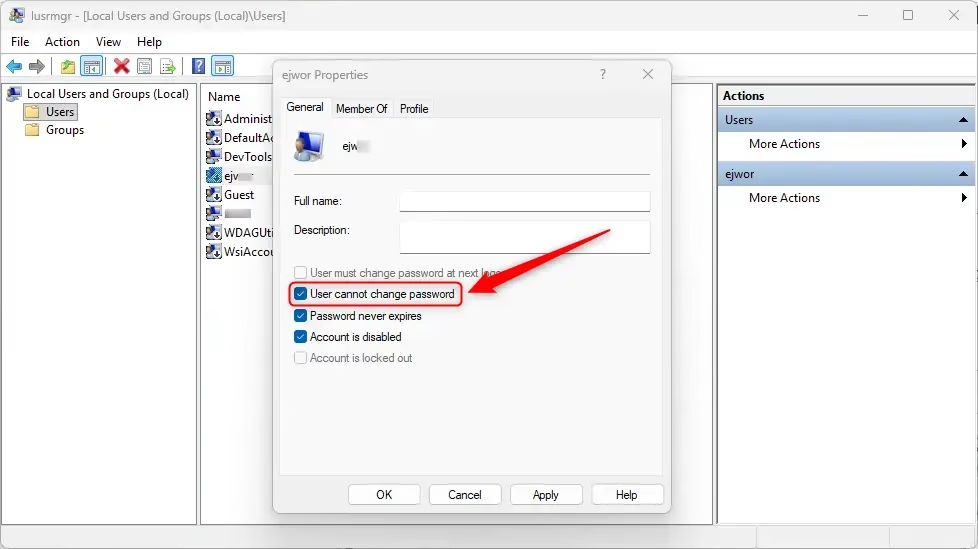
- Find the user account you want to change in the middle list. Right-click it and select Properties, or just double-click the user name.
- In the General tab, check the box that says User cannot change password to stop the user from changing their password. Uncheck it to allow password changes again.
- Click OK to save.
Note: If you try to block password changes for an administrator account, you will see an error like this:
Method 2: Use Command Prompt or Windows Terminal
- Right-click the Start button and select Windows Terminal (Admin) or Command Prompt (Admin).
- Type the command below depending on what you want, and press Enter:
To allow the user to change their password (default):
net user "<username>" /PasswordChg:YesTo stop the user from changing their password:
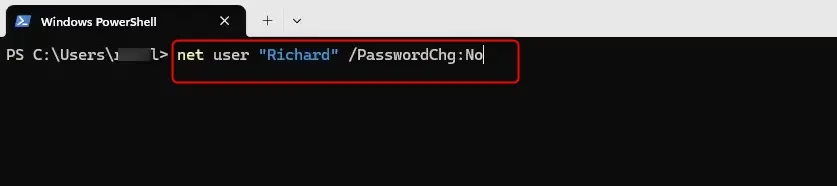
net user "<username>" /PasswordChg:NoReplace <username> with the actual user name. For example, to stop user “Richard” from changing their password, type:
net user "Richard" /PasswordChg:NoIf you try this on an administrator account, you will get an error message.
When finished, you can close the terminal window.
Summary
- You can control if a user can change their password on Windows 11 using easy tools.
- This works only for standard users, not administrators.
- Use Local Users and Groups if you have Windows 11 Pro or above, or use commands in Windows Terminal to make the changes.
- Always be signed in as an administrator to change these settings.
- Check your user accounts regularly to keep your PC secure.

Leave a Reply