
This guide shows you how to add new local users to Windows 11. It’s simple and easy to follow.
Why Add a New User Account?
Creating a new user account is important if you share your computer with family members or coworkers. Each person gets their own separate account. This keeps your files and settings private and protected.
A new user account also gives administrative privileges to someone else on your computer. Understanding how to add a new user in Windows 11 helps enhance your computer’s security and makes it work better.
How to Add New Users from System Settings
Windows 11 has a central location for most settings. You can manage system configurations and create new accounts from the System Settings panel.
Step 1: Open System Settings
To get to System Settings, press Windows key + I on your keyboard. Or click on Start and then Settings, as shown in the image below:
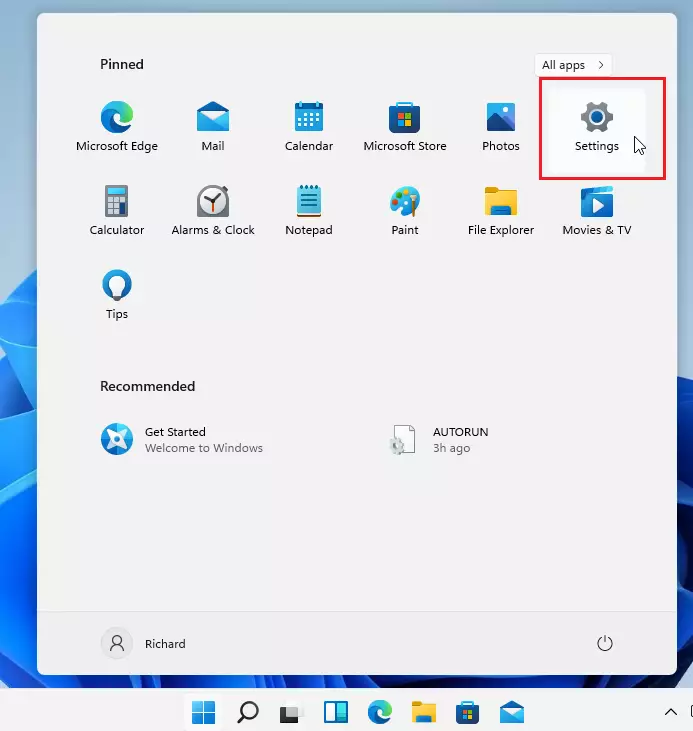
You can also use the search box on the taskbar. Search for Settings and open it.
Step 2: Go to Accounts
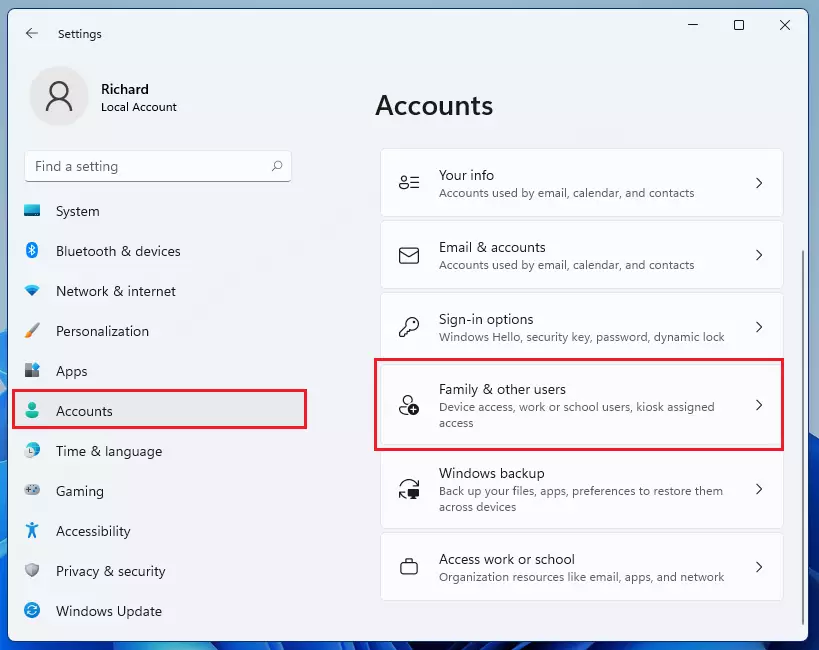
The Windows Settings window should look like the image below. Click on Accounts. Then select Family & Other Users from the right side of your screen, as shown below:
Step 3: Click Add Account
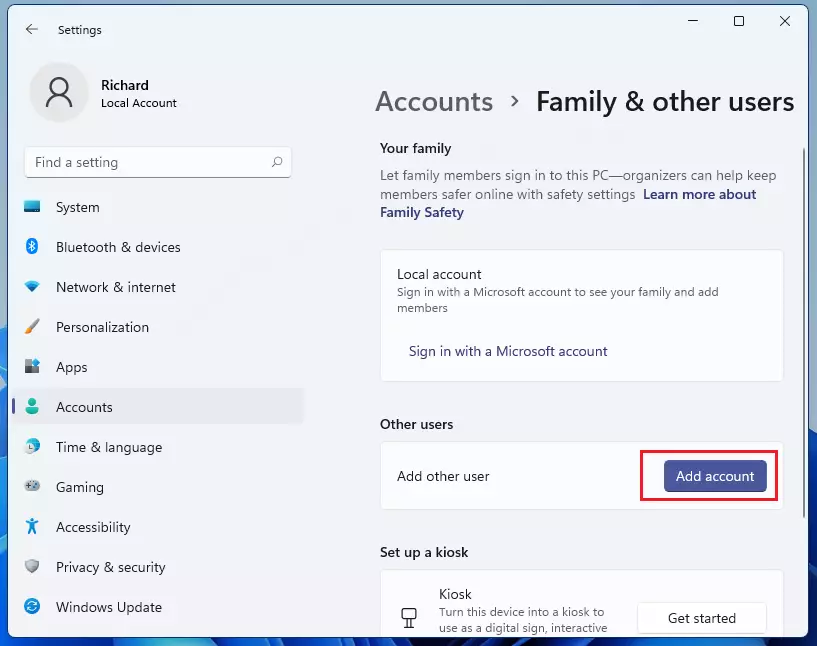
On the Family & other users settings page, click the Add account button under Other users, as highlighted below. Windows 11 will try to create a Microsoft online account for the new user.
Step 4: Skip the Microsoft Account
Windows automatically tries to sign you up for a Microsoft online account. A Microsoft account is an online email address and password. It works with Outlook.com, Hotmail, Office, OneDrive, Skype, Xbox, and Windows.
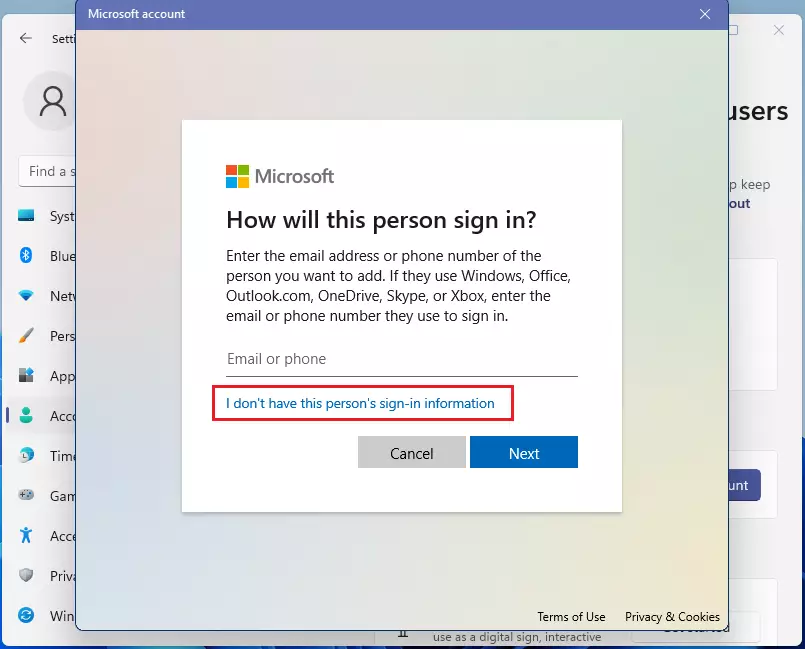
But we want to create a local account instead. Click I don't have this person's sign-in information.
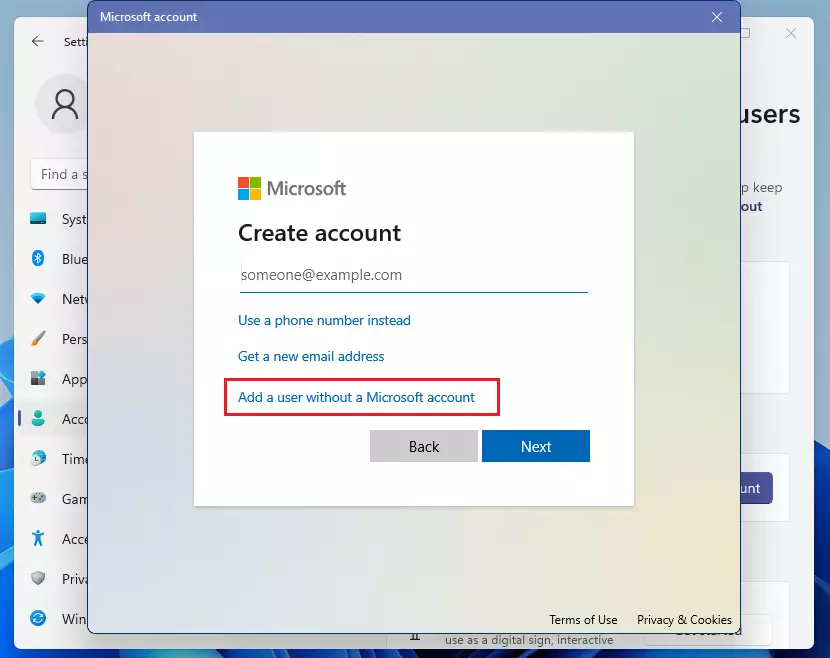
Microsoft still wants you to create an online account. We don’t need that. Click Add a user without a Microsoft account, as shown below:
Step 5: Create the Local Account
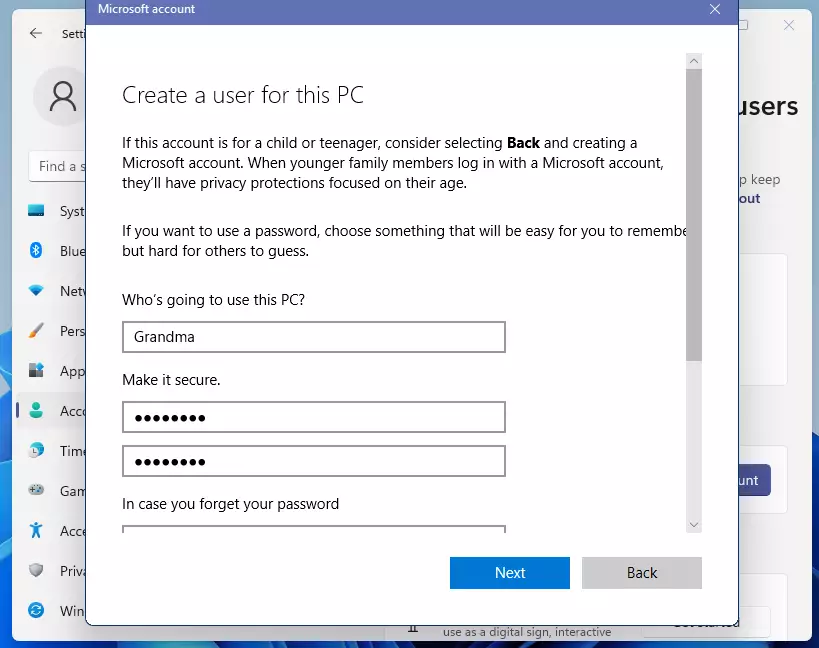
Now type in the user name you want. Create a password for the account. You’ll also need to create a password hint. This helps you remember the password if you forget it.
Step 6: Finish and Complete
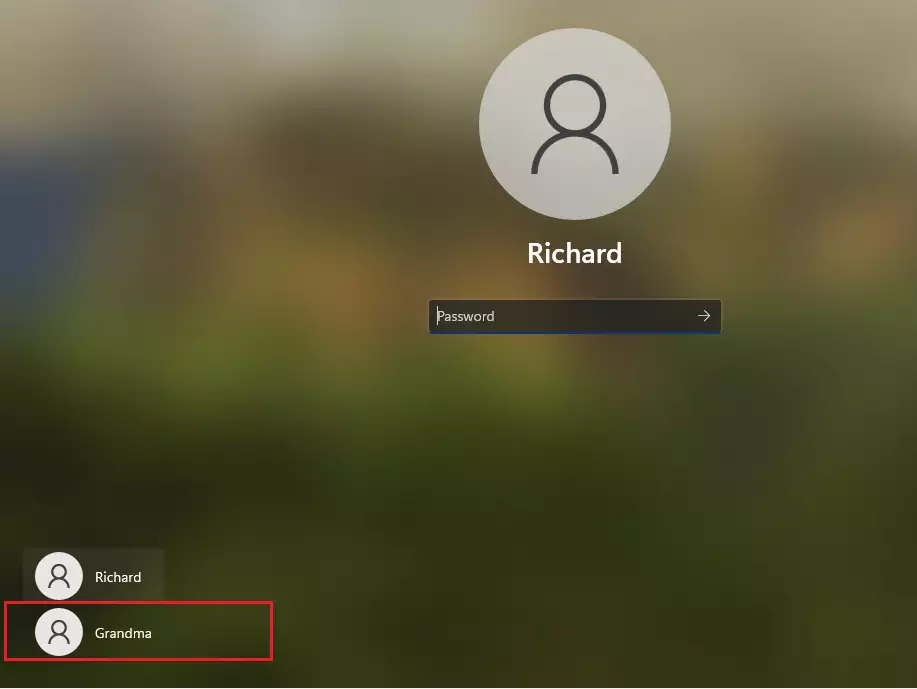
Click Next to finish creating the user account. You can log off or restart the computer. The new user account should now appear on the login screen.
Summary
- Adding a new user account in Windows 11 keeps files and settings separate and secure.
- It’s helpful for sharing a device among family members or coworkers.
- You can grant administrative privileges to new users by following these steps.
- The process is completed through System Settings, making it easy to use.
- Creating a local account is straightforward, even with prompts for a Microsoft account.
- Having multiple user accounts allows better organization and personalization of your Windows experience.

Leave a Reply