How to Set Default Microphone in Ubuntu Linux


Setting a default microphone in Ubuntu Linux tells your computer exactly which audio device to use for voice calls and recording. Ubuntu 22.04 LTS and newer versions handle this choice right inside the main sound settings panel.
Choosing a primary microphone stops the operating system from guessing when you connect multiple audio devices like a webcam and a headset. Picking your main device keeps your voice clear and stops sound glitches in apps like Zoom or Discord.
Open System Settings and navigate to the Sound panel. Under the Input section, select your desired microphone from the list of available devices to set it as the default. The input level indicator will confirm your selection.
How to set the default microphone in Ubuntu Linux
Configuring a primary microphone guarantees that communication tools and recording software capture your voice without routing errors. Ubuntu usually picks a reliable option, but manual adjustments happen inside the system settings. Voice clarity on calls and recordings depends on getting this right.
Ubuntu Linux tries to identify the best input device automatically. Controlling volume levels works from the system menu, though only one active device appears there at any given moment.
Ubuntu keeps configuration options consolidated in the System Settings panel. This centralized hub handles everything from hardware preferences to user accounts and software updates.

Open the system menu in the top-right corner of the desktop screen.
Choose Settings from the dropdown list to open the main configuration panel.

In the Settings app, click on a Sound tile to open the panel.
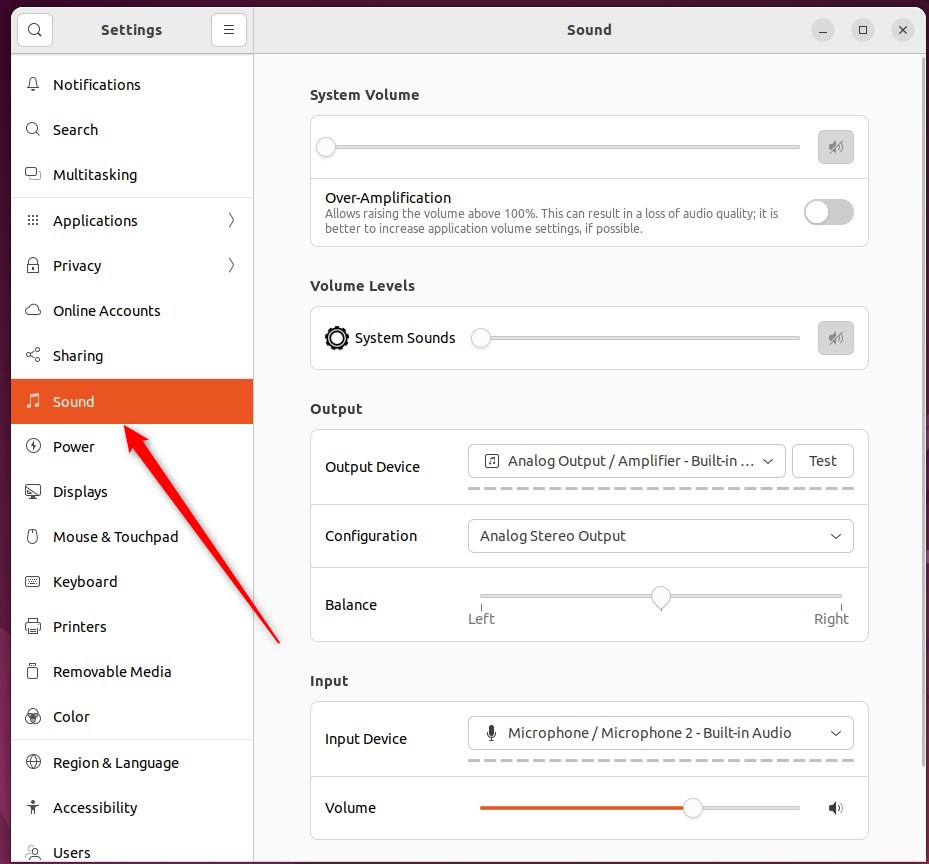
In the System Settings - Sound panel, under Input, select the device to use.
The input level indicator responds when speaking.
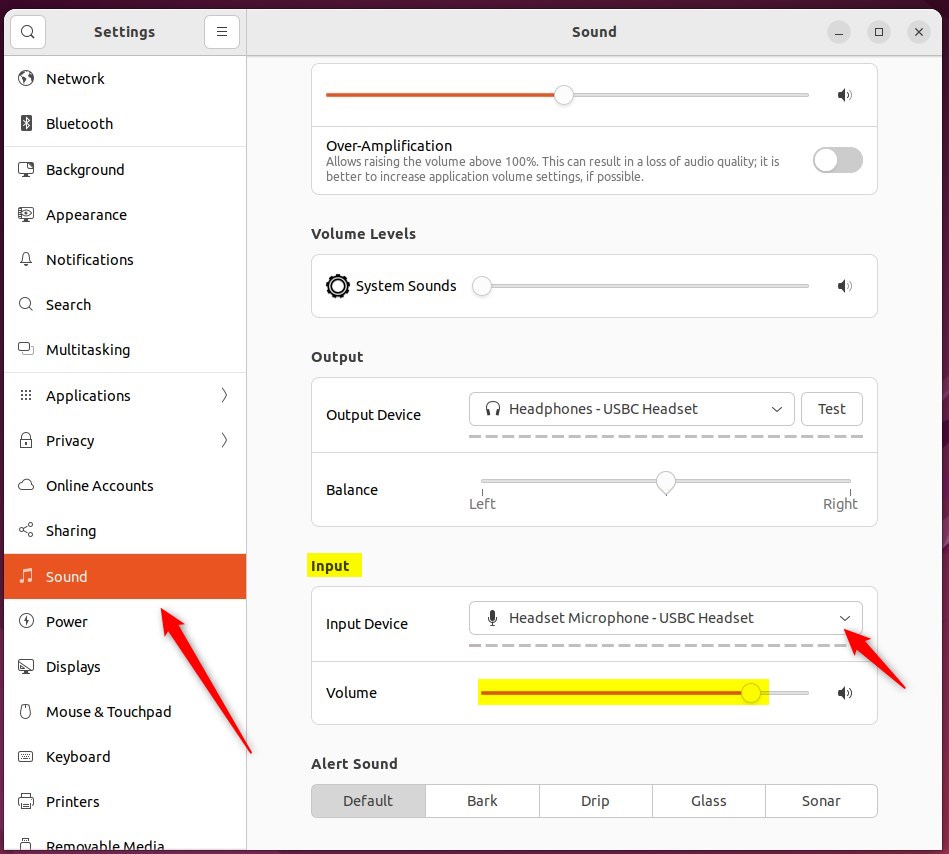
Missing hardware on the list means Ubuntu Linux failed to recognise the connected microphone.
Microphone volume, muting, and device switching all happen inside the Sound settings panel in Ubuntu Linux. Managing all available audio input devices occurs from this single location.
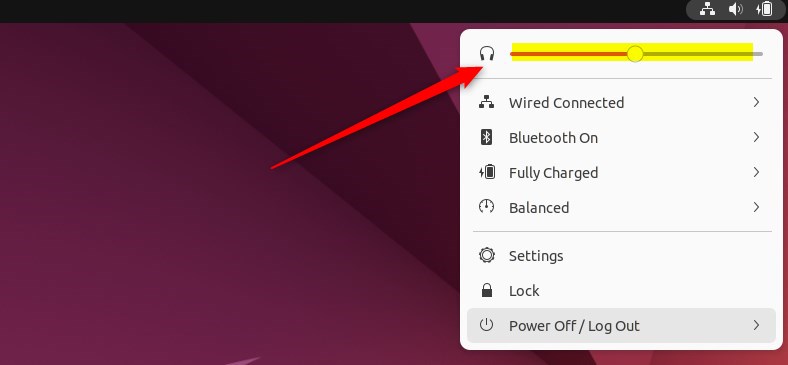
Closing the Settings app finishes the process.
Conclusion:
- Setting the default input device in Ubuntu Linux is essential for a seamless user experience across all applications.
- Ubuntu's centralized System Settings panel simplifies selecting the default microphone.
- Users can monitor and adjust the input level indicator in the Sound panel to ensure the proper functioning of their chosen device.
- Users can troubleshoot and adjust settings if a connected mic device is not recognized.
- With the default mic configured, users can enjoy consistent audio input across various multimedia applications in Ubuntu Linux.
What is my default microphone?
Working across multiple operating systems? Finding audio options in Windows requires opening the Control Panel, navigating to Hardware and Sound, and selecting Sound. The Recording tab displays available hardware, letting anyone verify the default recording device.
How to fix Ubuntu 22.04 microphone issue?
Fixing input issues requires navigating to Setting - Sound - Input Device and switching the input source to the headset option. The microphone remains ready for use after making this change, preventing call disruptions.
Was this guide helpful?

About the Author
Richard
Tech Writer, IT Professional
Richard, a writer for Geek Rewind, is a tech enthusiast who loves breaking down complex IT topics into simple, easy-to-understand ideas. With years of hands-on experience in system administration and enterprise IT operations, he’s developed a knack for offering practical tips and solutions. Richard aims to make technology more accessible and actionable. He's deeply committed to the Geek Rewind community, always ready to answer questions and engage in discussions.



No comments yet — be the first to share your thoughts!