
This guide helps you show or hide the navigation pane in Windows 11’s File Explorer. The navigation pane is the left-side panel where you see folders like Desktop, Downloads, and Documents.
What is the Navigation Pane?
The navigation pane in Windows File Explorer displays your folders and drives. It helps you find your files quickly. It’s useful, but sometimes it takes up space. This is especially true on smaller screens.
Want more room to see your files? You can hide this pane. When you want it back, you can show it again. The setting applies to all folders. It stays hidden or shown everywhere until you change it.
How to Show or Hide the Navigation Pane Using File Explorer
Follow these simple steps:
- Open File Explorer. Press
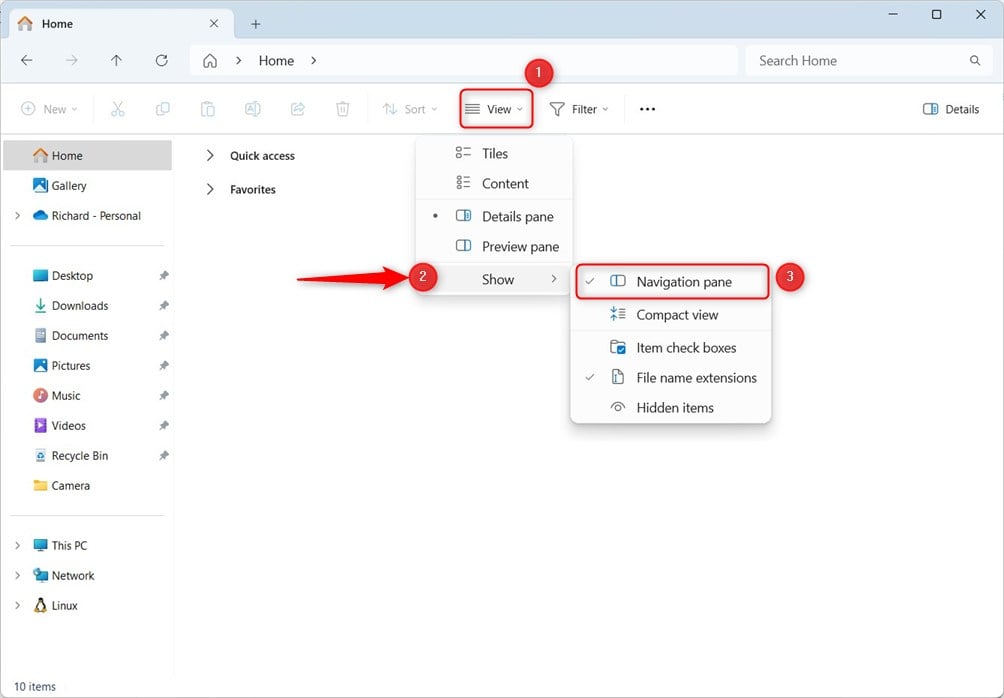
Win + Eon your keyboard to open it quickly. - Look at the top menu (called the Command Bar) and click on View.
- In the dropdown, click on Show and then choose Navigation pane to show or hide it.
How to Show or Hide the Navigation Pane Using Windows Registry (Advanced)
You can use another method if you are comfortable with Windows Terminal. The Registry Editor lets you change the navigation pane setting. Be careful when editing the registry. Mistakes can cause problems.
Here’s how:
- Open the Windows Terminal app. Search for it in the Start menu.
- The setting is saved in the registry here:
HKEY_CURRENT_USER\SOFTWARE\Microsoft\Windows\CurrentVersion\Explorer\Modules\GlobalSettings\Sizer - The value to change is called
PageSpaceControlSizer. It is a binary value (REG_BINARY).
To Show the Navigation Pane
Run this command in Windows Terminal:
REG ADD HKCU\SOFTWARE\Microsoft\Windows\CurrentVersion\Explorer\Modules\GlobalSettings\Sizer /v PageSpaceControlSizer /t REG_BINARY /d a00000000100000000000000ec030000 /f
To Hide the Navigation Pane
Run this command instead:
REG ADD HKCU\SOFTWARE\Microsoft\Windows\CurrentVersion\Explorer\Modules\GlobalSettings\Sizer /v PageSpaceControlSizer /t REG_BINARY /d a00000000000000000000000ec030000 /fWhat Each Part of the Command Means
/vspecifies the name of the value to change./t REG_BINARYmeans the data type is binary./dis the data to set./fforces the change without asking for confirmation.
FLAG: This method requires admin privileges. After running the command, restart your computer to apply the changes.
Summary
You can easily show or hide the navigation pane in Windows 11 File Explorer. Hiding the pane gives you more space. Showing it makes navigation easier.
- Use the File Explorer’s View menu for the easiest way.
- Use Windows Terminal and registry commands if you want more control (advanced users only).
- Remember to restart your PC if you use the registry method.
That’s it! Now you know how to customize your File Explorer to fit your needs.



Leave a Reply