Getting started with Copilot Vision on Windows 11 is easy: just open the Copilot app and sign in with your Microsoft account so it can see your screen.
Why use Edge with Vision? Edge is a web browser. Using Vision with Edge helps you ask questions about websites, videos, and documents while you browse.
What happens? Copilot looks at the web page and answers your questions about it.
Steps to Use with Edge
You can use Copilot Vision with Microsoft Edge to ask about what’s on your screen, like web pages or PDFs, by signing into Edge with your Microsoft account first.
Go to a website, video, or PDF document you want to ask questions about.
Note: Copilot Vision works with most sites. It does not work with sites that have harmful or adult content. When you visit a site that does not work, the Copilot Composer at the bottom shows a grayed-out crossed eyeglasses icon. Copilot will refuse to talk about the page content.
Click the Copilot icon Screenshot shows image of Copilot icon. in the upper right corner of Edge. This opens Copilot in the side panel.
Press the Voice button Teams microphone icon to ask your question.
Copilot Vision looks at the page. Then you can have a natural conversation with Copilot about the content.
To end a Vision session, close the Copilot Composer or close the Edge window.
Copilot Vision is a helpful new feature for Windows 11 that lets you ask questions about what you see on your screen using your voice. You can use it right in the Copilot app or within Microsoft Edge to quickly get information about websites, videos, and more.
Why is Microsoft removing Copilot from 🪟 Windows 11?
Microsoft is simplifying Copilot in Windows 11 by removing it from certain apps like the Snipping Tool. This change is part of their plan to reduce unnecessary places where you can open Copilot, making the experience cleaner and more focused.
This article shows you how to use the new Copilot Vision feature in Microsoft Copilot on Windows 11.
⚡ Quick Answer
Open the Copilot app and sign in. Click the glasses icon on the composer bar, then click “Share” to let Copilot see your screen. Use the microphone to ask questions about what you see.
What is Copilot Vision?
Copilot Vision on Windows 11 is a handy feature that lets you ask questions about anything you see on your screen, like a smart assistant that understands your view.
Starting with Copilot version 1.25034.133.0, Microsoft added a new voice feature. This feature answers questions about the page you are looking at. It also suggests what you should do next.
Why use this? Copilot Vision lets you ask questions about what you see on your screen using your voice. It helps you understand content faster.
What happens when you use it? Copilot looks at your screen and talks with you about what it sees.
Steps to Get Started
Getting started with Copilot Vision on Windows 11 is easy: just open the Copilot app and sign in with your Microsoft account so it can see your screen.
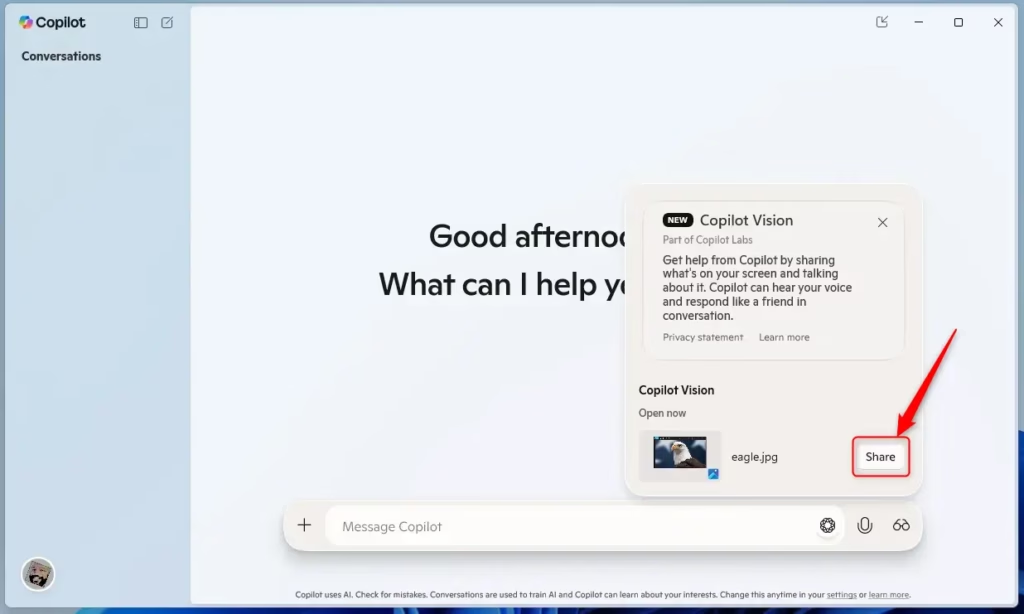
When Copilot opens, look for the glasses button (Copilot Vision button) on the composer bar at the bottom.
Click the glasses button to let Copilot see your screen.
Copilot vision button
Click the “Share” button to share your screen with Copilot.
Copilot share button
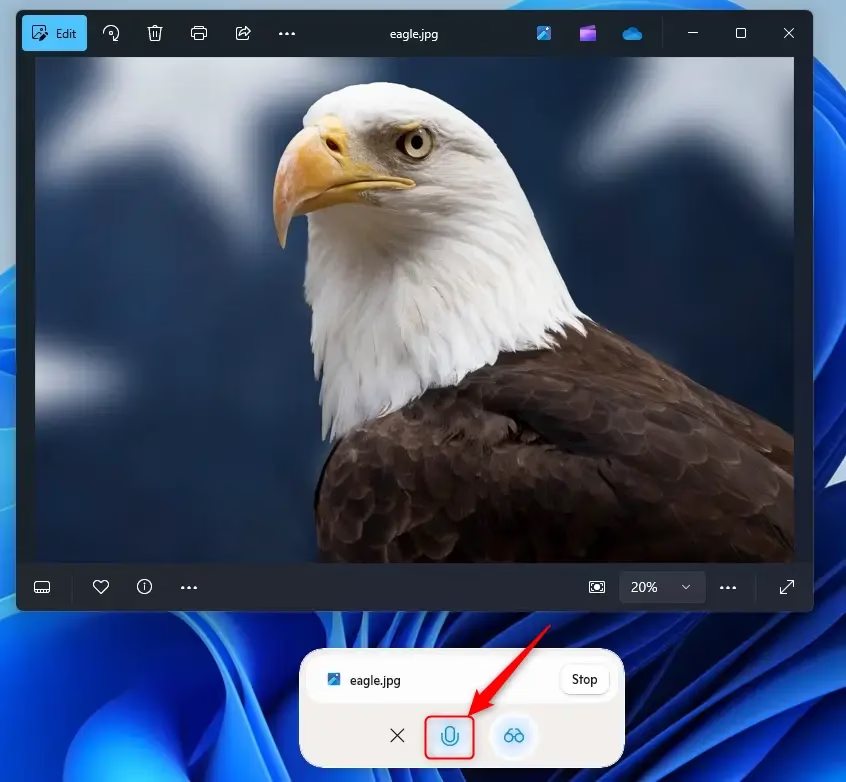
Use the microphone button to ask questions about what is on your screen.
Understanding the Control Buttons
The bar shows several buttons you can use:
Voice (microphone) button: Turns the microphone on or off.
Share screen with Copilot (glasses) button: Shares a different window with Copilot.
Stop button or X: Stops sharing the window and ends the Vision session.
Copilot share ask question
Using Copilot Vision with Microsoft Edge
Why use Edge with Vision? Edge is a web browser. Using Vision with Edge helps you ask questions about websites, videos, and documents while you browse.
What happens? Copilot looks at the web page and answers your questions about it.
Steps to Use with Edge
You can use Copilot Vision with Microsoft Edge to ask about what’s on your screen, like web pages or PDFs, by signing into Edge with your Microsoft account first.
Go to a website, video, or PDF document you want to ask questions about.
Note: Copilot Vision works with most sites. It does not work with sites that have harmful or adult content. When you visit a site that does not work, the Copilot Composer at the bottom shows a grayed-out crossed eyeglasses icon. Copilot will refuse to talk about the page content.
Click the Copilot icon Screenshot shows image of Copilot icon. in the upper right corner of Edge. This opens Copilot in the side panel.
Press the Voice button Teams microphone icon to ask your question.
Copilot Vision looks at the page. Then you can have a natural conversation with Copilot about the content.
To end a Vision session, close the Copilot Composer or close the Edge window.
Copilot Vision is a helpful new feature for Windows 11 that lets you ask questions about what you see on your screen using your voice. You can use it right in the Copilot app or within Microsoft Edge to quickly get information about websites, videos, and more.
Why is Microsoft removing Copilot from 🪟 Windows 11?
Microsoft is simplifying Copilot in Windows 11 by removing it from certain apps like the Snipping Tool. This change is part of their plan to reduce unnecessary places where you can open Copilot, making the experience cleaner and more focused.
Richard, a writer for Geek Rewind, is a tech enthusiast who loves breaking down complex IT topics into simple, easy-to-understand ideas. With years of hands-on experience in system administration and enterprise IT operations, he’s developed a knack for offering practical tips and solutions.
Richard aims to make technology more accessible and actionable. He's deeply committed to the Geek Rewind community, always ready to answer questions and engage in discussions.
[…] Microsoft is introducing Ask Copilot in the taskbar. This feature provides one-click access to Copilot Vision and Voice, allowing for more natural […]






[…] Microsoft is introducing Ask Copilot in the taskbar. This feature provides one-click access to Copilot Vision and Voice, allowing for more natural […]