Enhance Windows 11 Security with System Guard

You enhance Windows 11 security by enabling System Guard and its integrated firmware protection.
System Guard, part of Windows Defender, protects your PC by verifying its integrity during the boot process, specifically guarding against threats that target your system’s fundamental firmware before Windows even loads.
This advanced protection is crucial because modern malware can hide in your PC’s startup code, making it invisible to traditional antivirus software. Firmware protection establishes a trusted foundation, ensuring your system is secure from the very first instruction it executes.
Enabling these features means your computer will check its firmware every time it starts. If it detects any unauthorized modifications, it will actively block the malicious code, safeguarding your sensitive data and system files.
Enable Firmware Security in Windows
If your computer supports this feature, you can turn it on through the Windows Security app.
- Open the Windows Security app.
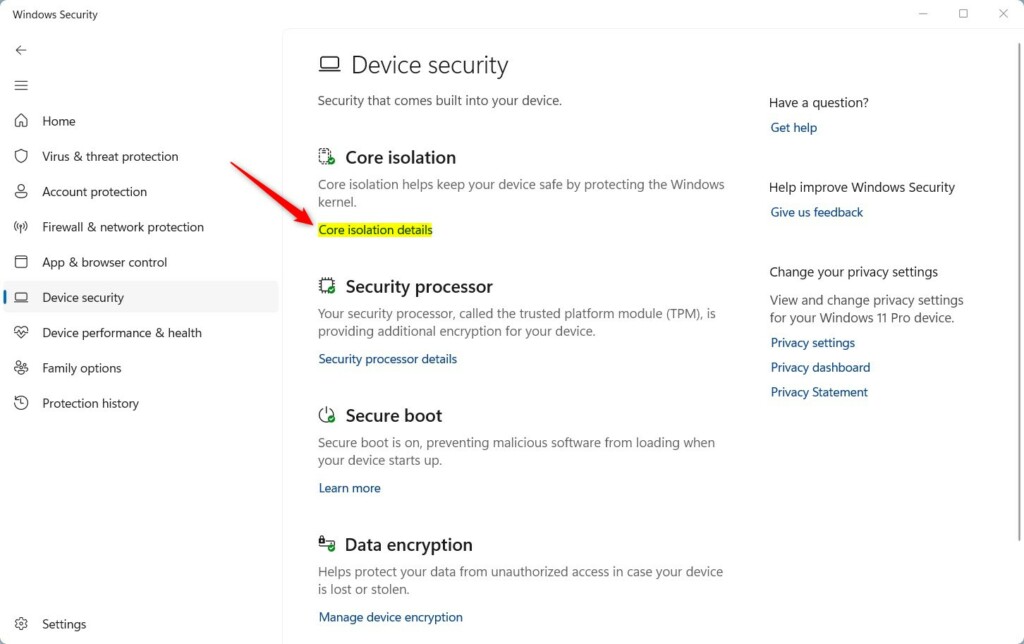
- Go to Device security.
- Click the Core isolation details link.
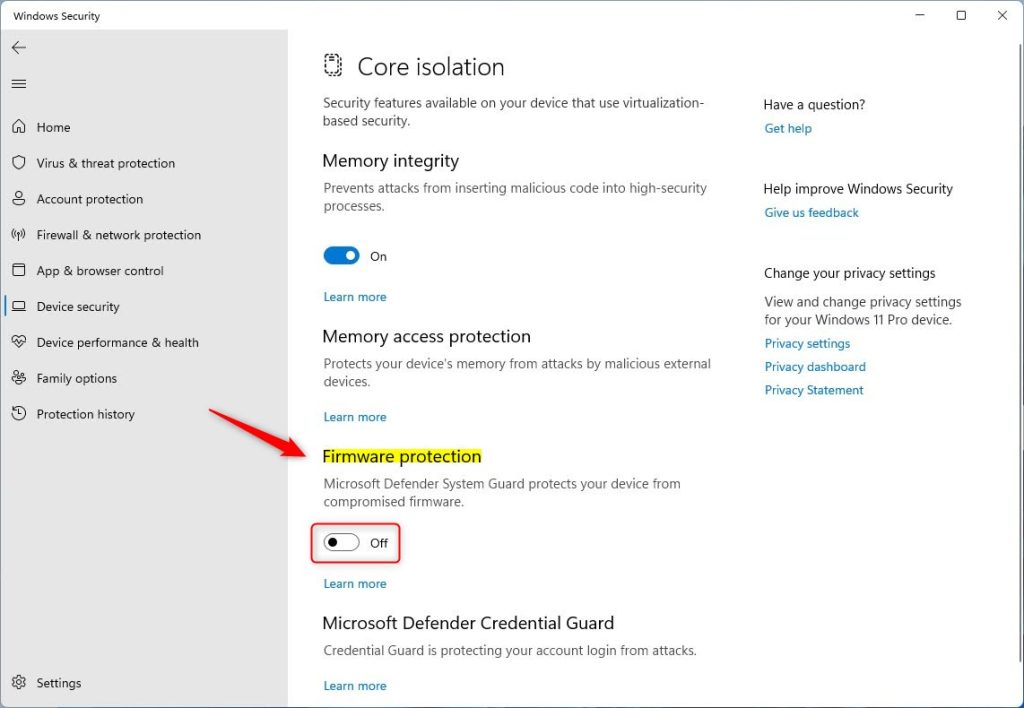
- Toggle the Firmware protection switch to On.
Note: If the button is grayed out, you may need to adjust your registry settings. [Admin Privileges Required]
Navigate to this path in your Registry Editor:
HKEY_LOCAL_MACHINE\SYSTEM\CurrentControlSet\Control\DeviceGuard\Scenarios\SystemGuard
Change the Managed DWORD value from 1 to 0. Restart your computer to finish.
Enable Firmware Protection via Registry
You can also use the Windows Registry editor to manage this setting. Open the Windows Registry as an administrator to begin. [Admin Privileges Required]
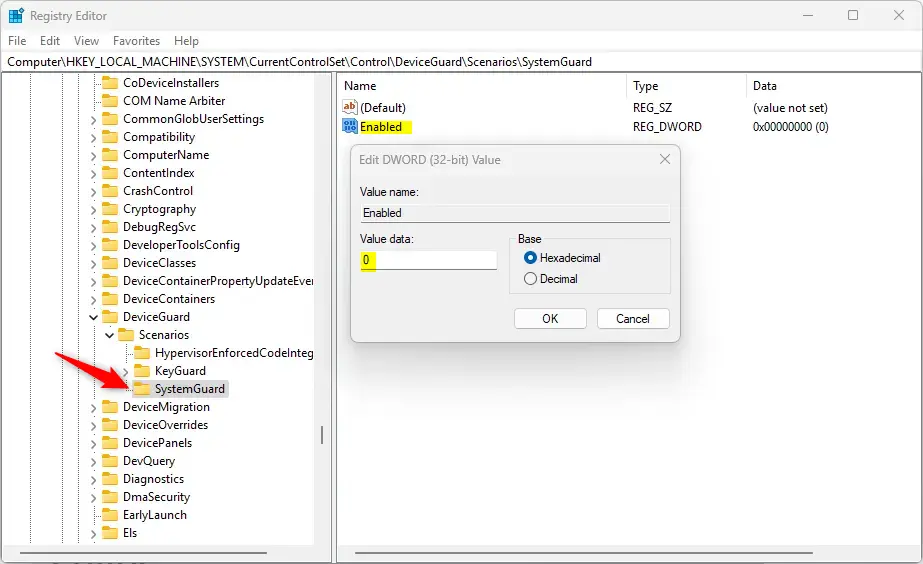
Navigate to the following folder path:
Computer\HKEY_LOCAL_MACHINE\SYSTEM\CurrentControlSet\Control\DeviceGuard\Scenarios\SystemGuard
- Right-click in the empty space, select New, then DWORD (32-bit) Value.
- Name this new value Enabled.
- Double-click Enabled and set the value to 1 to turn it on, or 0 to turn it off.
Restart your computer to apply the changes.
For more technical details, visit Microsoft.
Summary
Enabling firmware protection is a smart way to lock down your Windows 11 PC. By establishing a hardware-based security check during startup, you protect your system against advanced malware that standard tools might miss. These steps ensure your computer starts in a clean, trusted state every single time.
Was this guide helpful?

About the Author
Richard
Tech Writer, IT Professional
Richard, a writer for Geek Rewind, is a tech enthusiast who loves breaking down complex IT topics into simple, easy-to-understand ideas. With years of hands-on experience in system administration and enterprise IT operations, he’s developed a knack for offering practical tips and solutions. Richard aims to make technology more accessible and actionable. He's deeply committed to the Geek Rewind community, always ready to answer questions and engage in discussions.



No comments yet — be the first to share your thoughts!