How to Enable or Disable the “Clear TPM” Button in Windows 11 Security App

You can disable the “Clear TPM” button in Windows 11 by navigating to Computer Configuration > Administrative Templates > Windows Components > Windows Security > Device security in the Local Group Policy Editor and enabling the “Disable the Clear TPM button” setting. Alternatively, use the Registry Editor to create or modify the DisableClearTpmButton DWORD value.
What is TPM?
TPM, which stands for Trusted Platform Module, is a small chip inside your computer designed to keep your information secure. It stores sensitive details like passwords and encryption keys. Think of it as a tiny security guard for your PC.
What Does the “Clear TPM” Button Do?
The “Clear TPM” button resets this security chip back to how it was when new. When you press it, your PC will restart and erase some security information. This includes your PIN and login methods like face or fingerprint recognition (Windows Hello). You should only press this button if you absolutely need to reset your TPM.
Why Would You Turn Off the “Clear TPM” Button?
Consider turning off this button if you share your computer with others. This prevents someone from accidentally resetting your TPM without permission.
How to Turn On or Off the “Clear TPM” Button Using Local Group Policy Editor
- Press
Win + Rto open the Run box. - Type
gpedit.mscand press Enter. This opens the Local Group Policy Editor. - Follow this path in the left panel:
Computer Configuration > Administrative Templates > Windows Components > Windows Security > Device security - Click on
Device securityin the left panel. - Double-click
Disable the Clear TPM buttonon the right side. - Choose one of these options:
- Not Configured or Disabled: The Clear TPM button will be available.
- Enabled: The Clear TPM button will be turned off (hidden).
- Click
OKto save. - FLAG: Requires admin privileges — Restart your PC to apply the changes.
How to Turn On or Off the “Clear TPM” Button Using Windows Registry Editor
If you cannot access the Local Group Policy Editor, you can make this change using the Registry Editor instead.
- Press
Win + Rto open the Run box. - Type
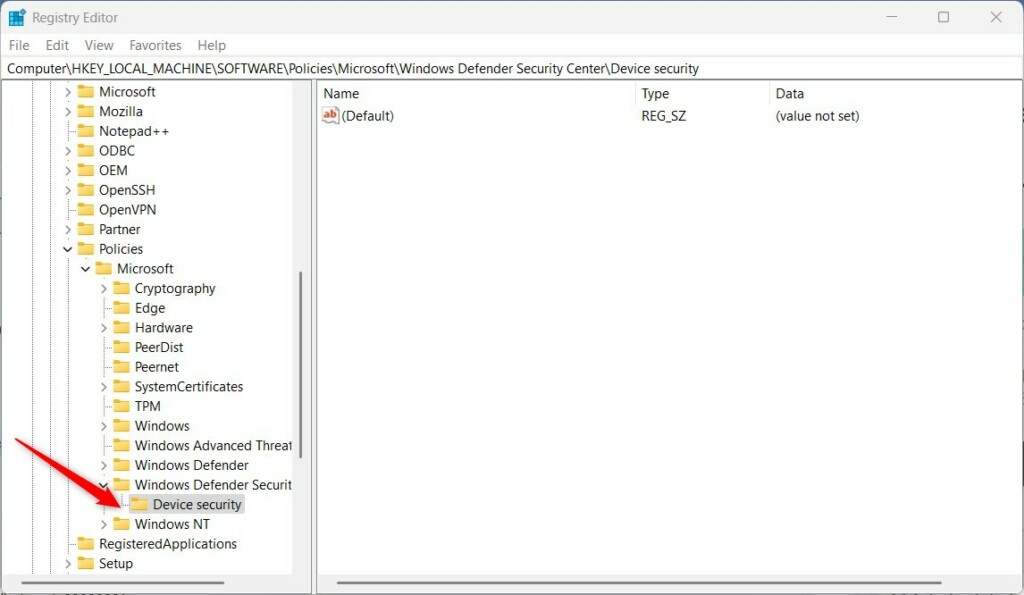
regeditand press Enter. This opens Registry Editor. - Navigate to this folder:
HKEY_LOCAL_MACHINE\SOFTWARE\Policies\Microsoft\Windows Defender Security Center\Device security - If the
Device securityfolder doesn’t exist, you need to create it:- Right-click on
Windows Defender Security Centerin the left panel. - Select
New > Key. - Name it
Device security.
- Right-click on
- Right-click inside the
Device securityfolder in the right panel. - Select
New > DWORD (32-bit) Value. - Name the new value:
DisableClearTpmButton - Double-click
DisableClearTpmButtonto open it. - Set the Base to
Decimal. - Set the Value data to:
1to turn off (disable) the Clear TPM button.0or delete the value to turn on (enable) the button.
- Click
OKand close Registry Editor. - FLAG: Requires admin privileges — Restart your PC to apply the changes.
Summary
The Clear TPM button resets your computer’s security chip. This affects things like your PIN and fingerprint login.
You can choose to turn this button on or off to control your device’s security settings.
You can use either the Local Group Policy Editor or the Registry Editor to make this change.
Always restart your PC after making changes so they work properly.
For more detailed information about clearing TPM, visit Clear TPM guide.
Is it safe to clear TPM in 🪟 Windows 11?
What happens when you clear your TPM? When you clear your TPM, it resets to its factory default settings, erasing all encryption keys and data stored on it. The loss of these keys can affect access to encrypted features and files inside the device, such as BitLocker encrypted drives, Windows Hello, and Encrypting File System (EFS).
Was this guide helpful?

About the Author
Richard
Tech Writer, IT Professional
Richard, a writer for Geek Rewind, is a tech enthusiast who loves breaking down complex IT topics into simple, easy-to-understand ideas. With years of hands-on experience in system administration and enterprise IT operations, he’s developed a knack for offering practical tips and solutions. Richard aims to make technology more accessible and actionable. He's deeply committed to the Geek Rewind community, always ready to answer questions and engage in discussions.




No comments yet — be the first to share your thoughts!