How to Hide Windows Terminal in Notification Area

You can hide Windows Terminal in the notification area (system tray) on Windows 11 by enabling a specific setting within the application.
Windows Terminal is your all-in-one command-line solution, bringing together Command Prompt, PowerShell, and Windows Subsystem for Linux (WSL) into a single, highly customizable app.
Instead of minimizing to the taskbar, you can configure it to disappear into the notification area, keeping your taskbar clean and accessible only when you need it.
To make this happen, you simply need to access the Terminal’s settings and activate the option that allows it to run in the background, appearing in the notification area.
Open Windows Terminal, go to Settings, then Appearance. Toggle on “Hide Terminal in the notification area when it is minimized.” This keeps Terminal running in the background and out of sight on your taskbar.
Why Hide Terminal in the Notification Area?
You can hide the Windows Terminal icon in the notification area to keep your taskbar looking neat and tidy.
When you enable this feature: The Terminal window disappears from your taskbar when you minimize it. It keeps running in the background. This helps reduce clutter on your taskbar. It’s helpful if you use Terminal often and want to keep it open but out of the way.
When you disable this feature: The Terminal window stays visible on your taskbar when you minimize it. This makes it easier to access when you need it.
How to Hide Terminal in the Notification Area When Minimized
- Open the Windows Terminal app. Click the Start menu and search for “Terminal.” Under “Best match,” select and open Windows Terminal.
Open the Windows Terminal app - Open Settings. When Terminal opens, click the down arrow button on the top bar. Then select Settings (or press Ctrl +,).

Open the Windows Terminal Settings - Go to the Appearance tab. In the Settings window, click on the Appearance tab on the left side.
- Toggle the hide feature on. Find the option that says “Hide Terminal in the notification area when it is minimized.” Toggle the switch button to the On position to enable it .
To hide the Windows Terminal icon when it’s minimized, first open the Windows Terminal app.
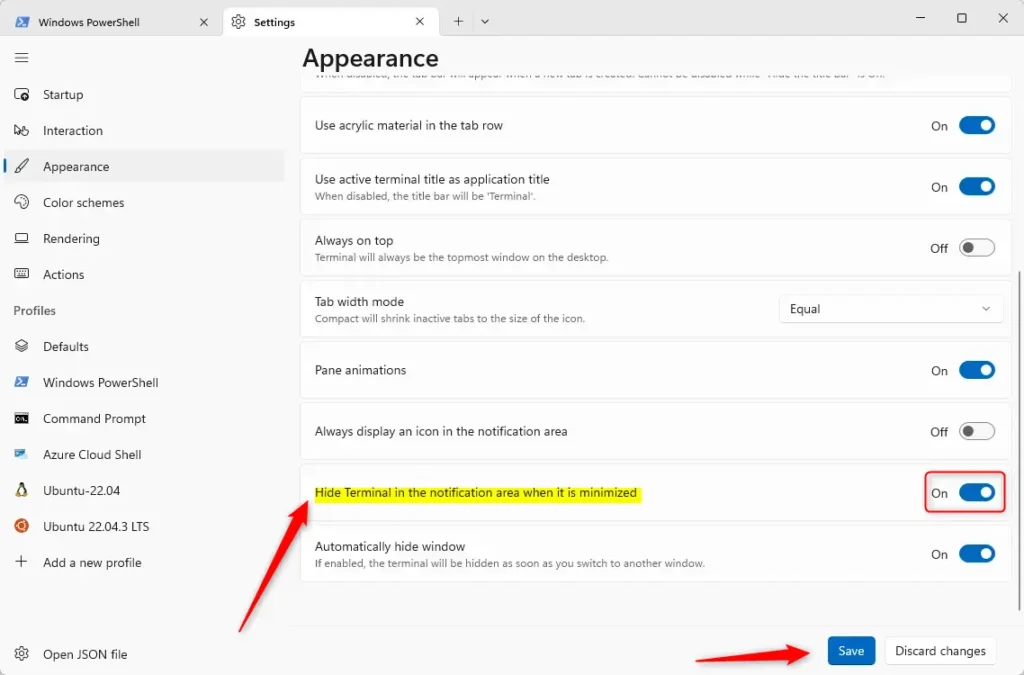
hide Terminal in the notification area when it is minimized - Save your changes. Click the Save button at the bottom. Then close the Settings window.
That’s all you need to do!
Summary
Managing the Windows Terminal notification icon is easy, letting you hide it when minimized to save taskbar space.
How to hide Windows Terminal?
Then go to appearance. Then scroll down to hide terminal in the notification. Area when it's minimized. Turn that on make sure you save the changes. All right so now when we minimize.
How to make a Windows Terminal look transparent?
Looking now I like to keep it simple with a plain background. But I really like that acrylic look in my terminal. So I can go into the settings for that prompt go down to appearance. Again.
How do I hide a terminal?
Press ⊞ Win+X and then select Terminal. Press Ctrl + comma key (,) to open Windows Terminal settings. Click Appearance on the left pane, then find Hide terminal in the notification area when it is minimized on the right pane.
Was this guide helpful?

About the Author
Richard
Tech Writer, IT Professional
Richard, a writer for Geek Rewind, is a tech enthusiast who loves breaking down complex IT topics into simple, easy-to-understand ideas. With years of hands-on experience in system administration and enterprise IT operations, he’s developed a knack for offering practical tips and solutions. Richard aims to make technology more accessible and actionable. He's deeply committed to the Geek Rewind community, always ready to answer questions and engage in discussions.



[…] copy selection to the clipboard automatically, automatically hide the Terminal window, hide the Terminal app in the notification area when minimized, keep the Terminal icon visible on the taskbar, launch at the center of the screen, and […]