How to Turn On Two-Finger Press and Hold Gesture in Windows 11

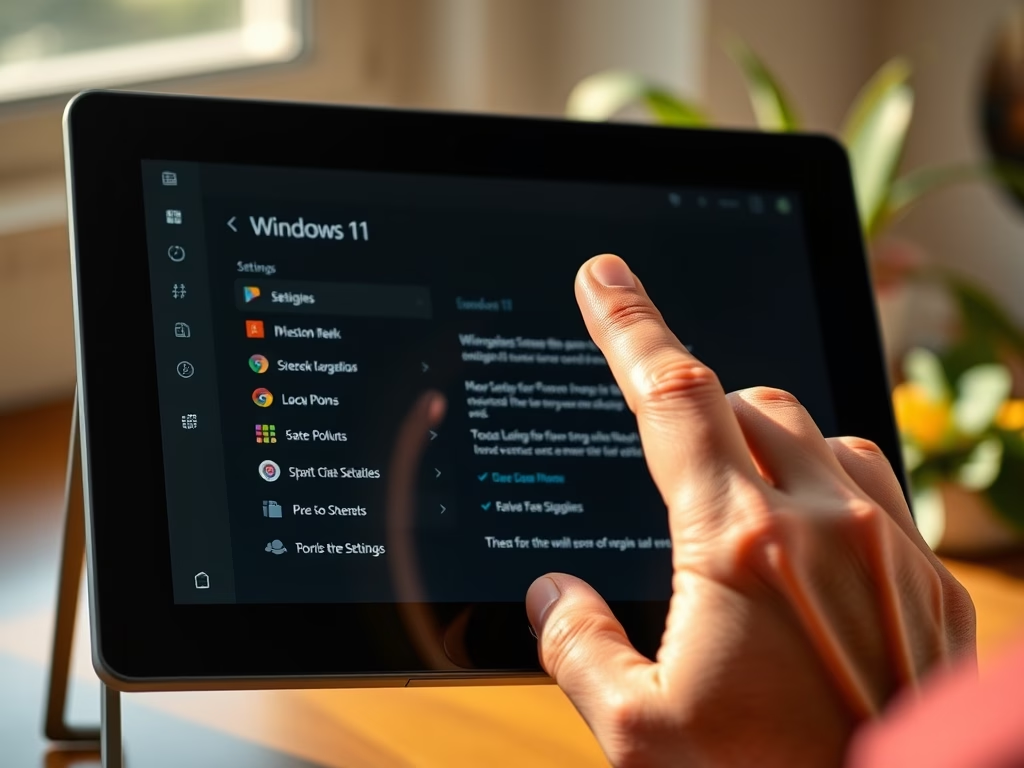
Two-finger press and hold is a touch screen shortcut in Windows 11 that works like a right-click. Touch and hold two fingers on an item and its context menu opens, with no mouse needed. It is useful on tablets and 2-in-1 laptops, especially when the keyboard is detached.
You need Windows 11 version 22H2 or newer and a touch-enabled PC. The setting lives in the Settings app, so you don’t need to install anything. It is the same in Home and Pro, and you don’t need administrator rights to change it. If you can’t find the option, the PC probably has no touch screen, or Windows is older than 22H2. To check your version, press the Win, type winver, and press Enter.
Open Settings , navigate to Bluetooth & devices, then Touch. Find “Two finger press and hold gesture” and toggle the switch to On. This enables a right-click context menu for touchscreens.
What is a Touch Gesture?
The gesture opens menus quickly without a keyboard or mouse. It is handy on the desktop, in File Explorer , and on links and text in apps that support right-click menus. Windows already treats a single-finger press and hold as a right-click in many places, and the two-finger gesture gives you another way to do the same thing.
Why Use Two-Finger Press and Hold?
- Easy to use: It opens menus and options quickly. You press and hold with two fingers on the item, and the context menu appears where you touched.
- Better control: It can make your touchscreen feel smoother and faster. You get right-click actions such as Copy, Rename and Properties without reaching for a mouse.
Steps to Turn On Two-Finger Press and Hold Gesture
To turn on the two-finger press and hold gesture, follow the steps below. The setting is in the Settings app, on the touch page under Bluetooth & devices.
That’s It!
The two-finger press and hold gesture is now active (or disabled, if you turned it off) for your Windows 11 touchscreen device. The change applies straight away, so you don’t need to restart or sign out.
To test it, press and hold two fingers on the desktop or on a file in File Explorer . A context menu should open. If nothing happens, check that both fingers touch the screen at the same time and stay in place for a moment. To undo the change, go back to the same setting and switch it the other way.
Summary
The two-finger touch gesture in Windows 11 acts just like a right-click on a mouse. When you press and hold two fingers on your screen, you open context menus and options instantly without needing a physical mouse. You can turn this setting on or off in your main device settings whenever you want to change how your touchscreen responds.
- Personalize your device: You can turn this feature on or off anytime based on your preference. If you trigger menus by accident, switch it off. If you often miss the right-click option on a tablet, switch it on.
- Navigate faster: Touch gestures like this help you control your computer in a simple way. Once your fingers learn the motion, it is quicker than hunting for small buttons on a touch screen.
For more Windows 11 tips and tricks, explore Geek Rewind's Windows 11 guides.
Have a question about this guide?
Answered by AI from this guide. Good questions may be added to this page — please don't include personal details.
Did this guide fix your problem?

About the Author
Richard
Tech Writer, IT Professional
Richard is a writer at Geek Rewind who turns complex IT tasks into clear, step-by-step guides. He draws on years of hands-on experience in system administration and enterprise IT operations, focusing on Windows, Linux and WordPress: the problems people actually run into, and the fixes that work. His server and WordPress guides come from systems he runs himself. Richard builds and maintains the platform behind Geek Rewind, from its Ubuntu servers and Nginx configuration to its custom WordPress plugins. Many new tutorials start with readers' questions, and he's always glad to answer them in the comments.
No comments yet — be the first to share your thoughts!