How to Add or Remove Scrollbar in Windows Terminal

You can control whether the scrollbar appears in Windows Terminal. This guide shows you how to change those settings on Windows 11.
Open Windows Terminal, click the down arrow, select Settings, then navigate to Defaults > Appearance. Under the Window section, choose your desired scrollbar visibility from the dropdown menu and click Save.
What is Windows Terminal?
Windows Terminal is a handy app that lets you use different command-line tools like Command Prompt and PowerShell all in one place.
Windows Terminal lets you customize many aspects of its appearance and behavior. You can adjust settings like language, window size, the default profile that opens, and how the app starts up. One particularly handy setting you can tweak is the scrollbar. That’s the bar you see on the side of the window that helps you navigate through lengthy command outputs.
Why Change the Scrollbar?
Changing the scrollbar in Windows Terminal can make it easier to read through long lists of commands or output.
How to Change the Scrollbar Visibility in Windows Terminal
Open Windows Terminal: Click the Start menu, type Terminal, and click Windows Terminal from the results.
To change the scrollbar visibility in Windows Terminal, first open the app by searching for ‘Terminal’ in your Start menu.
Open Settings: Once Terminal is open, click the small down arrow (˅) near the top, then select Settings. Or pressCtrl + ,on your keyboard.

To change the scrollbar visibility in Windows Terminal, first open the app by searching for ‘Terminal’ in your Start menu.
Go to Defaults & Appearance: In the Settings window, find and click on Defaults under the Profiles section on the left side. Then click on the Appearance section on the right to open it.
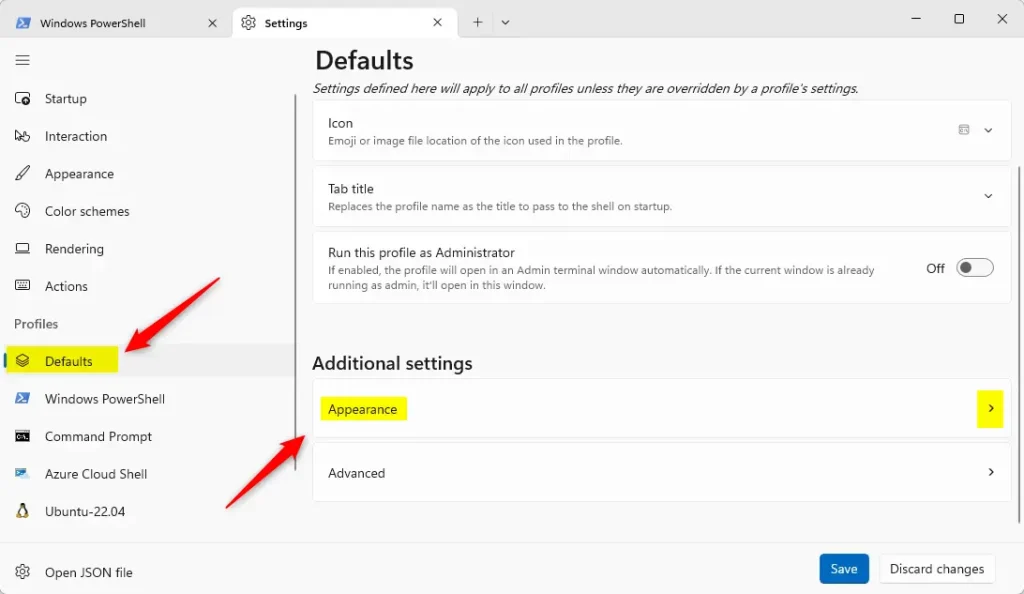
To change the scrollbar visibility in Windows Terminal, first open the app by searching for ‘Terminal’ in your Start menu.
Change Scrollbar Visibility: Scroll down until you see Scrollbar visibility under the Window section. Click the dropdown menu and choose one of these options:
- Visible (default): Scrollbar appears only when you move your mouse near the edge.
- Hidden: Scrollbar is always hidden.
- Always: Scrollbar is always visible.
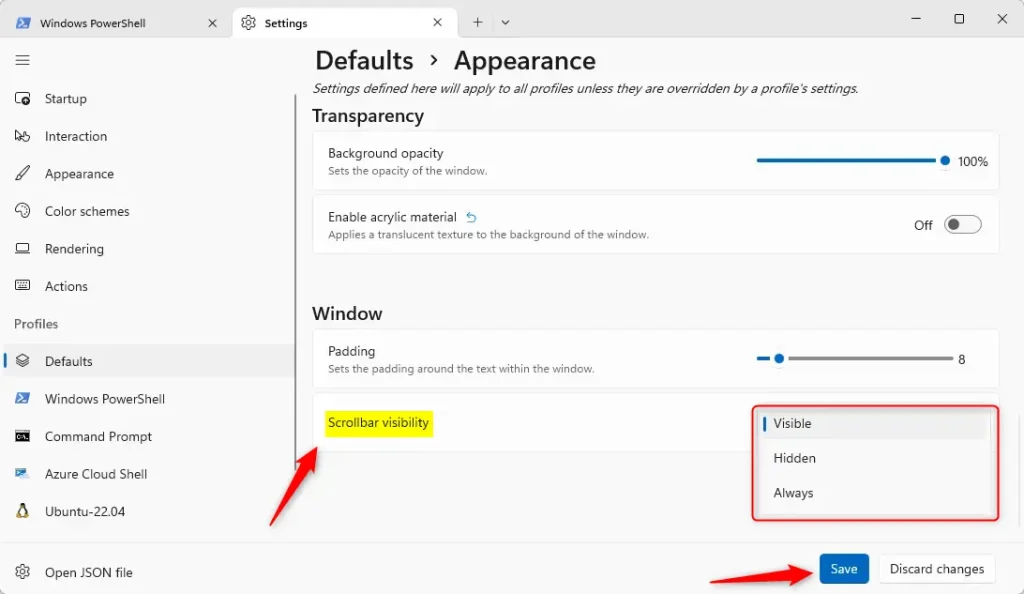
To change the scrollbar visibility in Windows Terminal, first open the app by searching for ‘Terminal’ in your Start menu.
Save your changes: Click the Save button at the bottom right to apply your new scrollbar setting.
That’s it! Your scrollbar will now behave the way you want.
Summary
You can easily adjust when the scrollbar appears in Windows Terminal through its settings menu.
If you have questions or want to share your tips, leave a comment below!
Was this guide helpful?

About the Author
Richard
Tech Writer, IT Professional
Richard, a writer for Geek Rewind, is a tech enthusiast who loves breaking down complex IT topics into simple, easy-to-understand ideas. With years of hands-on experience in system administration and enterprise IT operations, he’s developed a knack for offering practical tips and solutions. Richard aims to make technology more accessible and actionable. He's deeply committed to the Geek Rewind community, always ready to answer questions and engage in discussions.



No comments yet — be the first to share your thoughts!