How to Change Scrollbar Size in Windows 11 (Easy Steps)

You can change the scrollbar size in Windows 11, but it’s not in the usual personalization settings. You’ll need to look in Accessibility options.
Windows 11 scrollbars control how much of a document or webpage you see at once, and their default size can be adjusted to improve visibility and ease of use for many users.
Good news for Windows 11, version 22H2 users: Microsoft added a way to adjust scrollbar thickness right in the system settings.
This modification helps you quickly identify and interact with the scrollbars, especially on high-resolution displays where standard scrollbars might appear too small.
You adjust scrollbar size in Windows 11 by modifying registry settings. Open Registry Editor, navigate to 🗝️HKEY_CURRENT_USERControl PanelDesktopWindowMetrics, and change ScrollHeight and ScrollWidth values. Restart Windows Explorer for the changes to take effect.
What You Need to Know
When you change the Windows 11 scrollbar size, it mainly affects older desktop apps like File Explorer, but not all apps will change.
Step-by-Step: Change Scrollbar Size
Step 1Open Registry Editor
Press the Windows key + R on your keyboard. This will open the Run box. Type regedit and press Enter.
Windows might ask for permission; click ‘Yes’ to proceed.
Step 2Go to the Scrollbar Settings
Once Registry Editor opens, look on the left side of the window. Find this folder:
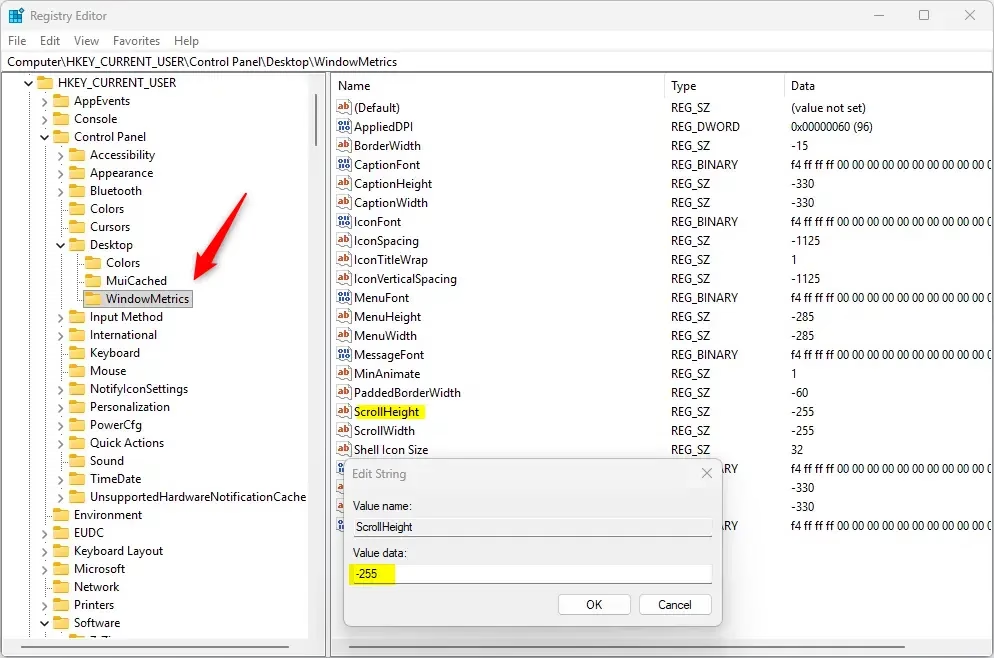
HKEY_CURRENT_USER\Control Panel\Desktop\WindowMetricsStep 3Change Scrollbar Height
To change the Windows 11 scrollbar size, find ‘ScrollHeight’ in the registry editor and double-click it to adjust its value.
A box will open. Type a new number for the scrollbar height.
- Use a value between -120 (smaller) and -1500 (larger)
- The default is -255
- To pick a size, use this formula: -15 × (height in pixels)
- For example, if you want 17 pixels tall, enter -255 (because -15 × 17 = -255)
Step 4Change Scrollbar Width
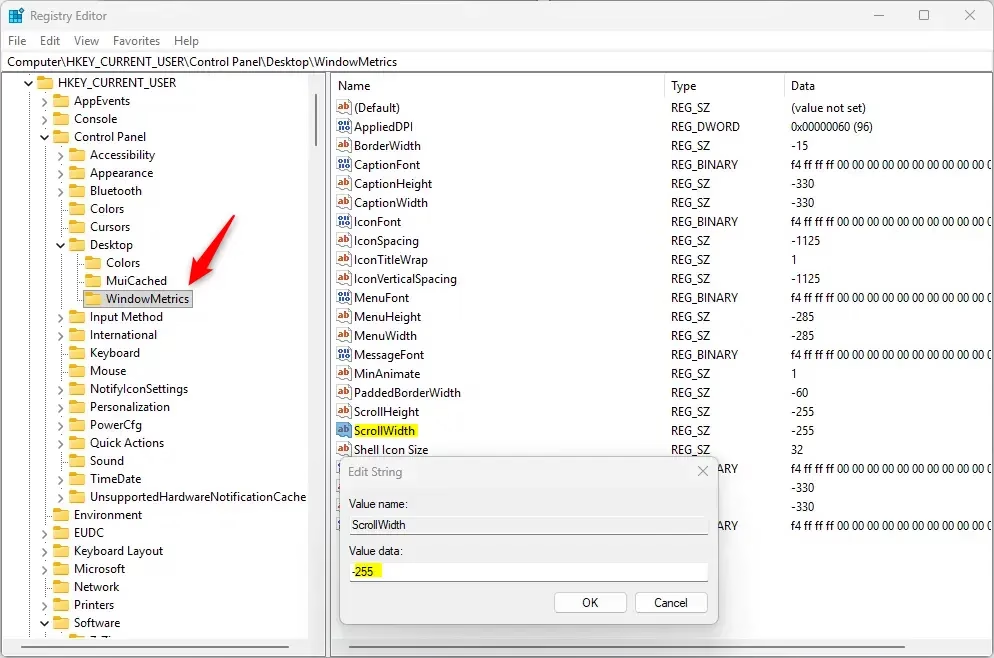
Next, find ScrollWidth on the right side and double-click it.
Type a new number for scrollbar width using the same range and formula as height:
- Between -120 (thinner) and -1500 (thicker)
- Default is -255
- Formula: -15 × (width in pixels)
- Example: For 17 pixels wide, enter -255
Step 5Save and Exit
Click OK after entering each value. When you’re done, close Registry Editor.
Step 6Apply the Changes
After changing the Windows 11 scrollbar size, you need to restart Windows Explorer or your computer to see the new look.
- Press Ctrl+Shift+Esc to open Task Manager. Find Windows Explorer in the list. Right-click it and choose Restart.
- Or simply sign out and sign back in
- Or restart your PC
Summary
You can adjust the Windows 11 scrollbar size to be thicker or thinner, but remember to restart for changes to show and be careful with registry edits.- You can make scrollbars thicker or thinner to match your preference
- These changes affect most traditional Windows apps but not all modern apps
- Default scrollbar size is set to -255 for both height and width
- Remember to restart Explorer or your computer to see the new sizes
- Be careful when changing Registry settings. Always double-check your changes before saving
How do I change the size of the scroll bar?
Log off and back on to make the changes. Okay, so we’re logged back in. Let’s open our browser. Now you can see we’ve got this jumbo scrollbar.
What is the default scrollbar width?
The scrollbar-width property accepts the following values: auto is the default and will render the standard scrollbars for the browser. thin tells the browser to use thinner scrollbars, when applicable. none hides the scrollbar completely, without affecting the element’s scrollability.
Was this guide helpful?

About the Author
Richard
Tech Writer, IT Professional
Richard, a writer for Geek Rewind, is a tech enthusiast who loves breaking down complex IT topics into simple, easy-to-understand ideas. With years of hands-on experience in system administration and enterprise IT operations, he’s developed a knack for offering practical tips and solutions. Richard aims to make technology more accessible and actionable. He's deeply committed to the Geek Rewind community, always ready to answer questions and engage in discussions.



No comments yet — be the first to share your thoughts!