How to Run Windows Terminal in the Background

You can run Windows Terminal in the background to keep your command-line tasks processing even when the app window is closed.
Windows Terminal is a modern, tabbed command-line application that supports Command Prompt, PowerShell, WSL, and more.
This feature is particularly useful for long-running scripts or processes you want to monitor without keeping the Terminal window open on your screen.
For example, you can initiate a file transfer or a server startup script in Windows Terminal (version 1.19.10572.0 or later) and then close the window, letting it continue in the background.
Open Windows Terminal, go to Settings, select Compatibility, and enable “Allow Windows Terminal to run in the background.” Save your changes to let your command-line tasks continue after closing the app window.
How to Let Windows Terminal Run in the Background
You can easily set Windows Terminal to run in the background by changing a simple setting within the app itself.
- Open Windows Terminal: Click the Start menu (the Windows icon at the bottom-left). Type Terminal. Then click on Windows Terminal from the list.
Open the Windows Terminal app - Go to Settings: Once Windows Terminal opens, click the down arrow ▼ on the top bar. Then click Settings. Or press
Ctrl + ,on your keyboard.
Open Windows Terminal Settings - Find the Compatibility option: In the Settings window, find and click Compatibility on the left side. Look for the option that says “Allow Windows Terminal to run in the background.” Turn the switch On to allow it to run in the background. Turn it Off to stop it.
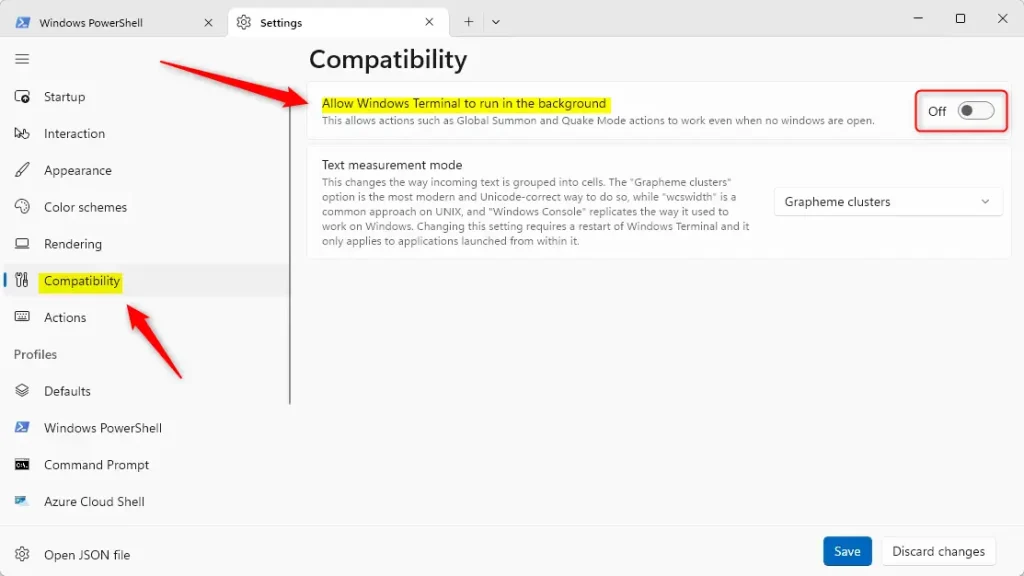
Allow Windows Terminal to run in the background toggle - Save your changes: Click the Save button at the bottom to apply the changes. Then close the Settings window.
That’s it! Now Windows Terminal can keep running in the background. Your tasks won’t stop even if you close the Terminal window.
Why Run Windows Terminal in the Background?
- It lets you continue running scripts or commands without interruption.
- The settings page makes it easy to turn this feature on or off anytime.
- You can customize Windows Terminal to fit your workflow better.
- Keep Windows Terminal updated for the best experience and new features.
Running Windows Terminal in the background is useful because it lets you keep your scripts or commands going without stopping your work.
Summary
Running Windows Terminal in the background is simple. Open Windows Terminal, go to Settings, find the Compatibility section, and turn on “Allow Windows Terminal to run in the background.” Save your changes and you’re done. This feature keeps your command-line tasks running even when you close the app window.
How do I change the terminal background in Windows?
And there is the settings for background. Image pick any one you want you can even have it set to your Windows desktop background.
How do I add a background to my terminal?
Open a terminal, go to Edit →Preferences, click the Appearance tab, and modify the Background setting.
How to change terminal wallpaper?
And of course I know that you can change your wallpaper. Directly from settings so you can go into settings. You can go into. I think appearance and from there you can change your wallpaper.
Was this guide helpful?

About the Author
Richard
Tech Writer, IT Professional
Richard, a writer for Geek Rewind, is a tech enthusiast who loves breaking down complex IT topics into simple, easy-to-understand ideas. With years of hands-on experience in system administration and enterprise IT operations, he’s developed a knack for offering practical tips and solutions. Richard aims to make technology more accessible and actionable. He's deeply committed to the Geek Rewind community, always ready to answer questions and engage in discussions.



No comments yet — be the first to share your thoughts!