
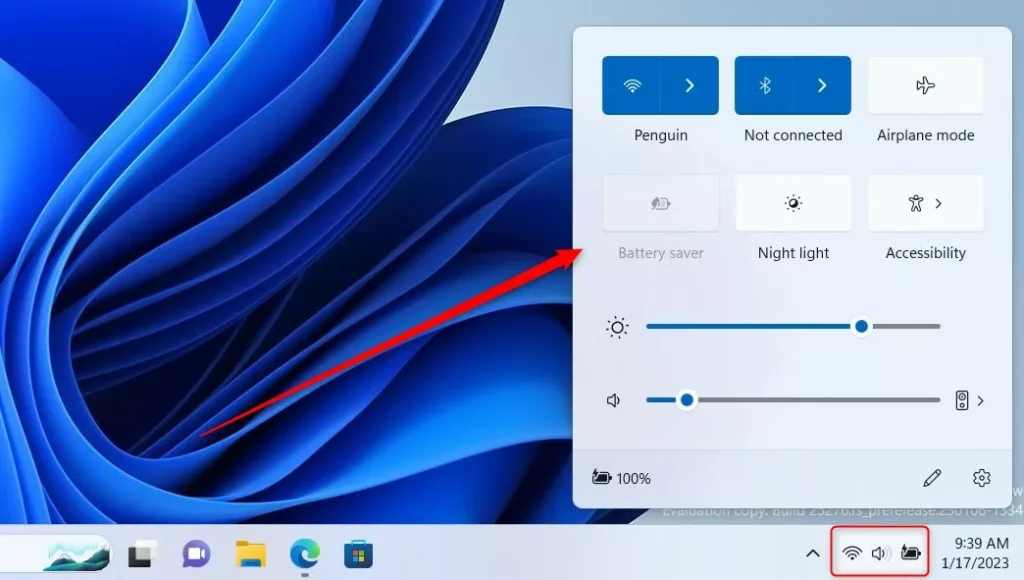
If you want to quickly change things like your volume, screen brightness, or Wi-Fi on your Windows 11 computer, you can use the Quick Settings panel. This panel is found at the bottom right corner of your screen, near the clock.
The Quick Settings panel shows buttons for things like battery, network (Wi-Fi), volume, and more. You can use it to turn features on or off or adjust settings without opening the full Settings app.
By default, Windows shows only some buttons here. But you can easily add buttons you use often or remove ones you don’t need. This guide will show you how!
What is the Quick Settings Panel?
It’s a small window that opens when you click the battery, sound, or network icon in the bottom right corner. It gives you fast access to things like:
- Volume control
- Screen brightness
- Wi-Fi and Bluetooth
- Airplane mode
- Night light (makes your screen warmer at night)
- Battery saver
- And more…
You can also open Quick Settings by pressing Windows key + A.
How to Add or Remove Buttons in Quick Settings
Follow these easy steps to customize which buttons you see:
- Press Windows key + A on your keyboard to open the Quick Settings panel. Or click the battery, sound, or network icon at the bottom right of your screen.
- In the Quick Settings panel, click the pencil icon that says Edit quick settings.
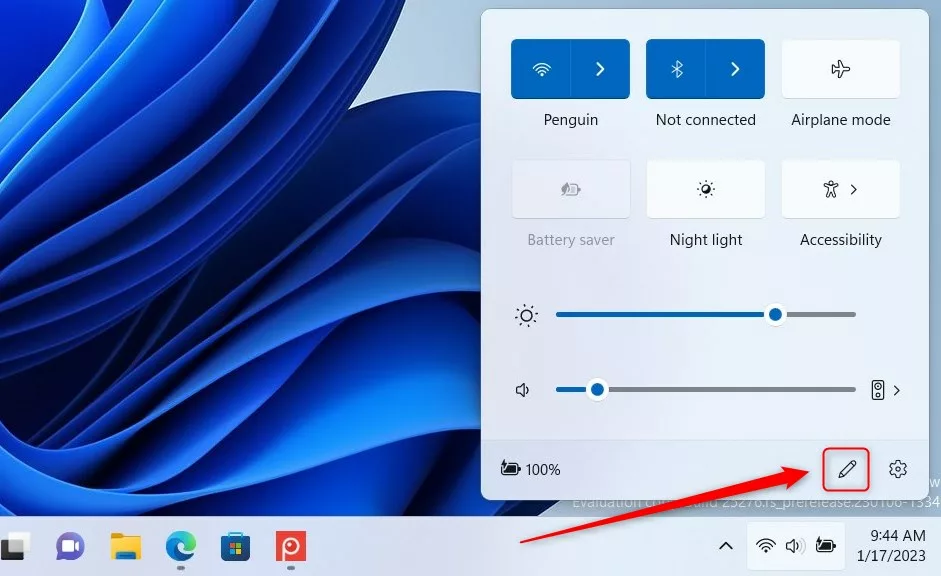
Click the pencil icon to start editing Quick Settings buttons - To add a new button, click the Add button.
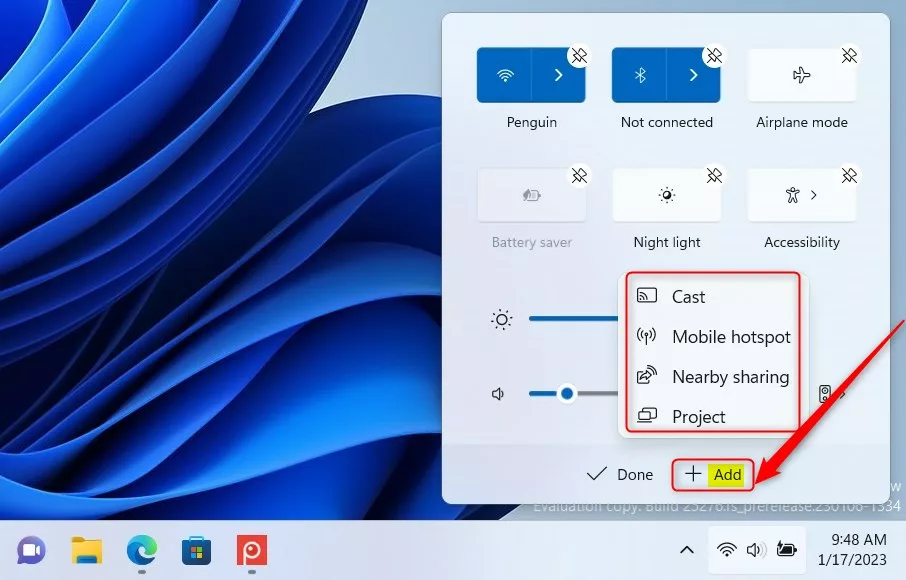
Select buttons you want to add from the list - Pick the buttons you want to add by clicking on them.
- To remove a button, click the Unpin button below the button you want to remove.
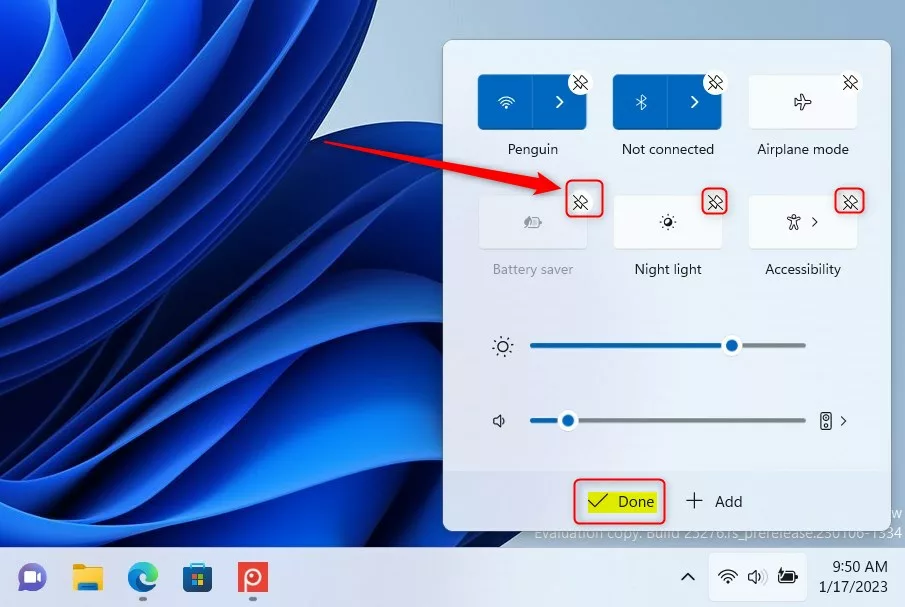
Click “Unpin” to remove a button - You can also rearrange buttons by clicking and holding a button and dragging it to the place you want.
- When you’re done, click the Done button to save your changes.
And that’s it! Your Quick Settings panel will now have only the buttons you want, in the order you like.
Extra Tip
If you want to stop other people from changing your Quick Settings buttons, you can disable editing of Quick Settings.
Summary
- The Quick Settings panel is a handy way to quickly change common settings on Windows 11.
- You can add, remove, or rearrange buttons to fit what you use most.
- Just open Quick Settings with Windows + A, click the pencil icon, and customize away!
Feel free to try it out and make your Windows 11 experience faster and easier!



Leave a Reply