

Does your keyboard feel too fast or too slow when you hold down a key? Windows 11 lets you change this. This guide shows you how to adjust the wait time before a key repeats and how fast it repeats.
What Do These Terms Mean?
Repeat Delay: The pause between when you press and hold a key and when it starts repeating.
Repeat Rate: How fast the character repeats when you hold the key down.
Option 1: Change Repeat Delay in Windows 11 Settings
Note: This option works only on Windows 11 versions 26100.7309 or 26200.7309 (also called 24H2 or 25H2 builds).
- Press
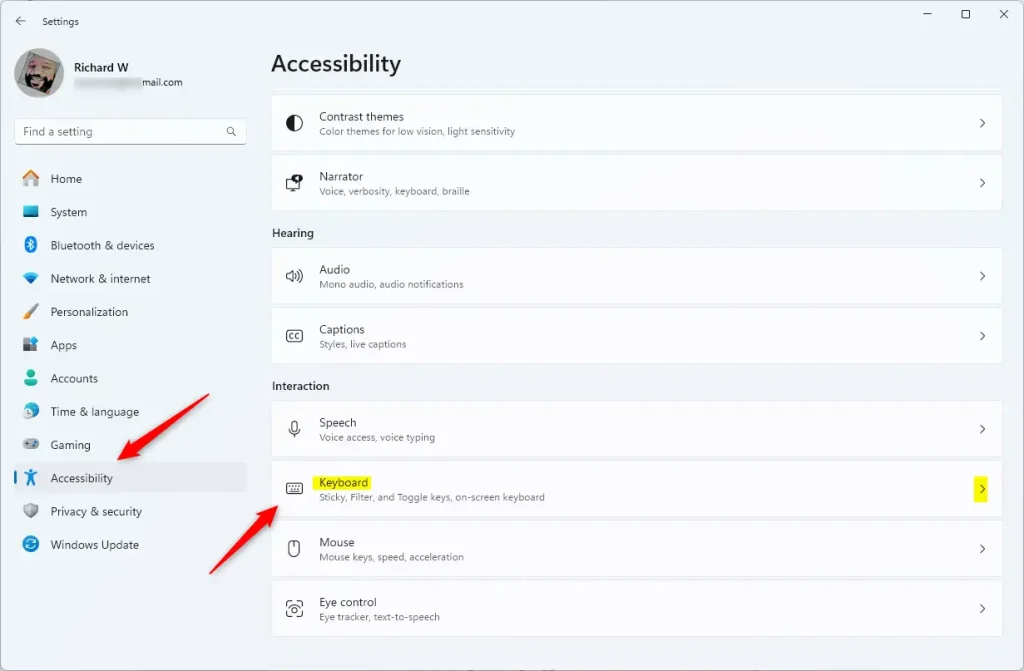
Win + Ito open Settings. - On the left menu, click Accessibility.
- On the right, click Keyboard.
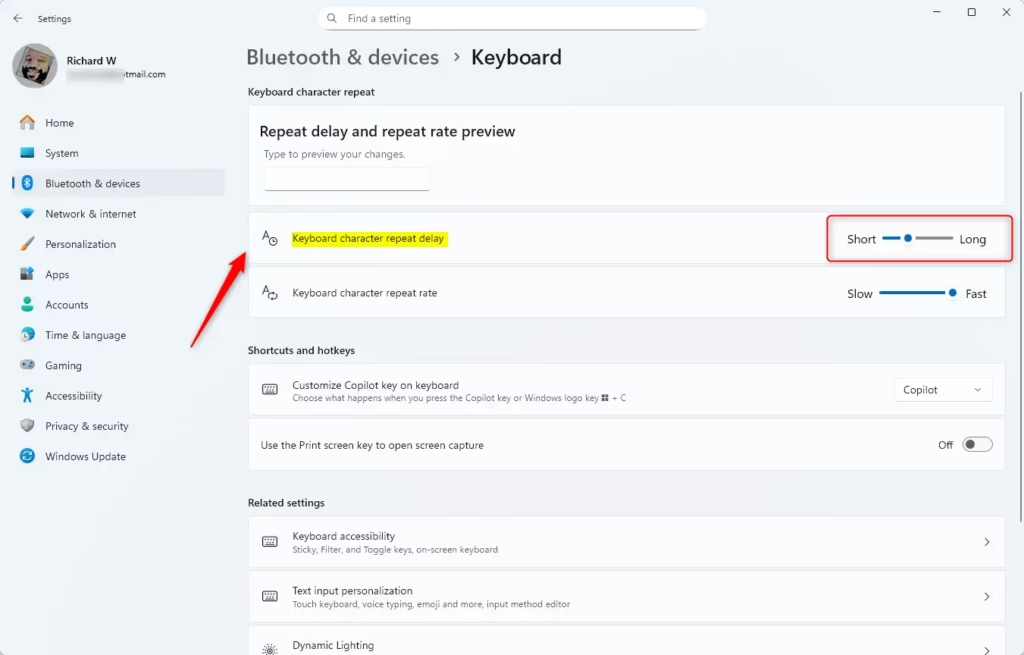
- Scroll down to find the Keyboard character repeat delay slider.
- Move the slider left for a longer delay (slower repeat) or right for a shorter delay (faster repeat).
- Close Settings when you’re done.
You can also open keyboard settings directly by clicking this link (opens Settings app): Open Keyboard Settings
Option 2: Change Repeat Delay in Control Panel
- Open the Control Panel. Press
Win + R, typecontrol, and pressEnter. - Change the view to Small icons or Large icons if it’s not already.
- Click on Keyboard.
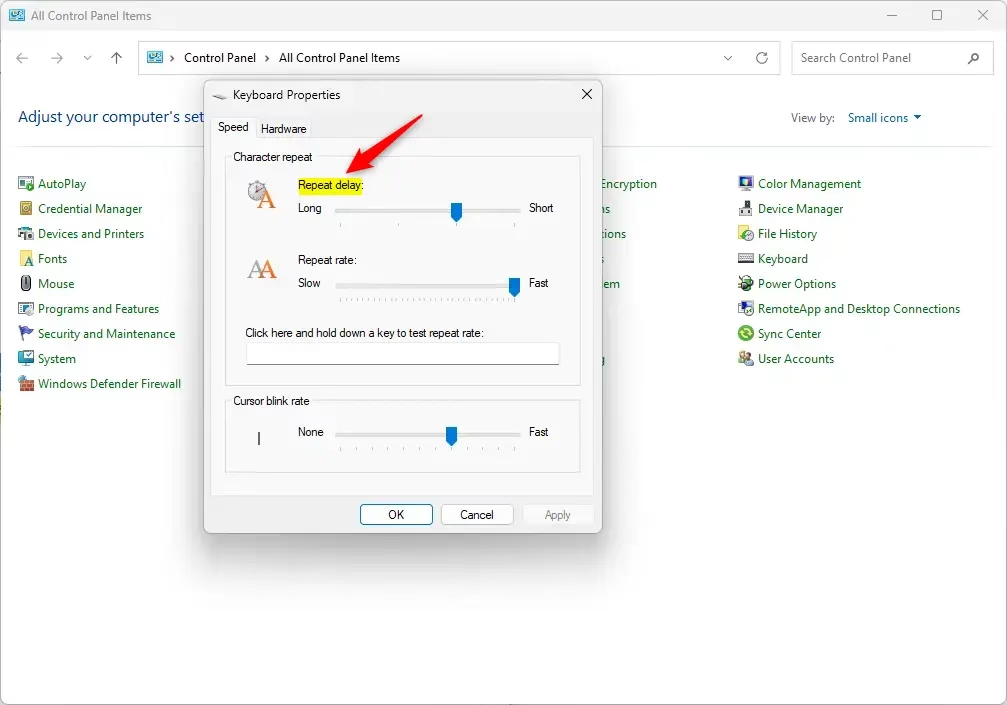
- In the Keyboard Properties window, click the Speed tab.
- Adjust the Repeat delay slider towards Short for faster repeat or Long for slower repeat.
- Click OK to save.
Option 3: Change Repeat Delay Using Registry Editor (Advanced)
Warning: Editing the registry can cause problems if done incorrectly. Please follow the steps carefully and consider backing up your registry first.
Note: Admin privileges required to access Registry Editor.
- Press
Win + R, typeregedit, and pressEnterto open the Registry Editor. - Navigate to this folder using the left sidebar:
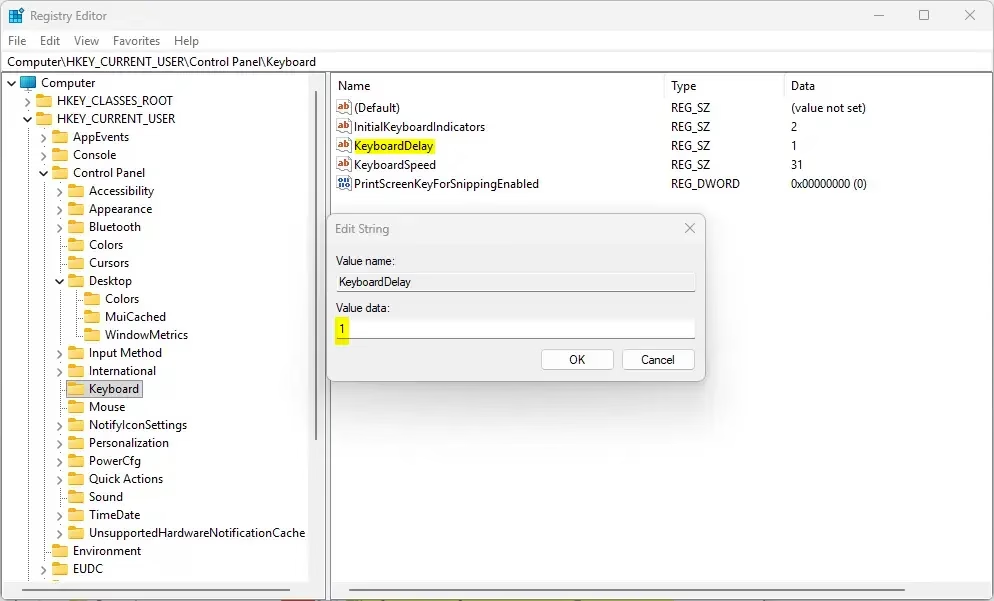
HKEY_CURRENT_USER\Control Panel\Keyboard - On the right side, find KeyboardDelay.
- Double-click KeyboardDelay to edit it.
- Enter a number between
0(short delay) and3(long delay). The default is1. - Click OK to save.
- Close the Registry Editor.
- Sign out of your account and sign back in, or restart your computer for the changes to take effect.
Summary
Adjusting the keyboard character repeat delay makes typing easier and more comfortable, especially if you often hold keys down. Here’s what you should remember:
- You can make the repeat delay longer (slower repeat) or shorter (faster repeat) to match how you type.
- There are three ways to change it: Windows Settings, Control Panel, or Registry Editor.
- The default delay number is
1. You can choose between0(fast) and3(slow). - Some features in Settings are only available on certain Windows 11 versions (builds 26100.7309 or 26200.7309).
- If you don’t like the changes, you can always go back and reset to the original settings.
- By adjusting these settings, you can have a smoother typing experience that works best for you.



Leave a Reply Cancel reply