How to Export Passwords from Google Chrome


You export passwords from Google Chrome by navigating to its settings and selecting the export option, typically generating a CSV file.
Google Chrome’s password manager securely saves your login credentials, but exporting them allows you to migrate to a different password manager or create a local backup. This process is straightforward and takes just a few minutes.
Exporting your Chrome passwords creates a single CSV file containing all your saved usernames and their associated websites. You can then import this file into other password managers or keep it as a secure offline archive.
This method ensures you can easily move your sensitive data from Chrome into a universally compatible format for other applications.
Access Chrome settings, navigate to Autofill then Passwords, click the three dots menu, and select “Export passwords.” You will need to confirm with your system password to save the passwords as a CSV file.
How to Export Passwords from Google Chrome
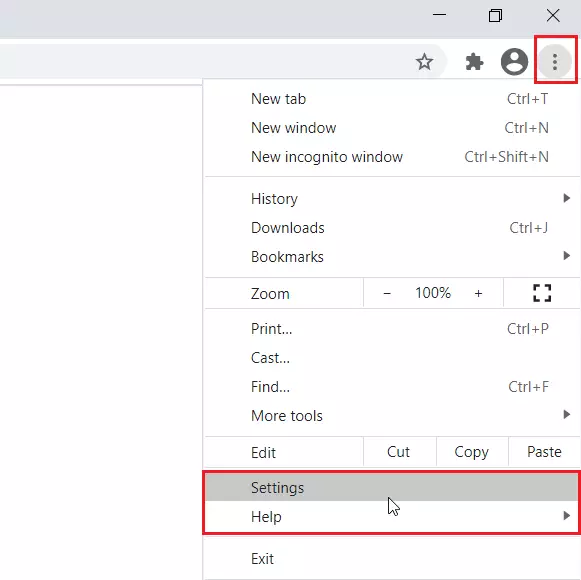
Step 1Open Chrome Settings
First, make sure you’re signed into your Google account in Chrome. Look at the top right corner. Click the three dots (the menu button). Then click Settings.
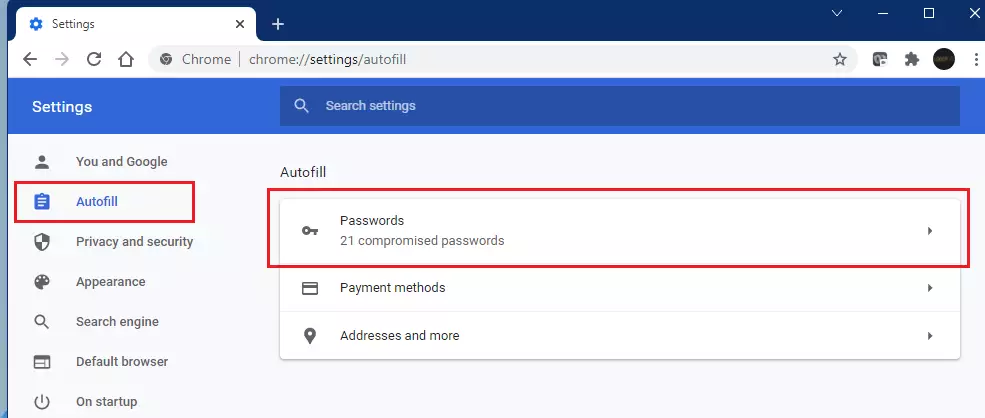
Step 2Go to Passwords
On the Settings page, find Autofill on the left side. Click it. Then click the Passwords tile.
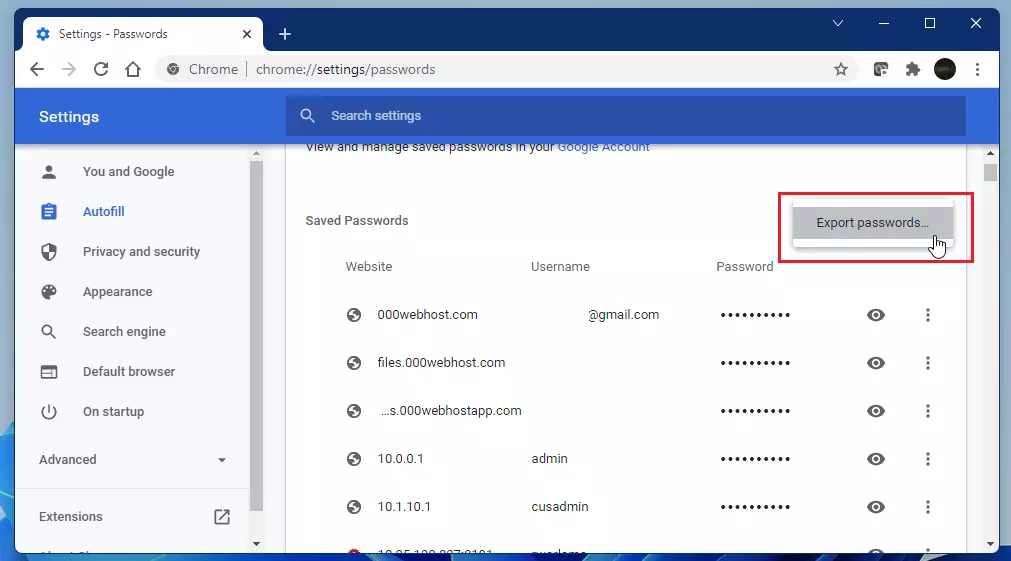
Step 3Click Export Passwords
On the Passwords page, you’ll see three vertical dots in the top right. Click them. A menu will appear. Select Export passwords.
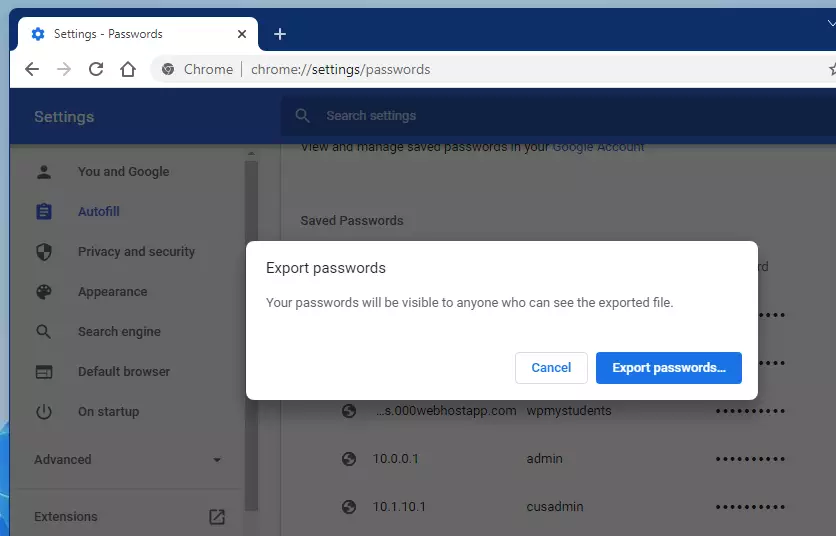
Step 4Confirm Export ⚠️ Admin Privileges Required
A pop-up window will appear. Click the Export passwords button.
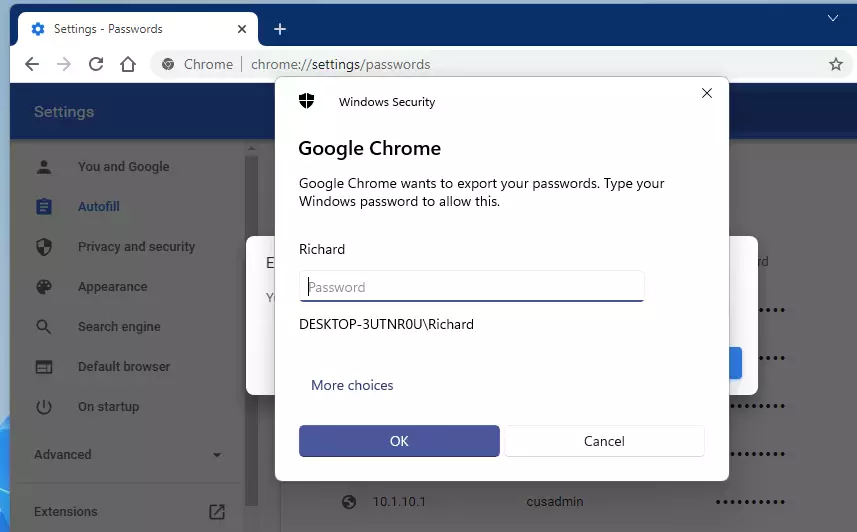
Step 5Enter Your Windows Password ⚠️ Admin Privileges Required
Chrome will ask for your Windows password. This is a security measure. Type your password and click Next.
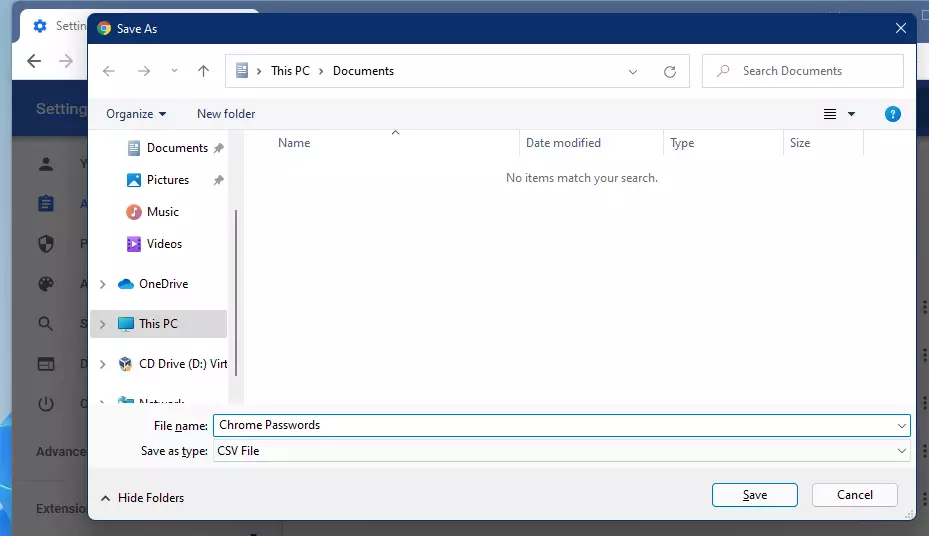
Step 6Save Your Password File
After you enter your password, a save dialog will open. Choose where you want to save the file. Pick a safe location on your computer. Then click Save.
That’s it! You’ve successfully exported your passwords.
Summary
You can export your saved passwords from Google Chrome to a file, which is handy if you want to switch password managers or keep a backup. This process lets you move your logins easily, but make sure you keep the exported file safe because it contains all your usernames and passwords.- Exporting passwords from Chrome is simple and quick.
- Your passwords save to a CSV file that other password managers can read.
- You need to be signed into your Google account in Chrome.
- Chrome asks for your Windows password for security reasons.
- Keep your exported password file in a safe place since it contains sensitive information.
- You can now use this file to move your passwords to another password manager or keep it as a backup.
Was this guide helpful?

About the Author
Richard
Tech Writer, IT Professional
Richard, a writer for Geek Rewind, is a tech enthusiast who loves breaking down complex IT topics into simple, easy-to-understand ideas. With years of hands-on experience in system administration and enterprise IT operations, he’s developed a knack for offering practical tips and solutions. Richard aims to make technology more accessible and actionable. He's deeply committed to the Geek Rewind community, always ready to answer questions and engage in discussions.



No comments yet — be the first to share your thoughts!