How to Install Telegram on Ubuntu 24.04: Step-by-Step Guide

You can install Telegram on Ubuntu 24.04 using either the Snap Store or by downloading the official package directly from Telegram’s website.
Telegram is a cloud-based instant messaging app renowned for its speed and strong security features, allowing you to send messages, photos, and files across all your devices effortlessly.
It provides end-to-end encryption for secret chats and offers optional self-destructing messages, making it a prime choice for secure communication.
Installing Telegram on your Ubuntu 24.04 system is straightforward. You can choose the convenient Snap Store method for a quick setup, or directly download the official binary for greater control.
Install Telegram on Ubuntu 24.04 using the Snap Store by running `sudo snap install telegram-desktop`. Alternatively, use the default repositories with `sudo apt install telegram-desktop`. Both methods allow you to launch Telegram from your application menu after installation.
Install Telegram from Ubuntu repositories
The quickest way to get Telegram is from Ubuntu’s default repositories. Keep in mind, this version might not always be the absolute latest. First, run this command to update Ubuntu’s package index.
sudo apt update && sudo apt upgrade
Then, use this command to install Telegram.
sudo apt install telegram-desktop
Once it’s installed, click ‘Activities’ in the top-left corner of your screen and select ‘Show Applications’.
You can then search for Telegram or click its icon to launch it and start chatting.
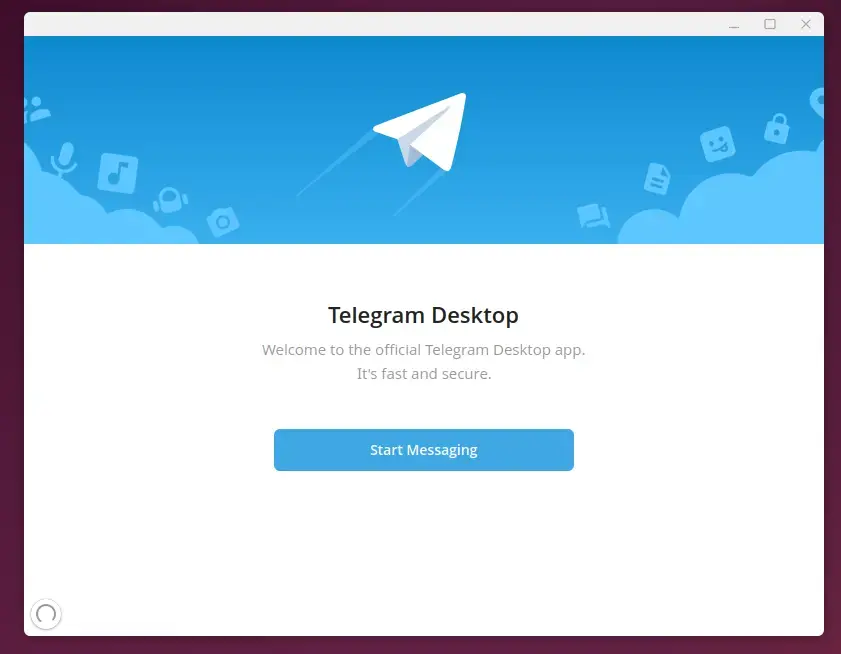
Start using Telegram.
Install Telegram from PPA
Another way to get Telegram installed is by adding a personal PPA from the “atareao-team” and installing it from there.
First, run the command below to add the PPA repository to Ubuntu.
sudo add-apt-repository ppa:atareao/telegram
Then, upgrade Ubuntu and install Telegram.
sudo apt update
sudo apt install telegram
Once installed, launch the app from the Ubuntu apps dashboard.
Install Telegram from Flatpak
If you prefer apps from Flatpak, you can install Telegram from there.
Flatpak uses a sandboxing approach for installing applications, which boosts security and makes updates a breeze. Think of Flatpak as a separate app store that isn’t built into Ubuntu by default, so you’ll need to set up the Flatpak package manager first before installing Telegram.
First, update and install Flatpak.
sudo apt update && sudo apt upgrade
sudo apt install flatpak
Next, add the Flatpak repository to Ubuntu.
sudo flatpak remote-add --if-not-exists flathub https://flathub.org/repo/flathub.flatpakrepo
Finally, install Telegram.
flatpak install flathub org.telegram.desktop
Once installed, you can launch it using the command below or open the app in the desktop apps center.
flatpak run org.telegram.desktop
Uninstall the app using the command below.
flatpak remove --delete-data org.telegram.desktop
Install Telegram from Snap
Another way to install Telegram is to use the Snap package manager.
If you don’t already have it, you’ll need to install the Snap package manager first.
sudo apt install snapd
Next, install core Snap by running the command below.
sudo snap install core
Then, run the command below to install Telegram from the Snap package manager.
sudo snap install telegram-desktop
Once installed, use the Dock on the left sidebar to search and launch the Telegram app.
You can also run the app using the command below.
snap run telegram-desktop
Remove the app using the command below.
sudo snap remove telegram-desktop
That should do it!
Conclusion:
So, installing Telegram on Ubuntu 24.04 gives you several options, each fitting different needs. Here’s a quick rundown of what we’ve covered:
- Multiple Installation Options: You can install Telegram from default repositories, PPA, Flatpak, or Snap based on your comfort with different package management systems.
- User-Friendly Interface: Telegram offers a seamless experience across devices, ensuring your messages and media are easily accessible.
- Privacy and Security: The app provides end-to-end encryption for secret chats, making it a secure choice for private communications.
- Easy Updates: Package managers like Flatpak or Snap can simplify the application update process.
- Accessibility: Simple commands allow for quick installation or removal of the app, making it convenient for users to manage their applications.
With these options, you can start enjoying the features Telegram offers on your Ubuntu system!
Can I install Telegram in Ubuntu?
Step 1: Telegram’s current stable version may be found in the official Ubuntu APT package repository. First, update the system’s cache repository before installing Telegram. Step 3: If it asks for more disc space to install Telegram, type "Y" and press the "Enter" button to continue the installation.
Was this guide helpful?

About the Author
Richard
Tech Writer, IT Professional
Richard, a writer for Geek Rewind, is a tech enthusiast who loves breaking down complex IT topics into simple, easy-to-understand ideas. With years of hands-on experience in system administration and enterprise IT operations, he’s developed a knack for offering practical tips and solutions. Richard aims to make technology more accessible and actionable. He's deeply committed to the Geek Rewind community, always ready to answer questions and engage in discussions.



No comments yet — be the first to share your thoughts!