How to Install Telegram on Ubuntu 24.04: Step-by-Step Guide

Telegram on Ubuntu 24.04 is a cloud-based messaging desktop app that lets you send texts, photos, and files across all your devices. You can install the app on your computer in under 5 minutes using either the Ubuntu Software Center or the official setup files from the Telegram website.
Install Telegram on Ubuntu 24.04 using the Snap Store by running `sudo snap install telegram-desktop`. Alternatively, use the default repositories with `sudo apt install telegram-desktop`. Both methods allow you to launch Telegram from your application menu after installation.
Install Telegram from Ubuntu repositories
Telegram installs on Ubuntu 24.04 using official software sources through the terminal. This method uses standard package lists to set up the app quickly. Open your terminal, update the software list, and run the install command to get Telegram working on your computer without adding extra third-party stores.
sudo apt update && sudo apt upgrade
Run this command next to install Telegram.
Once Telegram finishes installing on the Ubuntu 24.04 system, click 'Activities' in the top-left corner of the screen and select 'Show Applications' to find and open the app.
Search for Telegram in the application menu or click the Telegram icon to launch the application and start chatting.
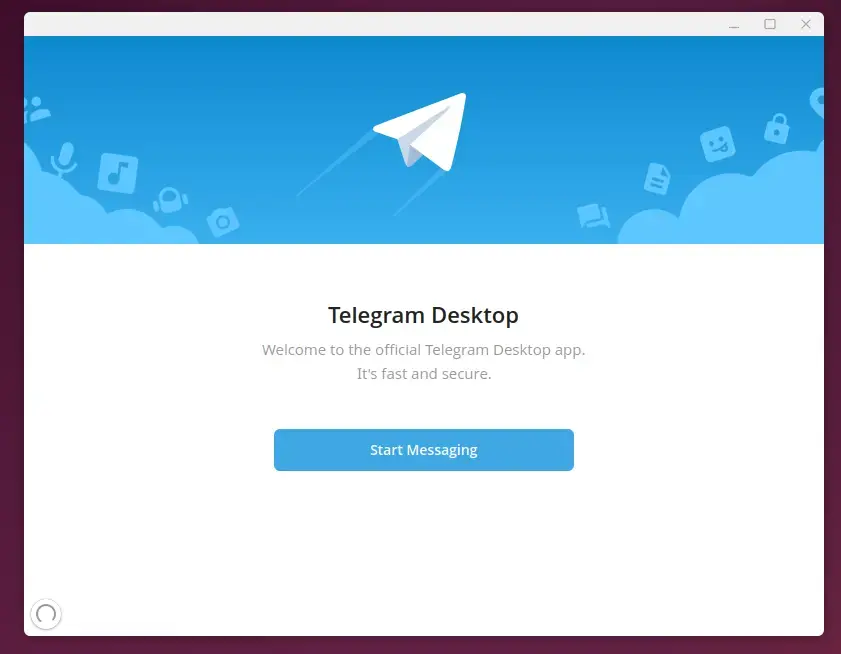
Begin using Telegram.
Install Telegram from PPA
Telegram installs from a Personal Package Archive (PPA) when you want a newer version than what standard Ubuntu sources offer. This method adds an external software repository to your system using the terminal. Add the PPA source, refresh your package list, and run the install command to get the updated app.
Execute the command below to add the PPA repository to Ubuntu.
sudo add-apt-repository ppa:atareao/telegram
Upgrade Ubuntu and install Telegram with the following command.
sudo apt update
sudo apt install telegram
Launch the app from the Ubuntu apps dashboard after completion.
Install Telegram from Flatpak
Telegram installs via Flatpak to keep the application sandboxed (isolated from the rest of your system) for better security and smooth updates. Because Ubuntu does not include Flatpak by default, you need to install the package manager first, add the Flathub repository, and then download the Telegram package through the terminal.
Update and install Flatpak with the terminal.
sudo apt update && sudo apt upgrade
sudo apt install flatpak
Add the Flatpak repository to Ubuntu next.
sudo flatpak remote-add --if-not-exists flathub https://flathub.org/repo/flathub.flatpakrepo
Install Telegram last.
Once Telegram installs, launch the application using the command `telegram-desktop` or open the Telegram app in the desktop apps center. This command starts the messaging application immediately.
flatpak run org.telegram.desktop
Remove the app using the command below.
flatpak remove --delete-data org.telegram.desktop
Install Telegram from Snap
Telegram installs using a Snap package to bundle everything the app needs into a single self-contained file that updates automatically. Snap comes pre-installed on Ubuntu, so you only need to run a single terminal command to download and set up the desktop app on your system right away.
The package manager handles discovering, installing, and managing applications on Linux, and it remains a requirement for running Telegram on Ubuntu 24.04.
sudo apt install snapd
Install core Snap by running the command below.
sudo snap install core
Execute the command below to install Telegram through the Snap package manager.
sudo snap install telegram-desktop
Locate and launch the Telegram app using the Dock on the left sidebar.
Run the application using the command below if preferred.
snap run telegram-desktop
Remove the app with this command.
sudo snap remove telegram-desktop
That completes the setup process.
Conclusion:
Installing Telegram on Ubuntu 24.04 provides multiple options tailored to different workflows. The following rundown summarizes the covered approaches:
- Multiple Installation Options: You can install Telegram from default repositories, PPA, Flatpak, or Snap based on your comfort with different package management systems.
- User-Friendly Interface: Telegram offers a seamless experience across devices, ensuring your messages and media are easily accessible.
- Privacy and Security: The app provides end-to-end encryption for secret chats, making it a secure choice for private communications.
- Easy Updates: Package managers like Flatpak or Snap can simplify the application update process.
- Accessibility: Simple commands allow for quick installation or removal of the app, making it convenient for users to manage their applications.
After completing the Telegram installation on Ubuntu 24.04, users can access advanced messaging features like end-to-end encrypted secret chats and large file sharing up to 2GB.
Can I install Telegram in Ubuntu?
Yes, Telegram installs on Ubuntu 24.04 through several distinct methods, including official Ubuntu repositories, PPAs, Flatpak, and Snap packages.
Was this guide helpful?

About the Author
Richard
Tech Writer, IT Professional
Richard, a writer for Geek Rewind, is a tech enthusiast who loves breaking down complex IT topics into simple, easy-to-understand ideas. With years of hands-on experience in system administration and enterprise IT operations, he’s developed a knack for offering practical tips and solutions. Richard aims to make technology more accessible and actionable. He's deeply committed to the Geek Rewind community, always ready to answer questions and engage in discussions.



No comments yet — be the first to share your thoughts!