Enable/Disable Suggested Replies in Phone Link App


You can enable or disable Suggested Replies in the Windows Phone Link app to control smart text message responses.
Suggested Replies uses AI to offer quick response options directly within the Phone Link interface for your Android or iOS device. This feature aims to streamline your communication by presenting contextually relevant replies, allowing you to answer texts without ever touching your phone.
Starting with Phone Link version 1.23051.129.0, this functionality provides a convenient way to stay engaged with your messages while multitasking on your PC.
If you find these AI-generated replies helpful for faster messaging, you can keep them active. Alternatively, you can turn them off if you prefer to type out your own responses manually.
How to turn Suggested replies on or off
You can change this setting whenever you want. Follow these steps:
- Open the Phone Link app.
- If you have a phone connected, click the Settings button (the gear icon) at the top right.
- Click the Features tab.
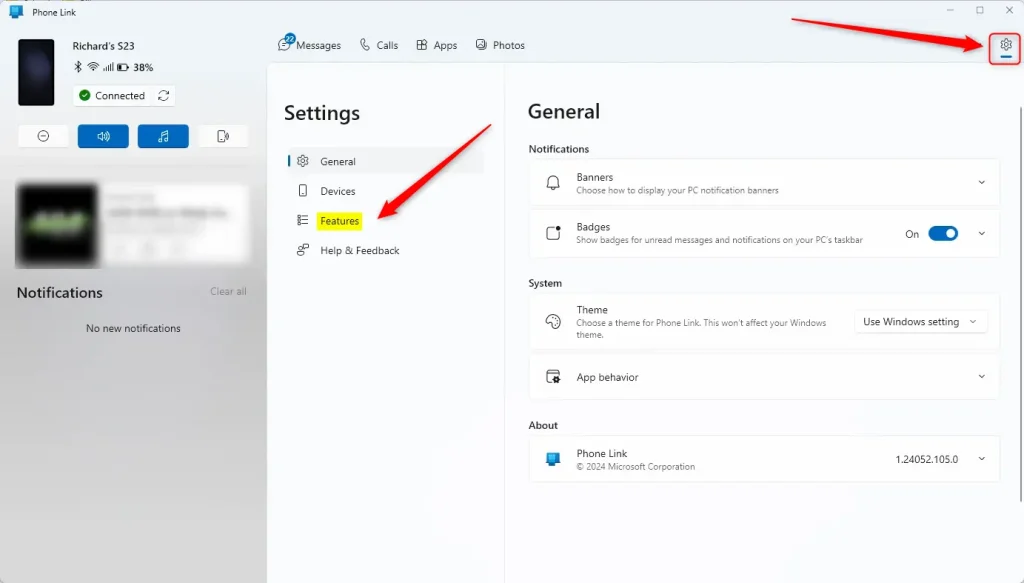
- On the right side, scroll down to find the Additional settings section.
- Find the Suggested replies box.
- Click the switch to turn it On or Off.
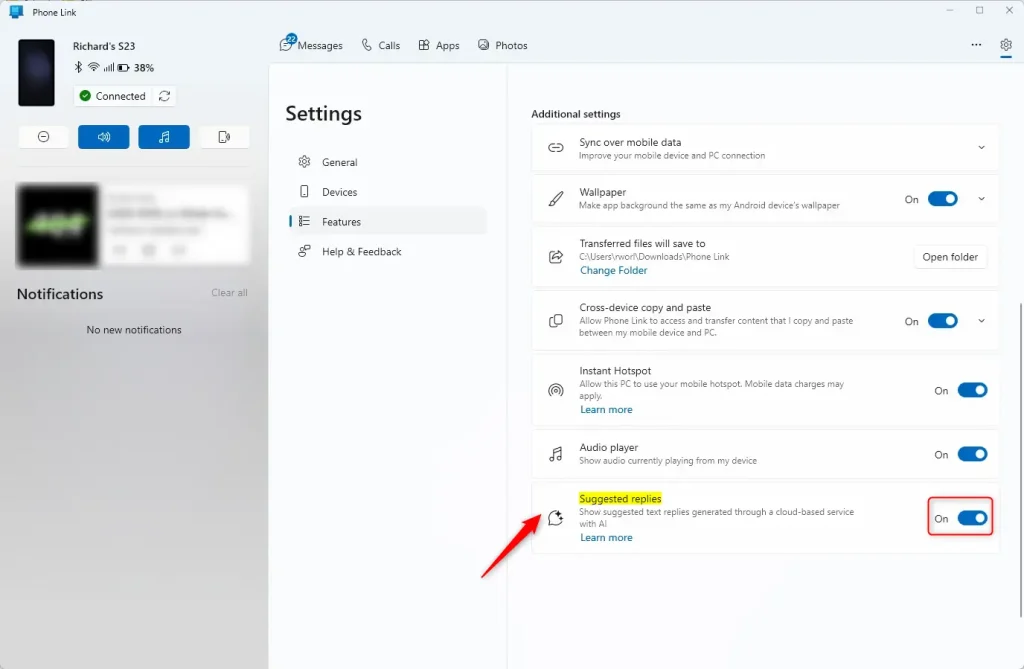
Close the settings page when you are finished.
Summary
This guide showed you how to manage the “Suggested replies” feature in the Phone Link app. By using the settings menu, you can decide if you want your computer to suggest text responses for you, helping you save time while you work on your PC.
How do I enable suggested replies in the Phone Link app?
Can I disable suggested replies in the Phone Link app?
What is the purpose of suggested replies in the Phone Link app?
Is the suggested replies feature available on all devices?
What should I do if suggested replies are not showing up?
Was this guide helpful?
No comments yet — be the first to share your thoughts!