

This article explains how to clear and delete browsing data when you close Microsoft Edge.
Microsoft Edge is the default browser in Windows 11. However, users can switch to their preferred or favorite browser anytime. Edge is based on Chromium, similar to Google Chrome and other Chromium-based browsers today.
In Microsoft Edge, you can view and clear your Microsoft Edge browsing history stored on a single device, across all synced devices, and in the cloud. You may choose to clear your browsing history at any time.
If you do not want to clear your browsing data manually, you can configure Microsoft Edge to clear your data on close automatically. If enabled, when you close the Edge browser, it will automatically clear all your browsing data.
Clearing browsing data on close in Microsoft Edge can help protect your privacy and free up storage space on your device. It ensures that your browsing history, cookies, and other temporary files are not stored on your device after you close the browser.
This can prevent others from accessing your browsing history and personal information. Additionally, clearing browsing data regularly can help improve the performance of your browser and reduce the risk of security threats.
Automatically clear browsing data when Microsoft Edge closes
As mentioned above, users can automatically delete browsing data when they close their Microsoft Edge browser.
Here’s how to do it.
First, open the Microsoft Edge browser.
Then click on Setting and more (Alt+F) three dots (…) in the upper right-hand corner to access the Settings menu.

On the Settings page on the left panel, click the Privacy, search, and services button.
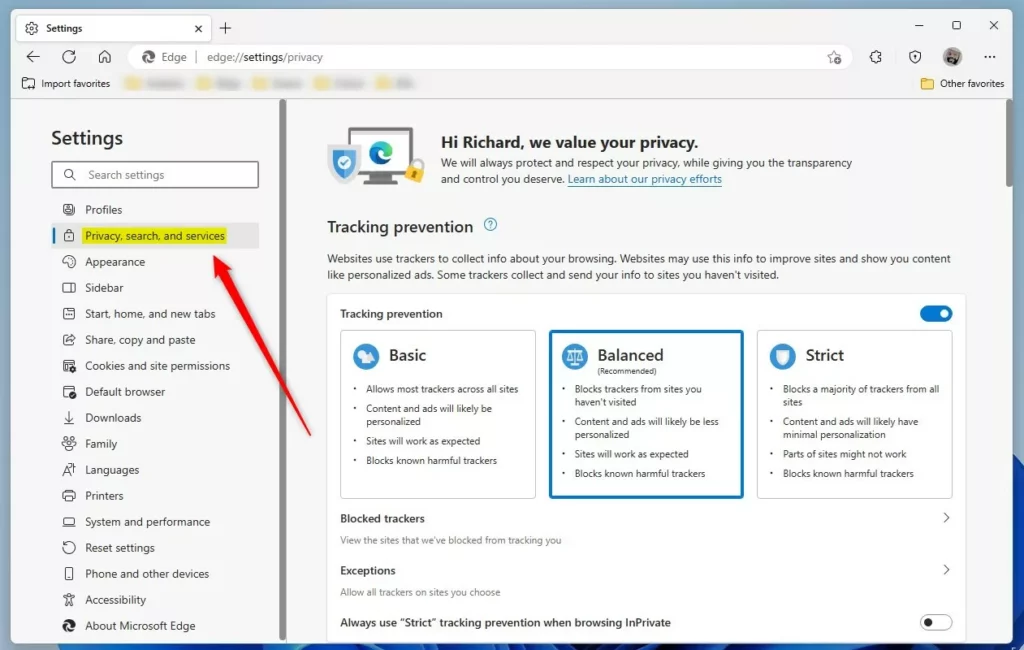
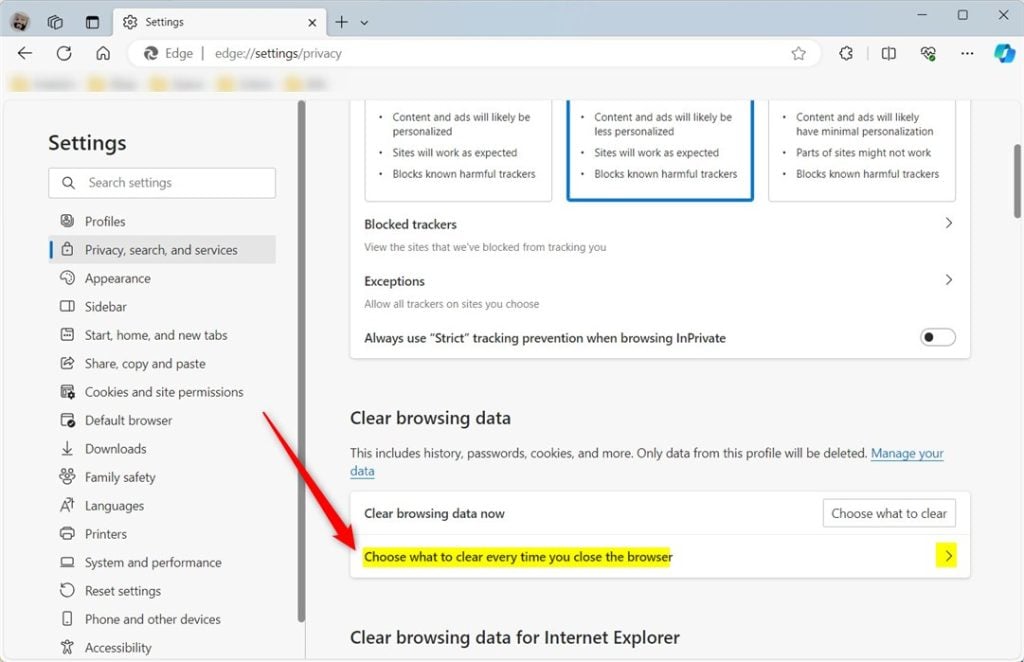
On the right, select the “Choose what to clear every time you close the browser” tile to expand it.
Next, toggle the buttons to the On position next to each browsing data you want to clear on exit in Edge.
To save browsing data, toggle the switch buttons to the Off position.
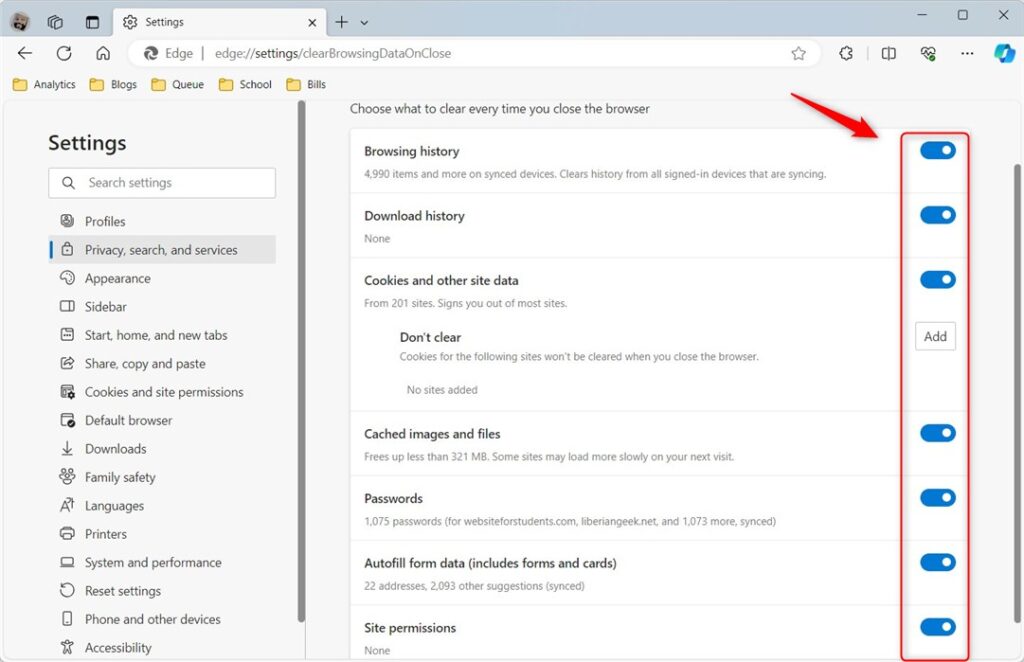
Exit Edge when you’re done.
Clear browsing data on exit for all users using Registry Editor
Users can also choose to clear browsing data for all users using the Windows Registry editor.
First, open Windows Registry Editor.
Then, navigate to the registry key below.
Computer\HKEY_LOCAL_MACHINE\SOFTWARE\Policies\Microsoft\Edge
Next, double-click the ClearBrowsingDataOnExit (REG_DWORD) name on the Explorer key’s right pane to open it.
Then, enter a value 1 to clear all browsing data on exit for all users of the Microsoft Edge browser.
If you do not see the ‘ClearBrowsingDataOnExit‘ item, right-click a blank area and create a new DWORD (32-bit) Value. Then, enter the name ‘ClearBrowsingDataOnExit‘.
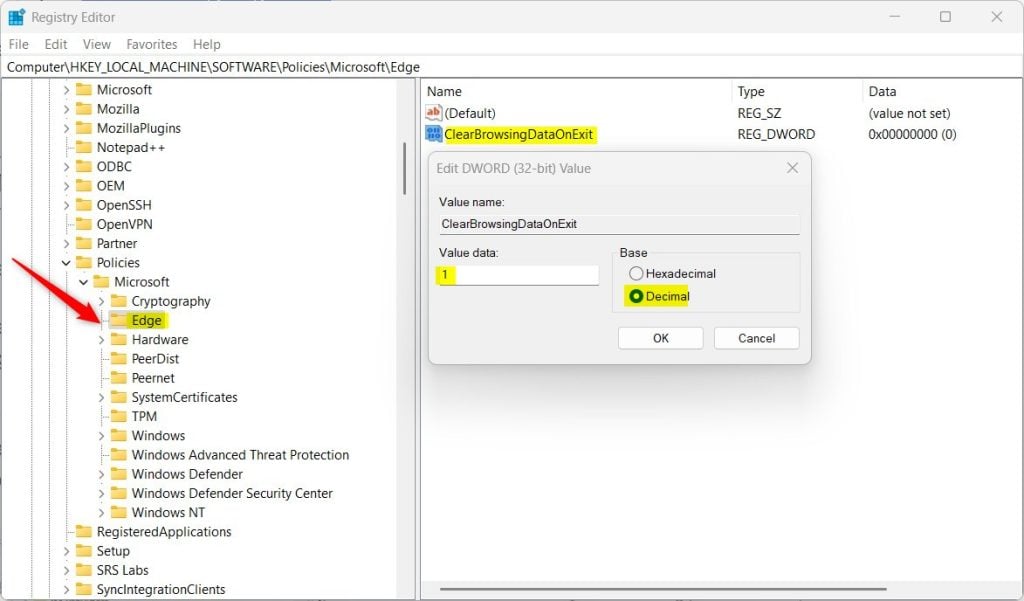
To restore the default behavior and save all browsing data on exit, delete the ‘ClearBrowsingDataOnExit’ item created.
You may have to restart your computer to apply the changes.
That should do it!
Conclusion:
- Clearing browsing data in Microsoft Edge can help protect your privacy and free up storage space
- Regularly clearing browsing data can improve browser performance and reduce security threats
- Users can choose to automatically clear browsing data when Microsoft Edge closes
- Alternatively, users can clear browsing data for all users using the Windows Registry Editor
- Feel free to share your feedback or additional tips in the comments below!



Leave a Reply