

This article describes steps to turn on or off highlight misspelled words in Windows 11.
By default, Windows has a spellcheck feature that highlights misspelled words as you type. When enabled, this feature will highlight misspelled words with a red squiggly line on the fly. This is a valuable feature for most people, especially those who find it difficult to spell or when a different language is used.
If you do not have a problem with spelling or Windows is highlighting words that are correct and not native to your system’s display language and becoming annoying, you can turn off the Highlight misspelled words feature.
On the other hand, if you need help with spellcheck and proofreading, the Windows highlight misspelled words feature may come in handy.
Below is how to enable or disable this feature in Windows 11.
How to enable or disable Highlight misspelled words in Windows 11
As mentioned above, Windows has a spellcheck feature that highlights misspelled words as you type. When enabled, this feature will highlight misspelled words with a red squiggly line on the fly.
Here’s how to enable or disable the Highlight misspelled words feature.
First, open the Windows Settings app.
You can do that by clicking on the Start menu and selecting Settings. You can also use the keyboard shortcut (Windows key + I).

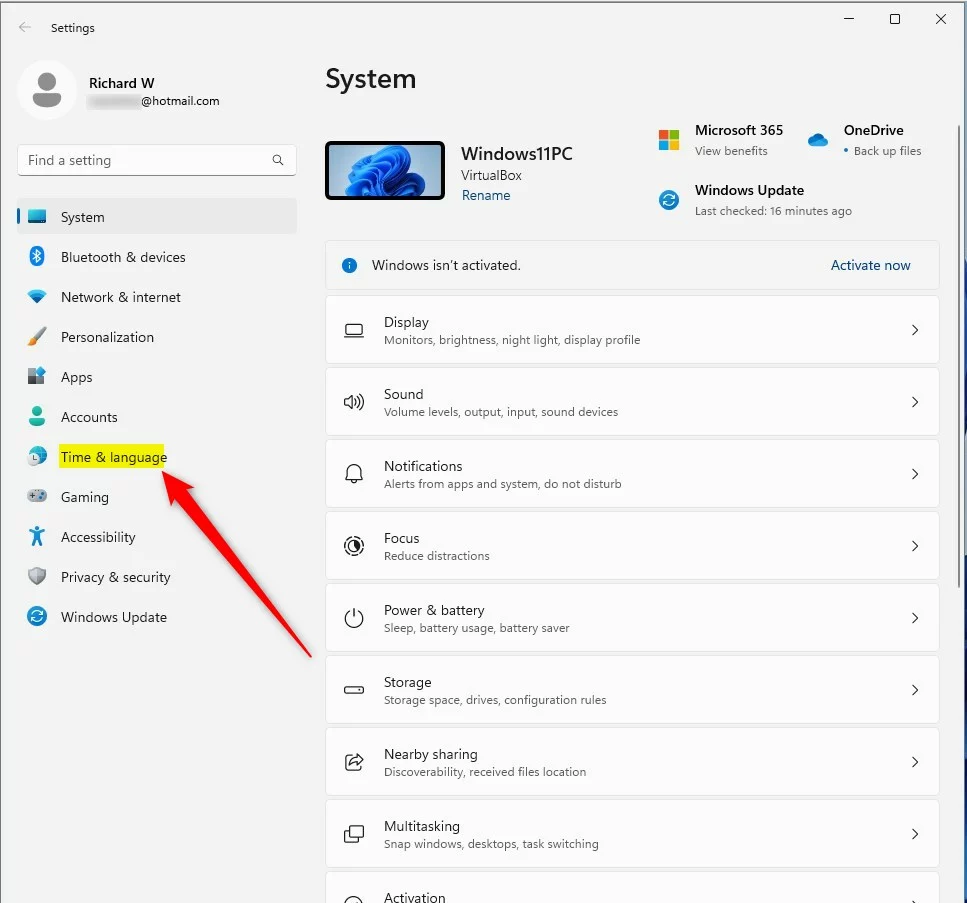
When the Settings app opens, click the Time & language button on the left.
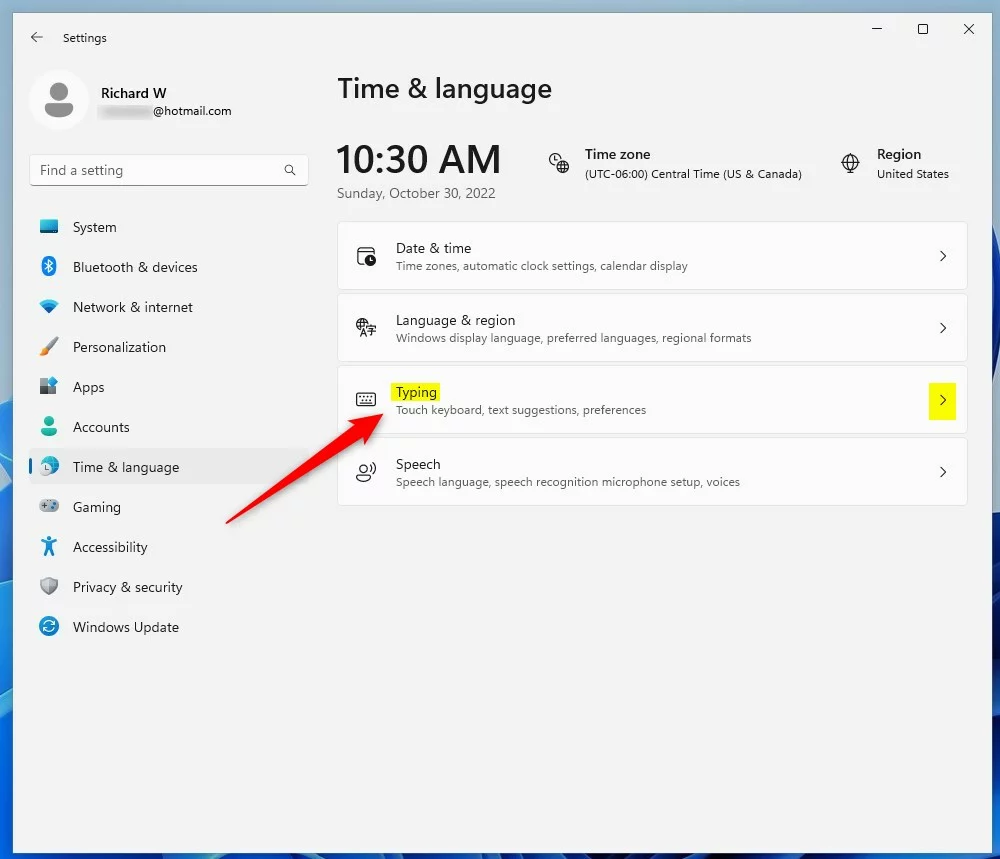
On the right, click on the click on Typing tile to expand.
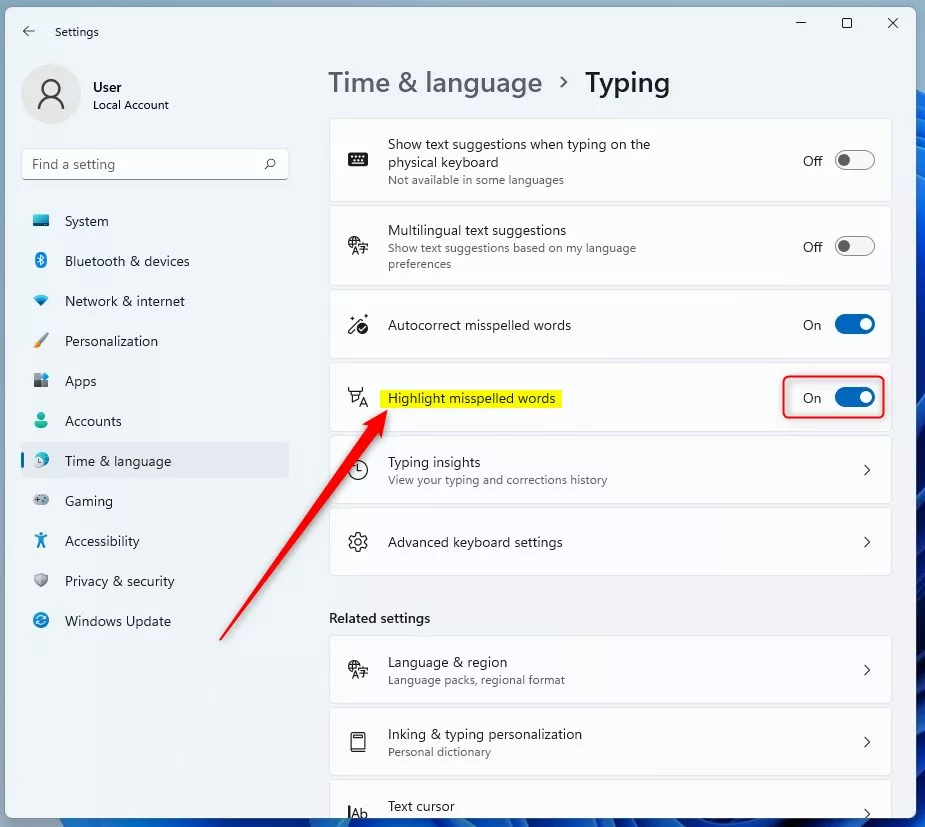
On the Time & language -> Typing settings pane, toggle the button for “Highlight misspelled words” to the On position to enable.
To disable it, toggle the button back to the Off position.
Enable or disable autocorrect misspelled words in Windows via the Windows registry
Alternatively, users can use the Windows Registry to enable or disable the feature.
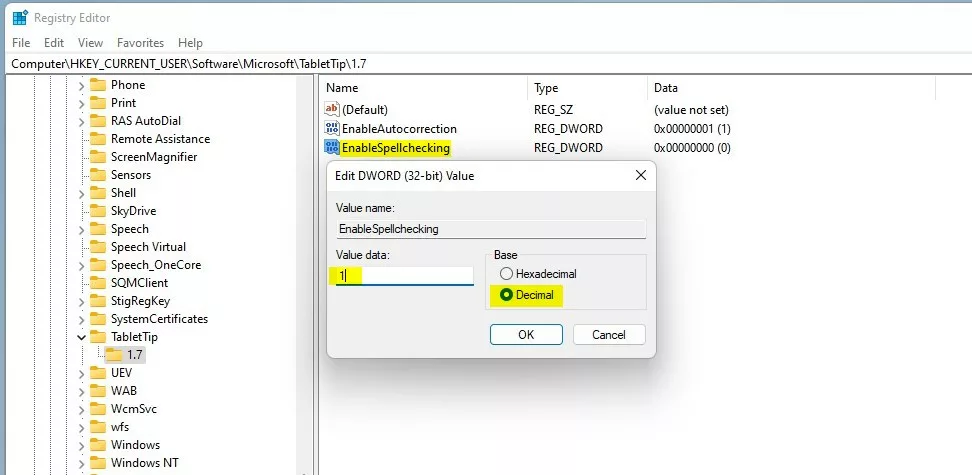
Open the Windows Registry, and navigate to the folder key path below.
HKEY_CURRENT_USERSOFTWAREMicrosoftTabletTip1.7
If you don’t see the 1.7 folder key, right-click on the TabletTip key, then create the subkey (1.7) folders.
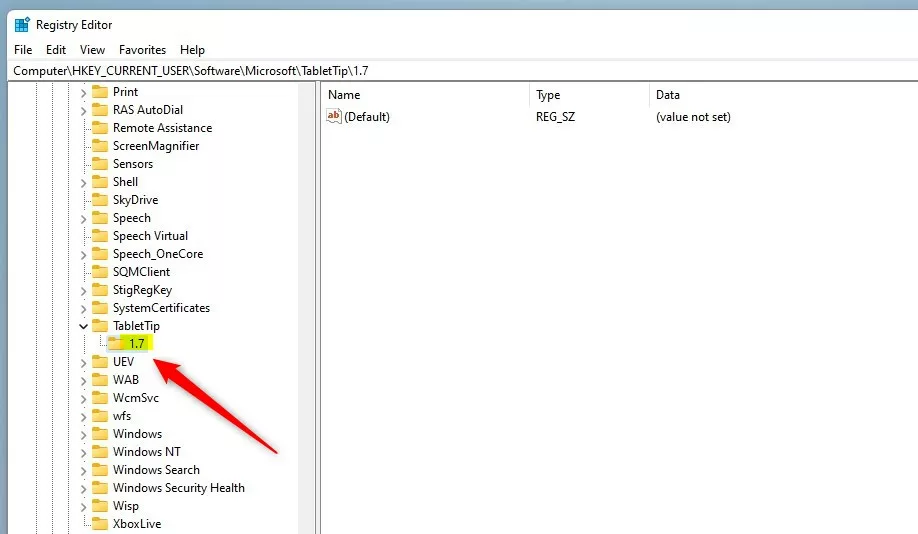
Right-click on the 1.7 folder key’s right pane and select New -> DWORD (32-bit) Value. Type a new key named EnableSpellchecking.
Double-click the new value name (EnableSpellchecking) and enter the Value data as 1 to turn on Highlight misspelled words in Windows 11.
A Value data of 0 will turn off Highlighting misspelled words in Windows 11.
That should do it!
Conclusion:
- Enabling the “Highlight misspelled words” feature in Windows 11 can be beneficial for spellcheck and proofreading, especially for non-native language users.
- On the other hand, if the feature becomes annoying or unnecessary, it can easily be disabled through the Windows Settings app or the Windows Registry.
- Following the steps, users can effortlessly manage the “Highlight misspelled words” setting based on their preferences.


Leave a Reply