Auto-Hide Dock in Ubuntu Linux: A Step-by-Step Guide


This article describes steps to set up Ubuntu Linux to hide the Dock when any window overlaps it automatically.
Like Windows and other operating systems, when the taskbar or launch automatically hides or disappears when out of focus to make the screen look bigger, Ubuntu Linux can do the same with the Dock.
When configured, the Dock automatically hides when any window overlaps with it.
In previous versions, once the Dock or launcher was out of focus, it would automatically hide or disappear. This setting is also in the latest version of Ubuntu Linux, but the Dock only hides once a window overlaps with it.
Below is how to set up the Dock to hide automatically in Ubuntu Linux.
How to auto-hide the Dock in Ubuntu Linux
As mentioned above, you can configure Ubuntu Linux to hide the Dock automatically once any window overlaps with it.
Below is how to do that.
Ubuntu Linux has a centralized location for the majority of its settings. From system configurations to creating new users and updating, all can be done from the System Settings panel.

Alternatively, click on the System menu at the top-right corner of the top bar on your desktop.
On the System menu, select Settings, as highlighted below.

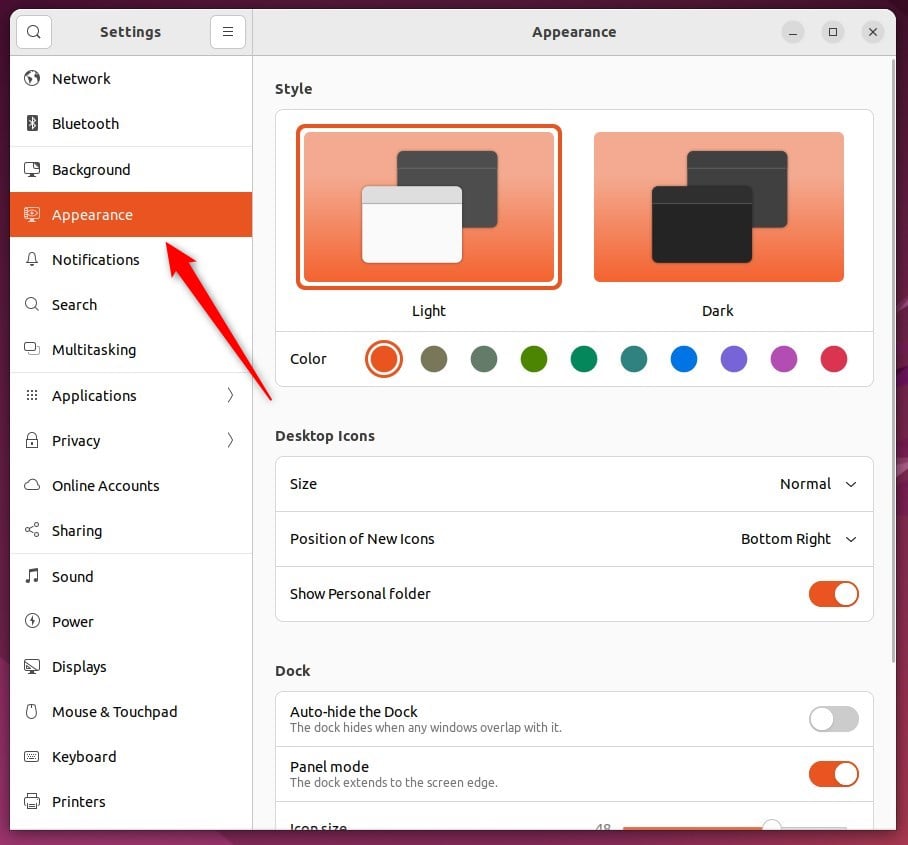
Click on the Appearance tile to open the panel in the Settings app.
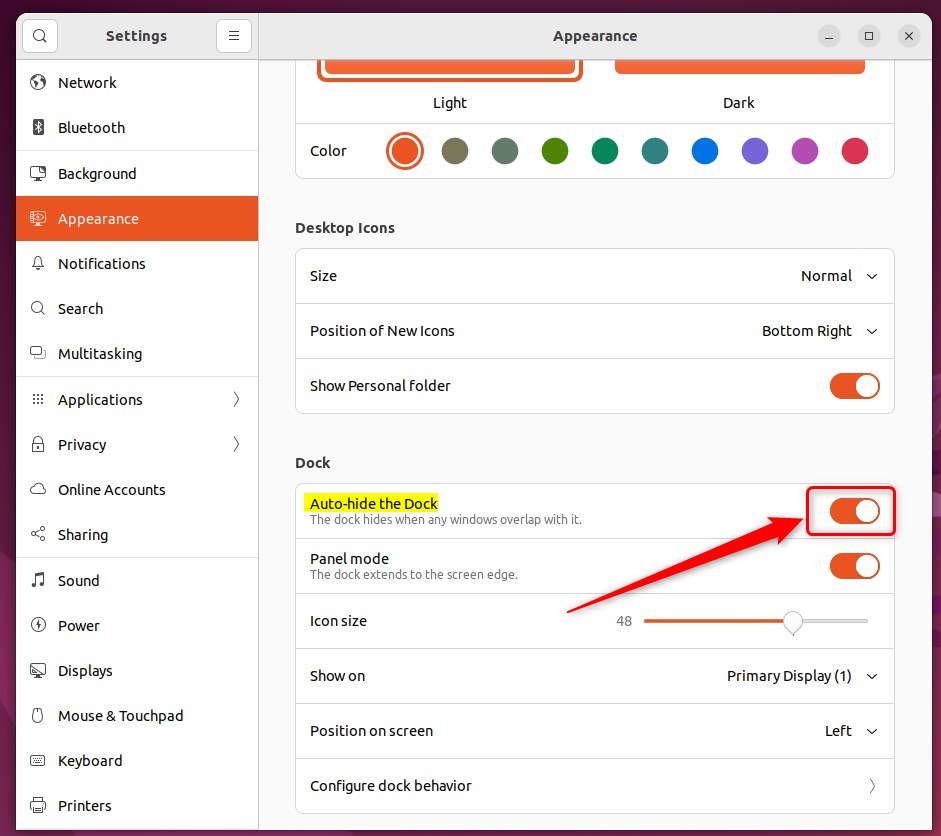
In the System Settings -> Appearance panel, under Dock, toggle the switch button for Auto-hide the Dock to On or Off to enable or disable the Dock automatically when the window overlaps with it.
That should do it!
Conclusion:
- Configuring the Dock to hide when a window overlaps with it automatically can improve screen space utilization in Ubuntu Linux.
- The step-by-step guide provided easy-to-follow instructions for toggling the “Auto-hide the Dock” setting in the System Settings panel.
- Users can now effortlessly manage the visibility of the Dock based on their preferences.
Frequently Asked Questions
How do I auto-hide the Dock in Ubuntu Linux?
What is the benefit of auto-hiding the Dock in Ubuntu?
Can I disable the auto-hide feature for the Dock in Ubuntu?
Does the Dock in Ubuntu hide automatically like in Windows?
Is the auto-hide Dock feature available in all versions of Ubuntu?
Was this guide helpful?

About the Author
Richard
Tech Writer, IT Professional
Richard, a writer for Geek Rewind, is a tech enthusiast who loves breaking down complex IT topics into simple, easy-to-understand ideas. With years of hands-on experience in system administration and enterprise IT operations, he’s developed a knack for offering practical tips and solutions. Richard aims to make technology more accessible and actionable. He's deeply committed to the Geek Rewind community, always ready to answer questions and engage in discussions.


No comments yet — be the first to share your thoughts!