Enable/Disable Location Services in Ubuntu


You can enable or disable location services on Ubuntu by adjusting your system’s privacy settings.
Location services, often called geolocation, allow your Ubuntu system to determine your approximate physical location using data from Wi-Fi networks, cell towers, and GPS signals.
This functionality is crucial for features like accurate time zone detection, as seen in Ubuntu 22.04 LTS, and for providing location-aware results in applications.
Understanding how to control these services is key to managing your privacy and ensuring only the apps you choose can access your location data.
Access System Settings, navigate to Privacy, and then toggle Location Services on or off. This controls whether your Ubuntu system shares your location with apps and services for features like time zone detection.
How to turn on or off location services in Ubuntu Linux
As mentioned above, location services in Ubuntu Linux are used to determine your current location for setting your time zone and by applications such as maps.
Here’s how to enable or disable it in Ubuntu Linux.
Ubuntu keeps most of its settings in one place, called System Settings. You can manage everything from system configurations to user accounts and updates there.
To open System Settings, go to the Activities overview and type ‘Settings’.

Alternatively, click the System menu in the top-right corner of your desktop.
On the System menu, select Settings, as highlighted below.

In the Settings app, click on the Privacy tile to expand its options.
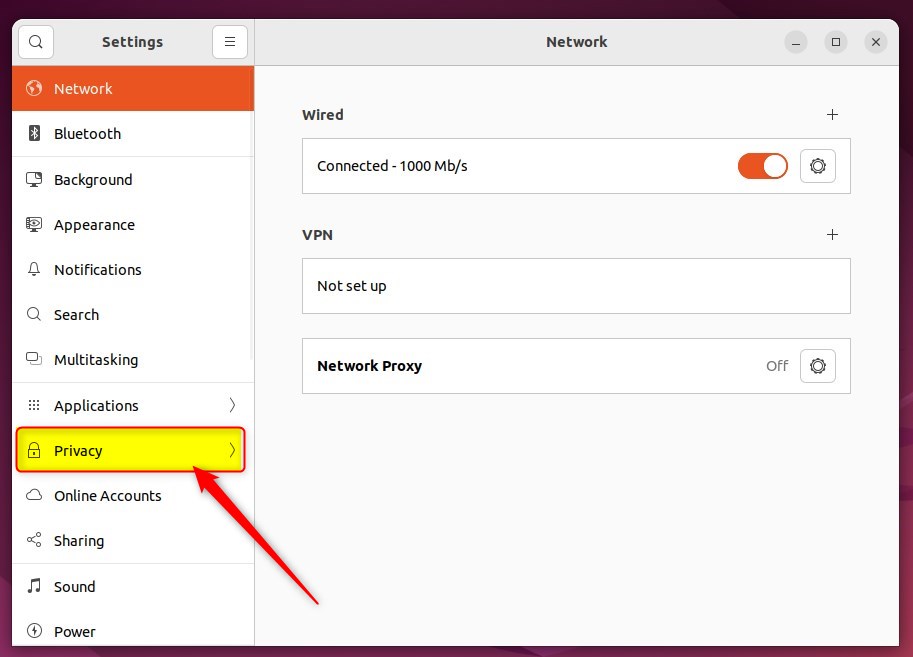
In the Settings > Privacy > Location Services panel, toggle the Location Services switch to On or Off.
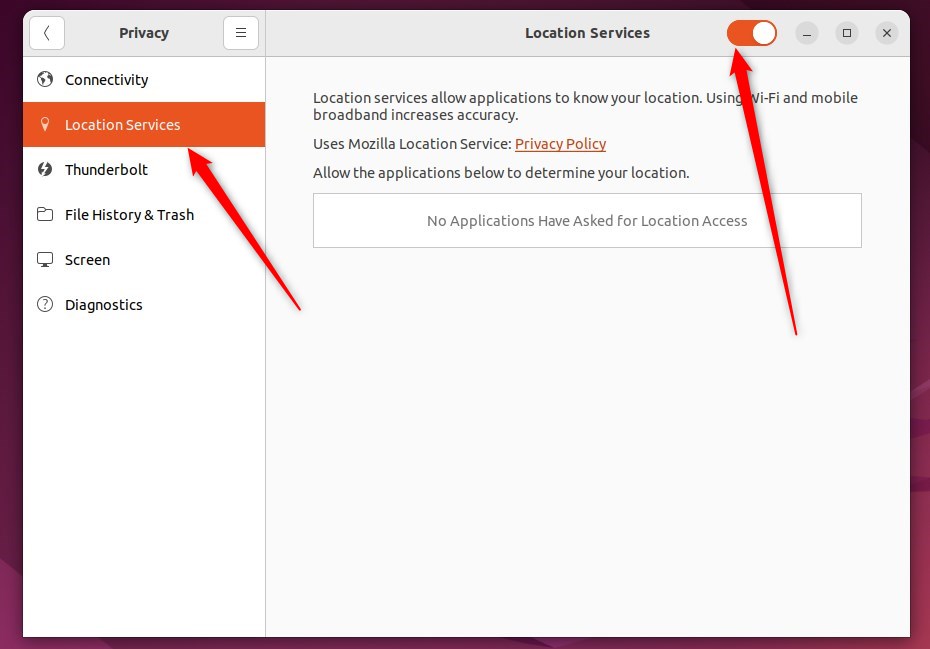
If Location Services is currently off, you can re-enable it by moving the Location Services switch to On.
That’s it!
Conclusion:
- Ubuntu Linux provides location services using cell tower positioning, GPS, and Wi-Fi access points to set the time zone and aid applications such as maps.
- Users can manage the location services in Ubuntu Linux through the Settings panel under the Privacy section.
- Users can control whether their location is shared over the network by toggling the Location Services switch to On or Off in the Settings -> Privacy -> Location Services settings panel.
- If privacy concerns arise, users can turn off the location services, and they can easily re-enable it when necessary.
How do I change the location on Ubuntu?
And if I write here PWD. So this is now inside home and Adam. So here this is now Adam.
Was this guide helpful?

About the Author
Richard
Tech Writer, IT Professional
Richard, a writer for Geek Rewind, is a tech enthusiast who loves breaking down complex IT topics into simple, easy-to-understand ideas. With years of hands-on experience in system administration and enterprise IT operations, he’s developed a knack for offering practical tips and solutions. Richard aims to make technology more accessible and actionable. He's deeply committed to the Geek Rewind community, always ready to answer questions and engage in discussions.




No comments yet — be the first to share your thoughts!