

This post shows students and new users steps to turn On or Off the feature that allows you to use your monitor as a Specialized Display by removing a display from the desktop.
If you are running the Windows 11 Enterprise or the Windows 11 Pro for Workstations editions, you will find a feature that allows you to use your monitor as a Specialized Display.
A monitor is categorized as “specialized” if it is neither intended to be used as a “desktop” monitor nor as a head-mounted display.
The Specialized Display feature enables a display to be dedicated to a specific purpose, such as:
- Fixed-function arcade/gaming rigs like cockpit/driving/flight/military simulators
- Medical imaging devices that have custom panels (e.g., grayscale X-ray displays)
- Dedicated video monitoring scenarios
- Monitor panel testing and validation (e.g., in the factory)
- Video walls
Below is how to turn it On or Off Remove the display from the desktop in Windows 11.
How to enable or disable remove the display from the desktop in Windows 11
As mentioned above, if you are running the Windows 11 Enterprise or the Windows 11 Pro for Workstation editions, you will find a feature that allows you to use your monitor as a Specialized Display.
Below is how to turn it On or Off.
Windows 11 has a centralized location for the majority of its settings. As a result, everything can be done, from system configurations to creating new users and updating Windows from its System Settings pane.
To get to System Settings, you can use the Windows key + I shortcut or click on Start ==> Settings, as shown in the image below:
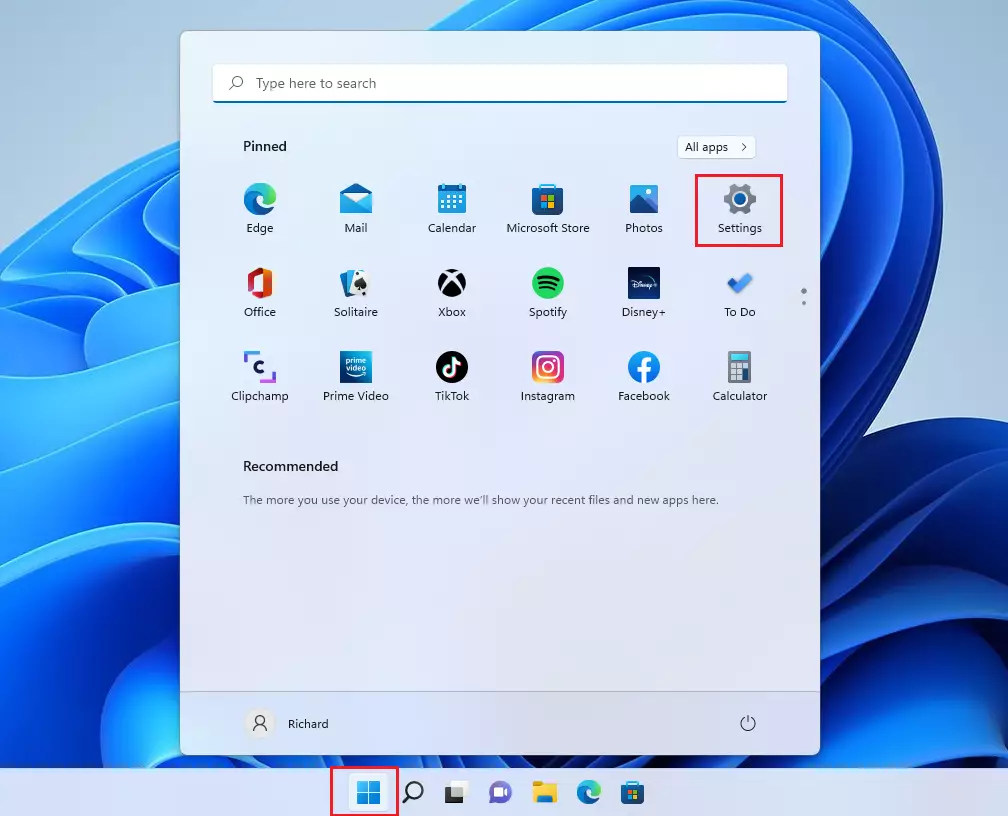
Alternatively, you can use the search box on the taskbar and search for Settings. Then select to open it.
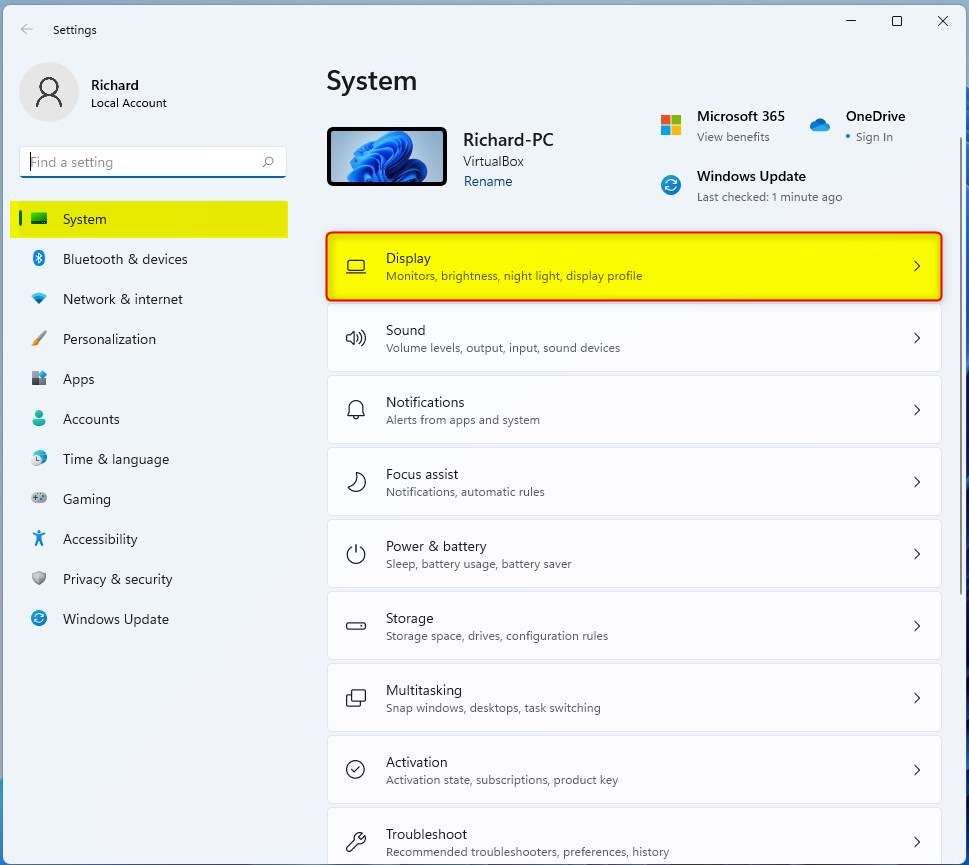
Windows Settings pane should look similar to the image below. In Windows Settings, click Display tile on the right pane, as highlighted in the image below.
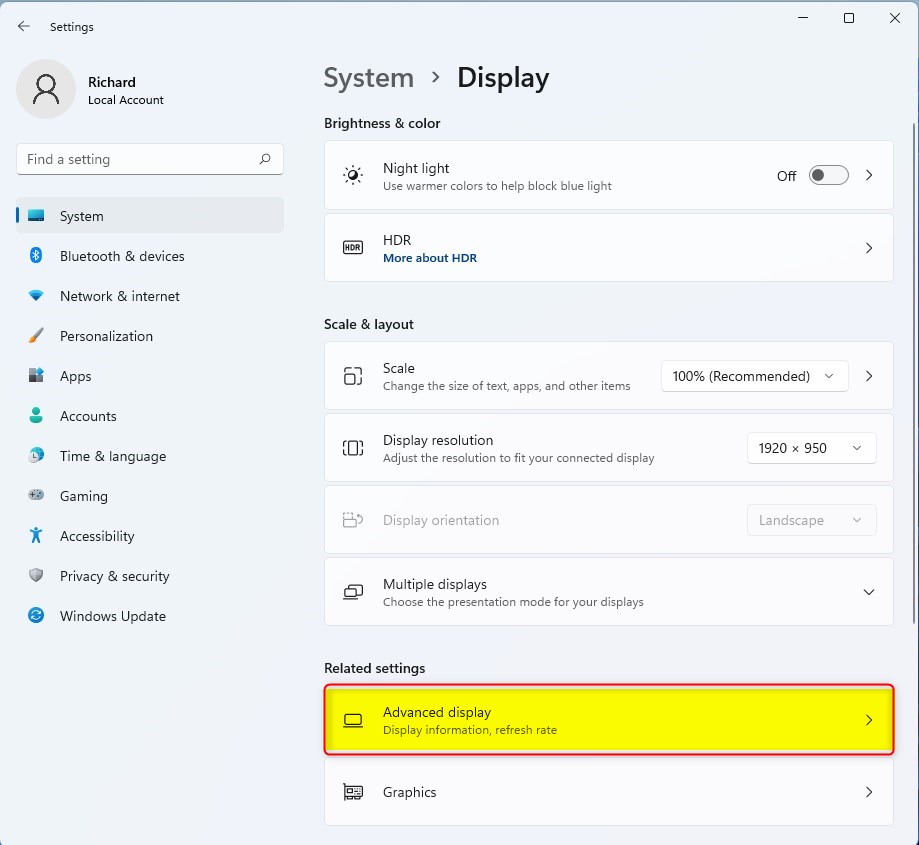
On the System > Display settings pane, select the Advanced display tile under Related settings to expand.
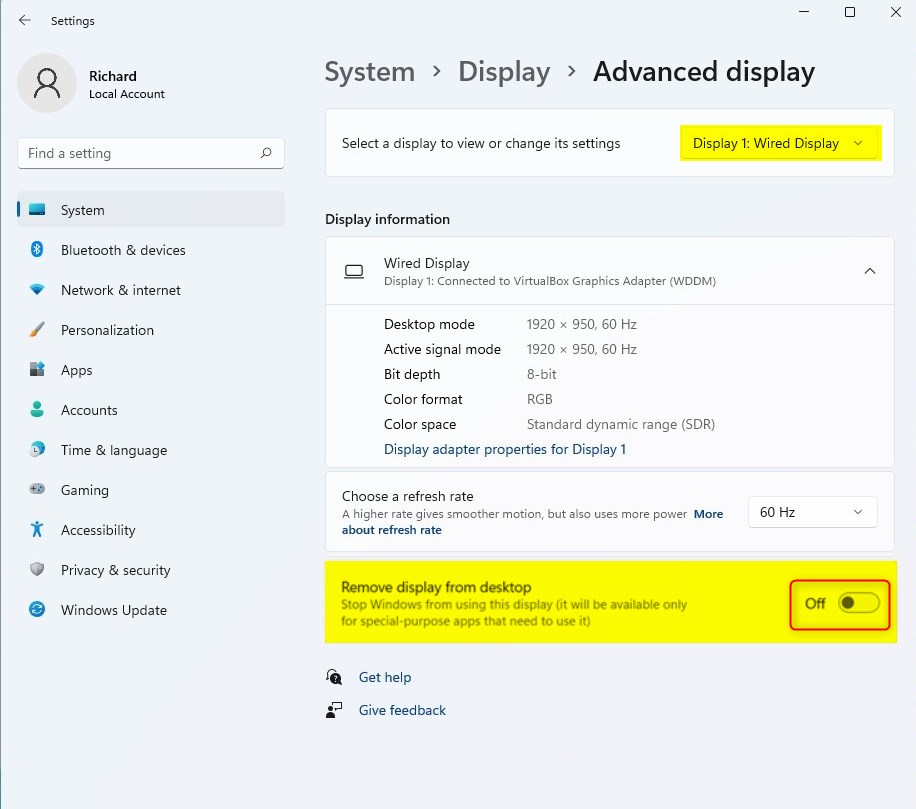
On the System > Display > Advanced display setting pane, choose the display you want to apply this setting to from the drop-down menu if you have multiple displays.
Then toggle the On and Off switch to turn On or Off Remove the display from the desktop in Windows 11.
That should do it!
Conclusion:
- The Specialized Display feature in Windows 11 Enterprise and Windows 11 Pro for Workstations editions provides the ability to use a monitor for specific purposes, such as fixed-function arcade/gaming rigs, medical imaging devices, dedicated video monitoring, monitor panel testing, and video walls.
- Accessing the setting to enable or disable “Remove the display from the desktop” is conveniently located within the Windows 11 Settings pane under System > Display > Advanced display, allowing users to easily toggle this feature on or off based on their requirements.

Leave a Reply