How to Change Keyboard Backlight Brightness in Energy Saver Mode in Windows 11


You can adjust your keyboard backlight brightness when Windows 11’s Energy Saver mode is active.
This setting controls how dim your keyboard lights become to conserve power, offering a crucial customization for battery life.
When you enable “Lower keyboard brightness when using energy saver” in Windows 11, your keyboard backlight defaults to 70% brightness while Energy Saver is on.
You have full control to set this level anywhere from 0% (completely off) to 100% (no dimming at all).
Remember, you need administrator privileges to modify this power-saving feature.
Change keyboard backlight brightness in Windows 11 Energy Saver mode by editing the Registry Editor. Navigate to 🗝️HKEY_LOCAL_MACHINE\SOFTWARE\Microsoft\Lighting\Backlight, find or create BacklightEnergySaverMultiplier, and set its value to your desired percentage (0-100).
How to Change Keyboard Backlight Brightness in Energy Saver Mode
You will need to use the Windows Registry Editor (a tool for changing Windows settings) to make this change. This tool lets you change settings deep within Windows.
Step 1Open Registry Editor
First, you need to open the Registry Editor. You can do this by searching for “regedit” in the Windows search bar and pressing Enter.
Step 2Go to the Correct Location
Now, you need to find a specific folder within the Registry Editor. Click through the folders in the left-hand panel until you arrive at this path:HKEY_LOCAL_MACHINE\SOFTWARE\Microsoft\Lighting\Backlight
Step 3Find and Change the Setting
In the right-hand panel, look for a value named BacklightEnergySaverMultiplier. Double-click it to change its settings.
If it’s not there, you’ll need to create it. Right-click an empty spot in the right panel, then select New > DWORD (32-bit) Value (a type of setting). Name it BacklightEnergySaverMultiplier and press Enter.
Step 4Set Your Desired Brightness Percentage
To set how bright your keyboard lights should be in Energy Saver mode, you’ll enter a number between 0 and 100 in a new window.
The default setting is 70.
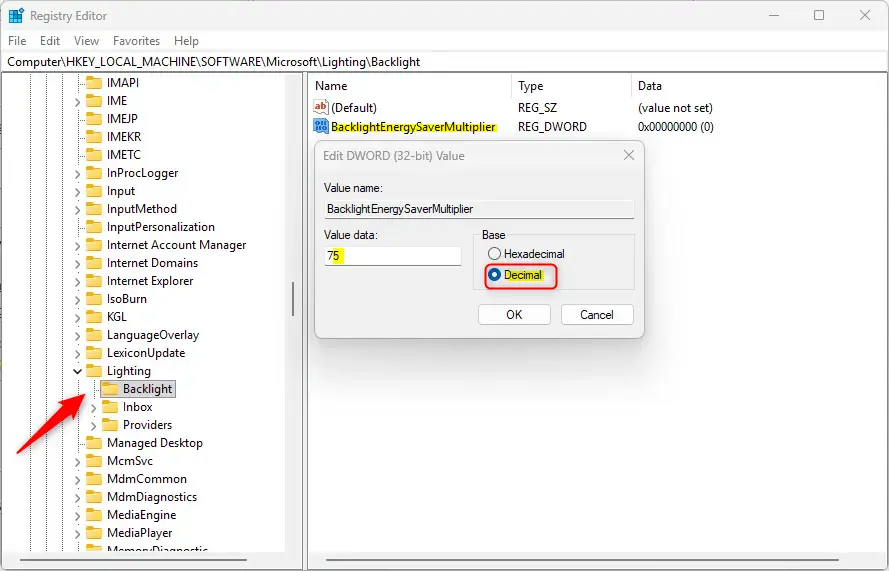
Click OK when you are done.
Step 5Close Registry Editor
You can now close the Registry Editor window.
And that’s it!
Reference:
Summary
You can change your keyboard backlight brightness in Windows 11’s Energy Saver mode by adjusting a setting in the Registry Editor.
How to change energy saver settings on 🪟 Windows 11?
Select Start > Settings > System > Power & battery. Under Power mode, choose the option you want for Plugged in or On Battery: Best power efficiency – Saves battery life. Balanced – Balances performance and battery. Best performance – Maximizes performance.
Was this guide helpful?

About the Author
Richard
Tech Writer, IT Professional
Richard, a writer for Geek Rewind, is a tech enthusiast who loves breaking down complex IT topics into simple, easy-to-understand ideas. With years of hands-on experience in system administration and enterprise IT operations, he’s developed a knack for offering practical tips and solutions. Richard aims to make technology more accessible and actionable. He's deeply committed to the Geek Rewind community, always ready to answer questions and engage in discussions.



No comments yet — be the first to share your thoughts!