How to turn Keyboard Backlight Autobrightness on or off in Windows 11


You can turn keyboard backlight autobrightness on or off in Windows 11 to control when your keyboard lights adjust automatically based on ambient light.
This feature lets your keyboard backlight dynamically change its intensity, making it easier to see in dimly lit environments or preventing it from being too bright in well-lit spaces.
This intelligent lighting adjustment is available for many modern laptops and compatible external keyboards equipped with a light sensor, functioning much like your screen’s auto-brightness feature but specifically for your keyboard.
Open Settings, navigate to Bluetooth & devices, then Keyboard, and toggle “Change keyboard brightness automatically when lighting changes” on or off. For advanced users, modify the EnableBucketedBacklightAutobrightness value in Registry Editor.
Why turn Keyboard Backlight Autobrightness on or off?
Turning keyboard backlight autobrightness on lets your keyboard light adjust itself automatically, which is handy if you often move between bright and dark rooms.
What happens when done?
Once you change this setting, your keyboard backlight will either automatically adjust its brightness based on the room’s light, or it will stay at the brightness level you set manually.
Option 1Use Windows Settings
The simplest way to control your keyboard backlight’s auto-brightness is through Windows Settings.
- Open Settings. You can do this by pressing the Windows key + I on your keyboard.
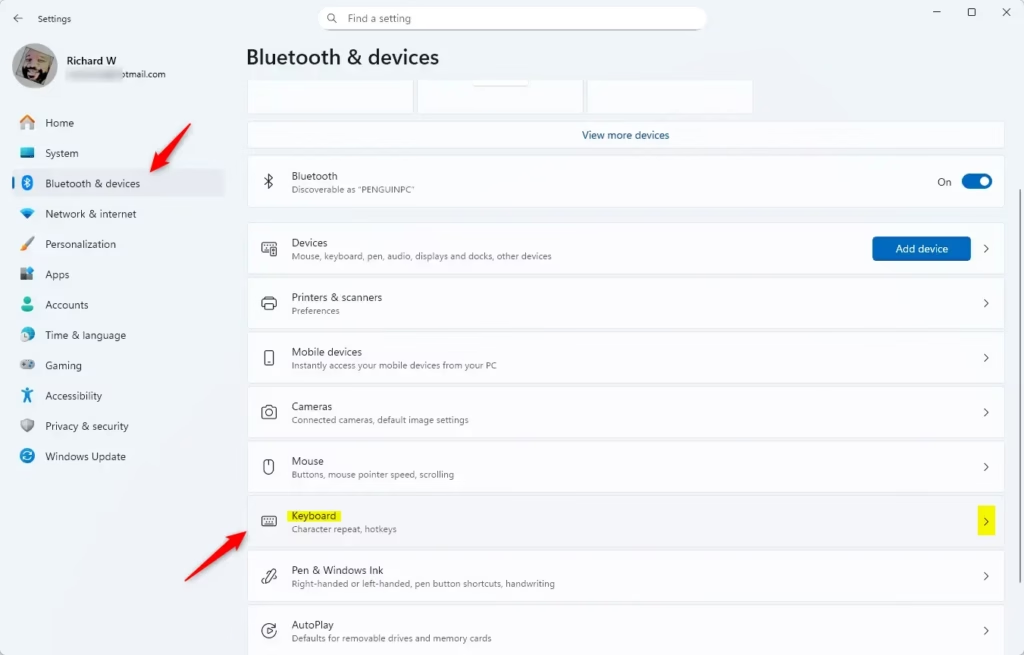
- On the left side, click on Bluetooth & devices. Then, on the right side, click on Keyboard.
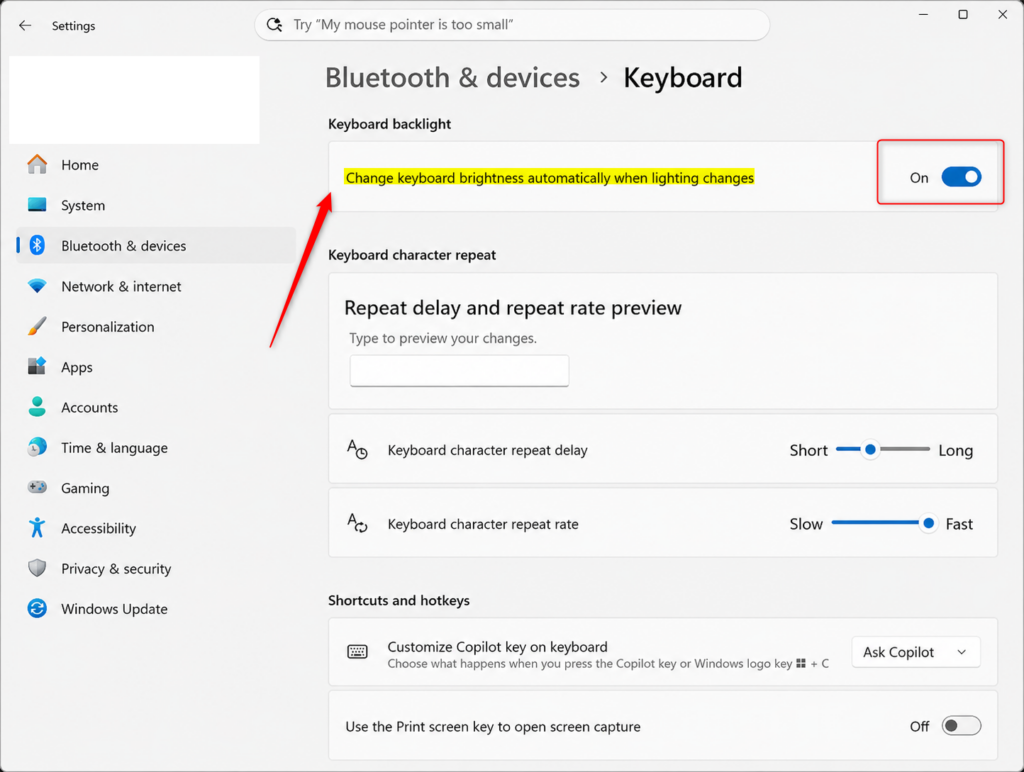
- Look for the Keyboard backlight section. You will see an option that says “Change keyboard brightness automatically when lighting changes”. Turn this setting On or Off, depending on what you want.
- You can now close the Settings window.
Option 2Use Registry Editor (Advanced Users)
For advanced users, you can change keyboard backlight autobrightness using the Registry Editor, but be aware you’ll need administrator rights.
We will use the Registry Editor to make these changes. It’s a powerful tool, so be careful.
First, open the Registry Editor. You can search for “regedit” in the Windows search bar and press Enter. You might need to click “Yes” on a User Account Control prompt.
To Turn On Keyboard Backlight Autobrightness
This is usually the default setting.
In the Registry Editor, navigate to: `🗝️HKEY_LOCAL_MACHINE\SOFTWARE\Microsoft\Windows\CurrentVersion\Brightness`
HKEY_LOCAL_MACHINE\SOFTWARE\Microsoft\Windows\CurrentVersion\
You will need to create or modify a value named EnableBucketedBacklightAutobrightness.
Double-click on EnableBucketedBacklightAutobrightness. Make sure the “Value data” is set to 1. Click OK.
To Turn Off Keyboard Backlight Autobrightness
In the Registry Editor, navigate to: `🗝️HKEY_LOCAL_MACHINE\SOFTWARE\Microsoft\Windows\CurrentVersion\Brightness`
HKEY_LOCAL_MACHINE\SOFTWARE\Microsoft\Windows\CurrentVersion\ airson\Sensors\LightSensors\KeyboardBacklight
Double-click on EnableBucketedBacklightAutobrightness. Make sure the “Value data” is set to 0. Click OK.
After making changes, you may need to restart your computer for them to take full effect.
Reference:
Summary
You’ve learned how to manage your keyboard’s automatic brightness in Windows 11, with the straightforward Settings app for most users and the more advanced Registry Editor for those who need it.
Was this guide helpful?

About the Author
Richard
Tech Writer, IT Professional
Richard, a writer for Geek Rewind, is a tech enthusiast who loves breaking down complex IT topics into simple, easy-to-understand ideas. With years of hands-on experience in system administration and enterprise IT operations, he’s developed a knack for offering practical tips and solutions. Richard aims to make technology more accessible and actionable. He's deeply committed to the Geek Rewind community, always ready to answer questions and engage in discussions.

No comments yet — be the first to share your thoughts!