How to view Recent Passkeys Activity by Apps in Windows 11

You can view recent passkey activity by apps in Windows 11 by checking the Windows Settings app.
This allows you to see requests from applications to create, use, or list your passkeys, providing a clear audit trail of their interaction with your stored credentials.
Passkeys are a modern security standard that replaces passwords, leveraging your device’s biometrics or PIN for authentication.
In Windows 11, you can review this activity for the last seven days directly within the system’s built-in security features.
Reference:
https://learn.microsoft.com/en-us/windows/security/identity-protection/passkeys/?tabs=intune
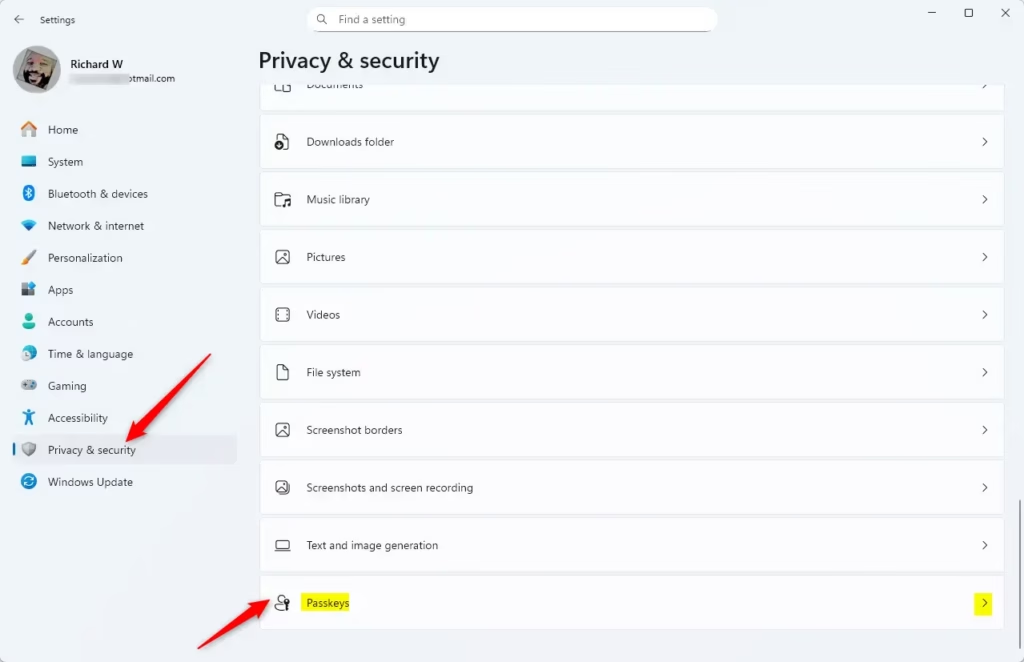
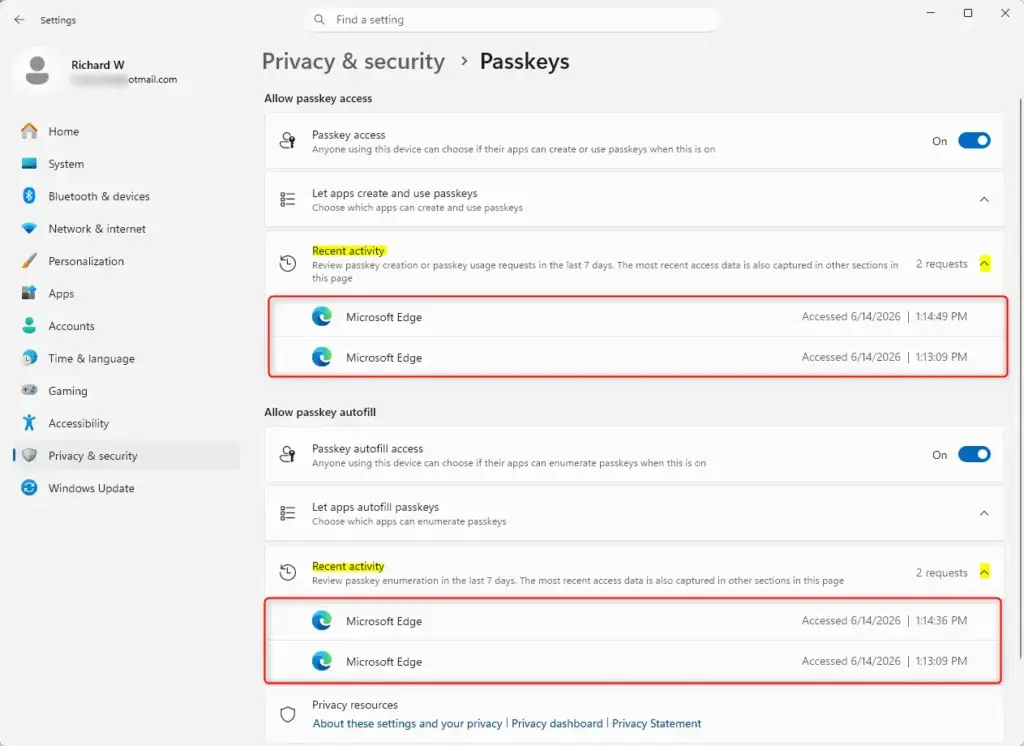
Go to Settings, then Privacy & security, and click Passkeys. View recent passkey creation and usage activity under “Allow passkey access,” and recent passkey listing activity under “Allow passkey autofill.
Here’s How:
- Open Settings. You can do this by pressing the Windows key + I on your keyboard.
- On the left side, click or tap on Privacy & security. Then, on the right side, click or tap on Passkeys.
- Under the Allow passkey access section, click or tap on Recent activity. This will show you requests for passkey creation or usage from apps in the last 7 days.
- Under the Allow passkey autofill section, click or tap on Recent activity. This will show you requests from apps to list available passkeys in the last 7 days.
That’s it!
Summary
So, that’s how you find recent passkey activity on Windows 11. Head to Settings > Privacy & security > Passkeys, and you’ll find the ‘Recent activity’ logs under both ‘Allow passkey access’ and ‘Allow passkey autofill’. It’s a great way to see which apps have been in touch with your passkeys over the last week, giving you a clear view of your security.
Was this guide helpful?

About the Author
Richard
Tech Writer, IT Professional
Richard, a writer for Geek Rewind, is a tech enthusiast who loves breaking down complex IT topics into simple, easy-to-understand ideas. With years of hands-on experience in system administration and enterprise IT operations, he’s developed a knack for offering practical tips and solutions. Richard aims to make technology more accessible and actionable. He's deeply committed to the Geek Rewind community, always ready to answer questions and engage in discussions.


No comments yet — be the first to share your thoughts!