How to Pin Android Apps to Your Windows 11

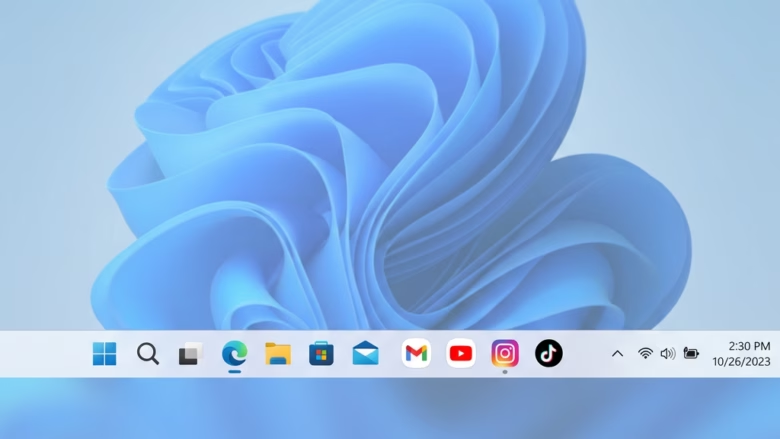
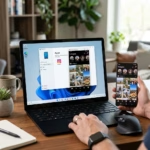
You can pin Android apps to your Windows 11 taskbar for quick access using the Phone Link app.
Phone Link, formerly Your Phone, is a Microsoft application that bridges your Android phone and Windows PC, allowing you to run mobile apps directly on your desktop.
This feature is available on Windows 11 builds 22000.778 and higher, providing a seamless way to interact with your phone’s applications using your PC’s larger screen and familiar input devices like your mouse and keyboard.
Imagine launching your favorite mobile games or productivity apps with a single click, right from your Windows taskbar. It’s an incredibly convenient way to boost your productivity and entertainment without constantly switching devices.
Open the Phone Link app, go to the Apps section, then right-click your desired Android app and select “Pin to Start” or “Pin to taskbar” to create a shortcut on your Windows 11 PC.
Getting Your Phone and PC Ready
Before you can pin apps, you need to connect your Android phone and Windows 11 PC. You’ll need the Phone Link app on your PC and the Link to Windows app on your phone. Make sure both devices are on the same Wi-Fi network. Connecting both devices to the same Wi-Fi band, like 5GHz or 2.4GHz, can further improve the connection.
How to Pin Android Apps to 🪟 Windows 11
Once your Android apps show up in Phone Link, you might want to make them easier to open. Instead of opening the Phone Link app every time, you can “pin” them. This means they will show up in your Windows Start menu or on your taskbar, just like your other Windows apps. This is a great way to use your phone apps smoothly with your computer.
Here is how to pin your Android apps:
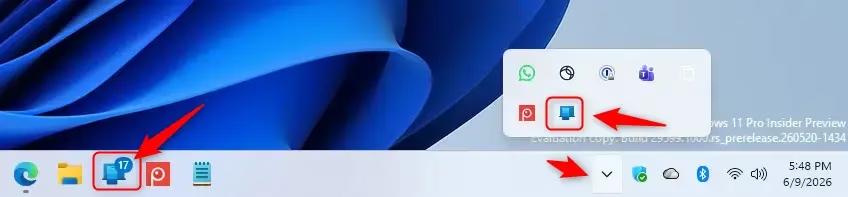
Open the Phone Link App
First, open the Phone Link app on your Windows 11 PC. You can find it by searching for “Phone Link” in the Windows search bar or by looking for its icon in your Start menu.Go to the Apps Section
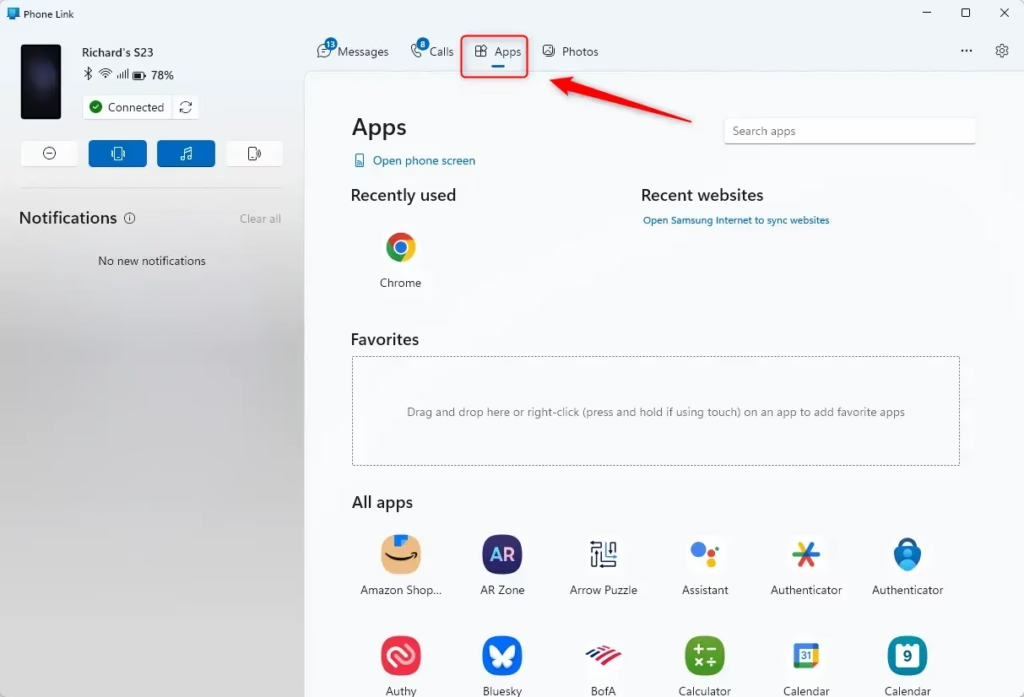
Once Phone Link is open, look for the “Apps” section. This is where you will see all your Android apps that work with Phone Link. It might take a moment for them to load, especially the first time.Choose the App to Pin
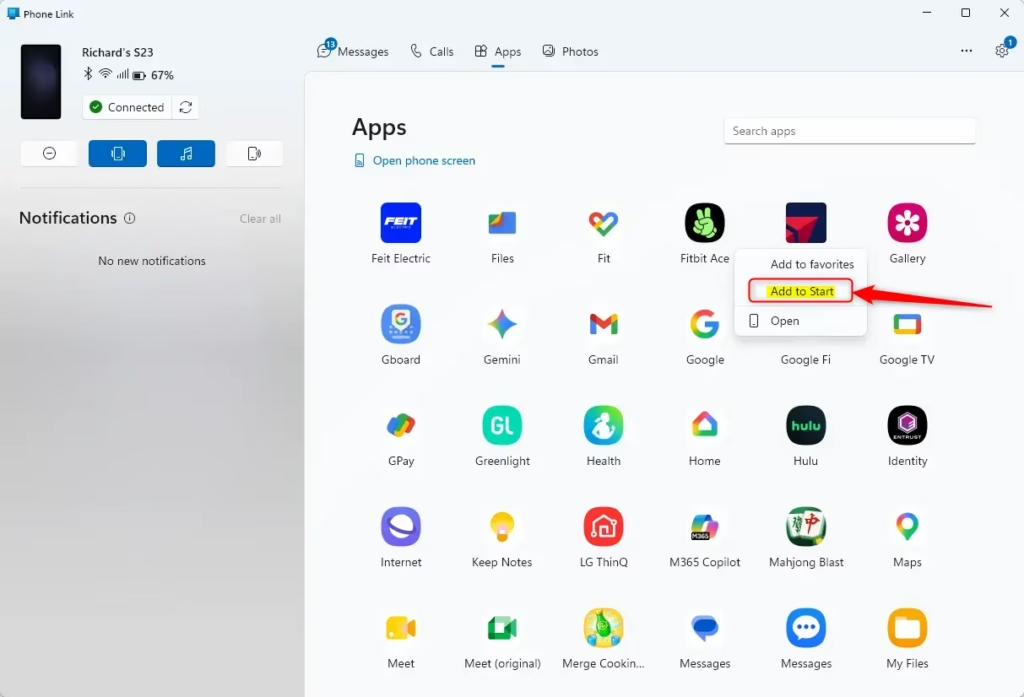
Look through the list of your Android apps in the Phone Link window. When you find an app you want to pin, move your mouse cursor over its icon.Right-Click and Pin
This is the key step: right-click on the Android app icon you want to pin. A menu will pop up. From this menu, you should see options like “ Pin to Start,” “Pin to taskbar,” or “Add to favorites.” Pick the option you like best.Tip: You can pin the same app to both your Start menu and your taskbar if you want more ways to open it quickly.
- Pin to Start: This adds the app’s icon to your Windows Start menu.
- Pin to taskbar: This puts a shortcut for the app directly on your Windows taskbar for quick access.
- Add to favorites: This usually adds the app to a special list within the Phone Link app itself.
Confirm the Pinning
After you choose where to pin the app, Windows will do its thing. You should see the app icon appear in your Start menu or on your taskbar soon. You can then click it like any other Windows app to open it.
Reference:
Summary
Pinning Android apps to Windows 11 using the Phone Link app lets you easily access your favorite mobile applications directly from your PC. By following a few simple steps – opening Phone Link, navigating to the Apps section, right-clicking on an app, and choosing to pin it to your Start menu or taskbar – you can create convenient shortcuts. This integration makes using your Android apps on a larger screen with your keyboard and mouse a seamless experience.
Was this guide helpful?

About the Author
Richard
Tech Writer, IT Professional
Richard, a writer for Geek Rewind, is a tech enthusiast who loves breaking down complex IT topics into simple, easy-to-understand ideas. With years of hands-on experience in system administration and enterprise IT operations, he’s developed a knack for offering practical tips and solutions. Richard aims to make technology more accessible and actionable. He's deeply committed to the Geek Rewind community, always ready to answer questions and engage in discussions.



No comments yet — be the first to share your thoughts!