How to Access Phone Link Recent Apps from your Windows 11

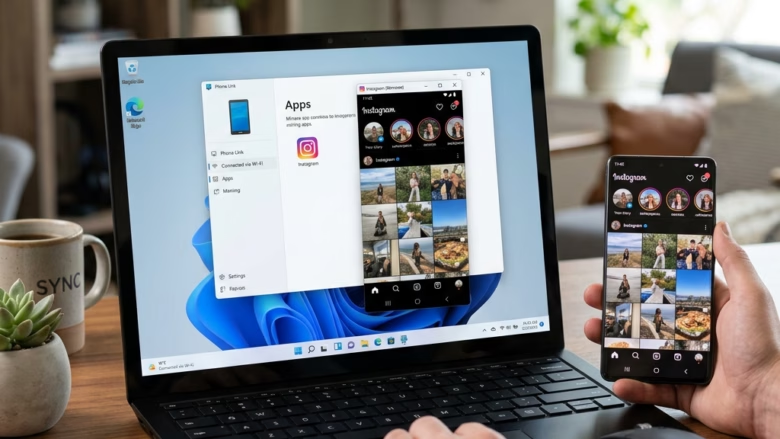
You can access your phone’s recent apps directly from your Windows 11 PC through Microsoft’s Phone Link app.
Phone Link allows you to see and interact with your most recently used Android applications on your computer, effectively mirroring them for easier access and control with your mouse and keyboard.
This feature is particularly useful for multitasking. Imagine replying to messages or checking social media directly on your PC without needing to unlock and pick up your phone, streamlining your workflow.
To get started, ensure your Android phone is linked to your Windows 11 PC via Phone Link. You’ll also need to specifically enable the “Recent apps” functionality within the Phone Link app’s settings on both your phone and PC.
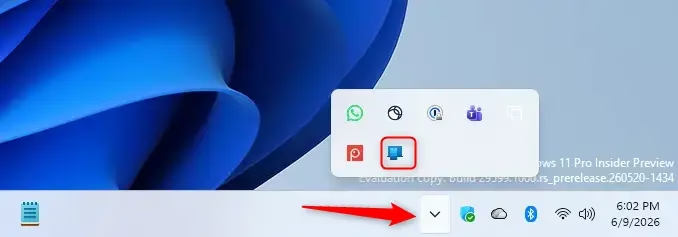
Access recent Android apps from your Windows 11 taskbar by clicking the upward-pointing arrow in the bottom right corner to show hidden icons. Then, click the Phone Link icon and select the app you wish to open from the pop-up menu.
Why Use Your Phone Apps on Your PC?
Phone Link is built into Windows 11 and connects your Android phone to your computer. This means you can see notifications and messages. You can also open and use your Android apps right from your PC. This is super helpful for getting things done faster, especially if you switch between your phone and computer a lot.
How to Connect Your Phone and PC
If your phone and PC aren’t linked yet, you need to do that first. Here’s how:
- Open Phone Link on your PC. You can find it by typing “Phone Link” into the Windows search bar.
- Open Link to Windows on your phone. You might need to scan a QR code shown on your PC. Or, you can sign in with your Microsoft account on both devices.
- Follow the on-screen instructions. The apps will guide you through the rest. You’ll need to allow certain permissions on your phone.
Important Note: Be careful about the permissions you give. Phone Link needs access to your calls, messages, photos, and apps to work. Read them closely and make sure you are okay with what you are allowing.
How to Open Your Android Apps on Your PC
Once your devices are connected, opening your Android apps is possible. Here are a couple of ways to do it:
Using the Windows Taskbar
This is a quick way to open your most-used apps without opening the main Phone Link window. Look for the hidden icons in your Windows taskbar. Click the small upward-pointing arrow ( ) in the bottom right corner to reveal them.
- Look for the hidden icons. In the bottom right corner of your Windows taskbar, click the small upward-pointing arrow (
^). This shows hidden icons. - Find the Phone Link icon. You should see the Phone Link icon among the hidden icons. Click on it.
- Choose your app. A small menu will pop up. It shows some of your recent Android apps. You can:
- Click directly on the app you want to open.
- Right-click on the app and then choose “Open.”
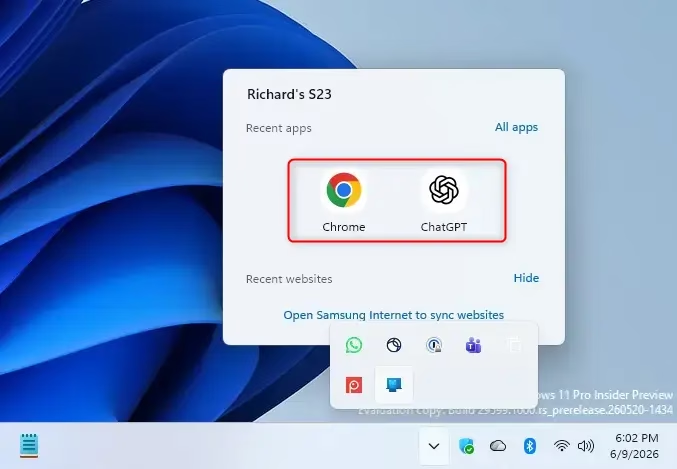
Handy Tip: This “Recent Apps” section is great for quickly going back to what you were doing. If you use an app often, you can pin it for even faster access.
What Happens When You Open an App?
When you click on an app from the Phone Link menu, a new window will open on your PC. This window shows your Android app exactly as it appears on your phone. You can use your mouse and keyboard to interact with it. You can click buttons, type text, and scroll as you would on your phone. It’s like having your phone’s apps right on your computer desktop!
Reference:
Summary
Phone Link lets you use your Android phone’s apps on your Windows 11 PC. You can connect your devices by opening the Phone Link app on your PC and the ‘Link to Windows’ app on your phone. Once connected, you can access recent apps by clicking the hidden icons arrow on your taskbar and selecting the Phone Link icon. This lets you use your phone’s apps on your computer’s bigger screen.
Was this guide helpful?

About the Author
Richard
Tech Writer, IT Professional
Richard, a writer for Geek Rewind, is a tech enthusiast who loves breaking down complex IT topics into simple, easy-to-understand ideas. With years of hands-on experience in system administration and enterprise IT operations, he’s developed a knack for offering practical tips and solutions. Richard aims to make technology more accessible and actionable. He's deeply committed to the Geek Rewind community, always ready to answer questions and engage in discussions.




No comments yet — be the first to share your thoughts!