

You can easily change your default search engine in Microsoft Edge to Google, DuckDuckGo, or any other preferred provider.
Microsoft Edge typically defaults to Bing for searches, but customizing this setting allows you to tailor your browsing experience to your preferred search engine.
This article shows you exactly how to make that switch. You’ll learn how to modify Edge’s settings to use your favorite search engine directly from the address bar.
Go to Edge Settings > Privacy, search, and services > Address bar and search. Select your preferred search engine from the dropdown menu. You must first search using the desired engine for it to appear in the list.
Step 1Use the Search Engine You Want First
This might seem a bit strange, but the first step to telling Edge you want to use a new search engine is to actually use it. Think of this as helping Edge get acquainted with your preferred search engine.
Here’s how:
- Open Microsoft Edge.
- Click on the address bar at the top of the browser. This is where you usually type website addresses or search words.
- Type something you want to search for using the search engine you want to set as default. For example, if you want to use Google, type “weather today” into the address bar and press Enter. Edge will then use Google to perform your search.
Step 2Go to Edge’s Settings
Now that Edge has “met” your favorite search engine, it’s time to make it official. We need to go into the browser’s settings.
Follow these steps:
- With Edge open (it doesn’t have to be on the search results page from Step 1), look for the three dots in the top-right corner of the browser window. These three dots open the ‘Settings and more’ menu.
- Click on those three dots. A menu will pop down.
- From the menu, choose Settings.

Step 3Find the “Address bar and search” Settings
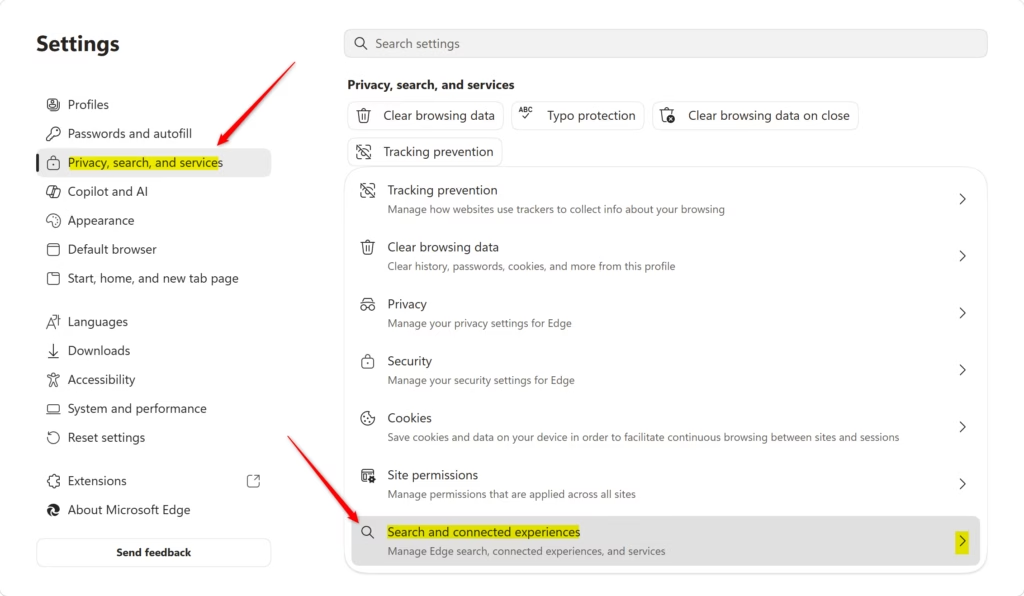
Once you are in the main Settings area, you will see a list of options on the left side. Here, you can adjust many Edge settings. We need to find the settings for privacy, searching, and services.
Here’s how to get there:
- In the left-side menu of the Settings tab, click on Privacy, search, and services. This section lets you control how Edge handles your information and browsing.
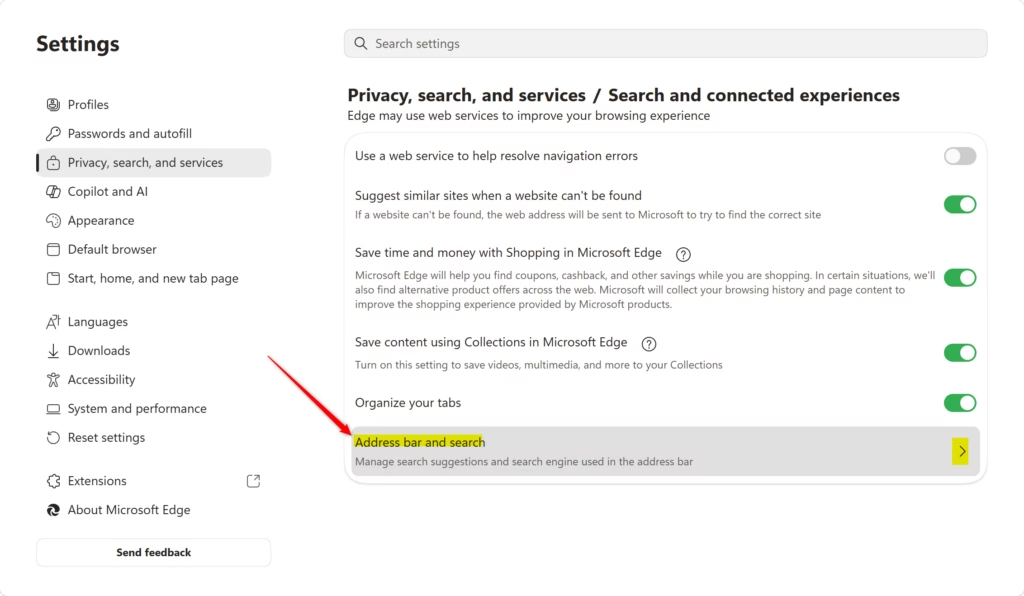
- Scroll all the way down to the bottom of the “Privacy, search, and services” page. Keep scrolling until you see a section called Search and connected experiences.
- In the “Services” section, find and click on Address bar and search. This is the setting we need to change.
Step 4Pick Your New Default Search Engine
You’re almost finished! This is where you tell Edge which search engine to use when you type something in the address bar.
Here is the last step:
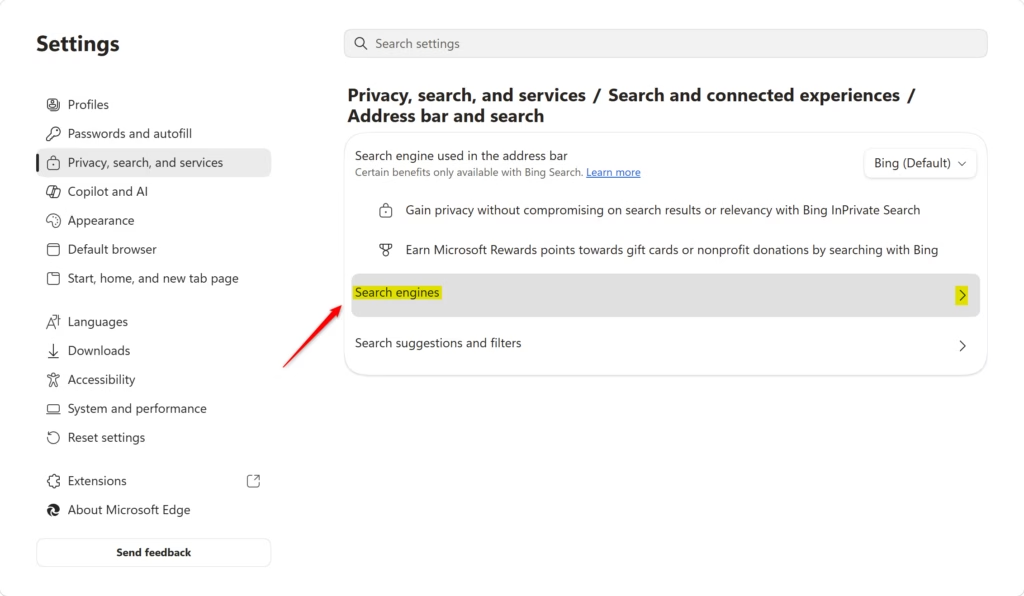
- On the “Address bar and search” page, you will see an option called Address bar and search.
- To its right, you’ll find a dropdown menu. Click on this menu.
- You should see a list of search engines that Edge knows. Since you searched using your preferred engine in Step 1, it should be in this list. Choose the search engine you want to be your new default from the dropdown.
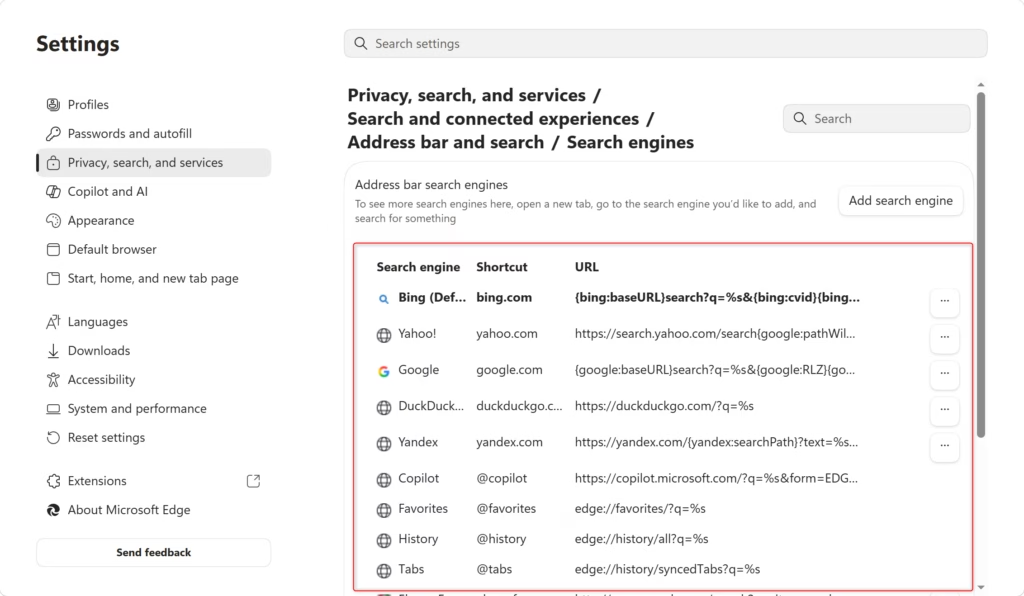
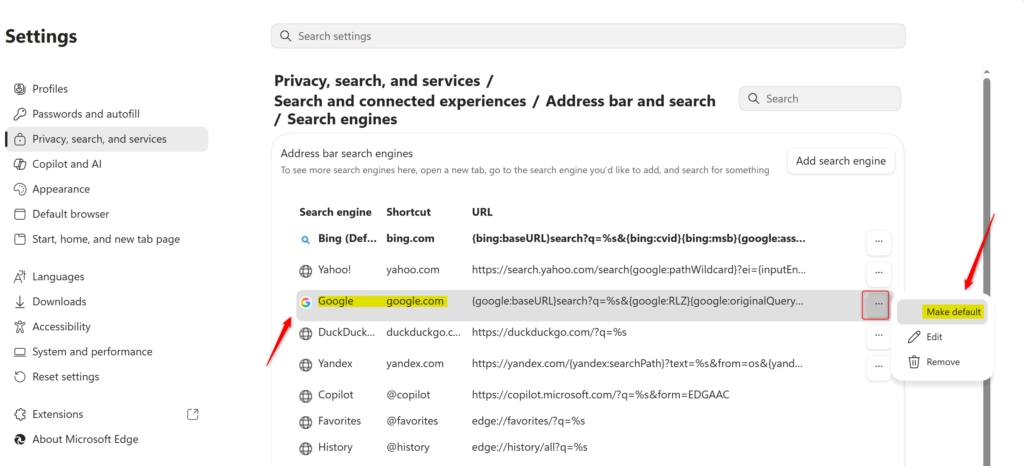
That’s it! Your chosen search engine is now set as the default for the address bar in Microsoft Edge. Any time you type something to search for in the address bar and press Enter, Edge will use this engine to find your results.
Reference:
https://support.microsoft.com/en-us/edge/change-your-default-search-engine-in-microsoft-edge
Summary
This guide showed you how to change your default search engine in Microsoft Edge. First, you need to search using the engine you want to set as default so Edge recognizes it. Then, you go into Edge’s Settings, navigate to “Privacy, search, and services,” and finally click on “Address bar and search.” From there, you can select your preferred search engine from a dropdown list. Making this change lets you customize your browsing experience to better suit your needs.
Was this guide helpful?

About the Author
Richard
Tech Writer, IT Professional
Richard, a writer for Geek Rewind, is a tech enthusiast who loves breaking down complex IT topics into simple, easy-to-understand ideas. With years of hands-on experience in system administration and enterprise IT operations, he’s developed a knack for offering practical tips and solutions. Richard aims to make technology more accessible and actionable. He's deeply committed to the Geek Rewind community, always ready to answer questions and engage in discussions.




No comments yet — be the first to share your thoughts!