How to turn on or off Microsoft Edge Sharing Data with other Windows features

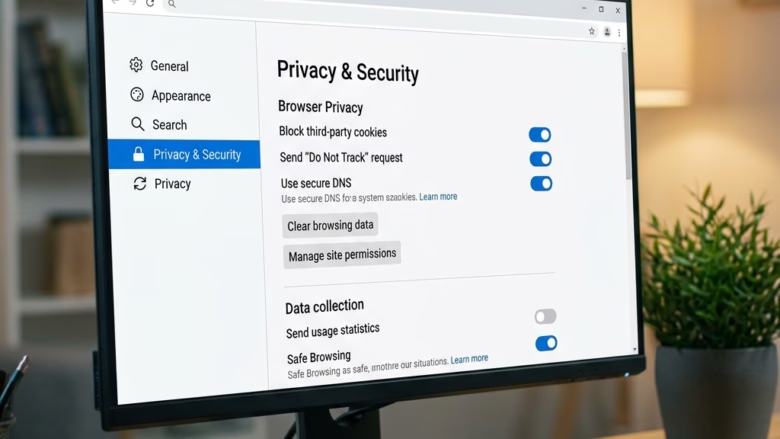
You can control whether Microsoft Edge shares your browsing data with other Windows features, which can improve your PC experience.
This setting lets Edge send anonymous browsing info to other Windows features. This helps personalize your PC, for example, by showing your most visited sites on your Start Menu. Your data stays local on your PC, never sent to Microsoft.
This integration improves search suggestions and recommendations across Windows. You can easily disable this data sharing if you prefer maximum privacy for your browsing habits.
Go to Edge Settings, then Profiles. Toggle off “Share browsing data with other Windows features” to prevent Edge from sharing your browsing history with other apps on your PC.
When to Turn Off Data Sharing
Why do this? If you turn off this setting, Microsoft Edge stops sharing your browsing data with other Windows features. This means your browsing history will be more private on your computer.
What happens when done? When you turn this off, Microsoft Edge will no longer send your browsing data to other apps on your PC. This helps keep your browsing habits separate from other Windows functions.
How to Turn Off Sharing Data
You can change this setting right in Microsoft Edge.
Open Microsoft Edge
First, open the Microsoft Edge browser. You can find it in your Start Menu, on your taskbar, or by searching for it.
Go to Settings
In Edge, click the three dots
...in the top-right corner. This opens the “Settings and more” menu. Then, click on Settings.This action opens a new tab displaying Edge’s settings.
Go to Profiles Settings
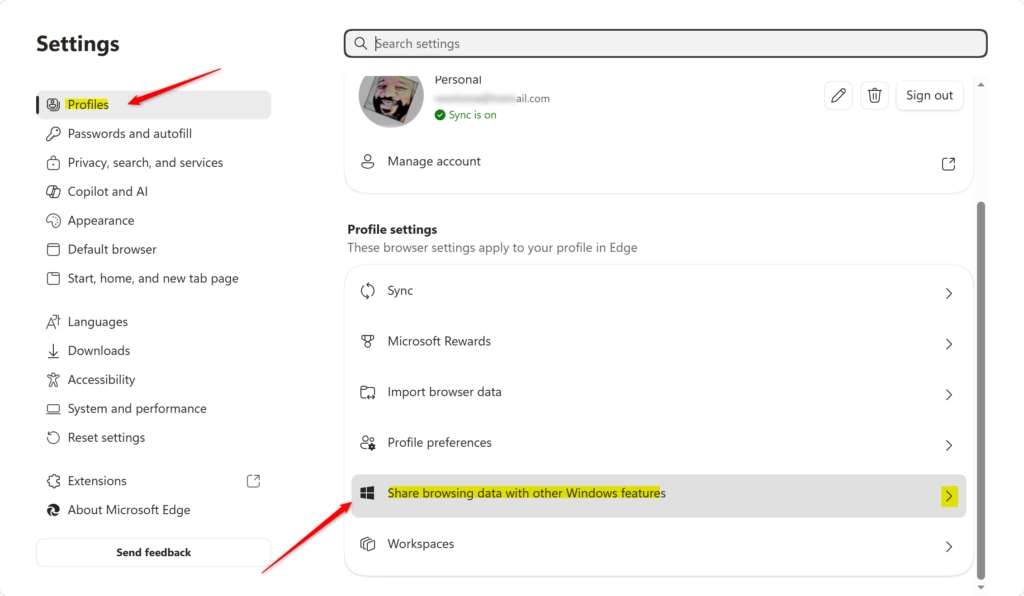
On the left side of the Settings tab, find and click on Profiles.
Find the Sharing Option
In the Profiles section, scroll down. Look for the option called Share browsing data with other Windows features.
This is the setting that controls whether Edge shares your browsing history with other apps on your computer.
Turn the Setting Off
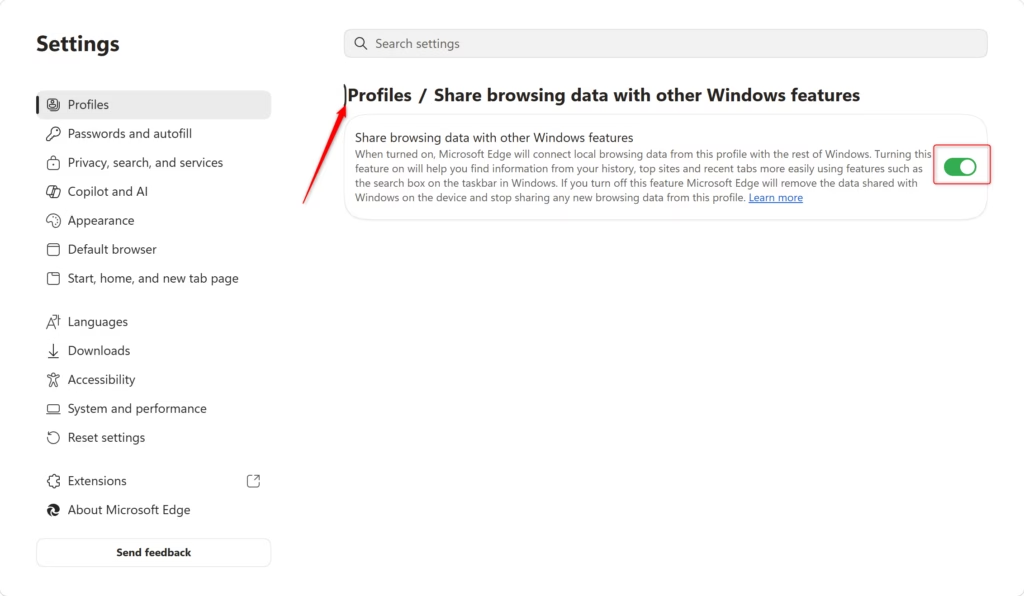
You will see a switch next to “Share browsing data with other Windows features.” Click this switch to turn it Off.
When the switch is off, it typically turns gray. This stops Edge from sharing data right away and prevents it from sharing in the future.

Reference:
https://support.microsoft.com/en-us/edge/microsoft-edge-browsing-data-and-privacy
Summary
You can control whether Microsoft Edge shares your browsing data with other Windows features. This setting helps keep your browsing habits private on your computer. To turn it off, go to Edge’s Settings, then Profiles, and toggle off “Share browsing data with other Windows features.”
Was this guide helpful?

About the Author
Richard
Tech Writer, IT Professional
Richard, a writer for Geek Rewind, is a tech enthusiast who loves breaking down complex IT topics into simple, easy-to-understand ideas. With years of hands-on experience in system administration and enterprise IT operations, he’s developed a knack for offering practical tips and solutions. Richard aims to make technology more accessible and actionable. He's deeply committed to the Geek Rewind community, always ready to answer questions and engage in discussions.

No comments yet — be the first to share your thoughts!