How to Block or Unblock Apps with Microsoft Family Safety


You can block or unblock specific apps on a child’s Windows PC, Xbox, or Android device using Microsoft Family Safety.
Microsoft Family Safety is a free service designed to help you manage your family’s digital experiences, including setting app and game limits. This feature allows you, as a Family Organizer, to prevent children from accessing applications deemed inappropriate or time-wasting.
For example, you can block a child from launching games rated above a certain age, like preventing access to games rated E10+ on Xbox. This control is crucial for ensuring a safe and productive digital environment for your children. Only a Family Organizer can make these app-blocking changes within the family group.
To block an app, sign in to account.microsoft.com/family, select your child, choose their platform, go to Apps and Games, and click “Block” next to the app. Unblock it by clicking “Unblock” on the same screen.
Getting Started: The Family Safety Portal
The best way to manage app blocking is through the Microsoft Family Safety website. This is where you can find all the settings for your family.
Sign In to Your Account
Go to account.microsoft.com/family. You need to sign in with the Microsoft account you use as the Family Organizer. This is the account that manages your family group.
Tip: If you use multiple Microsoft accounts, double-check you’re signing in with the one designated as the organizer. It’s easy to get mixed up, so take a moment to verify!
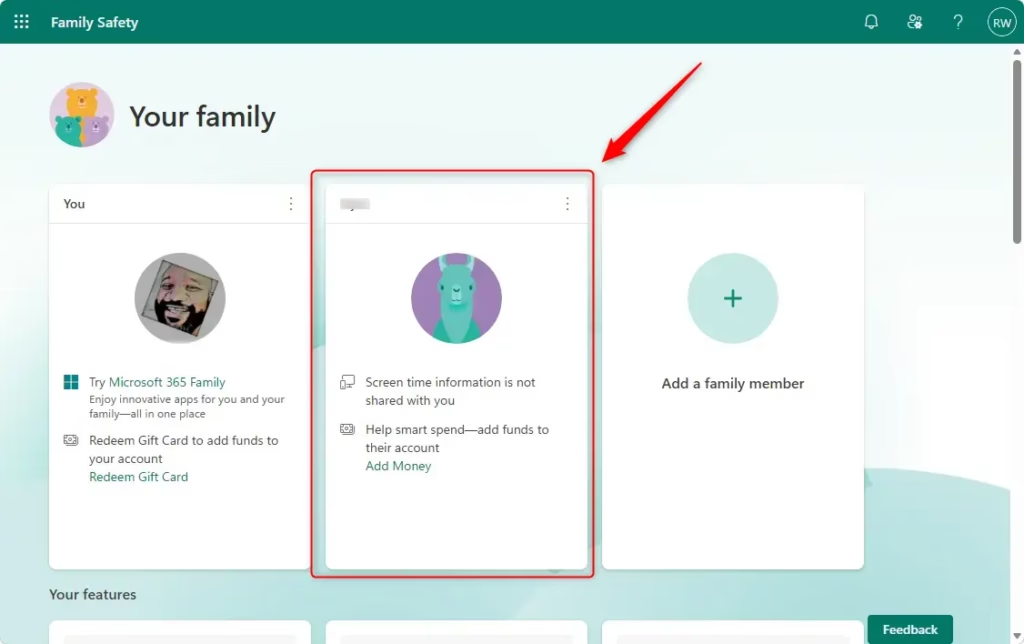
Select the Family Member
Once you are logged in, you will see a page with all your family members. Click on the picture or name of the child whose apps you want to manage. This takes you to their specific settings page in Family Safety.
Choose the Platform
Under your child’s name, you will see different sections like “Windows,” “Xbox,” “Edge,” or “Mobile.” Click on the section for the device or platform where you want to block the app. For Windows computers, click on the “Windows” section.
Warning: Pay attention to which platform you select. Blocking an app on Windows will not automatically block it on their Xbox or phone, even if those devices are linked to their Microsoft account and managed by Family Safety.
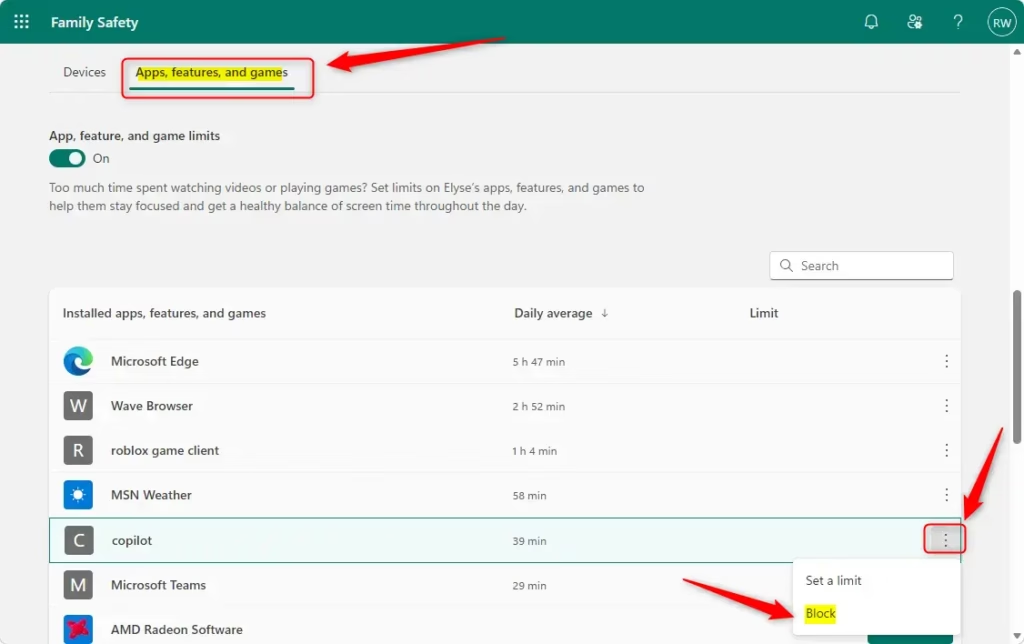
Navigate to Apps and Games
In the settings for the platform you chose, look for a section called “Apps and games” or something similar. This section shows a list of apps that are installed or have been used on that device by the child.
Block an App
Look through the list of apps. When you find an app you don’t want your child to use, you will see an option to block it. This is usually a switch or a button that says “Block” or “Block app.” It is usually on the right side of the app’s name. Click on it.
Once blocked, the app cannot be used. Your child will not be able to open it on that device. You’ll see the screen update to confirm the app is now blocked.
Unblock an App
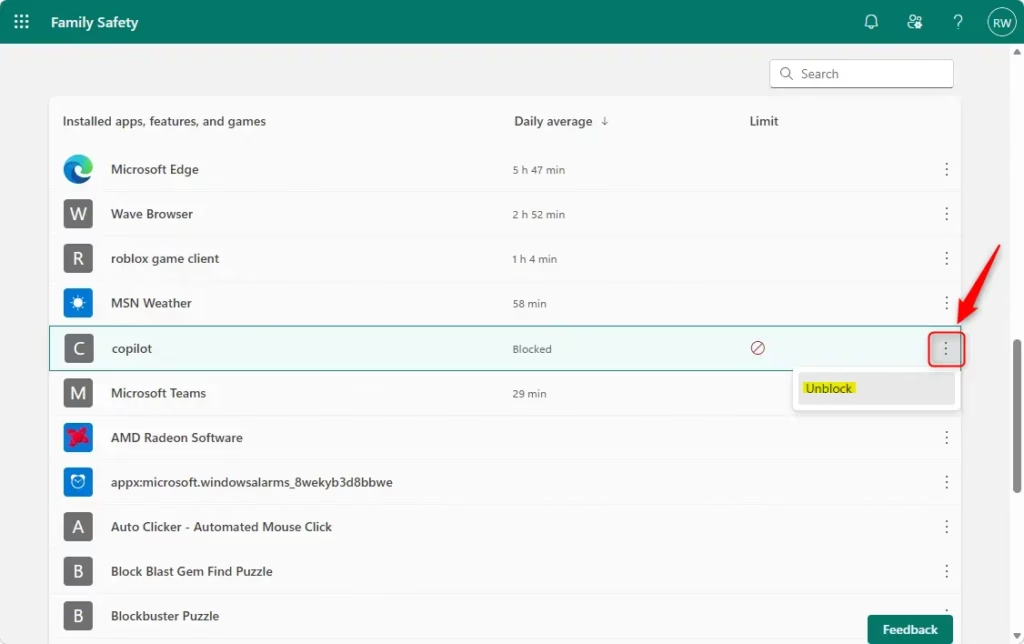
Need to let your child use an app again? Unblocking an app is much the same. Go back to the “Apps and games” list for the child and the specific platform. Find the app that is currently blocked. You will see the option change from “Block” to “Unblock” or something similar. Click on it to remove the block.
Reference:
https://support.microsoft.com/en-us/family-safety/block-or-unblock-apps-with-microsoft-family-safety
Summary
Why block or unblock apps? As a parent, you want to control what your children can access on their devices to ensure their safety and appropriateness. Microsoft Family Safety allows you to do this.
What happens when done? When you block an app, your child will not be able to open or use it on the selected device. When you unblock an app, it becomes available for them to use again on that device.
Was this guide helpful?

About the Author
Richard
Tech Writer, IT Professional
Richard, a writer for Geek Rewind, is a tech enthusiast who loves breaking down complex IT topics into simple, easy-to-understand ideas. With years of hands-on experience in system administration and enterprise IT operations, he’s developed a knack for offering practical tips and solutions. Richard aims to make technology more accessible and actionable. He's deeply committed to the Geek Rewind community, always ready to answer questions and engage in discussions.




No comments yet — be the first to share your thoughts!