How to Create and Close a Desktop on Windows 11

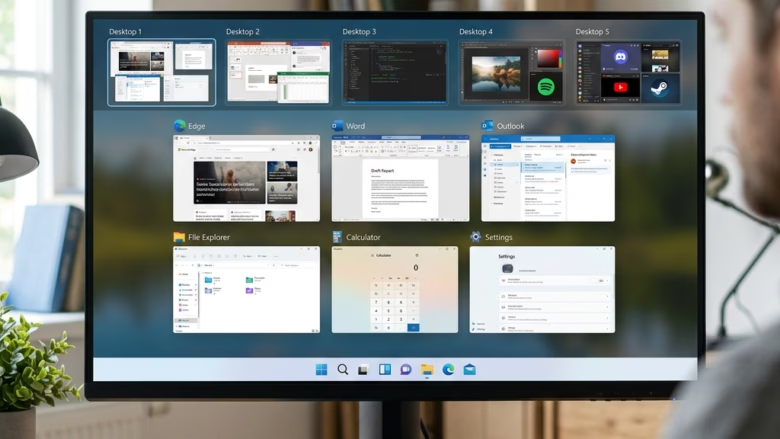
You can create and close virtual desktops on Windows 11 to organize your tasks and improve focus.
A virtual desktop acts like a separate screen for your computer, allowing you to run different applications on each one without them interfering with each other. Windows 11 introduced this feature to help users manage multiple workflows efficiently.
For example, you might dedicate one desktop to your work applications, another to social media, and a third for gaming. This keeps your digital workspace tidy and prevents distractions.
Switching between these desktops is quick and easy using Task View, a feature available since Windows 10. This allows you to instantly access the apps you need for your current task.
How to Create and Use Multiple Desktops in 🪟 Windows 11
Step 1Open Task View
Task View is where you manage all your open windows and desktops. It’s like your computer’s control center.
How to open Task View:
- Taskbar Button: Look for an icon on your taskbar that looks like two squares stacked on top of each other. It’s usually near the Start button. When you hover over it, it will say “Task view.” Click it.
Tip: If you don’t see this button, right-click on an empty spot on your taskbar, choose “Taskbar settings,” and turn on the “Task view” option.
- Keyboard Shortcut: Press the Windows key + Tab at the same time. This will open Task View quickly.
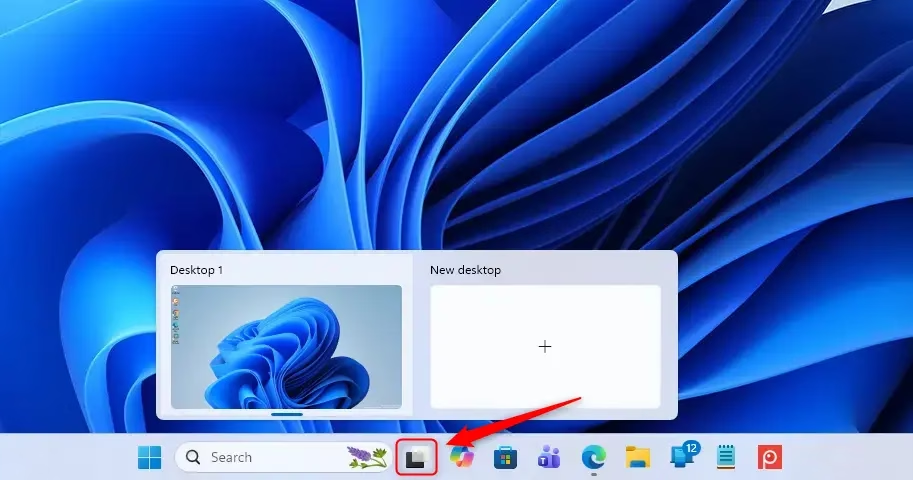
Step 2Create a New Desktop
Once Task View is open, you’ll see small pictures of your open apps. At the top, you’ll see your current desktop, usually called “Desktop 1.”
To make a new desktop:
- Look for a button that says + New desktop. It’s usually next to the small pictures of your desktops at the top.
- Click on + New desktop.
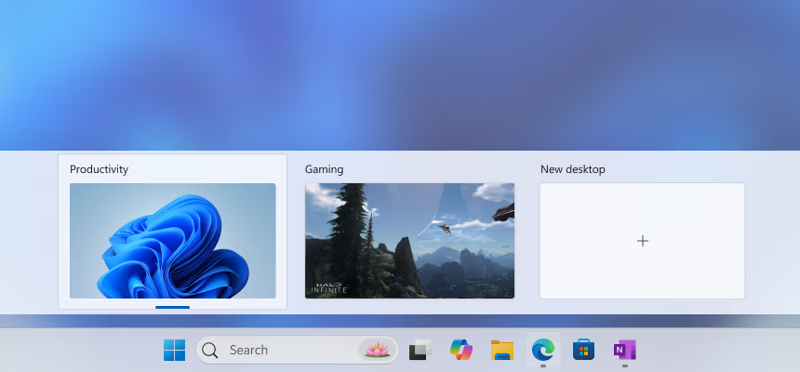
You’ll see a new picture appear at the top, likely called “Desktop 2.” This new desktop is empty and ready for you to use. Your first desktop is still there with all your apps open.
Just a heads-up: clicking an existing desktop picture will switch you to it, not create a new one.
Step 3Add Apps to Your New Desktop
Now you have a fresh desktop. Let’s add some apps to it!
The best way to add apps is to open them while you’re already on the new desktop.
- Switch to your new desktop (like “Desktop 2”) by clicking its picture in Task View.
- Open any apps you want to use on this desktop, just like you normally would.
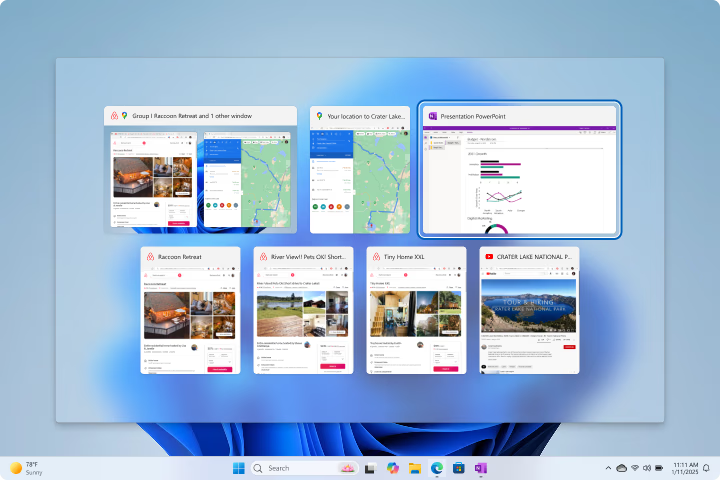
These apps will now only show up on this specific desktop.
Step 4Close a Desktop
When you’re done with a desktop, you can close it.
- Open Task View (Windows key + Tab).
- Move your mouse over the desktop picture you want to close.
- Click the small ‘X’ button that appears in the top corner of that desktop picture.
Don’t worry, any apps you had open on that desktop will automatically move to another one.
Reference:
Summary
Multiple desktops in Windows 11 let you create separate virtual workspaces. You can open Task View using the taskbar button or by pressing Windows key + Tab. To create a new desktop, click the “+ New desktop” button in Task View. You can add apps by opening them while on the desired desktop. To close a desktop, hover over its thumbnail in Task View and click the ‘X’ button. This helps you stay organized, focused, and efficient by separating your digital tasks.
Was this guide helpful?

About the Author
Richard
Tech Writer, IT Professional
Richard, a writer for Geek Rewind, is a tech enthusiast who loves breaking down complex IT topics into simple, easy-to-understand ideas. With years of hands-on experience in system administration and enterprise IT operations, he’s developed a knack for offering practical tips and solutions. Richard aims to make technology more accessible and actionable. He's deeply committed to the Geek Rewind community, always ready to answer questions and engage in discussions.


No comments yet — be the first to share your thoughts!