How to Turn Allow Bluetooth Devices to find this PC On or Off in Windows 11

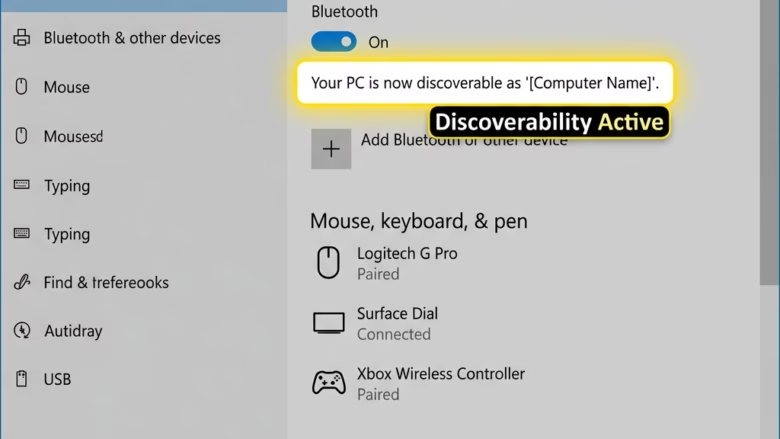
You turn “Allow Bluetooth devices to find this PC” on or off in Windows 11 to control whether your computer is discoverable by other Bluetooth devices.
This setting is essential for enabling your PC to be seen and connected to wirelessly by headphones, mice, speakers, and other Bluetooth-enabled gadgets.
When enabled, your Windows 11 PC will broadcast its presence, appearing in the list of available devices when another Bluetooth device scans for connections. This is especially useful for initial pairing.
You should enable this feature when you want to connect a new Bluetooth accessory to your computer. Consider turning it on only when actively pairing, then disabling it afterward for enhanced security, especially in public areas.
Turn On or Off Bluetooth Device Discovery in 🪟 Windows 11
How to Turn It On or Off
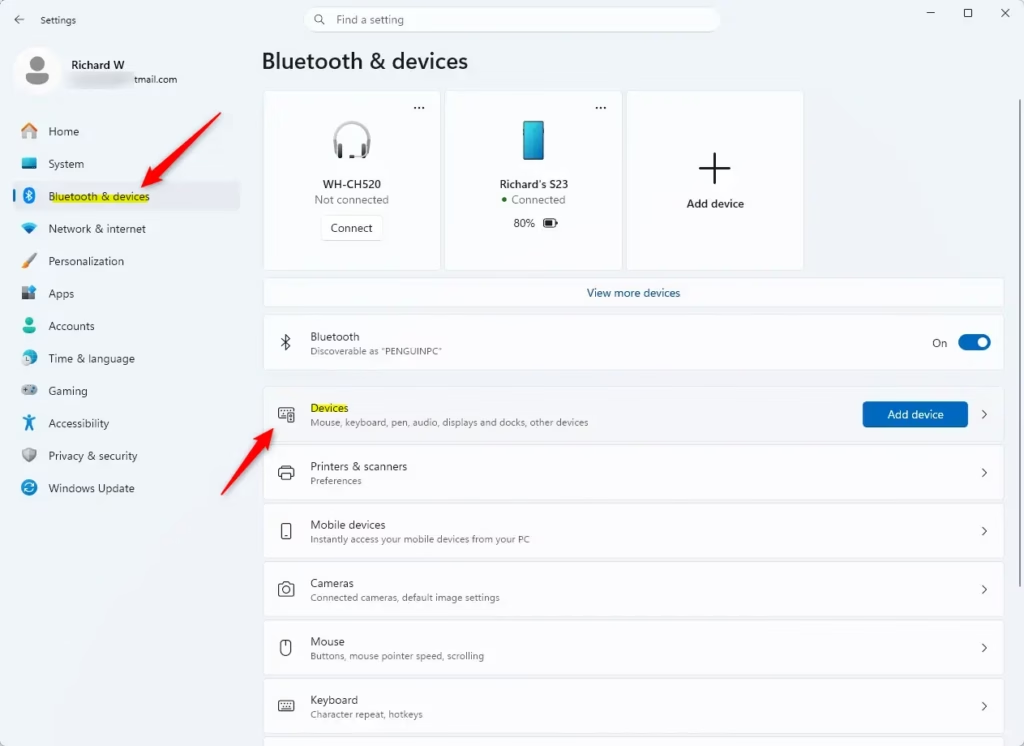
- On the Windows device, select Start and then select Settings > Bluetooth & devices > Devices .
Select the following Bluetooth & devices > Devices shortcut:
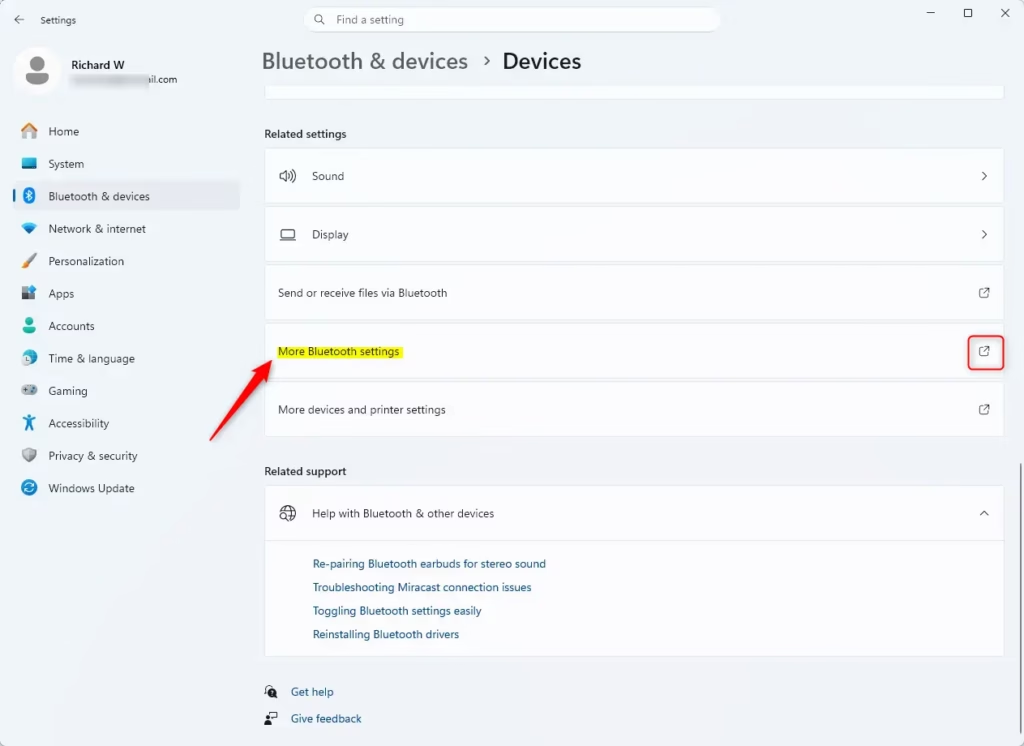
Open Bluetooth & devices > Devices - In the Bluetooth & devices > Devices window, under Related settings, select More Bluetooth settings.
Note: If the option More Bluetooth settings doesn’t exist under Related settings, the Windows device might not have a Bluetooth adapter or the drivers for the Bluetooth adapter might not be installed.
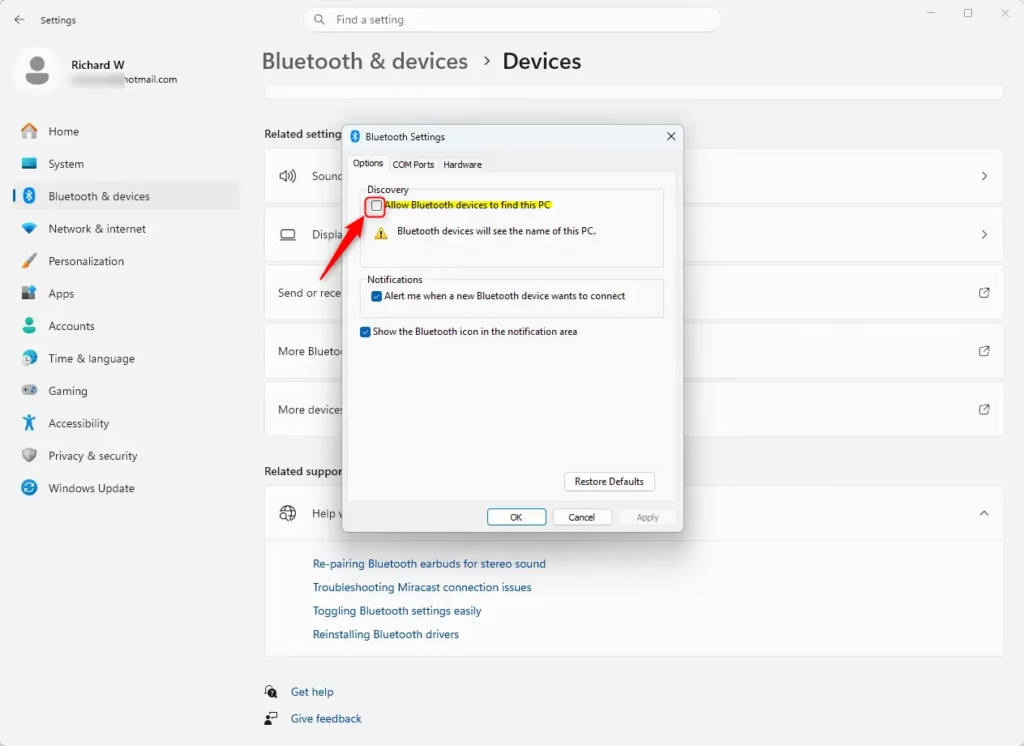
- The Bluetooth Settings window opens with additional Bluetooth settings.
- Then, check the box to enable the feature. To disable it , uncheck the box .
Reference:
Summary
In short, the “Allow Bluetooth devices to find this PC” setting makes your computer discoverable by other Bluetooth devices. Use it when pairing new items like headphones or a mouse, and remember to turn it off afterward for better security. You’ll find this option within Windows Settings under Bluetooth & devices.
Was this guide helpful?

About the Author
Richard
Tech Writer, IT Professional
Richard, a writer for Geek Rewind, is a tech enthusiast who loves breaking down complex IT topics into simple, easy-to-understand ideas. With years of hands-on experience in system administration and enterprise IT operations, he’s developed a knack for offering practical tips and solutions. Richard aims to make technology more accessible and actionable. He's deeply committed to the Geek Rewind community, always ready to answer questions and engage in discussions.


No comments yet — be the first to share your thoughts!