How to sign out of your Microsoft account everywhere


You can sign out of your Microsoft account on all devices simultaneously to secure your data.
Signing out everywhere remotely terminates all active sessions linked to your Microsoft account, whether it’s on a Windows PC, Xbox, or other connected services.
This is crucial if you suspect unauthorized access or if you’ve used a public computer and want to ensure no lingering connections remain, providing a comprehensive security reset.
Microsoft’s security features allow you to remotely sign out from all devices through your account’s security settings.
Why Sign Out Everywhere?
There are good reasons to use this feature. The main one is security. If you notice strange activity, get unusual login alerts, or just want to be cautious, signing out everywhere can stop unwanted access. Consider it a master switch for your account’s connections.
Another common reason is using a public computer. Perhaps you logged into your Microsoft account at a library, an internet cafe, or a friend’s house. It’s easy to forget to sign out of everything on these shared machines. Signing out from your own device ensures your account is no longer active there, even if you forgot to log out on the public one.
Sometimes, you might simply want to tidy up. You could have logged into your account on old devices you no longer use, or on devices that were lost or stolen. Signing out everywhere helps you see and manage which devices are connected to your Microsoft account. This leads to a cleaner and more secure online presence.
How to Sign Out Everywhere: Step by Step
Ready to take control? Follow these steps. You’ll need a device with internet access and your Microsoft account login details.
Step 1Go to Your Microsoft Account Security Page
Your account’s security center is the starting point. You’ll head to the page for your advanced security settings, which is designed to be user-friendly.
- Open your web browser.
- Go to the Microsoft account security page. You can often find this by searching for “Microsoft account security” or by going to a Microsoft support page that guides you there. The Microsoft account dashboard is a good starting point.
- You will be asked to sign in with your Microsoft account email and password. Make sure you use the right login details for the account you want to secure.
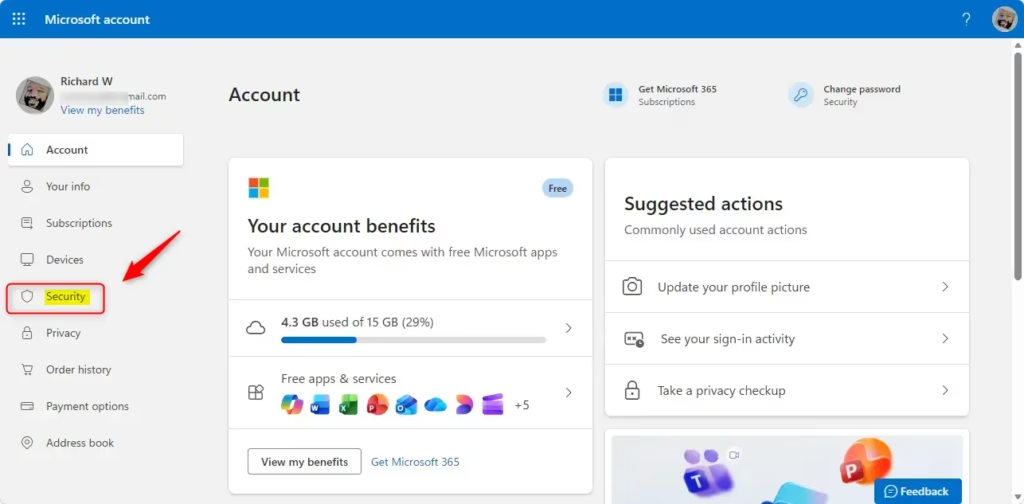
Step 2Find the “Sign out everywhere” Option
Once you’re signed into your security dashboard, you’ll see various options for your account’s safety. Scroll down to find the specific feature for this. It’s usually under a section for managing active sessions or devices.
- After signing in, look for a section that might say “Advanced security options,” “Security settings,” or “Device activity.”
- Scroll through the options. You are looking for a clear link or button that says something like “Sign out everywhere” or “Sign out on all devices.” Microsoft often puts this feature near the bottom of the security settings page.
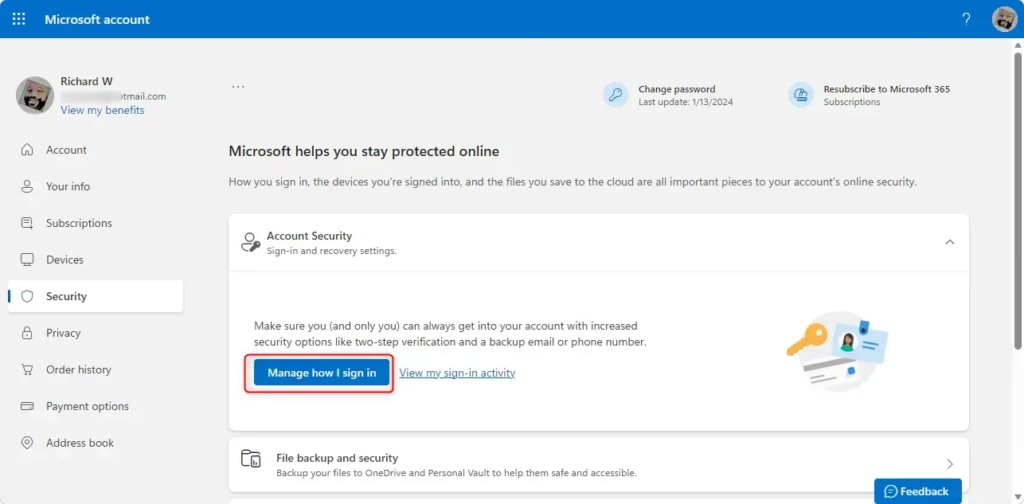
Step 3Start the Sign-Out Process
Did you find it? Great! Now it’s time to use the feature. This is where your current active sessions end, so make sure you are ready.
- Click on the “Sign out everywhere” link or button.
- You might see a confirmation message. This message will explain what signing out everywhere means and warn you about how long it might take to complete.
- Confirm that you want to continue. This usually means clicking another button like “Sign out” or “Confirm.”
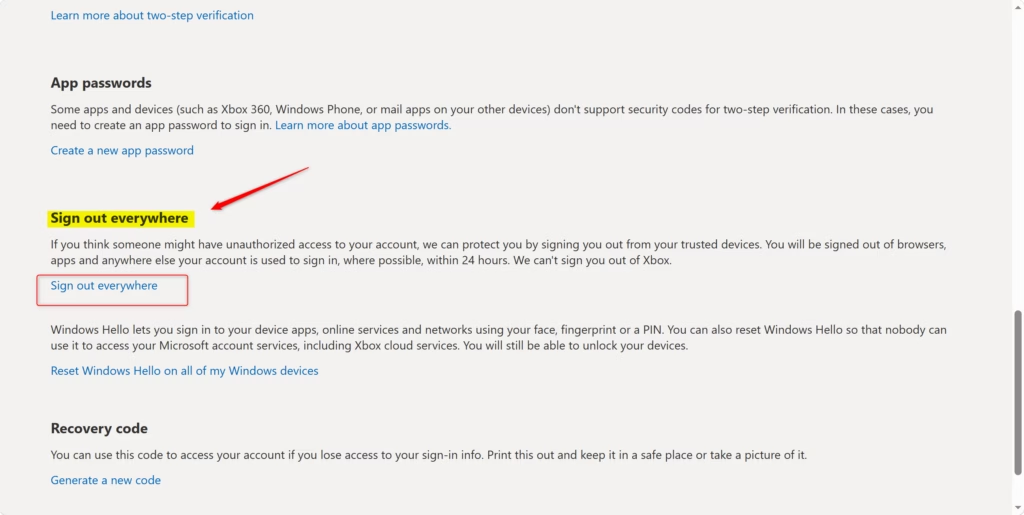
Step 4Understand What Happens Next
This is where the magic happens, but it’s not immediate. Microsoft needs a bit of time to push this command to all the servers and devices linked to your account.
- The 24-Hour Window: Microsoft says it can take up to 24 hours for you to be signed out of all browsers, apps, and other services where your account is used. This is because the system needs time to update the status for every active session.
- What Gets Signed Out: This action usually signs you out from web browsers (like Chrome, Edge, Firefox) on computers and phones. It also signs you out from apps that use your Microsoft account to log in, such as Microsoft 365 apps (Word, Excel, Outlook) and OneDrive.
- What Might Not Get Signed Out (Immediately): An important exception is often an Xbox console. Signing out from an Xbox usually needs to be done directly on the console itself. The “Sign out everywhere” feature might not cover it.
Practical Tip: If you are doing this because you suspect someone has accessed your account, change your Microsoft account password right after you start the “sign out everywhere” process. This adds another layer of security. It makes sure that even if someone had your old password, they can’t log back in easily after the sign-out is done.
Summary
This guide walks you through signing out of your Microsoft account everywhere. It’s a valuable tool for security, especially if you suspect unauthorized access or if you’ve used a public computer. The process involves navigating to your Microsoft account security page, locating and clicking the “Sign out everywhere” option, and then confirming. Keep in mind that Microsoft mentions it can take up to 24 hours for this change to fully roll out across all your devices and apps. Notably, Xbox consoles typically require a separate sign-out procedure directly on the console itself. After completing the sign-out, you’ll need to re-enter your credentials on your trusted devices and apps. For an extra layer of protection, consider changing your password immediately after starting the sign-out process. Remember, strong passwords and two-factor authentication remain essential for overall account security.
Was this guide helpful?

About the Author
Richard
Tech Writer, IT Professional
Richard, a writer for Geek Rewind, is a tech enthusiast who loves breaking down complex IT topics into simple, easy-to-understand ideas. With years of hands-on experience in system administration and enterprise IT operations, he’s developed a knack for offering practical tips and solutions. Richard aims to make technology more accessible and actionable. He's deeply committed to the Geek Rewind community, always ready to answer questions and engage in discussions.


No comments yet — be the first to share your thoughts!