How to Turn on Internet Explorer Mode in Microsoft Edge

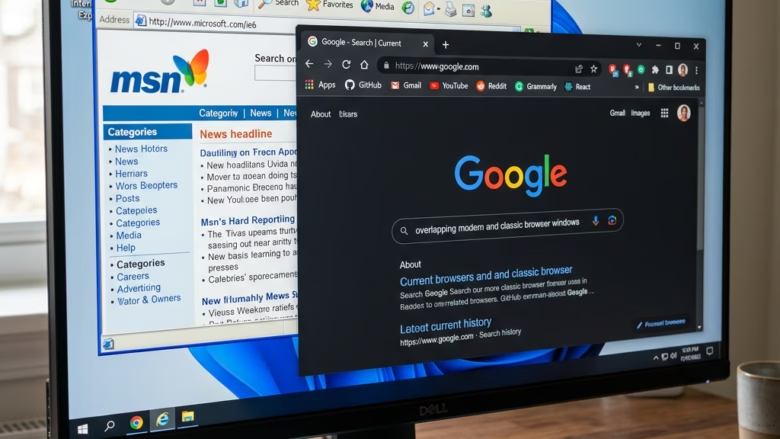
You can turn on Internet Explorer Mode in Microsoft Edge to access older websites and applications that require it.
Internet Explorer Mode is a built-in feature of Microsoft Edge that emulates the Internet Explorer 11 rendering engine, allowing you to open specific sites as if you were still using the legacy browser.
This is crucial for many internal company tools or websites developed years ago that may not function correctly in modern browsers. You can configure Edge to automatically open certain URLs in this compatibility mode, ensuring seamless access to those essential resources without needing to install the discontinued Internet Explorer 11.
Why You Might Need Internet Explorer Mode
Imagine this: You need to use an old company HR website, a government page, or an old software program your workplace uses. These sites were made years ago. They might need old features that new browsers like Edge don’t use anymore. When you try to open them in a normal Edge tab, the page might look broken, buttons might not work, or you might see error messages. This is where Internet Explorer mode helps. It bridges this gap. It provides those old sites the right environment to work correctly, all within your familiar Microsoft Edge browser.
Turning On Internet Explorer Mode in Microsoft Edge
First, you need to allow Internet Explorer mode in your Microsoft Edge settings. This tells Edge you want the option to open some pages using IE’s original method. It’s a setting that unlocks a powerful feature.
Open Microsoft Edge and Go to Settings
Start by opening Microsoft Edge. Look for the three dots (…) in the top-right corner of the browser window. Click these dots to open the menu. Then, choose “Settings.”

Go to the Default Browser Section
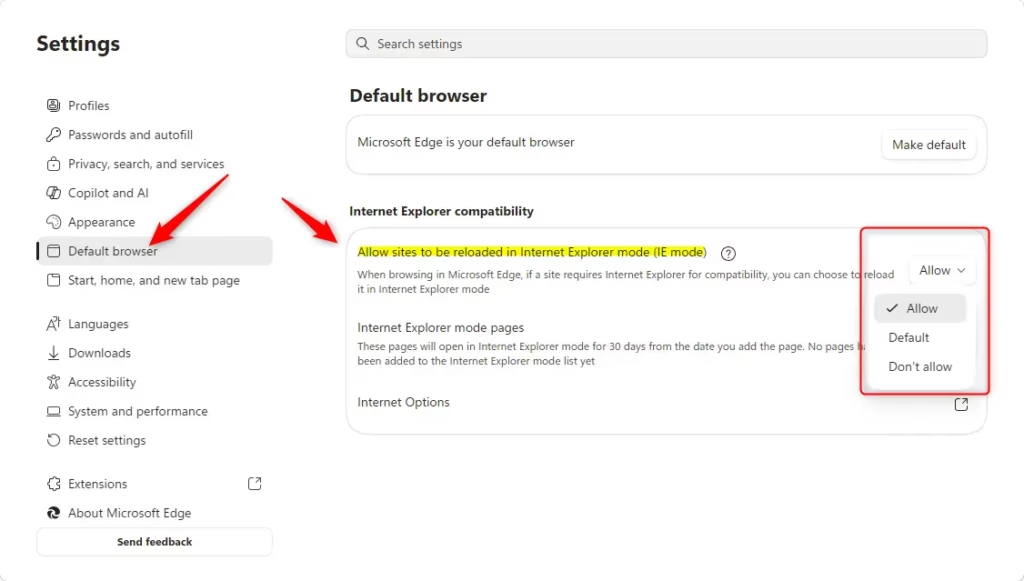
In the Settings menu, you will see a list on the left side. Click on “Default browser.” This is where you control how Edge works with other browsers and how it handles compatibility.
Allow Sites to Reload in Internet Explorer Mode
Now, find the section called “Internet Explorer compatibility.” You will see a dropdown menu that says “Allow sites to be reloaded in Internet Explorer mode.” Click this menu and choose “Allow.” This is the important step to turn on the feature.
Restart Microsoft Edge
To make the changes work, you need to close and reopen Microsoft Edge. Close all Edge windows. Then, open the browser again. You will know the setting is active when you see the option to reload pages in IE mode later.
How to Open a Specific Website in Internet Explorer Mode
After you turn on Internet Explorer mode in your settings, you can start using it for the websites that need it. There are a few ways to do this, depending on if you use a personal computer or a work device.
For Personal Devices or When IE Mode is Fully Enabled
If you turned on the setting on your own computer and your company hasn’t blocked it, you can add sites to IE mode yourself. This is great for sites you only need to visit sometimes.
Navigate to the Website
Open Microsoft Edge and go to the exact web address (URL) of the site you need to see in Internet Explorer mode. Make sure the page has finished loading.
Access Edge’s Settings Menu
Click the three dots (…) in the top-right corner of the Edge window to open the main menu.
Find the “Reload in Internet Explorer Mode” Option
In the menu that appears, you should now see an option that says “Reload in Internet Explorer mode.” Click it.
Important Note: If you’re using a very new version of Edge (version 141 or newer), the steps are a bit different. Go back to Settings > Default browser. Then, under ‘Internet Explorer compatibility,’ find the section called ‘Internet Explorer mode pages.’ Click the ‘Add’ button and type the web address (URL) you want to open in IE mode. After adding it, reload the page, and it should open correctly.
Tip: If you are using an older version of Edge (92 or earlier), the option might be under “More tools” before you see “Reload in Internet Explorer Mode.”
Confirm the Website is Loading Correctly
The page will reload. You should now see a small IE icon in the address bar. This shows it is running in Internet Explorer mode. Check the site to make sure everything works as it should.
For Enterprise Devices or When Your Organization Manages IE Mode
If you are on a work computer, your IT department probably manages which sites use Internet Explorer mode. They use an ‘Enterprise Site List.’ This is a list of websites approved to automatically open in IE mode when you visit them in Edge.
Navigate to the Website
Just go to the website your company has set up for IE mode. You usually don’t need to do anything special yourself.
Look for the “Reload in Internet Explorer Mode” Option
Once the page loads, click the three dots (…) in the top-right corner of Edge. You should see the “Reload in Internet Explorer mode” option. If you don’t see it, and the site isn’t working, it might not be on your company’s approved list. Or, your company’s rules might not let sites not on the list run in IE mode. In this case, you need to talk to your IT department.
Warning: As mentioned before, if your computer is managed by your company, the setting “Allow sites to be reloaded in Internet Explorer mode” might be greyed out. The “Reload in Internet Explorer mode” option will only show up if your company has set rules to allow it. This could be through the Enterprise Site List or by letting unlisted sites run in IE mode.
Exiting Internet Explorer Mode
When you’re done with a website that was running in Internet Explorer mode, you’ll want to go back to normal browsing. It’s usually quite straightforward.
Look for the Information Bar
When a site is in IE mode, you will usually see a message bar at the top of the browser window. It might say something like, “This site is running in Internet Explorer mode.”
Click “Leave”
On this message bar, there should be a button or link that says “Leave.” Click this button to stop using Internet Explorer mode for that tab. The page will then reload in regular Microsoft Edge mode.
Tip: If you don’t see the “Leave” button, you can always close the tab that is in IE mode. Then, open a new tab in Microsoft Edge. The new tab will be in standard Edge mode automatically.
Reference:
https://support.microsoft.com/en-us/edge/internet-explorer-mode-in-microsoft-edge
Summary
Internet Explorer mode in Microsoft Edge is a helpful tool for accessing older websites that don’t work well with modern browsers. You can turn it on in the Edge settings under “Default browser” and “Internet Explorer compatibility.” Once enabled, you can reload specific sites in IE mode by clicking the three dots (…) in the top-right corner and selecting “Reload in Internet Explorer mode.” For work computers, your IT department likely manages this through an Enterprise Site List. To exit IE mode, click the “Leave” button on the information bar that appears at the top of the page.
Was this guide helpful?

About the Author
Richard
Tech Writer, IT Professional
Richard, a writer for Geek Rewind, is a tech enthusiast who loves breaking down complex IT topics into simple, easy-to-understand ideas. With years of hands-on experience in system administration and enterprise IT operations, he’s developed a knack for offering practical tips and solutions. Richard aims to make technology more accessible and actionable. He's deeply committed to the Geek Rewind community, always ready to answer questions and engage in discussions.

No comments yet — be the first to share your thoughts!