Windows 11 Taskbar: What is the Widgets Feature

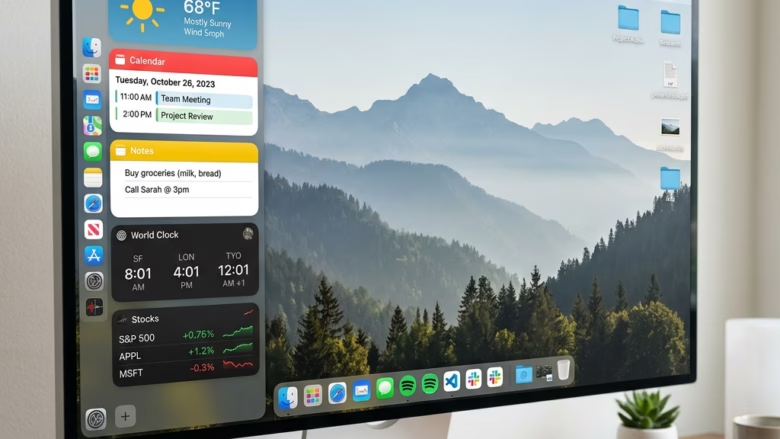
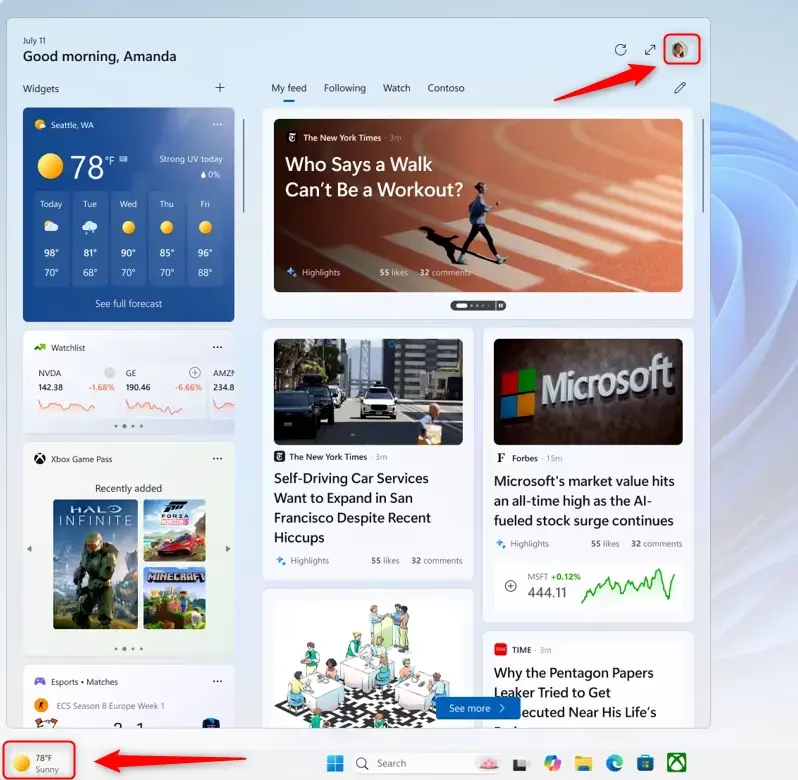
Have you seen that little pop-up on your Windows 11 taskbar? It shows you news, weather, and maybe even stock prices. That’s the Widgets feature. It’s made to give you quick information you care about. You don’t need to open many apps. Think of it like a personal newsstand and info hub right on your computer.
What Are Widgets?
Widgets are like small, interactive windows. They show you updated information. In Windows 11, they show you personalized stuff at a glance. This can be:
- News headlines you pick
- Current weather and forecasts
- Stock market updates
- Your calendar events
- To-do lists
- And more, depending on what you add!

| 1. Widgets | 2. Start | 3. Search | 4. Task view | 5. Applications | 6. System tray |
The goal is to keep you informed and organized. It brings updates right to your taskbar. Instead of opening many apps, you get a quick summary of what’s happening. It’s all in one easy spot.
How to Open Your Widgets
Opening widgets is very easy. Microsoft made it simple.
Hover or Click the Widgets Icon
Look for the icon on your taskbar. It’s usually on the left. It might look like a square with two smaller squares inside, or a weather icon. Move your mouse over it, and the Widgets board will slide open. You can also click it.
Swipe from the Side (if Centered)
If your taskbar icons are in the middle (this is the default in Windows 11), you can also swipe from the left edge of your screen. This opens the Widgets board. This feels natural if you use a touchscreen or like that gesture.
Use a Keyboard Shortcut
If you like keyboard shortcuts, you’re in luck! Press the Windows key + W. This will open the Widgets board right away. It’s a great way to check info fast without using your mouse.
Tip: If you can’t find the Widgets icon on your taskbar, don’t worry. It might be turned off. We’ll show you how to turn it back on next.
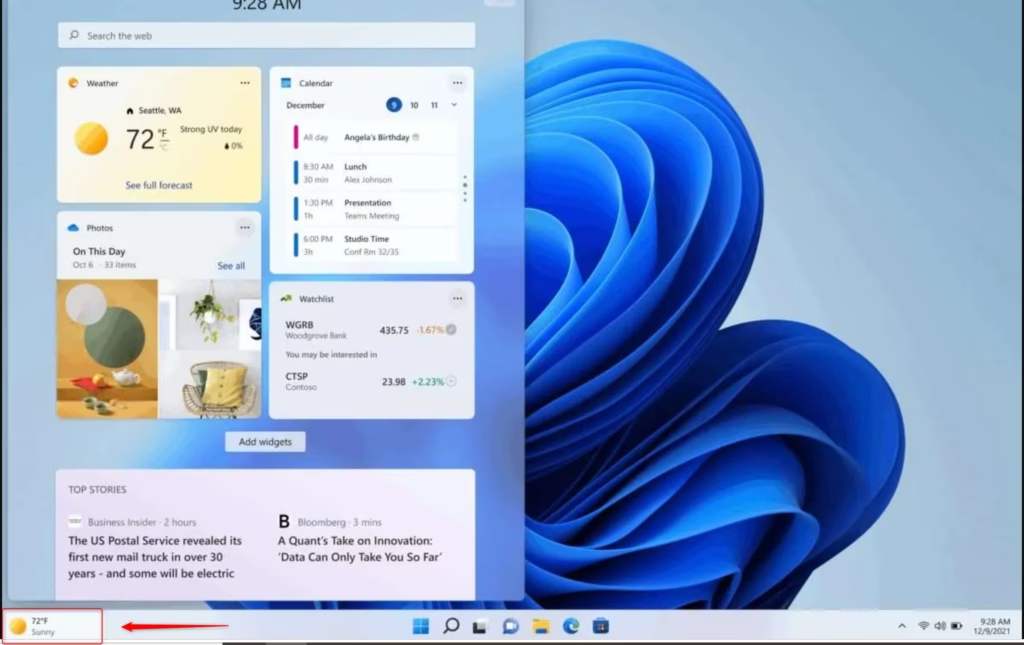
Turning the Widgets Icon On or Off
Some people don’t want the Widgets icon on their taskbar. That’s okay. Windows 11 lets you choose to show or hide it.
- Right-Click Your Taskbar
Find an empty spot on your taskbar. Right-click it. Then, select Taskbar settings from the menu. This opens the settings for your taskbar.
- Find Taskbar Items
In the Taskbar settings window, look for a section called Taskbar items. Here you can control icons like Search, Task view, and Widgets.
- Turn Widgets On or Off
You will see a switch called Widgets. Click the switch to turn it On to show the icon. Click it to turn it Off to hide the icon. The icon will disappear right away if you turn it off.
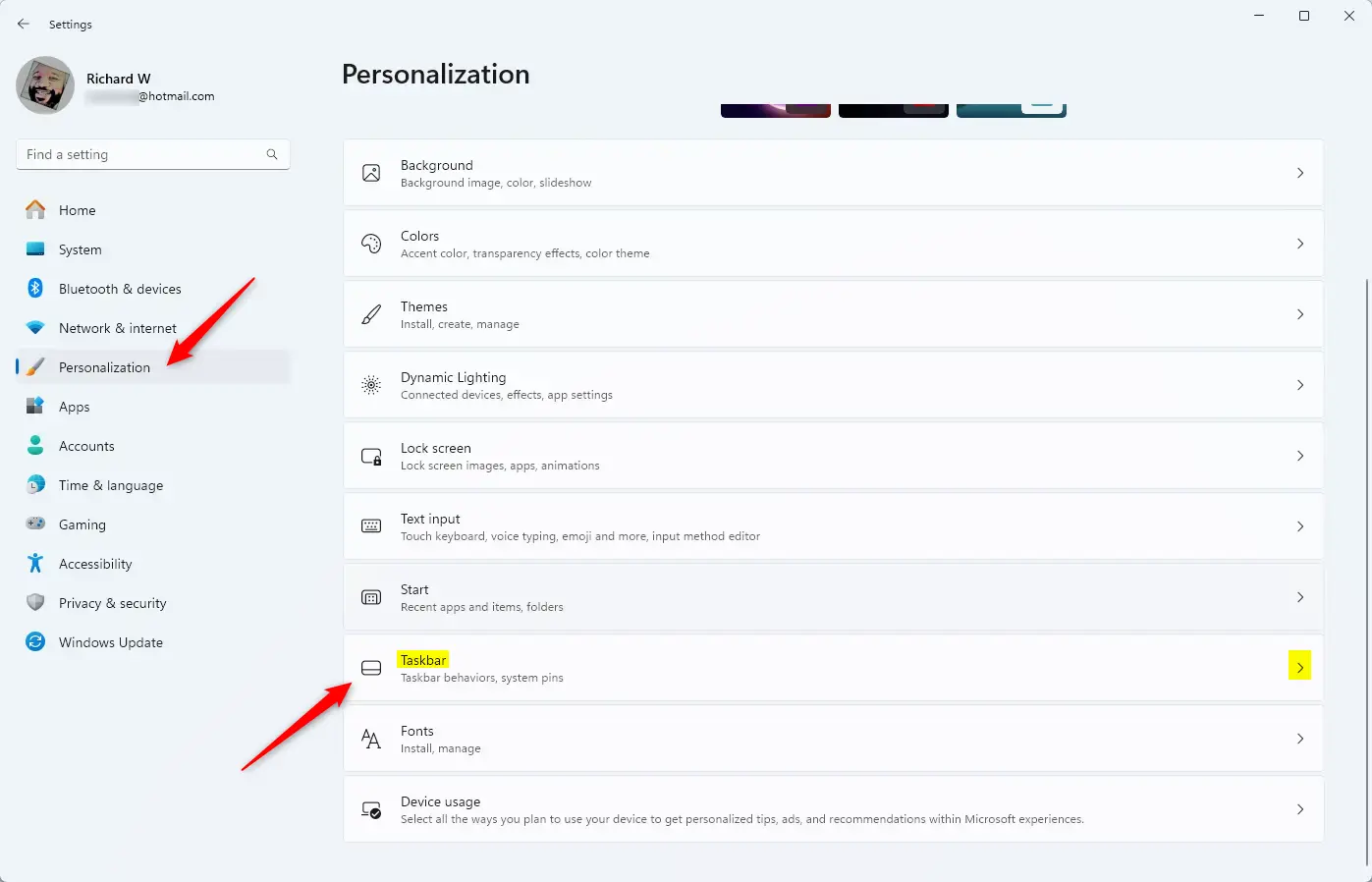
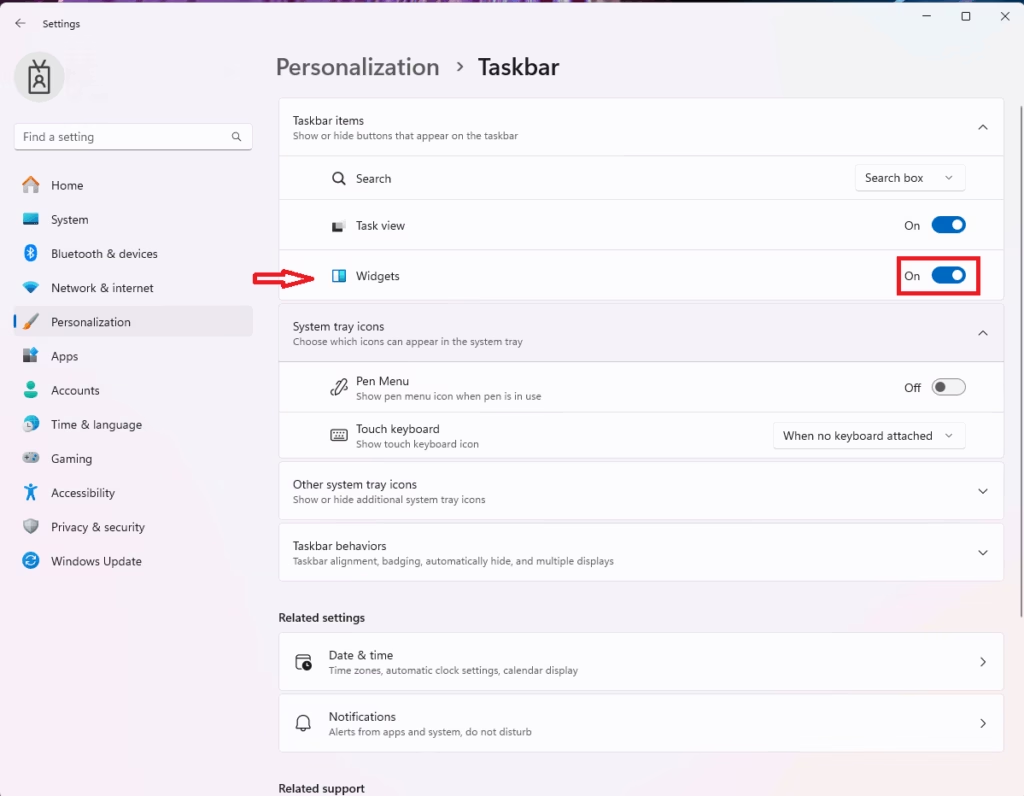
Warning: If you hide the Widgets icon, you will need to use the Windows key + W shortcut to open your widgets. Make sure you are okay with this shortcut if you hide the icon.
Changing What’s in Your Widgets
Widgets are best when they show what *you* want to see. It’s not just a random feed. It’s made to show you what matters.
Add and Remove Widgets
When the Widgets board is open, look for a button at the top right. It usually looks like a + sign. Clicking this opens the Add widgets panel. Here you can look at different widgets. Some are from Microsoft, and some are from other apps. Click the + sign next to any widget you want to add to your board.
To remove a widget you don’t need anymore, open the Widgets board. Find the widget you want to remove. Click the three dots (…) in the top-right corner of that widget. Then, select Remove widget.
Move Your Widgets Around
The order of your widgets can make them more useful. To move them, open the Widgets board. Then, click and drag any widget card to where you want it. You can move them up, down, or sideways to make a layout that works for you.
Change Settings for Each Widget
Many widgets have their own settings. For example, the Weather widget lets you set your location. The News widget lets you follow topics or sources you like. To find these settings, open the Widgets board. Click the three dots (…) on the widget you want to change. Look for an option like Settings or Configure widget.
Manage What You’re Interested In
For news and other content widgets, Windows 11 tries to learn what you like. You might see options to like or dislike articles or topics. Over time, the system will show you content that better matches your interests. You can often go to the main Widgets settings (click the + button, then the gear icon) to manage your interests and sources.
Practical Tip: Don’t be afraid to try things out! Add a few widgets you’re curious about. See how they work for a day or two. Then, remove or move them if you need to. You can always add them back later.
Summary
The Widgets feature in Windows 11 is a helpful tool. It keeps you informed without slowing you down. Whether you want a quick weather update, the latest news, or a look at your schedule, Widgets brings that information to you. Take some time to explore the different widgets. Make your feed personal and arrange them how you like. It’s all about making your computer work better for you!
Was this guide helpful?

About the Author
Richard
Tech Writer, IT Professional
Richard, a writer for Geek Rewind, is a tech enthusiast who loves breaking down complex IT topics into simple, easy-to-understand ideas. With years of hands-on experience in system administration and enterprise IT operations, he’s developed a knack for offering practical tips and solutions. Richard aims to make technology more accessible and actionable. He's deeply committed to the Geek Rewind community, always ready to answer questions and engage in discussions.


No comments yet — be the first to share your thoughts!