
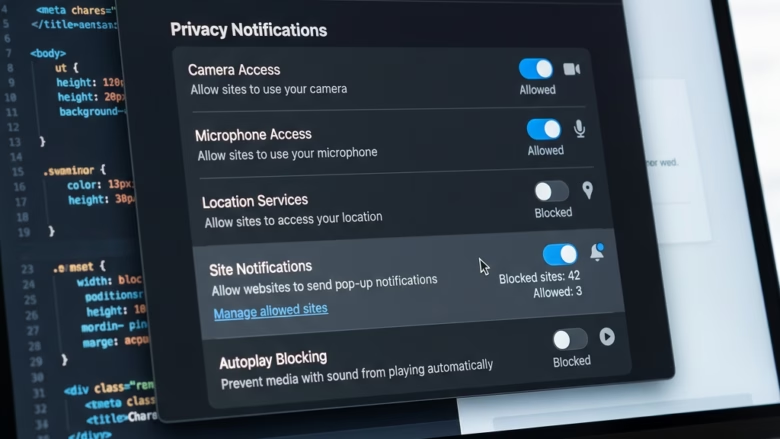
You know that moment. You visit a website, and a little box pops up asking if you want to get notifications. Sometimes, this is helpful for updates or new posts. But other times, it’s just a lot of noise. It can be annoying, especially when Edge is closed and they still show up!
If your screen feels like a billboard for websites you barely remember, this guide is for you. We will show you how to control these pop-ups in Microsoft Edge. Think of it as cleaning up your digital space. We will cover how to block them all, manage them for certain sites, and how to turn them back on if you change your mind.
What Are Website Notifications?
Before we start, let’s understand what these notifications are. Website notifications are small messages that appear on your screen, usually in the bottom-right corner. They can also be found in your system’s Notification Center. This is a good place to see anything you missed.
When you allow a website to send notifications, they can keep showing up even after you close Microsoft Edge. This is why managing them is important. These are not pop-up ads inside your browser. Those are different, and we will mention them briefly. These are system alerts from websites you have visited.
Notifications vs. Pop-ups
It’s important to know the difference. Pop-ups are usually ads or offers that open in a new window or tab. Website notifications are meant to inform you about content from a specific site. They show up as system messages.
If you are dealing with lots of ads, you need to block pop-ups. This is a separate step. Today, we are only talking about website notifications.
How to Block Notifications in Edge Settings
This is where you control all your site permissions, including notifications. You can see everything here and make big changes.
Open Edge Settings
First, open Microsoft Edge’s settings. Click the three dots (Settings and more) in the top-right corner. From the menu, choose Settings.Go to Site Permissions
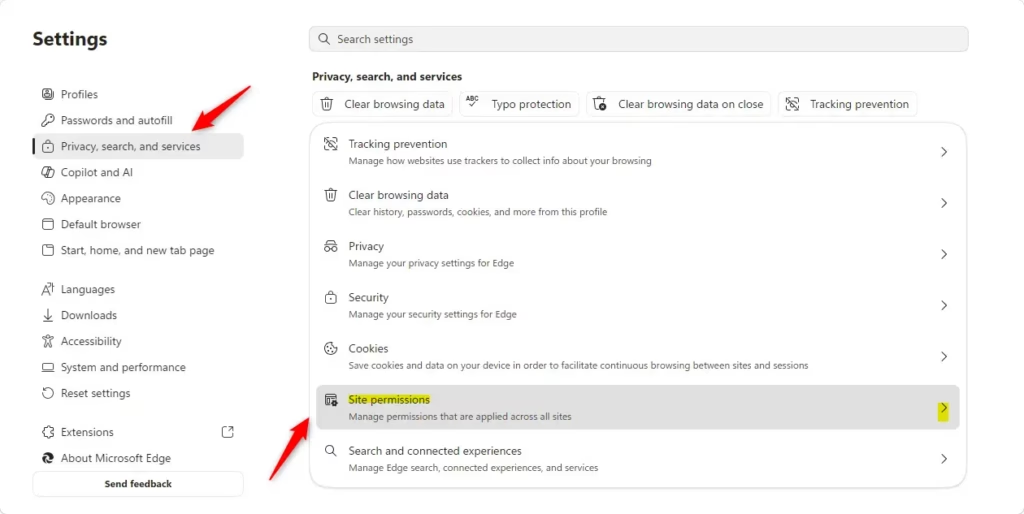
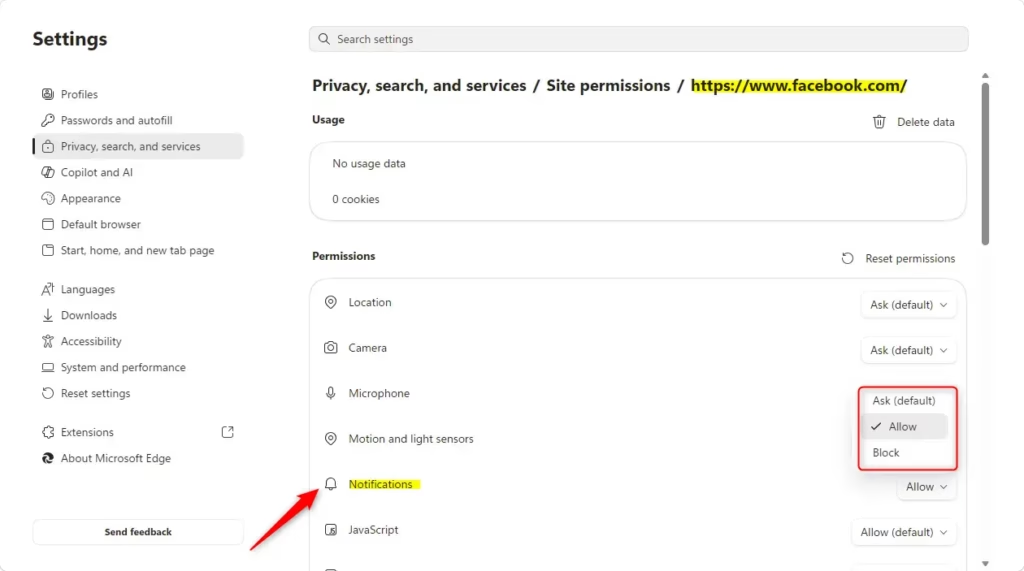
In the Settings menu, look at the left sidebar. Click on Privacy, search, and services. Scroll down and click on Site permissions. This page lets you manage permissions for different website features.See All Sites
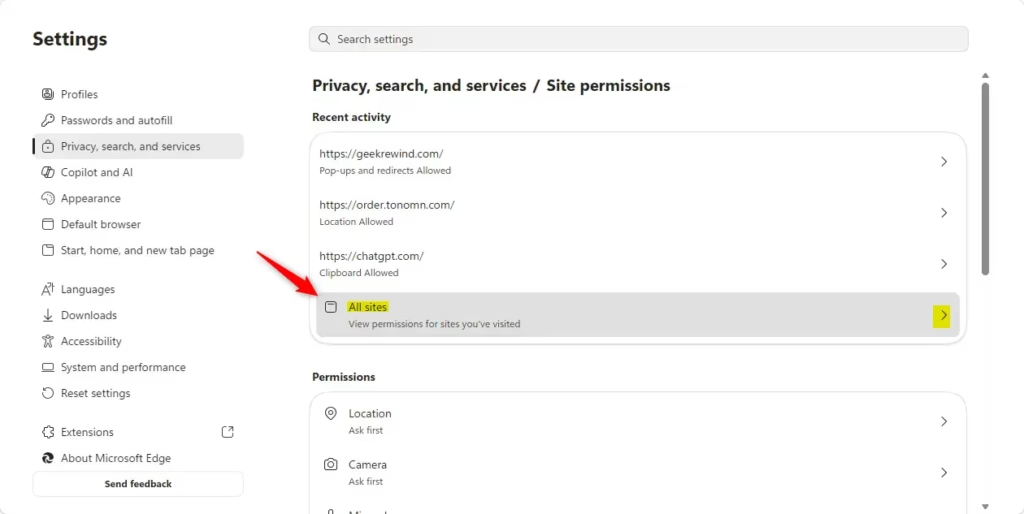
On the Site permissions page, find and click on All sites. This shows a list of every website that has asked for or been given permissions on your computer.Find the Website
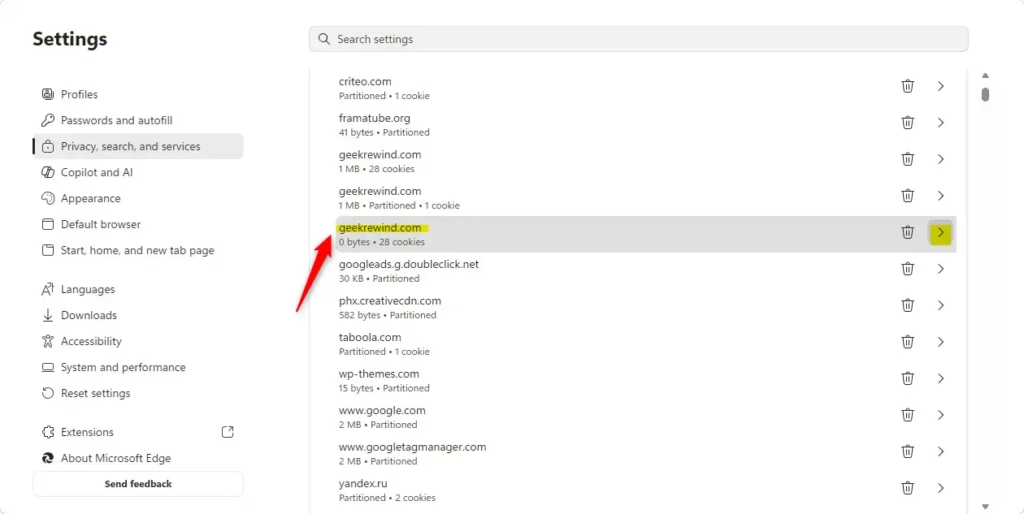
You will see a long list of websites. You can scroll through it. Or, if you know the site, type its name in the search bar at the top of the All sites list. This helps you find it faster.Block Notifications for That Site
Find the website in the list and click on its name. This will show the specific permissions you gave it. Look for the Notifications setting. Click the dropdown menu next to it and choose Block.Tip: You can also turn notifications back on here. Go back to this menu and change the dropdown from Block to Allow.

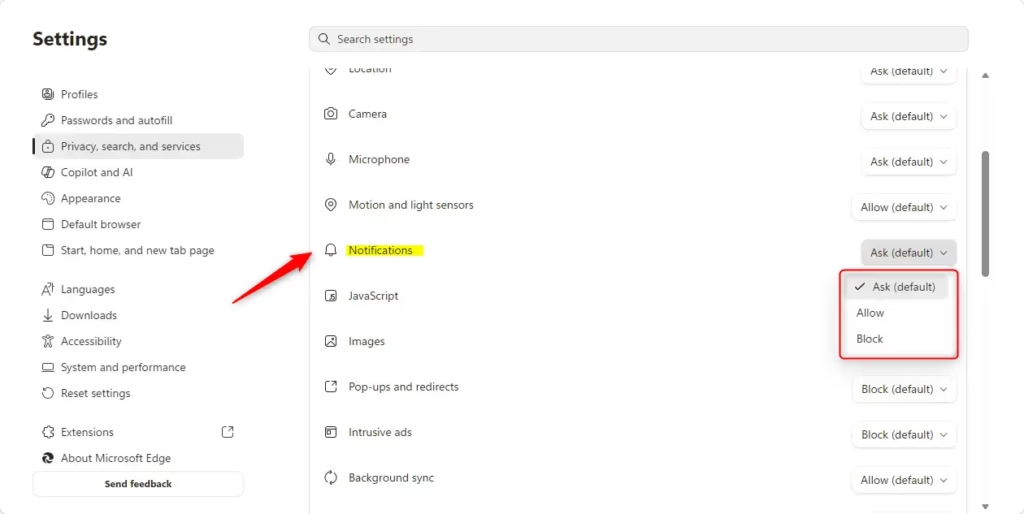
How to Manage Notifications from the Address Bar
Sometimes, you might be on a website and realize you are getting too many notifications. You can manage it right there without going into settings.
Visit the Website
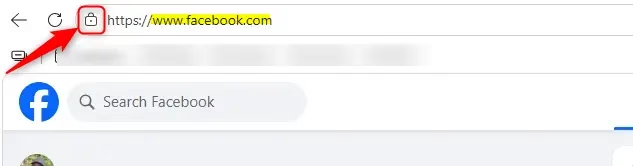
Open Microsoft Edge and go to the website you want to manage notifications for. This works best when you are on the site.Click the Site Information Icon
Look to the left side of your browser’s address bar. You will see a small icon. It might be a padlock if the site is secure, or a globe. Click this icon. This is the View site information button.Find the Notifications Permission
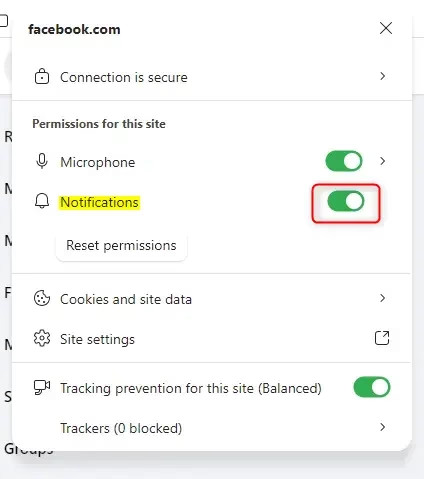
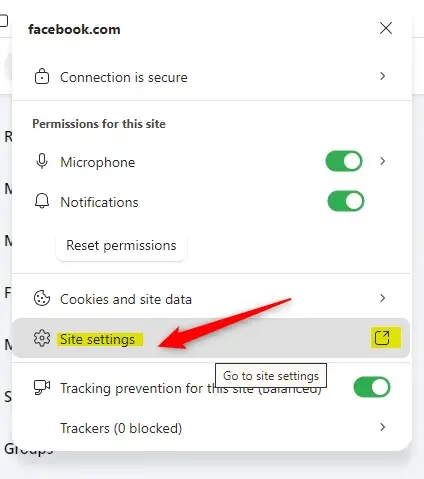
A small panel will appear with website details and permissions. Look for Permissions for this site. In that section, you should see Notifications.Choose to Block
Next to Notifications, there is a dropdown menu. Click it. You will see options like Allow or Block. Choose Block to stop this site from sending notifications.
Reference:
https://support.microsoft.com/en-us/edge/manage-website-notifications-in-microsoft-edge
Summary
Dealing with unwanted website notifications can interrupt your focus and clutter your digital life. By following these simple steps in Microsoft Edge, you can take control. You can decide which websites can send you alerts. You can manage everything from the main settings or make quick changes from the address bar. Now you can create a quieter and more productive browsing experience.
Was this guide helpful?

About the Author
Richard
Tech Writer, IT Professional
Richard, a writer for Geek Rewind, is a tech enthusiast who loves breaking down complex IT topics into simple, easy-to-understand ideas. With years of hands-on experience in system administration and enterprise IT operations, he’s developed a knack for offering practical tips and solutions. Richard aims to make technology more accessible and actionable. He's deeply committed to the Geek Rewind community, always ready to answer questions and engage in discussions.



No comments yet — be the first to share your thoughts!