How to Check Network Adapter Connection Speed in Windows 11

You check your network adapter connection speed in Windows 11 by looking at its properties in Network Connections.
Link Speed tells you the maximum connection rate between your PC and your router or modem, not your overall internet speed. For example, a common Gigabit Ethernet adapter connects at 1000 Mbps.
Understanding your Link Speed helps you diagnose potential network issues. A slower-than-expected Link Speed can indicate problems with your cable, port, or adapter settings.
You can check your network adapter speed in Windows 11 via Task Manager, Settings, or Control Panel. In Settings, navigate to Network & internet, click your active connection’s Properties, and look for “Link speed.” Task Manager’s Performance tab also displays speed for Ethernet or Wi-Fi.
Method 1Check via Task Manager
Checking your network adapter connection speed in Windows 11 is easy with Task Manager, showing you exactly how fast your internet is working at this moment.
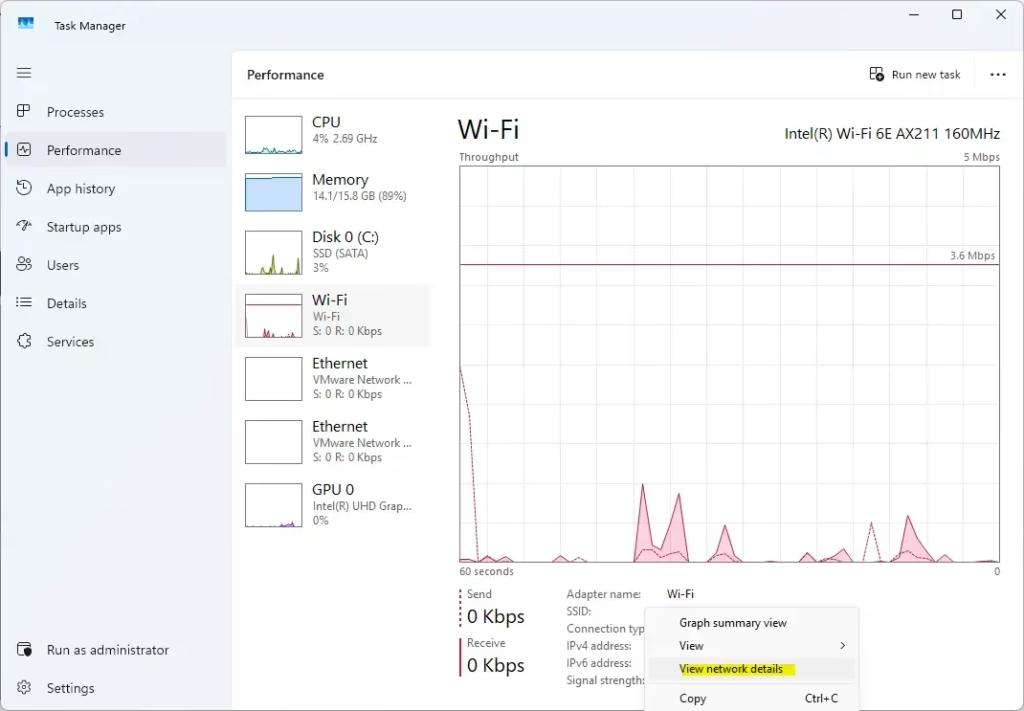
- Press Ctrl+Shift+Esc to open Task Manager.
- Click the Performance tab on the left.
- Select Ethernet or Wi-Fi from the list.
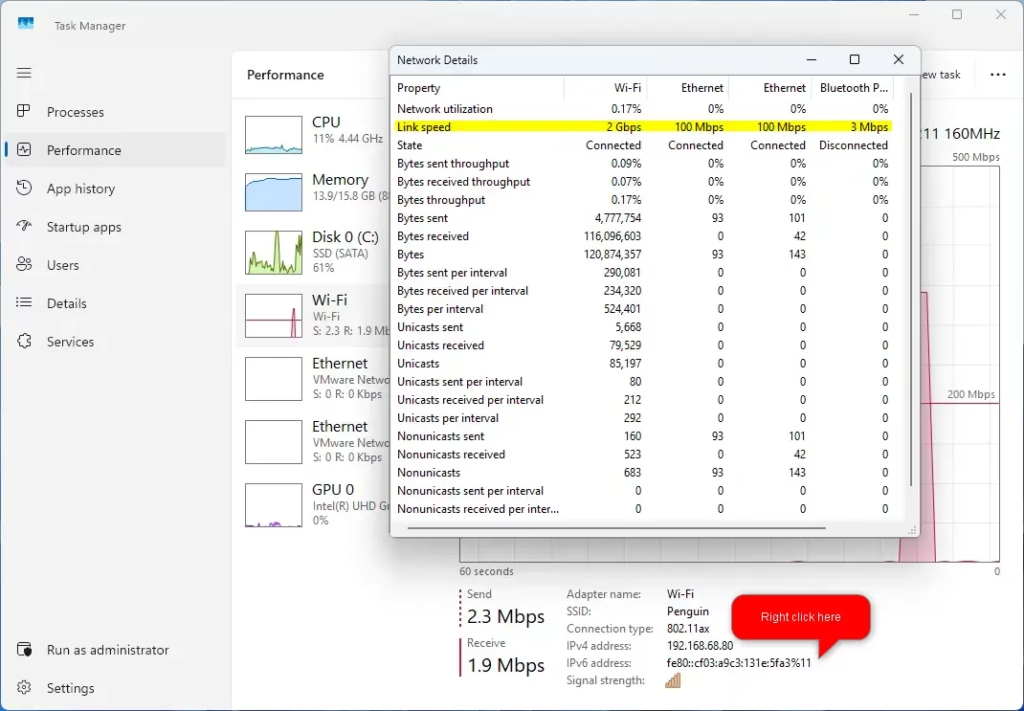
- Right click at the bottom and select View network details.
- Look for Speed or Link speed (Receive/Transmit).
Method 2Check via Windows Settings
This method provides a clean view of your current network status.
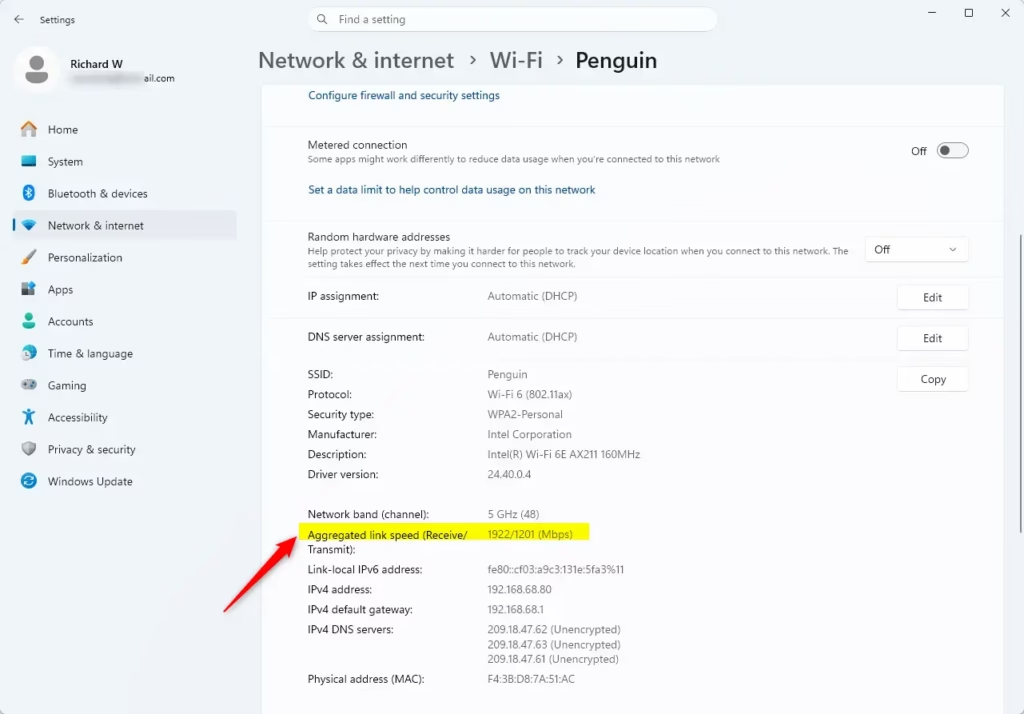
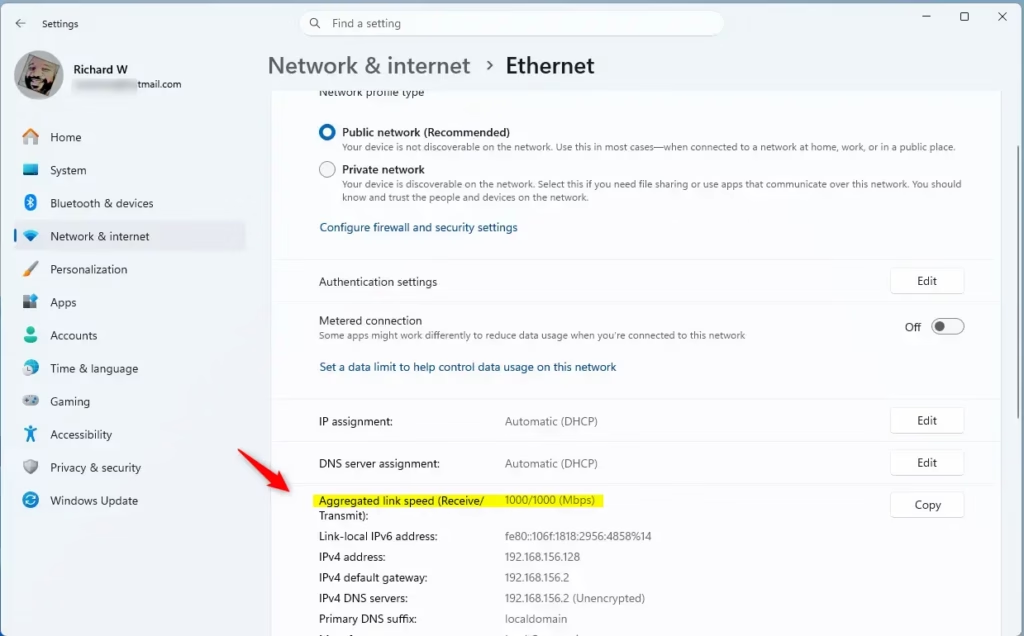
- Open Settings (⊞ Win+I).
- Click Network & internet on the left.
- Click Properties for your active connection.
- Scroll down to find Link speed.
Method 3Check via Network and Sharing Center
This is the classic way to view your Network Interface Controller (NIC) status.
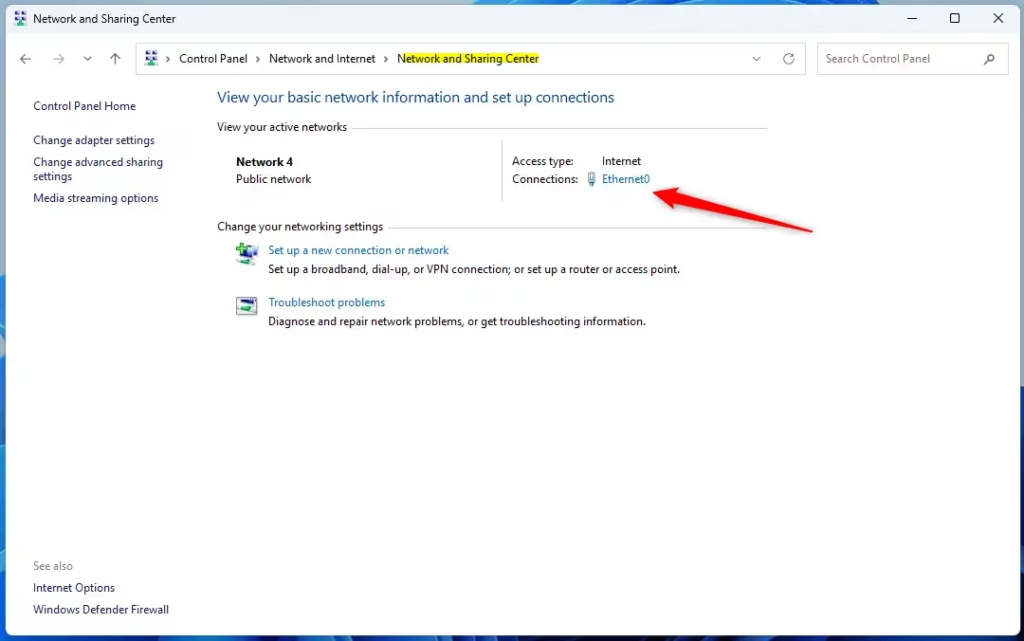
- Open Control Panel and select Network and Sharing Center.
- Click the blue link next to Connections.
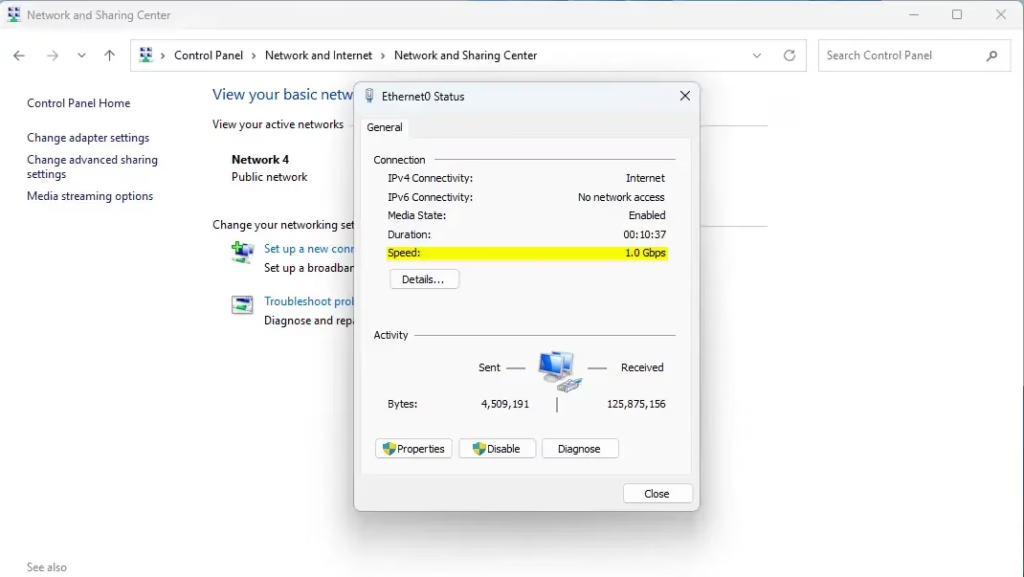
- A window will pop up showing the Speed.
Method 4Check via PowerShell
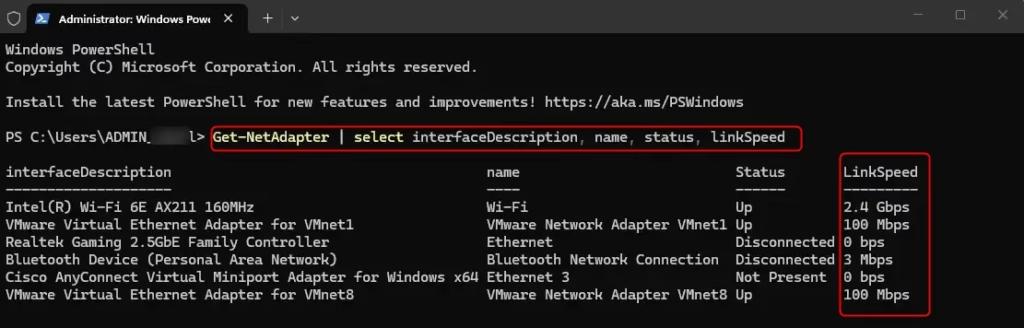
For advanced users, PowerShell provides a quick summary of all adapters.
- Right-click the Start button and select Terminal (Admin). [Requires Admin Privileges]
- Type the following command and press Enter:
Get-NetAdapter | select interfaceDescription, name, status, linkSpeed
How to Change Network Adapter Speed Settings (GUI)
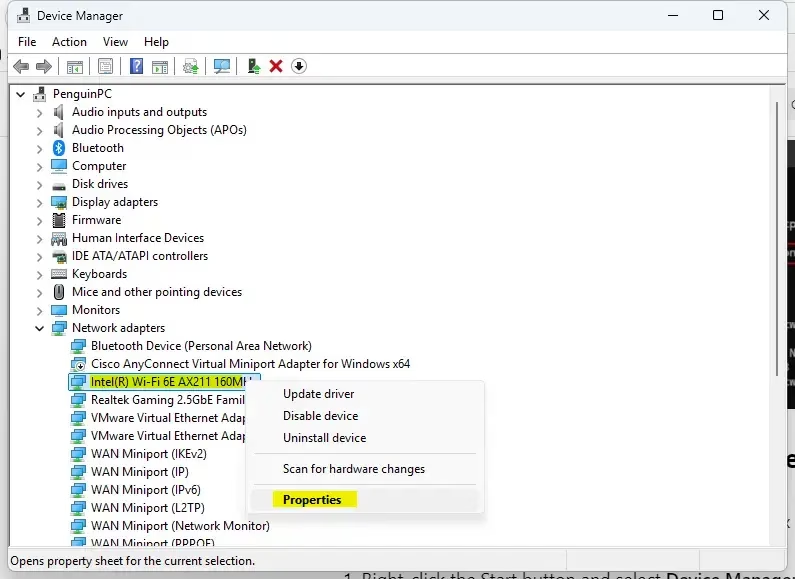
If your internet feels slow, you can try to change your network adapter speed settings in Windows 11 by going through Device Manager.
- Right-click the Start button and select Device Manager. [Requires Admin Privileges]
- Expand Network adapters.
- Right-click your adapter and select Properties.
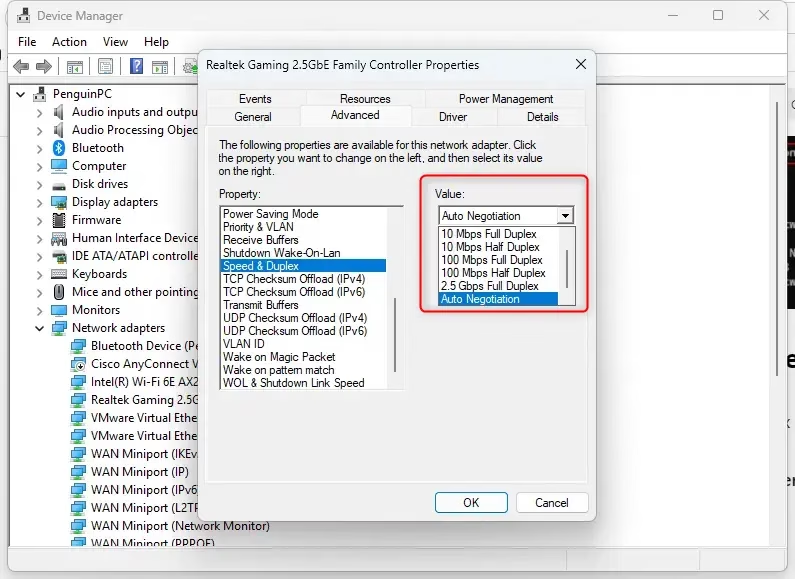
- Go to the Advanced tab.
- Find Speed & Duplex in the list and change the value from Auto Negotiation to your desired speed (e.g., 1.0 Gbps Full Duplex).
Troubleshooting Slow Speeds
If your Windows 11 computer has slow network speeds, troubleshooting means looking at simple things like your cables, which Wi-Fi band you’re using, and if your network adapter drivers need an update.
- Cables: Ensure you are using a Cat5e or Cat6 cable. Old Cat5 cables are limited to 100 Mbps.
- Wi-Fi Band: 2.4GHz Wi-Fi is slower than 5GHz. Check your router settings to ensure you are connected to the 5GHz band.
- Drivers: Outdated software can throttle performance. Learn how to update network drivers in Windows 11.
Summary
Checking your network adapter speed in Windows 11 is important to ensure your hardware is working right, and you can do this easily with tools like Task Manager, while also remembering to check cables and drivers if speeds are slow.
Why does my link speed show 100 Mbps instead of 1 Gbps?
This usually happens due to a hardware limitation. Check that your Ethernet cable is at least Cat5e or Cat6. If the cable is damaged or the port on your router only supports 100 Mbps, your computer will automatically negotiate down to the highest speed both devices can handle.
Does a higher link speed mean faster internet?
Not necessarily. Link speed is the capacity of your local connection to the router. If your internet service provider only gives you 50 Mbps, having a 1 Gbps link speed will not make your internet faster. It only ensures that your local network is not the bottleneck.
Was this guide helpful?

About the Author
Richard
Tech Writer, IT Professional
Richard, a writer for Geek Rewind, is a tech enthusiast who loves breaking down complex IT topics into simple, easy-to-understand ideas. With years of hands-on experience in system administration and enterprise IT operations, he’s developed a knack for offering practical tips and solutions. Richard aims to make technology more accessible and actionable. He's deeply committed to the Geek Rewind community, always ready to answer questions and engage in discussions.




No comments yet — be the first to share your thoughts!