How to Add or Remove Phone Number for Copilot Tasks by SMS


This tutorial will show you how to add or remove a phone number so you can text tasks to Copilot using SMS.
What Are Copilot Tasks?
Copilot Tasks let you ask Copilot to do work for you using simple language. Instead of following steps one by one in a chat, you describe what you want done and Copilot figures out how to do it. Tasks can run right away or you can schedule them for later. Copilot can search the web, use websites, create or change files, or access services you’ve allowed (like email or cloud storage) to get you results.
Two Types of Tasks
- Regular tasks run one time when you submit them. Example: “Order pizza for my family tonight.”
- Scheduled tasks run at a specific time or repeat on a schedule. Example: “Email me a weekly summary of Microsoft stock performance.”
All your tasks live in the Tasks view in Copilot. You can check progress, pause or stop tasks, change schedules, or delete tasks anytime.
Why Use SMS for Copilot Tasks?
With new SMS support, you can send tasks by text message. Here’s what this means for you:
- Submit tasks by text without opening the Copilot app or website.
- Get instant notifications when your task is done.
- Schedule tasks to run once or repeat, all through text messages.
- Check progress and stop tasks if needed to keep sensitive actions safe.
This makes Copilot Tasks much easier to use on mobile phones and for people who like texting instead of typing on a computer.
Microsoft Copilot: Your AI companion
Using Copilot Tasks – Microsoft Support
Copilot Tasks: From Answers to Actions | Microsoft Copilot Blog
Option One: Add or Remove Phone Number from Copilot App or Website
Add Phone Number for Copilot Tasks by SMS
- Open the website or Copilot app on Windows 11.
- Sign in with your Microsoft account if you haven’t already.
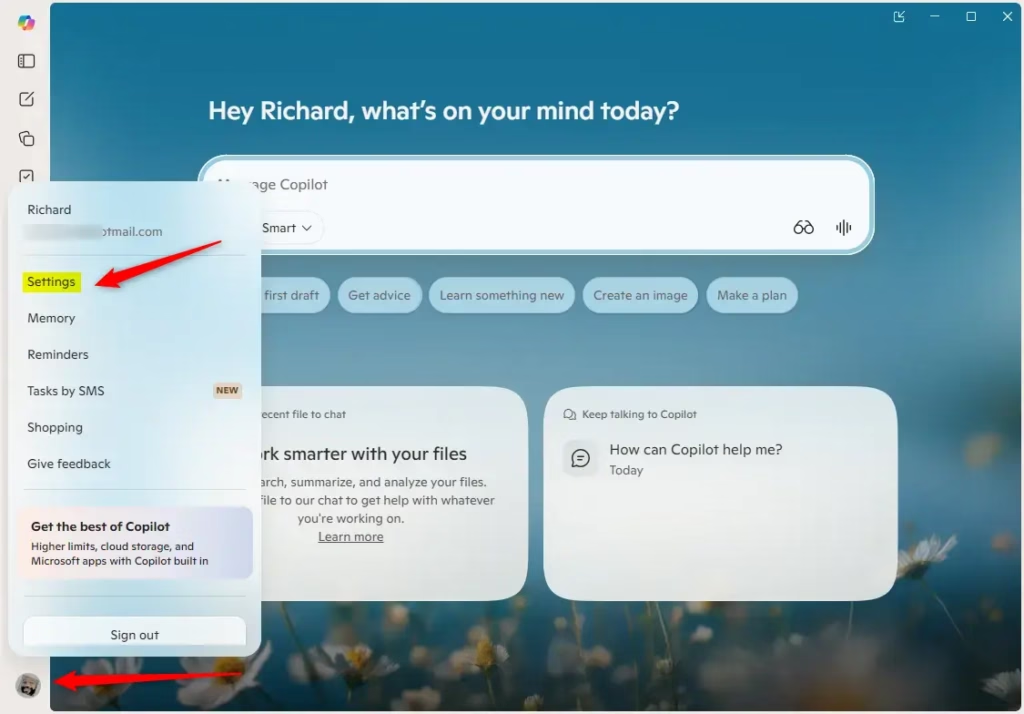
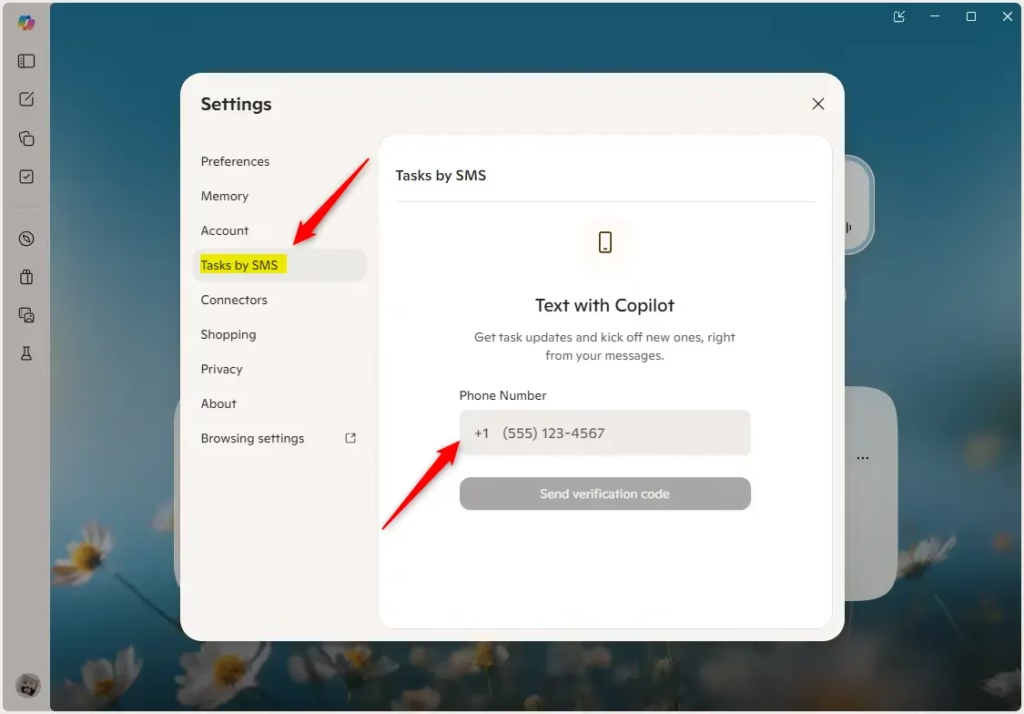
- In the app (full view only), click or tap the Account button on the left side, then click or tap Text by SMS.
- Enter the phone number you want to use, and click or tap Send verification code.
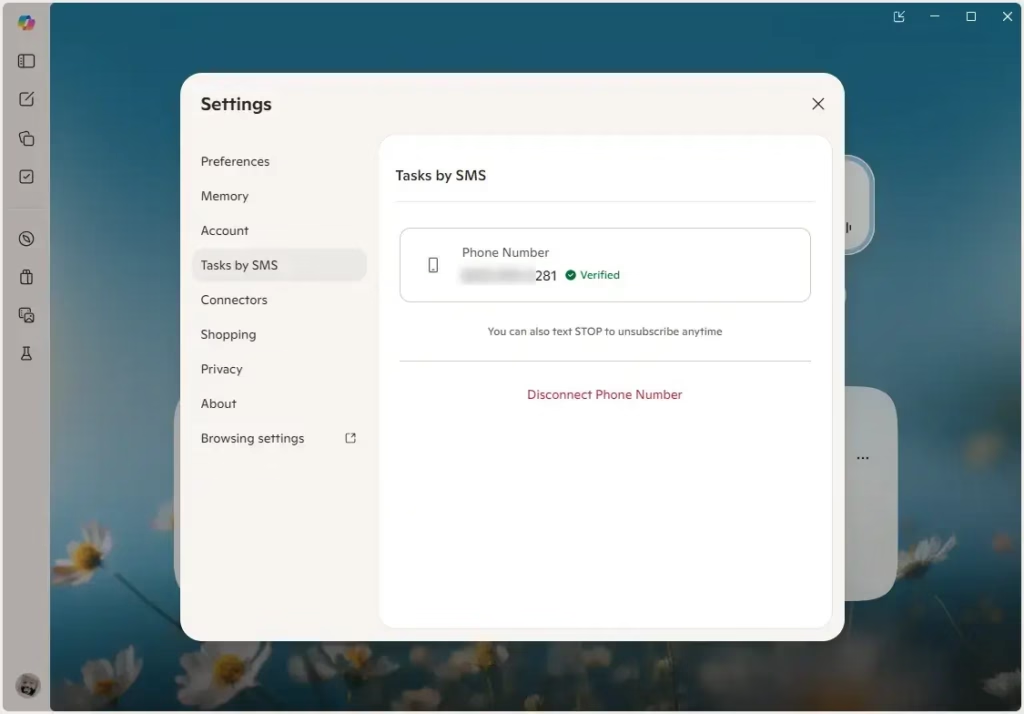
- Enter the verification code that was sent to your phone, and click or tap Verify.
- You will receive an SMS Tasks Connected text message on your phone to confirm the number was added.
Remove Phone Number for Copilot Tasks by SMS
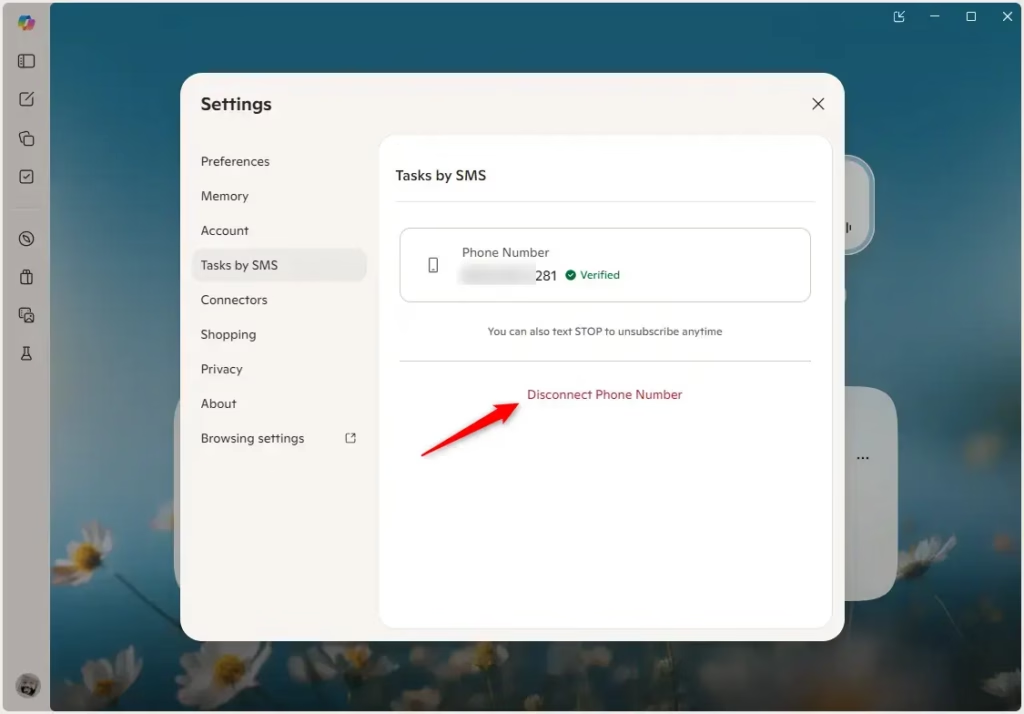
- Click or tap the Disconnect Phone Number link.
- You will receive an SMS Tasks Disconnected text message on your phone to confirm the number was removed.
Option Two: Add or Remove Phone Number from Microsoft Edge
Add Phone Number for Copilot Tasks by SMS
- Open Microsoft Edge.
- Sign in with your Microsoft account if you haven’t already.
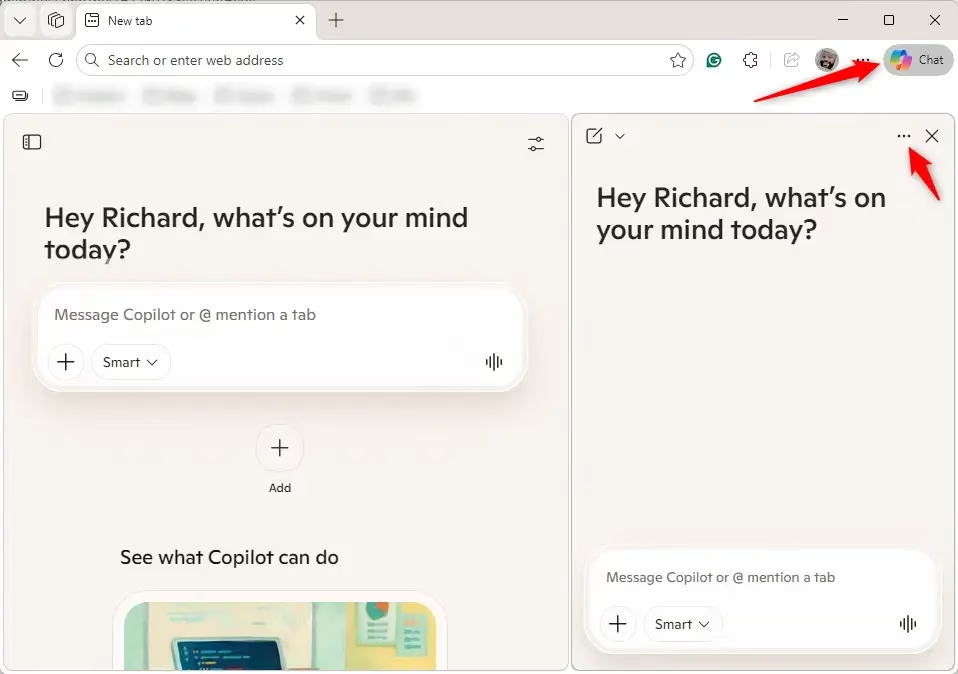
- Click or tap the Copilot icon in the toolbar.
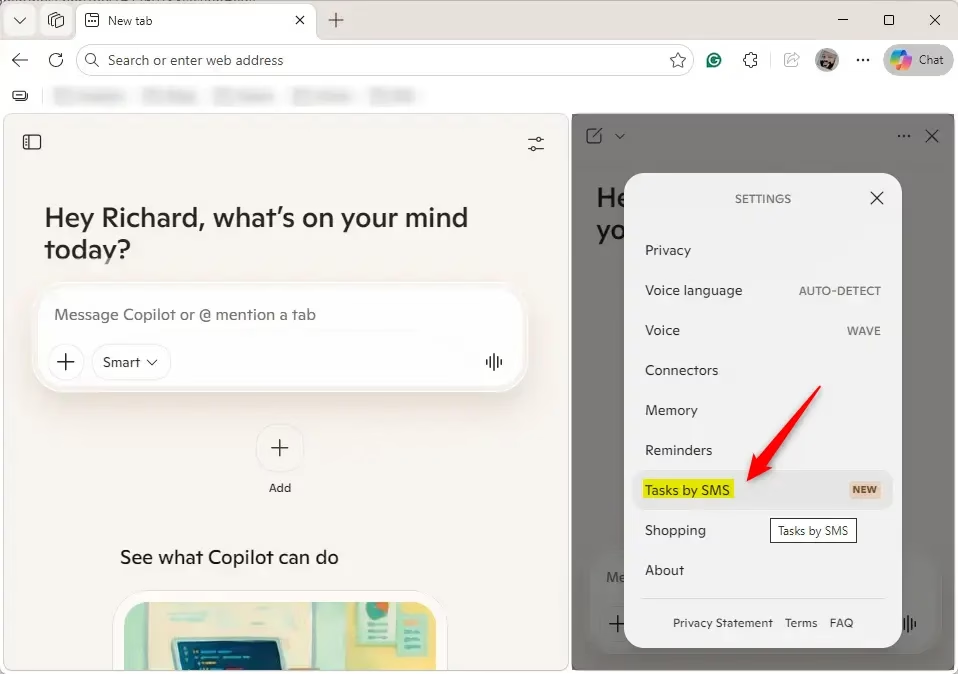
- Click or tap the More options button (3 dots), then click or tap Settings.
- Click or tap Tasks by SMS.
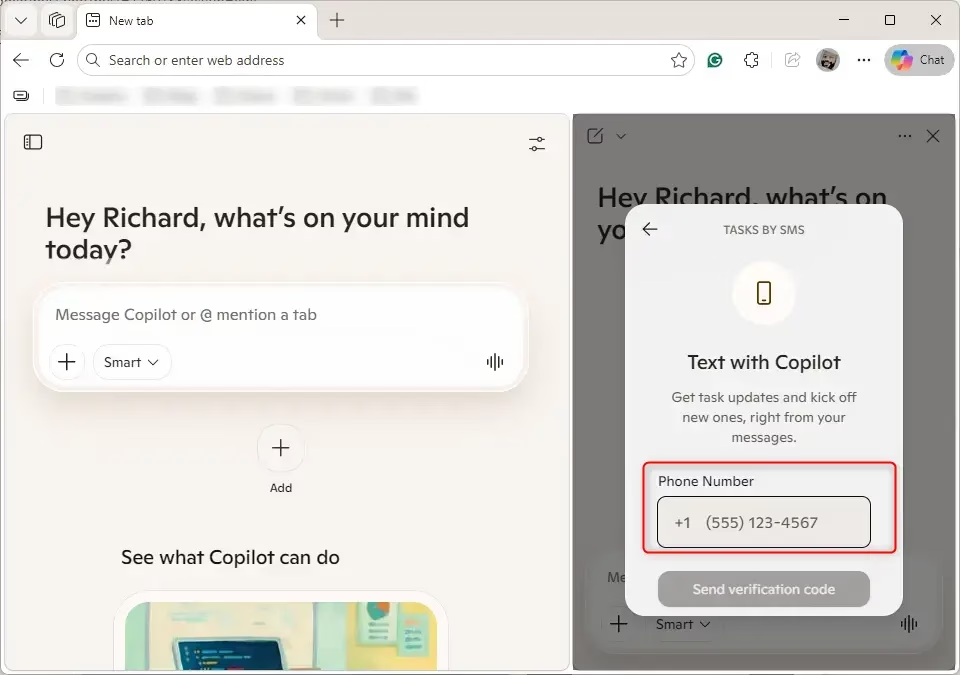
- Enter the phone number you want to use, and click or tap Send verification code.
- Enter the verification code that was sent to your phone, and click or tap Verify.
- You will receive an SMS Tasks Connected text message on your phone to confirm the number was added.
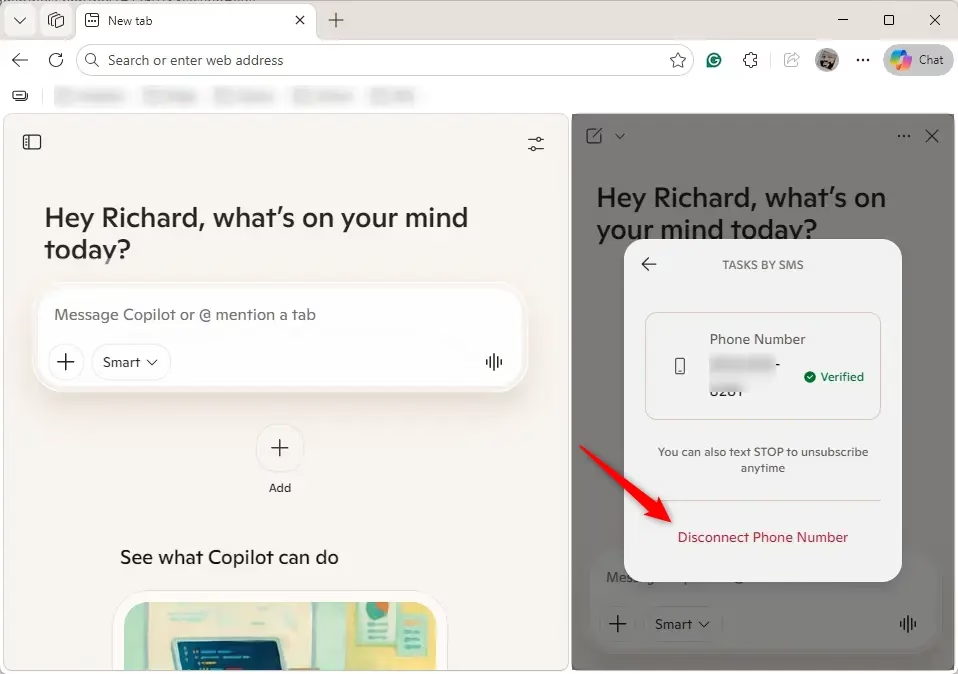
Remove Phone Number for Copilot Tasks by SMS
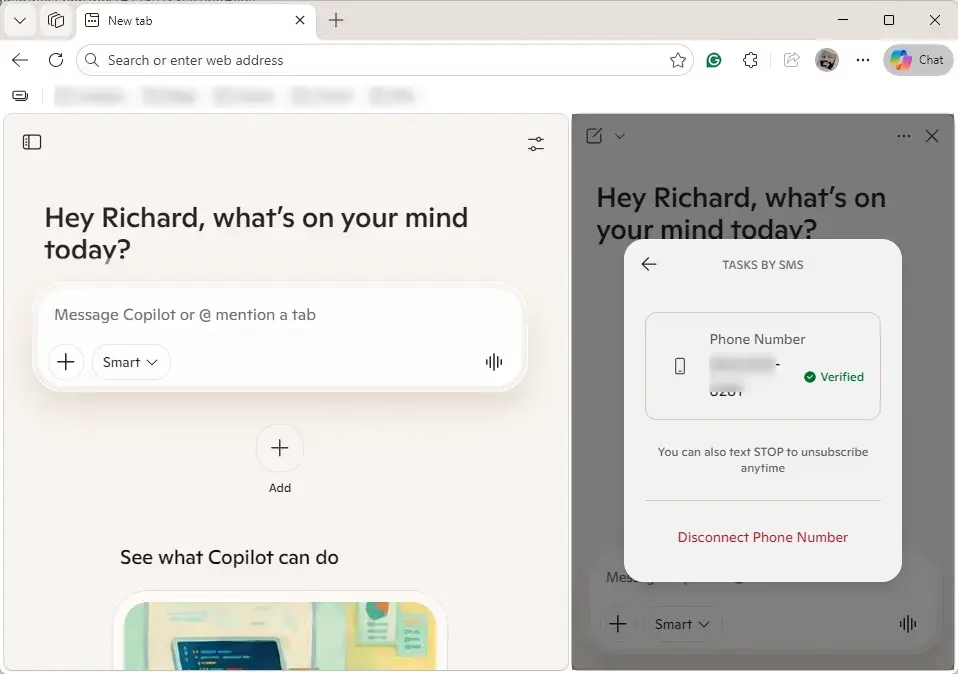
- Click or tap the Disconnect Phone Number link.
- You will receive an SMS Tasks Disconnected text message on your phone to confirm the number was removed.
That’s it!
Summary
Adding a phone number to Copilot Tasks by SMS is simple. You can do this from the Copilot app, the Copilot website, or through Microsoft Edge. Just go to the SMS settings, enter your phone number, verify it with a code, and you’re ready to send tasks by text. When you no longer need SMS tasks, you can disconnect your phone number anytime. This feature makes it easy to use Copilot on the go without opening an app or website.
Frequently Asked Questions
What Are Copilot Tasks?
Why Use SMS for Copilot Tasks?
Can Copilot send a text message?
Yes, Microsoft Copilot supports SMS integration, allowing you to submit tasks via text message. By linking your phone number to your account, you can send instructions directly to Copilot without opening the app. This feature enables you to manage, schedule, and track your tasks conveniently through standard text messaging services.
Can Copilot do tasks for you?
Yes, Copilot Tasks can perform work for you using simple natural language instructions. Instead of manual steps, you describe the desired outcome, and Copilot executes the process. It can search the web, interact with websites, manage files, or access connected services like email and cloud storage to complete your requests.
Can Microsoft Copilot generate text?
Yes, Microsoft Copilot is a powerful generative AI capable of creating various types of text. It can draft emails, write essays, summarize long documents, generate code, and produce creative content based on your prompts. Its advanced language models allow it to adapt to different tones, styles, and specific user requirements.
Can Copilot send you notifications?
Yes, Copilot can provide updates and notifications regarding your tasks and activities. When you schedule tasks or set reminders, Copilot keeps you informed about progress and completion. By integrating with your devices and services, it ensures you stay updated on your scheduled workflows, recurring tasks, and important information directly through notifications.
Was this guide helpful?
No comments yet — be the first to share your thoughts!