How to Turn On or Off Drag Two Fingers to Scroll on Touchpad in Windows 11


This tutorial will show you how to turn on or off the two-finger drag scroll feature on your touchpad in Windows 11.
If your Windows 11 device (like a laptop) has a built-in precision touchpad, you can easily turn this feature on or off.
Option One
Turn On or Off Drag Two Fingers to Scroll in Settings
- Open Settings by pressing
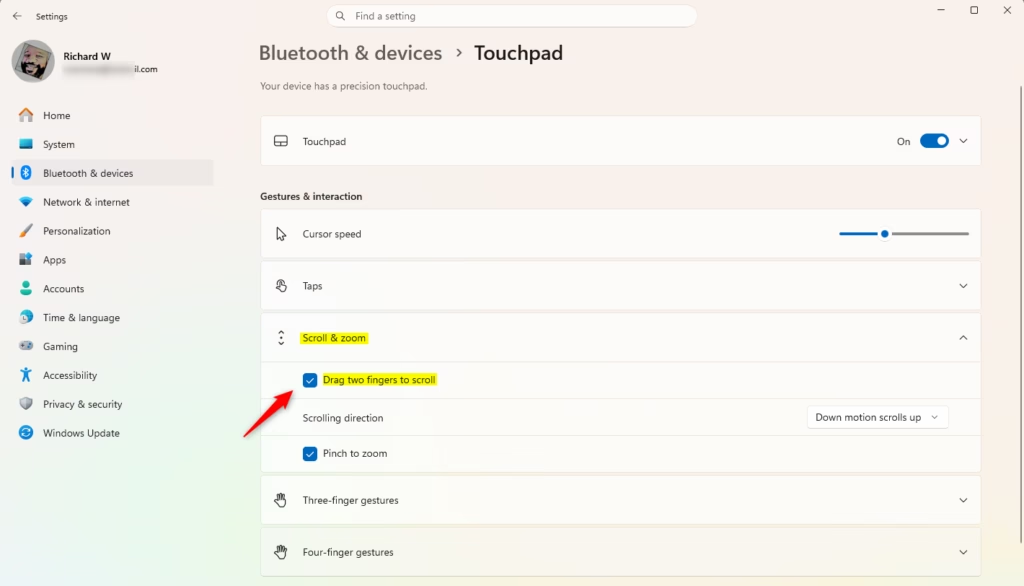
Win+I. - Click on Bluetooth & devices on the left side. Then click on Touchpad on the right side.
- Click on Scroll & zoom to expand it. (see screenshot below step 4)
- Check (turn on – default) or uncheck (turn off) the Drag two fingers to scroll option for what you want.
- You can now close Settings.
Option Two
Turn On or Off Drag Two Fingers to Scroll Using Registry
Turn On “Drag two fingers to scroll”
This is the default setting.
reg add "HKEY_CURRENT_USER\Software\Microsoft\Windows\CurrentVersion\PrecisionTouchPad" /v PanEnabled /t REG_DWORD /d 0xFFFFFFFF /f
Turn Off “Drag two fingers to scroll”
reg add "HKEY_CURRENT_USER\Software\Microsoft\Windows\CurrentVersion\PrecisionTouchPad" /v PanEnabled /t REG_DWORD /d 0 /f
Summary
You now know how to turn the two-finger drag scroll feature on or off for your touchpad in Windows 11. You can use the Settings app for an easy method or the Registry for more advanced control. Choose the option that works best for you.
Was this guide helpful?

About the Author
Richard
Tech Writer, IT Professional
Richard, a writer for Geek Rewind, is a tech enthusiast who loves breaking down complex IT topics into simple, easy-to-understand ideas. With years of hands-on experience in system administration and enterprise IT operations, he’s developed a knack for offering practical tips and solutions. Richard aims to make technology more accessible and actionable. He's deeply committed to the Geek Rewind community, always ready to answer questions and engage in discussions.


No comments yet — be the first to share your thoughts!