How to Turn On or Off Press Lower Right Corner of Touchpad to Right-Click in Windows 11


This tutorial shows you how to turn on or off the lower right corner touchpad right-click feature in Windows 11.
If your Windows 11 device has a built-in precision touchpad, you can change its tap settings to match what you prefer.
Reference:
Precision touchpad tuning (touchpad-tuning-guidelines) – This topic presents information about touchpad tuning capabilities in Windows 10 and beyond learn.microsoft.com
How to Change Your Touchpad Right-Click Setting
Option One: Option One: Using Settings
- Open Settings (⊞ Win+I).
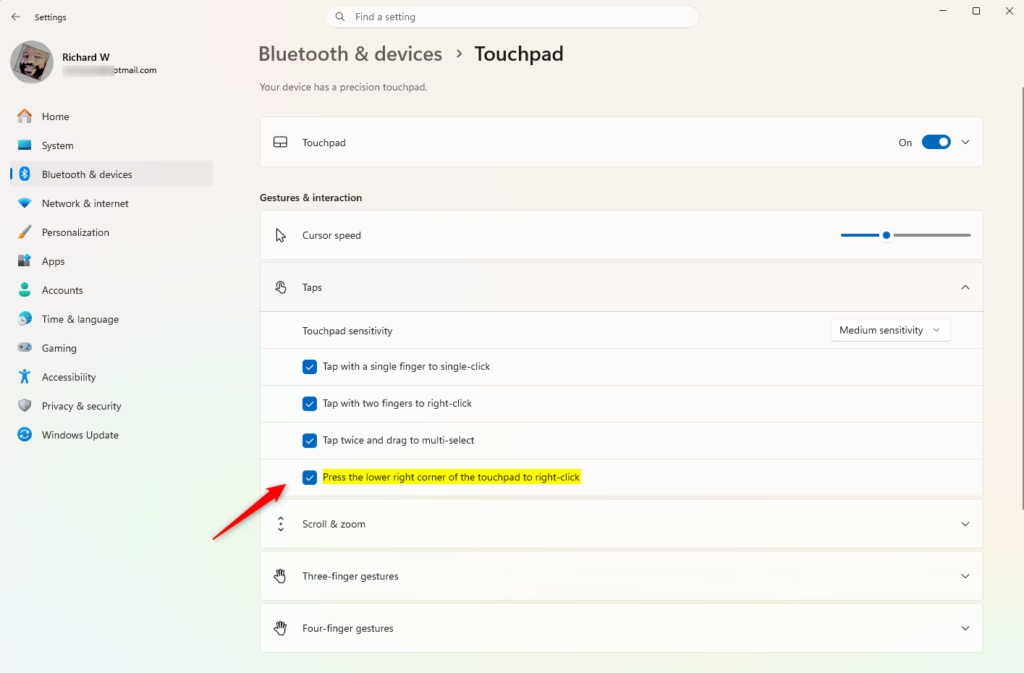
- Click on Bluetooth & devices on the left side. Then click on Touchpad on the right side. (see screenshot below)
- Click on Taps to expand the options.
- Check the box to turn on or uncheck the box to turn off Press the lower right corner of the touchpad to right-click. (see screenshot below)
- You can close Settings when you’re done.
Option Two: Using Registry Files
To Turn On “Press the lower right corner of the touchpad to right-click”
This is the default setting.
reg add "HKEY_CURRENT_USER\Software\Microsoft\Windows\CurrentVersion\PrecisionTouchPad" /v RightClickZoneEnabled /t REG_DWORD /d 0xFFFFFFFF /f
To Turn Off “Press the lower right corner of the touchpad to right-click”
reg add "HKEY_CURRENT_USER\Software\Microsoft\Windows\CurrentVersion\PrecisionTouchPad" /v RightClickZoneEnabled /t REG_DWORD /d 0 /f
Summary
You now know how to enable or disable the right-click feature on your touchpad’s lower right corner. You can do this through Settings or by editing the registry. The Settings method is easier for most users. The registry method gives you more control if you prefer working with files directly.
Was this guide helpful?
No comments yet — be the first to share your thoughts!