How to Access the Handwriting Panel in Windows 11

You can access the pener" target="_blank" data-sal-id="1730">handwriting-panel-in-windows-11/" class="sal-link" rel="noopener" target="_blank" data-sal-id="32534">Handwriting panel in Windows 11 to write on your screen with a finger or stylus.
The Handwriting panel is a feature that converts your handwritten strokes into typed text within Windows 11. It’s particularly useful for touchscreen devices like tablets or 2-in-1 laptops.
Unlike the standard touch keyboard, which presents keys for tapping, the Handwriting panel offers a blank canvas for your digital ink. This allows you to naturally write out words or even entire sentences.
While many applications automatically bring up the touch keyboard when you tap a text field, you might need to manually open the Handwriting panel for seamless pen or finger input. It’s a great way to interact with your PC if you prefer writing over typing.
Steps to Open the Handwriting Panel
Why use this? The handwriting panel lets you write text naturally. Windows will turn your handwriting into typed text.
What happens when done? Your written words will appear as regular text in your apps.
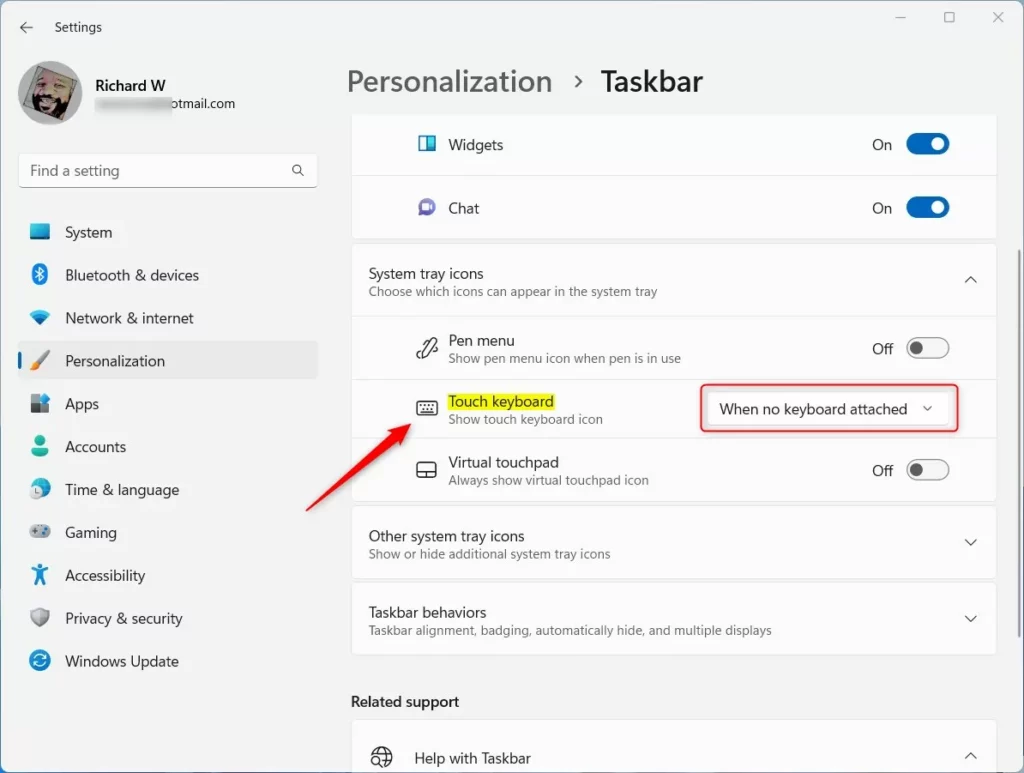
- Turn on the Touch Keyboard button on the taskbar. Go to
Start > Settings > Personalization > Taskbar > System tray icons. Find “Touch keyboard” and turn it on. - Set when the touch keyboard shows up. Click the dropdown menu. Choose either When no keyboard attached or Always. This controls when the keyboard appears on your screen.
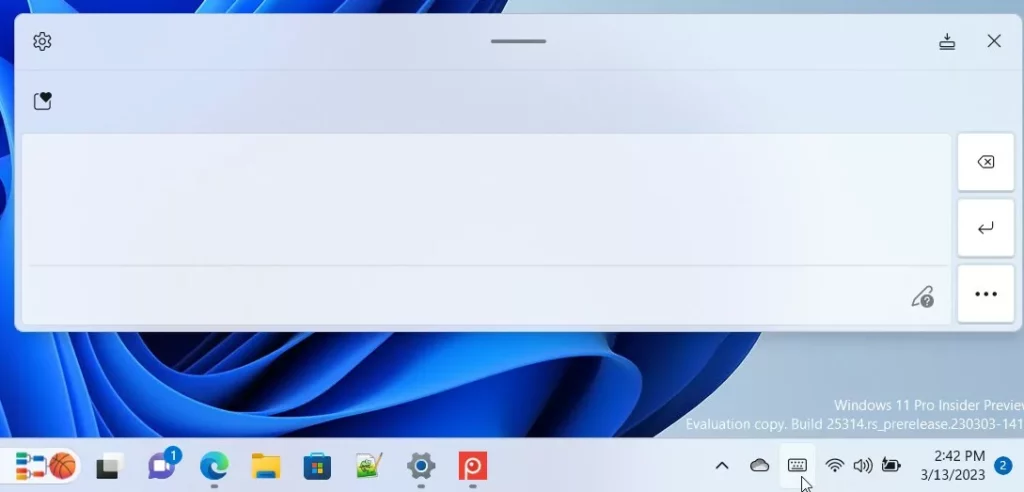
- Click the touch keyboard icon on your taskbar. It looks like a small keyboard. This opens the on-screen keyboard.
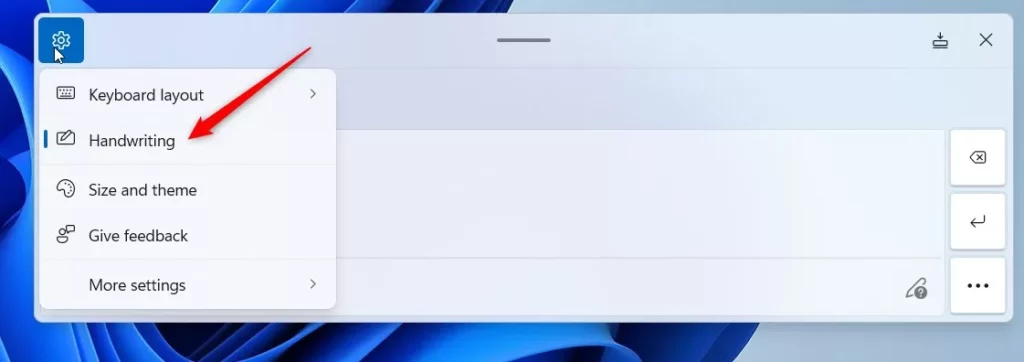
- Click the Settings icon (gear icon) on the keyboard window. Then select Handwriting from the menu.
- Start writing in the panel. Use your finger or pen. Windows will change your handwriting into typed text automatically.
Summary
- The handwriting panel lets you write text using your finger or a pen on touchscreen devices.
- You access it through the touch keyboard’s settings in Windows 11.
- Enable the touch keyboard button on the taskbar. Then select handwriting mode to start writing by hand.
- Your written words will automatically turn into typed text.
Want to learn more about the touch keyboard? Check out these helpful guides:
Frequently Asked Questions
Why use this?
What happens when done?
Was this guide helpful?

About the Author
Richard
Tech Writer, IT Professional
Richard, a writer for Geek Rewind, is a tech enthusiast who loves breaking down complex IT topics into simple, easy-to-understand ideas. With years of hands-on experience in system administration and enterprise IT operations, he’s developed a knack for offering practical tips and solutions. Richard aims to make technology more accessible and actionable. He's deeply committed to the Geek Rewind community, always ready to answer questions and engage in discussions.




No comments yet — be the first to share your thoughts!