How to Pause and Resume Printing in Windows 11

Want to stop printing for a bit and then start again later? Windows 11 makes this really easy! This guide shows you simple steps to pause and resume your print jobs.
What is a Printer?
A printer is a machine that makes paper copies of documents, photos, or files from your computer. You can connect your printer using a USB cable, Wi-Fi, or a network cable (Ethernet).
When you click “Print,” your computer sends the file to the printer. The printer then prints it on paper.
Why Would You Pause Printing?
You might want to pause printing for several reasons. For example, you might be changing the ink or toner cartridge. Or maybe you need to fix a paper jam. Windows 11 now lets you pause printing easily and then resume it later without losing your place.
How to Pause and Resume Printing in 🪟 Windows 11
These steps work on Windows Build 26020 (Canary Channel) or newer versions.
- Open the Settings app: Click the Start menu button and select Settings. Or press the Windows key + I on your keyboard.
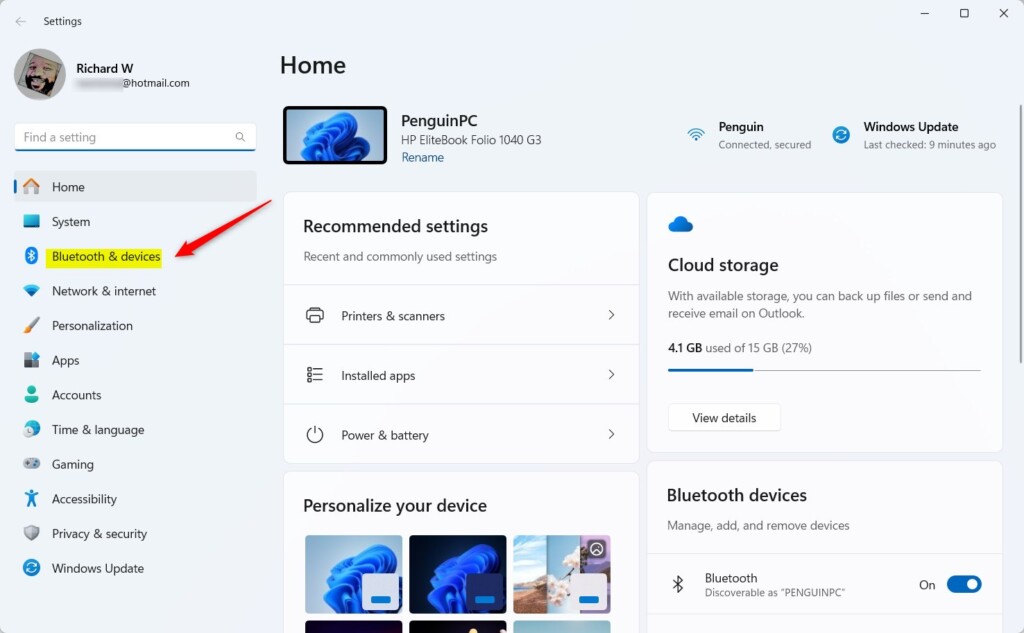
- Go to Bluetooth & Devices: In the Settings window, click Bluetooth & devices in the menu on the left.
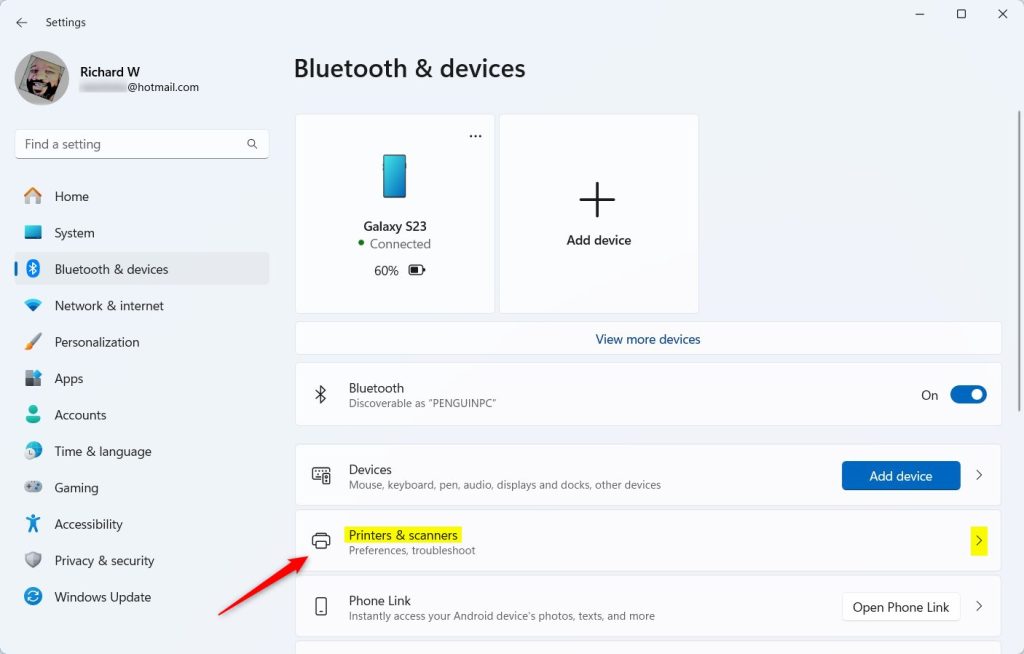
- Find Printers & Scanners: On the right side, click Printers & scanners.
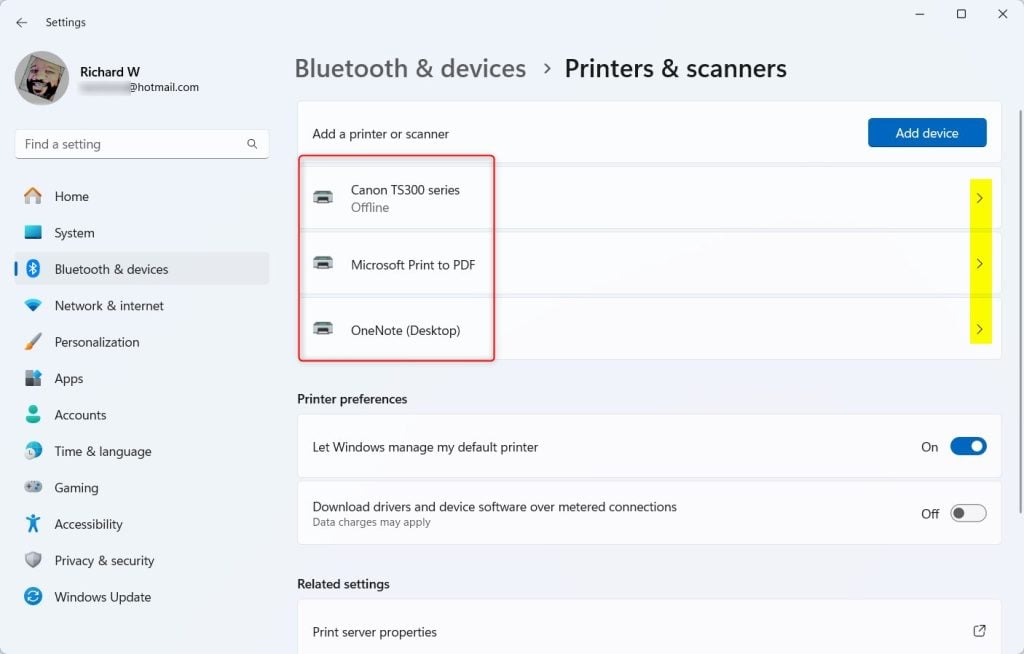
- Select your printer: Click on the printer you want to pause or resume printing for.
- Pause or Resume printing: Under Advanced Printer Settings, click the Printing tile. Then click the Pause button to stop printing.
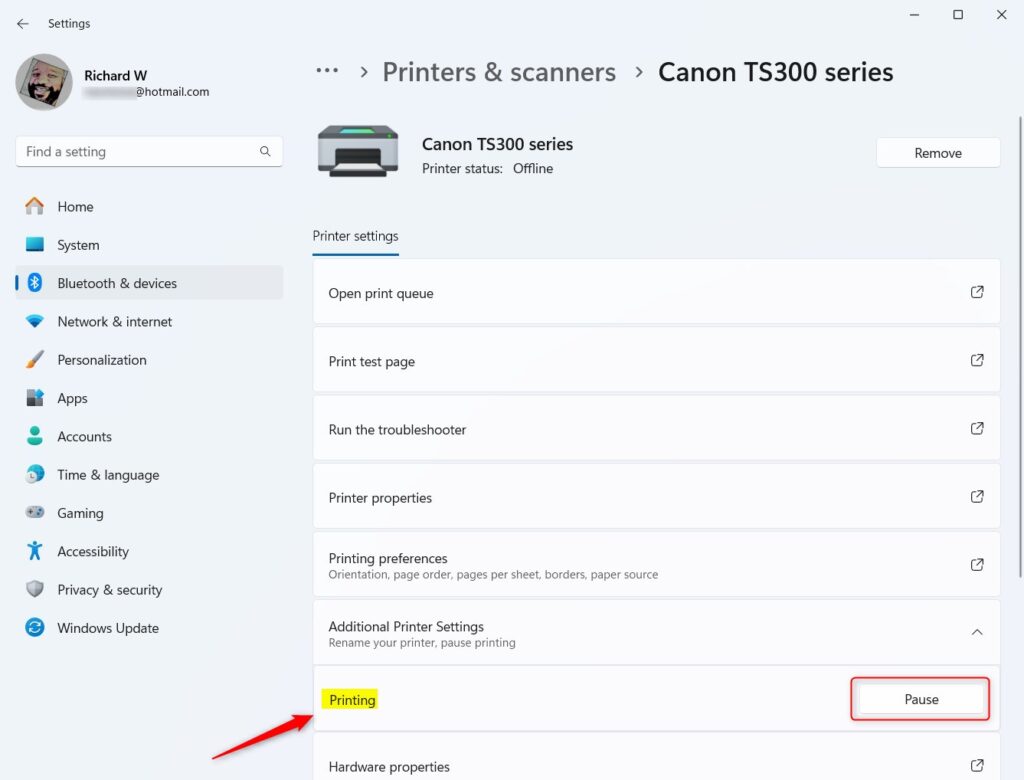
When you want to start printing again, click the Resume button.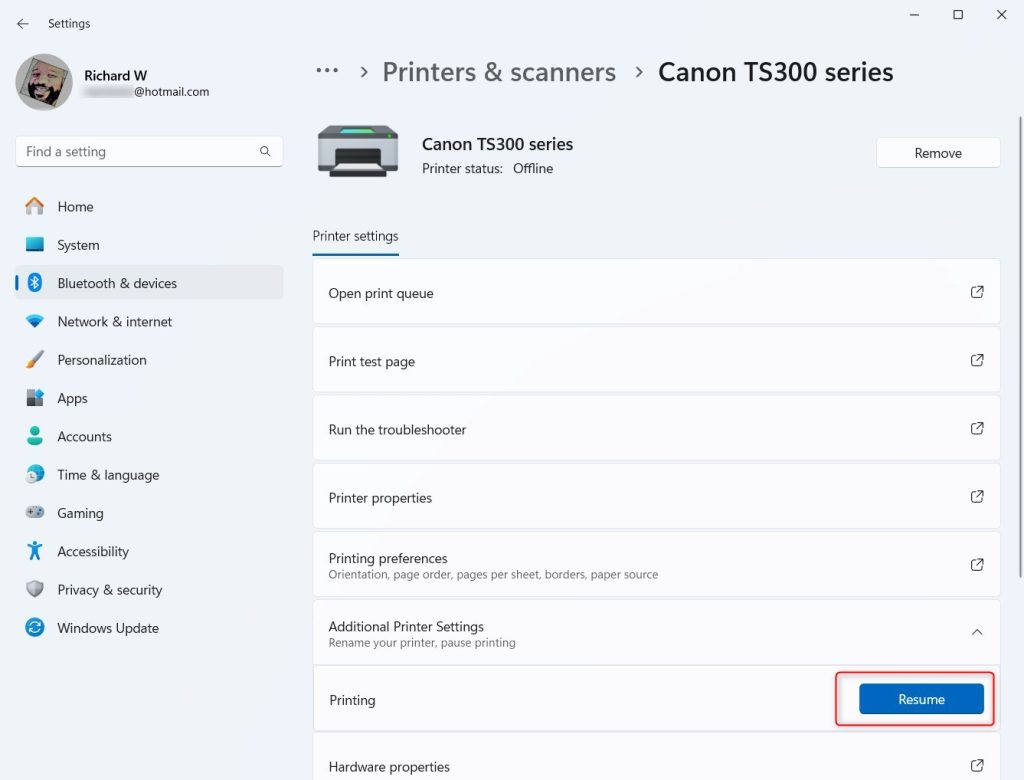
- When finished, close the Settings app.
Summary
Windows 11 lets you pause and resume printing easily through Settings. This feature helps when you need to fix your printer or change ink or toner. Just open Settings > Bluetooth & devices > Printers & scanners, select your printer, and use the pause or resume buttons. You can control your print jobs without cancelling them. That’s all there is to it! Now you have more control over your printing with this handy Windows 11 feature.
Was this guide helpful?

About the Author
Richard
Tech Writer, IT Professional
Richard, a writer for Geek Rewind, is a tech enthusiast who loves breaking down complex IT topics into simple, easy-to-understand ideas. With years of hands-on experience in system administration and enterprise IT operations, he’s developed a knack for offering practical tips and solutions. Richard aims to make technology more accessible and actionable. He's deeply committed to the Geek Rewind community, always ready to answer questions and engage in discussions.


No comments yet — be the first to share your thoughts!